Role Personas — Apply a Full Role Structure in One Click
Last updated: October 19, 2026
This article explains how to configure role personas and apply multiple roles within the Xenia platform.
What Role Personas Are
Setting up roles from scratch requires configuring permissions, reporting lines, and home screen layouts for each role individually. Role Personas skip all of that.
A Role Persona is a pre-configured, industry-specific set of roles — each with the right permissions, the correct reporting hierarchy, and the appropriate home screen layout already set. You pick an industry, review the proposed role structure, toggle off any roles you don't need, and click Apply. The entire role structure is created in your workspace in one action.
Three industry personas are available:
Restaurants — Regional Manager → District Manager → FBC → General Manager → Store Manager → Executive Chef → Team Member (7 roles)
Retail — region-appropriate role hierarchy
C-Stores — division-appropriate role hierarchy
How to Use Role Personas
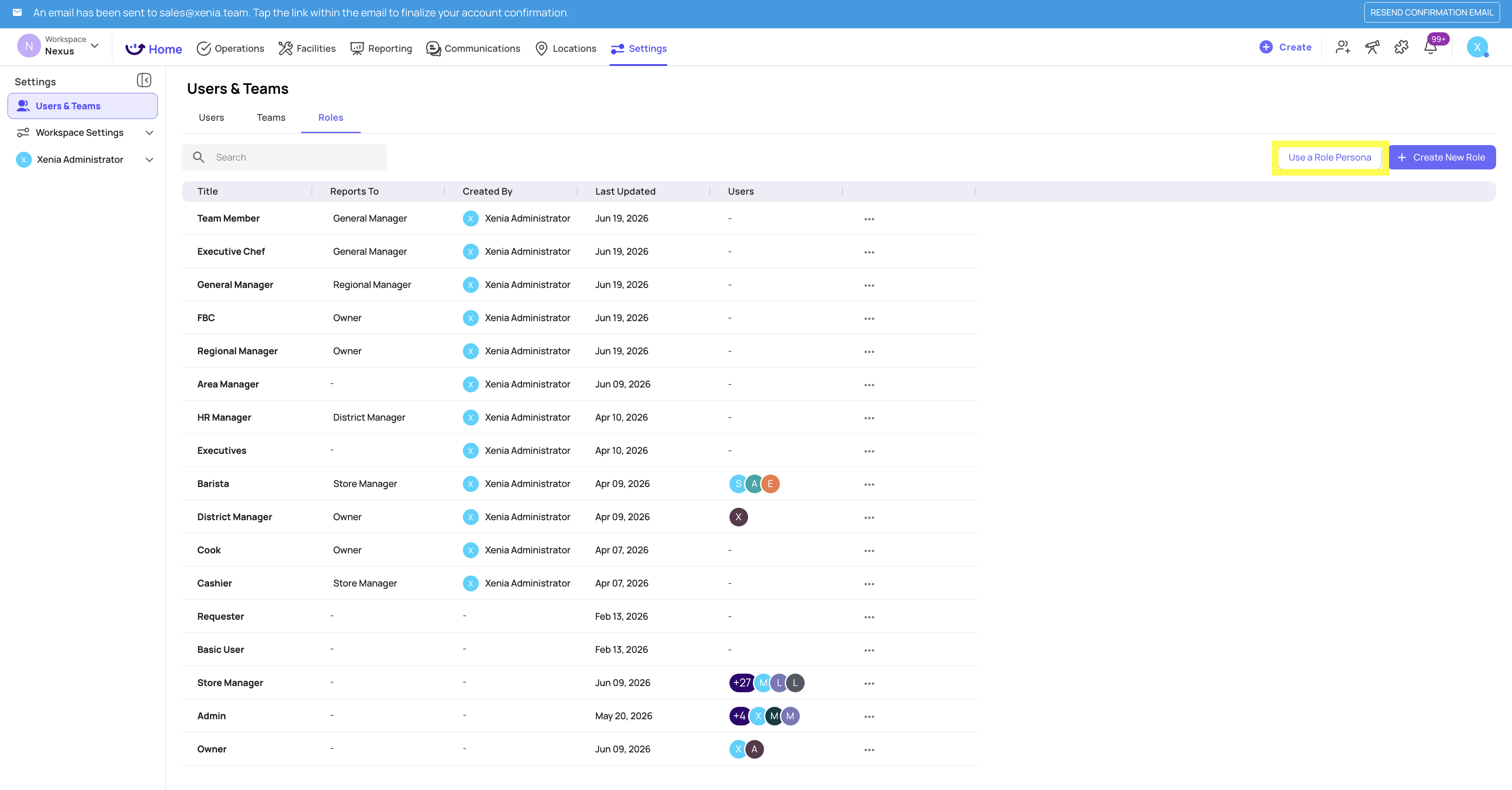
Go to Settings → Users & Teams → Roles
Click Use a Role Persona in the top right corner
A modal opens showing available industry structures
Select the industry that matches your operation (e.g., Restaurants)
The full role hierarchy expands — review each role with its permission level (Full User / Basic User) and home screen layout (Above Store View / Location Pulse View / Field Team View)
Toggle OFF any roles you don't need
Click Apply X roles

What Each Role Comes Pre-Configured With
When you apply a Role Persona, each role is created with:
Correct permission level — Full User for management roles, Basic User for frontline team members
Reporting line — who each role reports to (e.g., Store Manager reports to General Manager)
Home screen layout — Above Store View for district-level roles, Location Pulse View for store-level roles, Field Team View for field operations roles
You can edit any role after applying the persona. The persona creates the baseline — you refine from there.
After Applying a Persona
All selected roles appear immediately in your Roles list
Assign users to roles in Settings → Users & Teams → Users
The reporting hierarchy is set — roles cascade correctly for notification routing, approval workflows, and submission access
Role Personas are most useful at workspace setup. If you already have roles configured, you can still use a persona to add new roles — it won't modify existing ones.
Need Help?
Reach out to our Support Team at Support@xenia.team