Starting work orders & viewing work order details
Last updated: October 19, 2026
Starting a work order on the web app
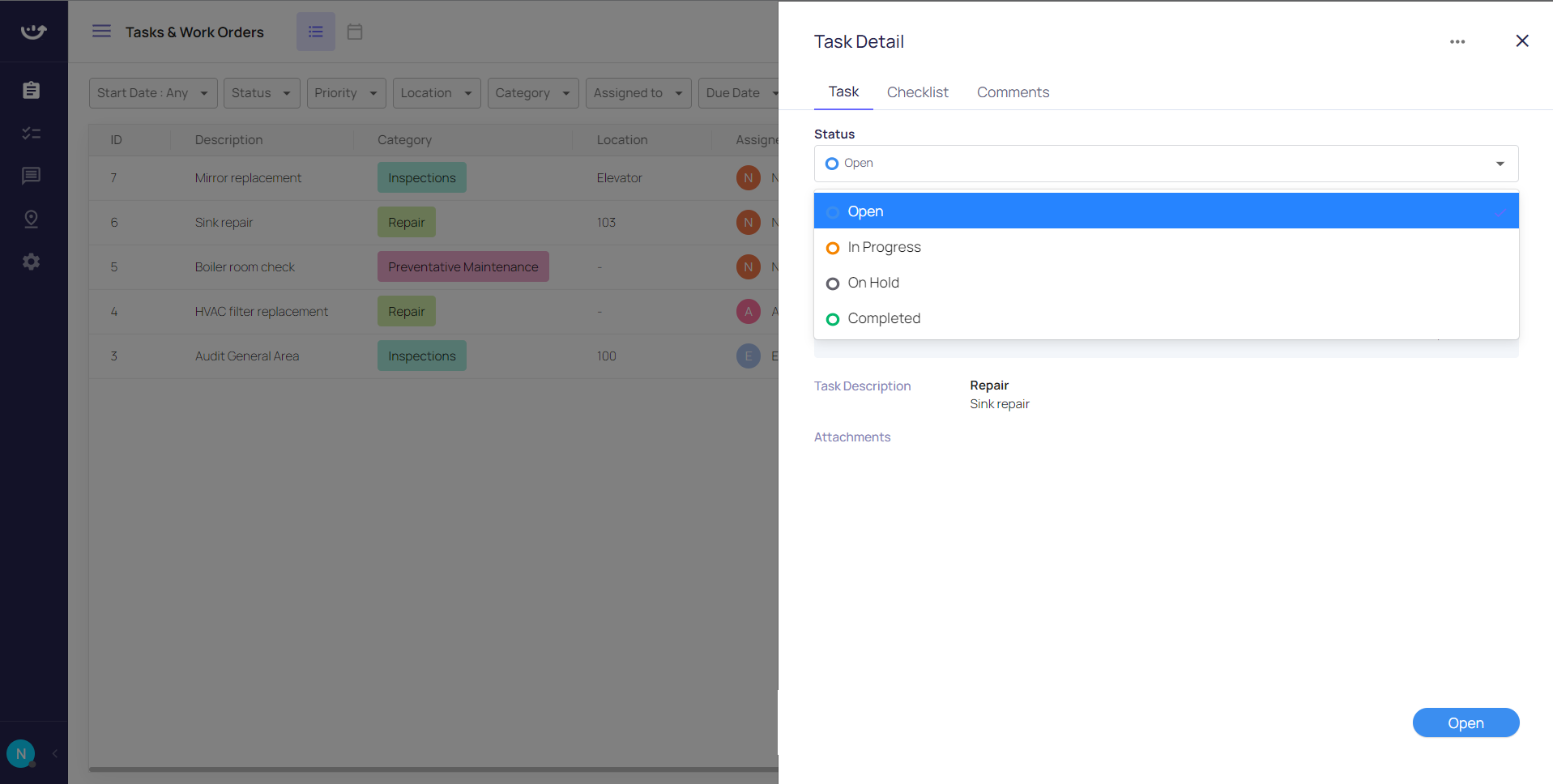
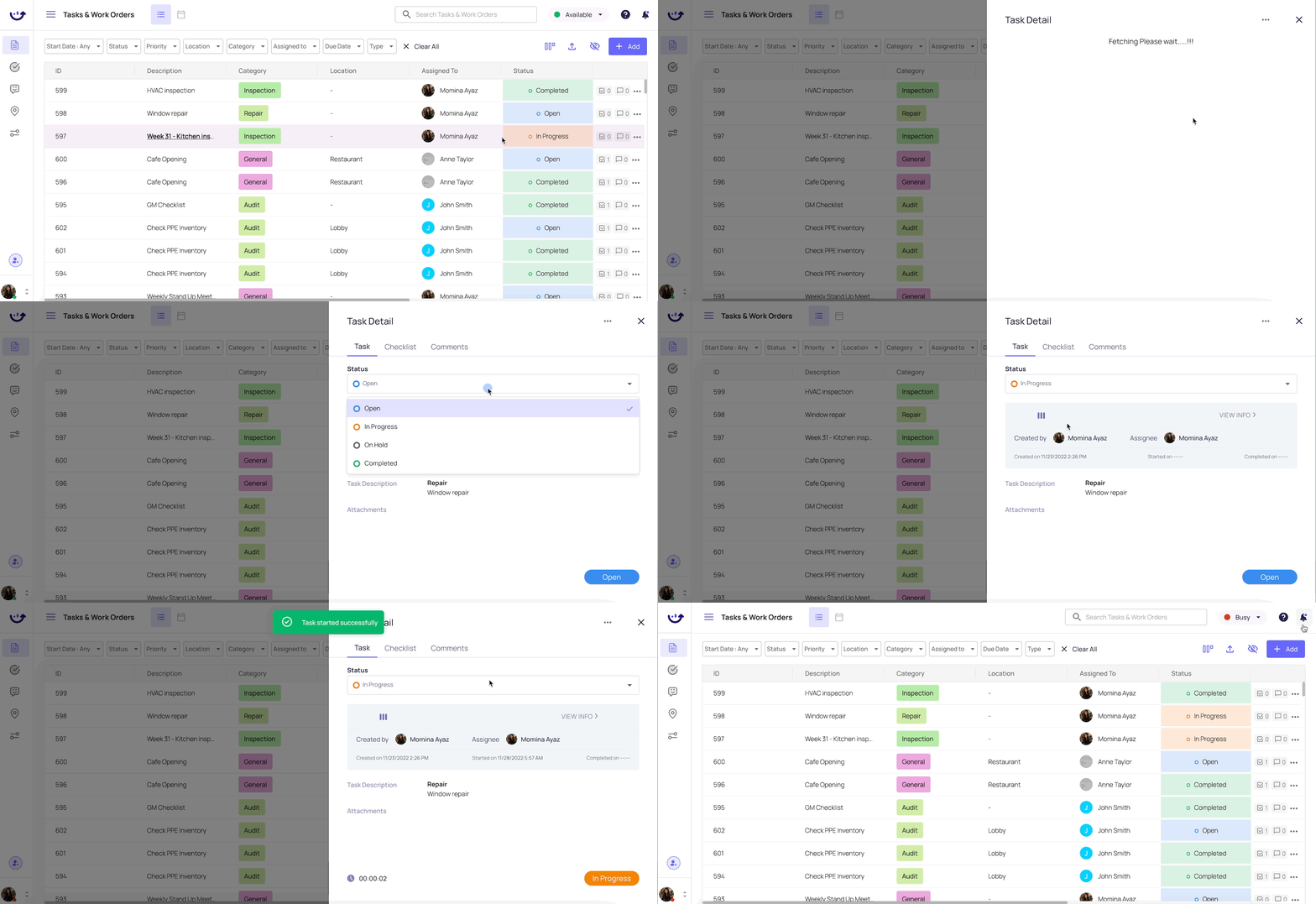
To start a work order, open a work order from the Tasks & Work Orders homepage. Click on the Status dropdown and update the status.
Starting a work order on the mobile app
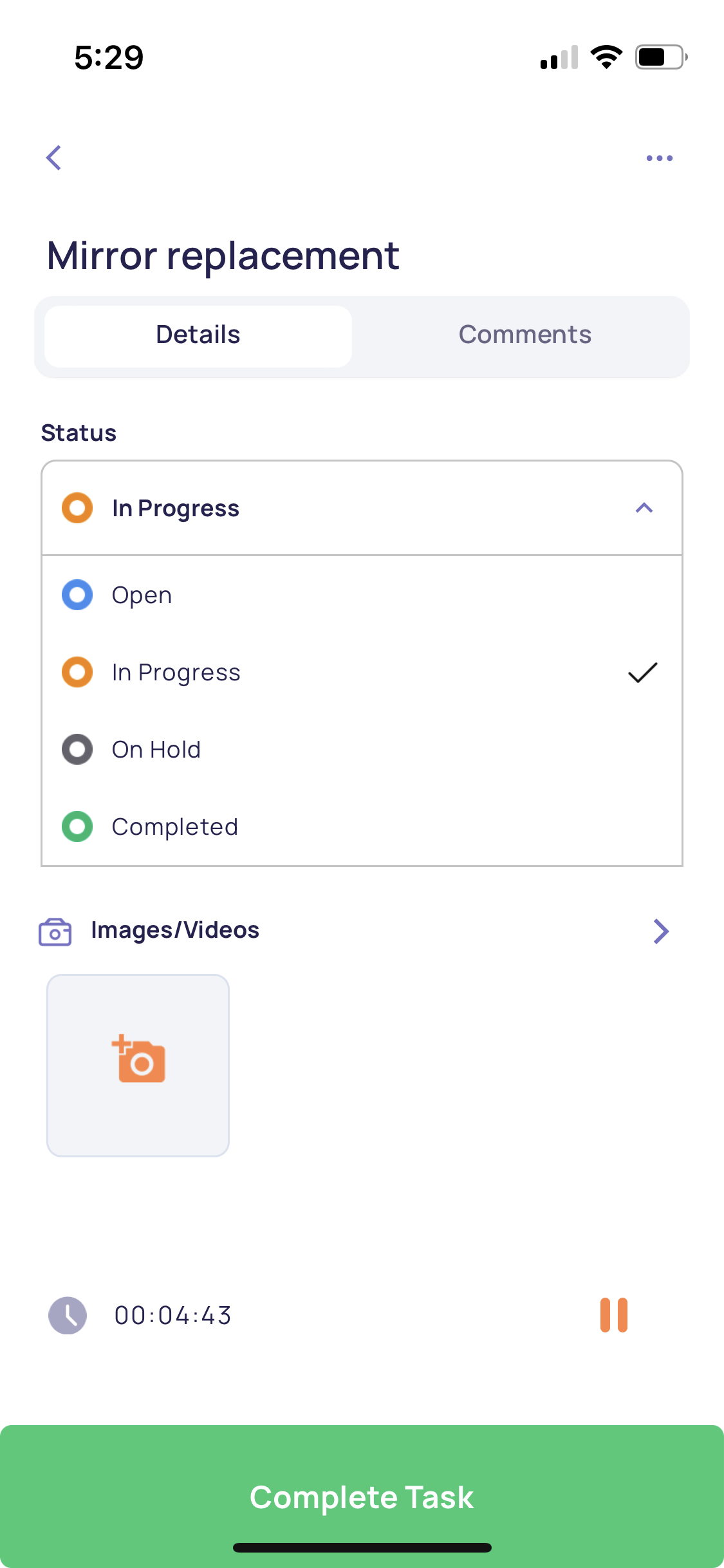
On the Mobile App, a user can start the work order by clicking on the 'Start Task' button and complete the task by clicking on the 'Complete Task':
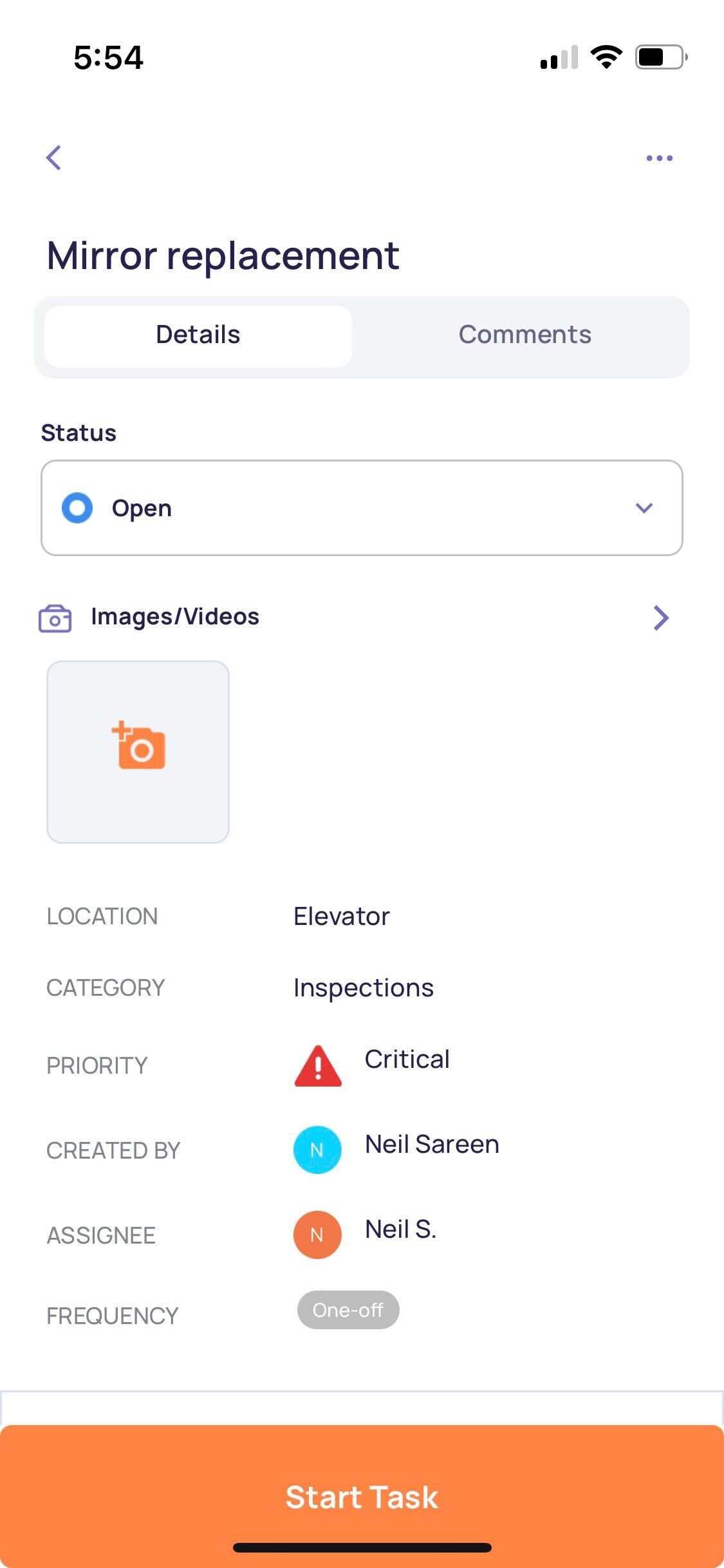

Users can also add Images in relation to the work order by clicking on the 'Camera' icon button inside of the Work Order Detail view on the Mobile App:

Viewing work order details on the web app
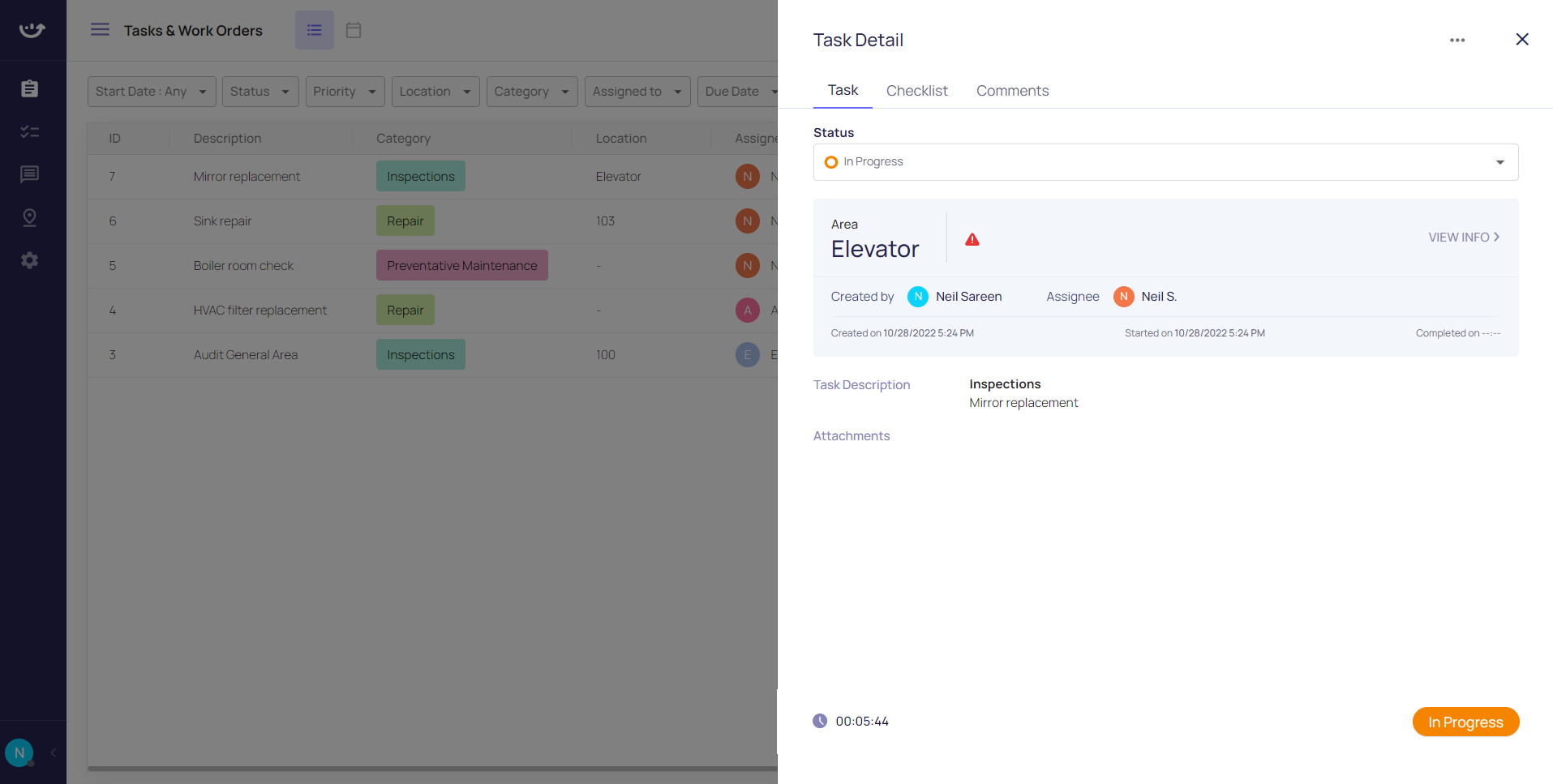
To view additional details related to a specific work order, click on a work order from the Tasks & Work Orders homepage.
Viewing work order details on the mobile app
On the Mobile App, click on the work order tile from the "Work" tab on the bottom navigation bar.
What kind of information can you view in work orders?
From this viewpoint, you can view all details related to the work order including:
Work Order Creator
Work Order Assignee
Status
Location
Description
Priority
Category
Attachments (Images, PDFs, etc.)
Time Stamps (Created on, Started on, Completed on)
Duration 'In Progress' Time Tracker
Specified Start Date/Time or Due Date/Time
Frequency
What are the Status options for work orders?
Users can manually toggle the the Status on Web and Mobile:
Status options are 'Open', 'In Progress', 'On Hold', and 'Complete'
Open: Work orders that haven't been started
In Progress: Work orders that have been started
On Hold: Work orders that have been manually toggled to 'On Hold' due to an inability to complete the work order
Complete: Work orders that have been marked as Complete (via Mobile 'Complete' button or manual toggle)