
What This Integration Does
The Xenia–Zendesk integration lets you push tasks and corrective actions from Xenia directly into Zendesk as tickets — so maintenance issues, facility problems, and flagged checklist items can be tracked inside your existing Zendesk workflow without manual re-entry.
The connection is powered by Merge's Unified API, which means the same setup flow also supports ServiceNow, Jira, Linear, and 30+ other ticketing providers — connect whichever tools your operation already uses.
Who This Is For
Teams that manage facilities, maintenance, or IT requests in Zendesk and want their Xenia checklist failures and corrective actions to automatically appear as Zendesk tickets — without switching between platforms or copying details manually.
Part 1 — Connecting Zendesk to Your Workspace
- Go to Settings → Workspace Settings → Ticketing
- Click + Connect Provider
- Select Zendesk from the provider list
4. On the Filter your data screen, set a base filter — the default is Ticket modified at greater than or equal to a chosen date. Click + Filter to add more conditions such as tags if needed.
⚠️ Important: Incomplete filters are ignored entirely. Only add a filter if every field in that row is filled in — a partially configured filter has no effect.
- Click Next
- Enter your Zendesk subdomain only — not the full URL
- ✅ Correct:
acme - ❌ Incorrect:
acme.zendesk.com
- ✅ Correct:
- Click Next
- Click Open window — a Zendesk login screen appears. Log into your Zendesk account and authorize the connection
- Wait for the "Setting up your account" process to complete
- Confirm the Success! screen, click Next, then Finish
Your Zendesk connection is now active and visible in Ticketing settings.
Part 2 — Managing an Existing Connection
From Settings → Workspace Settings → Ticketing, click the ⋯ menu next to a connected provider.
Relink integration — starts the connection process over from scratch. Use this if credentials have changed or the connection needs to be re-authorized.
Edit filters — updates what data is shared with Xenia without re-doing the full connection. Use this to change the date range or adjust tag conditions.
Part 3 — Sending a Task to Zendesk as an External Ticket (Web)
Once Zendesk is connected, you can route any corrective task directly to Zendesk at the point of creation.
- From a template submission, click Create Corrective Task
- Fill in the title, assignee, location, and schedule as normal
- At the bottom of the creation window, click External Ticket
- Select Integration: Zendesk
- Set the Priority and Ticket Type
- Choose the Team / Project the ticket should route to in Zendesk — this maps directly to your Zendesk groups, so confirm those are set up first
- Set the Status
- Add a Description — this is what gets sent to Zendesk as the ticket body
- Click Create
Two things happen simultaneously: the task is created in Xenia and linked to the originating submission, and a matching ticket is created in Zendesk with the details you entered.
Part 4 — Sending a Task to Zendesk as an External Ticket (Mobile)
The same integration is available on mobile — accessible directly from within an active checklist while completing a submission.
- From the Home screen, open any active task and tap Start Submission — or open a checklist that's already in progress
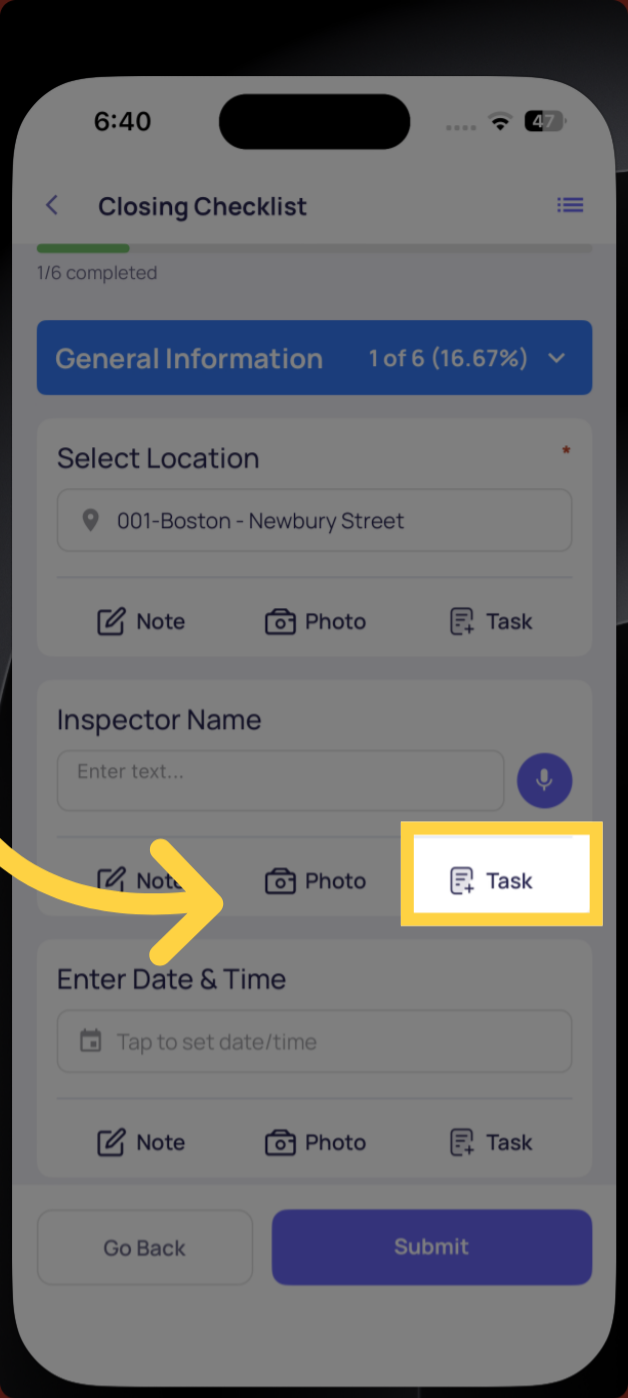
- On any question step, tap Task to open the corrective task creation screen
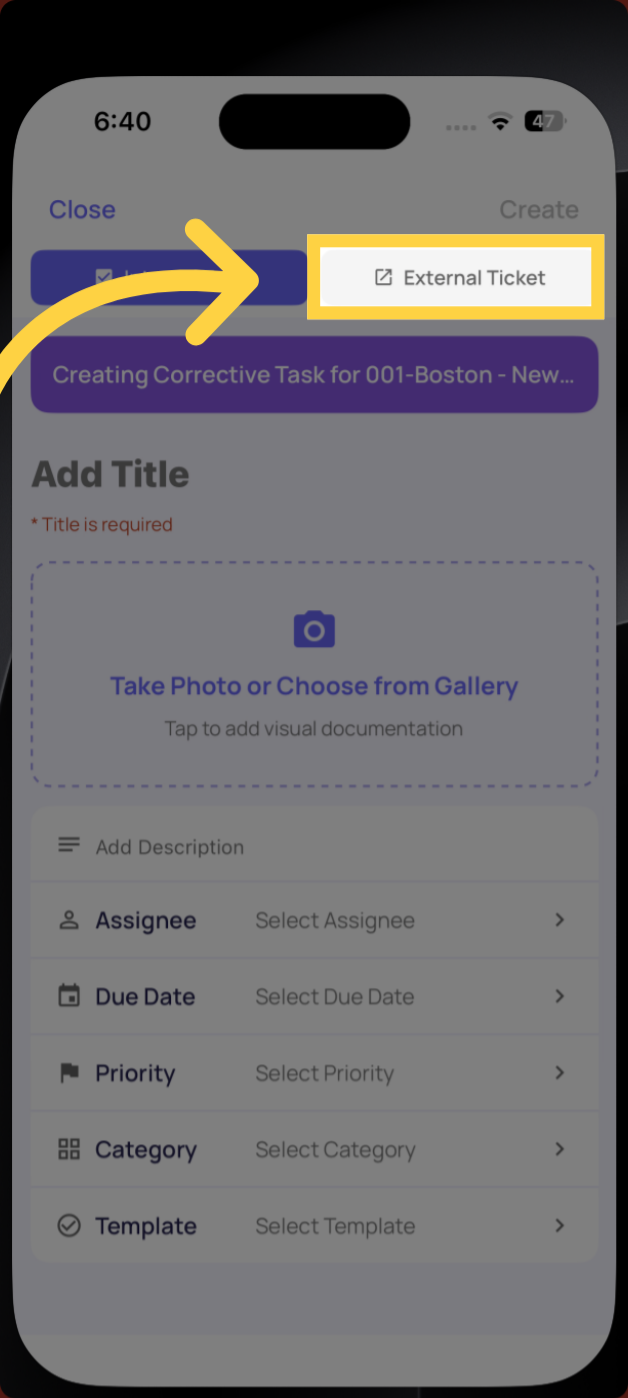
- At the top of the Create New screen, toggle from Internal Task to External Ticket
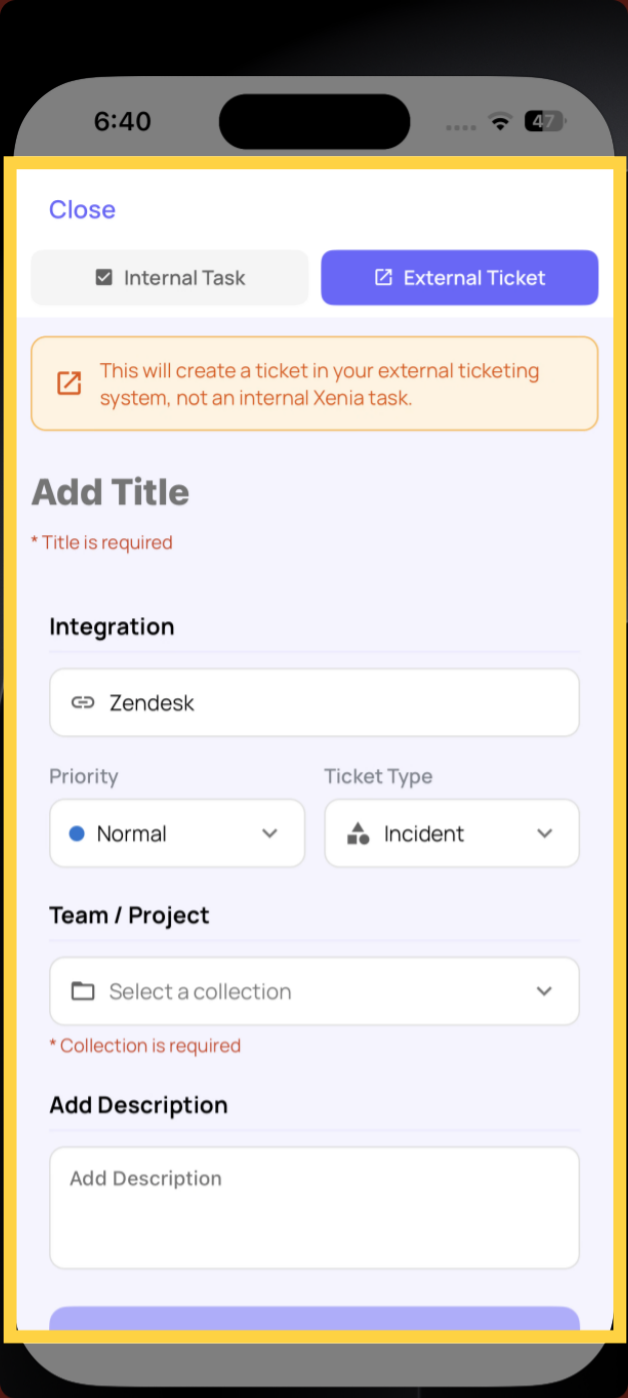
- A banner appears confirming: "This will create a ticket in your external ticketing system, not an internal Xenia task."
- Enter a Title (required)
- Confirm the Integration — Zendesk should be pre-selected if it's your connected provider
- Set the Priority and Ticket Type
- Under Select a collection, choose the Team / Project the ticket routes to in Zendesk (required — the ticket cannot be created without this)
- Add a Description
- Tap Create External Ticket
The task is sent to Zendesk immediately. The originating checklist step is linked to the ticket for traceability.
Web vs. Mobile — Key Differences
| Web | Mobile | |
|---|---|---|
| Access point | Template submission → Create Corrective Task | Active checklist step → Task → toggle to External Ticket |
| Title | Optional at creation | Required — cannot submit without it |
| Team / Project | Required | Required — cannot submit without it |
| Fields available | Title, assignee, location, schedule, priority, ticket type, team/project, status, description | Title, integration, priority, ticket type, team/project (collection), description |
| Result | Task in Xenia + ticket in Zendesk | Ticket in Zendesk linked to checklist step |
Note on mobile required fields: Title and Team / Project are both enforced as required on mobile — the form won't submit without them. These are the same fields that determine how the ticket routes in Zendesk, so this is by design.
Frequently Asked Questions
What data determines which Zendesk tickets sync into Xenia?
The filters you set during the connection — date range and any tag conditions — control what data is shared. These are adjustable at any time via Edit filters in Ticketing settings.
Does the Team / Project field need to match Zendesk exactly?
Yes. The Team / Project field maps directly to your actual Zendesk groups and teams. Make sure those are configured in Zendesk before setting up the integration, otherwise the routing won't work correctly.
Is the mobile flow different from web?
Same fields, same result — a ticket in Zendesk linked to the originating checklist. The only meaningful difference is that mobile enforces Title and Team / Project as required fields before it allows submission.
Can I connect a ticketing provider other than Zendesk?
Yes. The same Connect Provider flow supports ServiceNow, Jira, Linear, and 30+ other providers — select whichever system your team uses.
Can I have more than one ticketing provider connected at the same time?
Yes — you can connect multiple providers from the Ticketing settings page and choose which one to route to at the point of task creation.
What happens if a filter is only partially filled in?
Incomplete filters are ignored entirely. The filter has no effect until every field in that row is complete.
Need Help?
For setup assistance or questions about the Zendesk integration, contact support@xenia.team
Comments
0 comments
Please sign in to leave a comment.