
What Flagged Responses Are
A Flagged Response is a specific answer to a checklist step that you've marked as significant — something that should be tracked, counted, and surfaced in reporting automatically whenever it occurs during a submission.
When a response is flagged and that answer is given during a checklist, Xenia records and categorizes it in real time. Over time these flagged responses accumulate into a pattern recognition layer — showing you which issues are recurring most frequently, at which locations, and falling into which categories.
Neil's framing: "Flagged items is pattern recognition. Corrective actions is accountability in action."
The two serve different purposes:
- Flagged Responses → identify and track patterns at scale
- Corrective Tasks → ensure someone actually goes and fixes the specific problem
Most operations benefit from using both together.
What Flag Categories Are
Flag Categories are labels you create to group your flagged responses into themes. Instead of a raw list of hundreds of individual flags, your dashboards show them rolled up by category — giving you a clear operational picture immediately.
Categories can be organized by operational theme or by urgency level — both approaches work well depending on how your team reviews performance.
Theme-based examples:
- Food Safety
- Maintenance Issue
- Safety Concern
- Cleanliness
- Customer Experience
Urgency-based examples:
- CRITICAL — Shut down immediately
- CRITICAL — Immediate professional inspection
- High — Recalibrate or service
- MEDIUM
- Low — Clean immediately
The urgency-based approach is particularly powerful — when a manager sees "CRITICAL — Shut down immediately" in their dashboard, the required action is embedded in the category name itself. No ambiguity.
Why This Matters
Without flag categories, you might have 150 flagged items across your locations in a month with no way to quickly understand what's driving them.
With flag categories, you open your dashboard and immediately see:
- CRITICAL — Shut down immediately: 8 flags
- High — Recalibrate or service: 19 flags
- Low — Clean immediately: 47 flags
That's your action list. That's what to discuss in your area manager meeting. That's what corrective training needs to address — in priority order.
Step 1 — Create Your Flag Categories
Flag Categories are managed from the Templates Configurations section.
- Go to Operations → Templates
- Click the Configurations tab at the top (alongside My Templates, Approval Workflows, Archive)
- Click Flag Categories in the left sidebar
- Click + Add New Flag Category
- Give it a clear, descriptive title — urgency-first naming works best
- Choose a color — helps distinguish categories visually in dashboards (red for critical, yellow for medium, blue for low, etc.)
- Save
Repeat for each category your operation needs.
Keep the list focused. 5–10 well-named categories produce cleaner reporting than 30 overlapping ones. The categories should map to how your team talks about and reviews operational problems.
Step 2 — Flag a Response on a Template Step
With categories created, add flagging to specific steps in your templates.
- Go to Operations → Templates → [Template Name] → Edit → Builder tab
- Click into the step you want to flag
- Click Add Conditional Logic (the purple button inside the step)
- Set the trigger condition — the specific answer that should trigger the flag:
- If answer = No / Fail / Non-Compliant
- If number is above or below a threshold (e.g. temperature > 41°F)
- If multiple choice answer = a specific value
- Select the action: Flag Response
- Choose the Flag Category this response belongs to
- Save
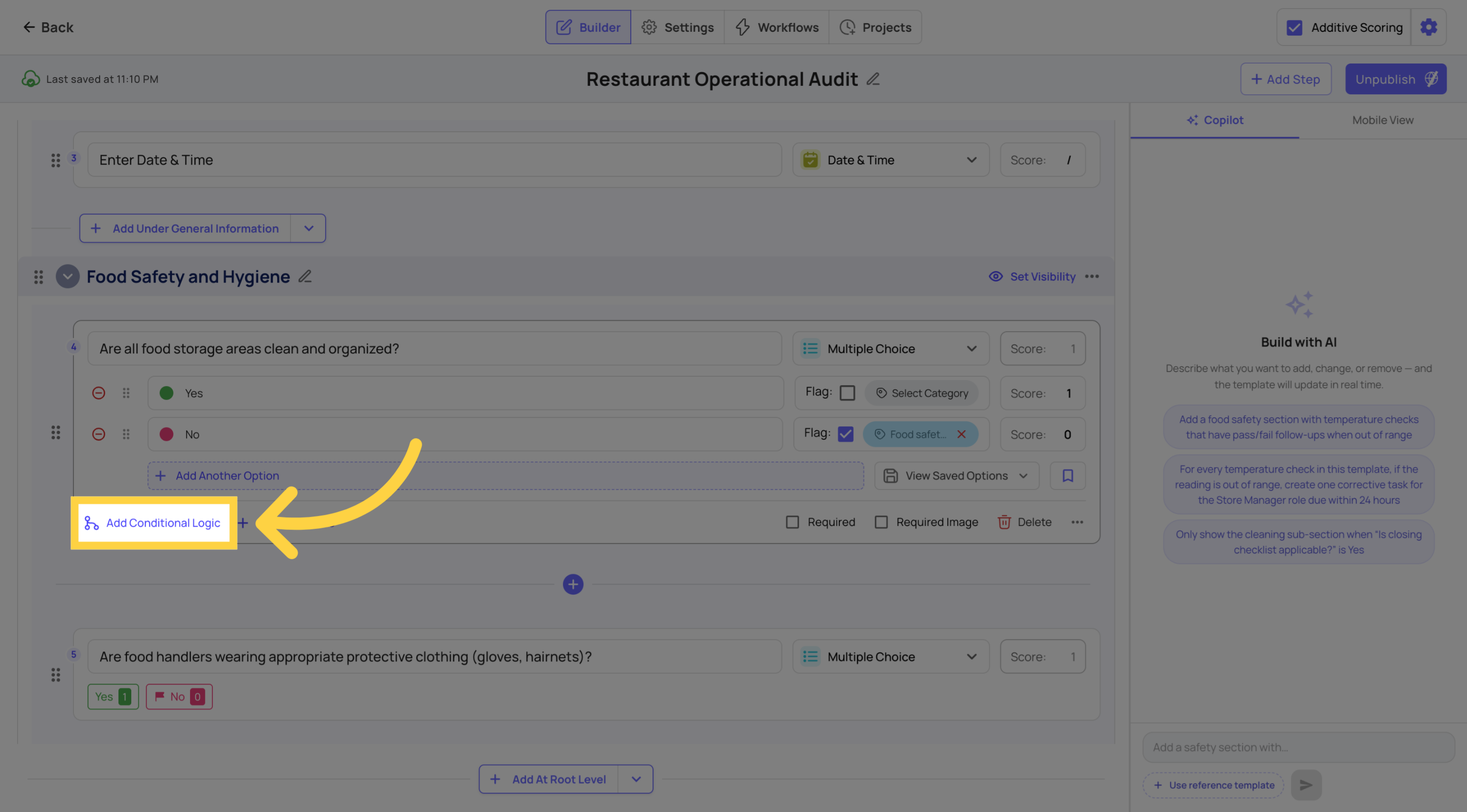
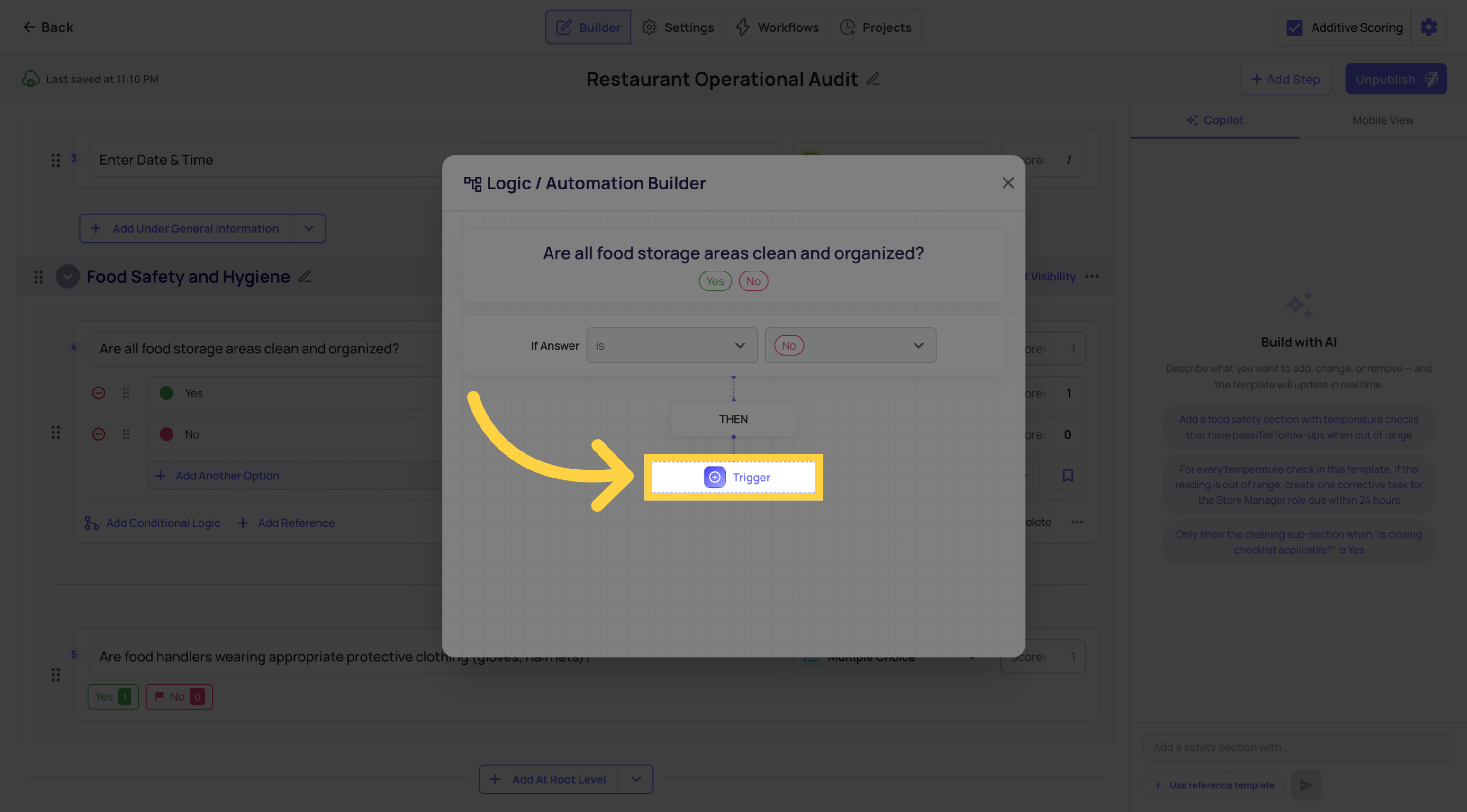
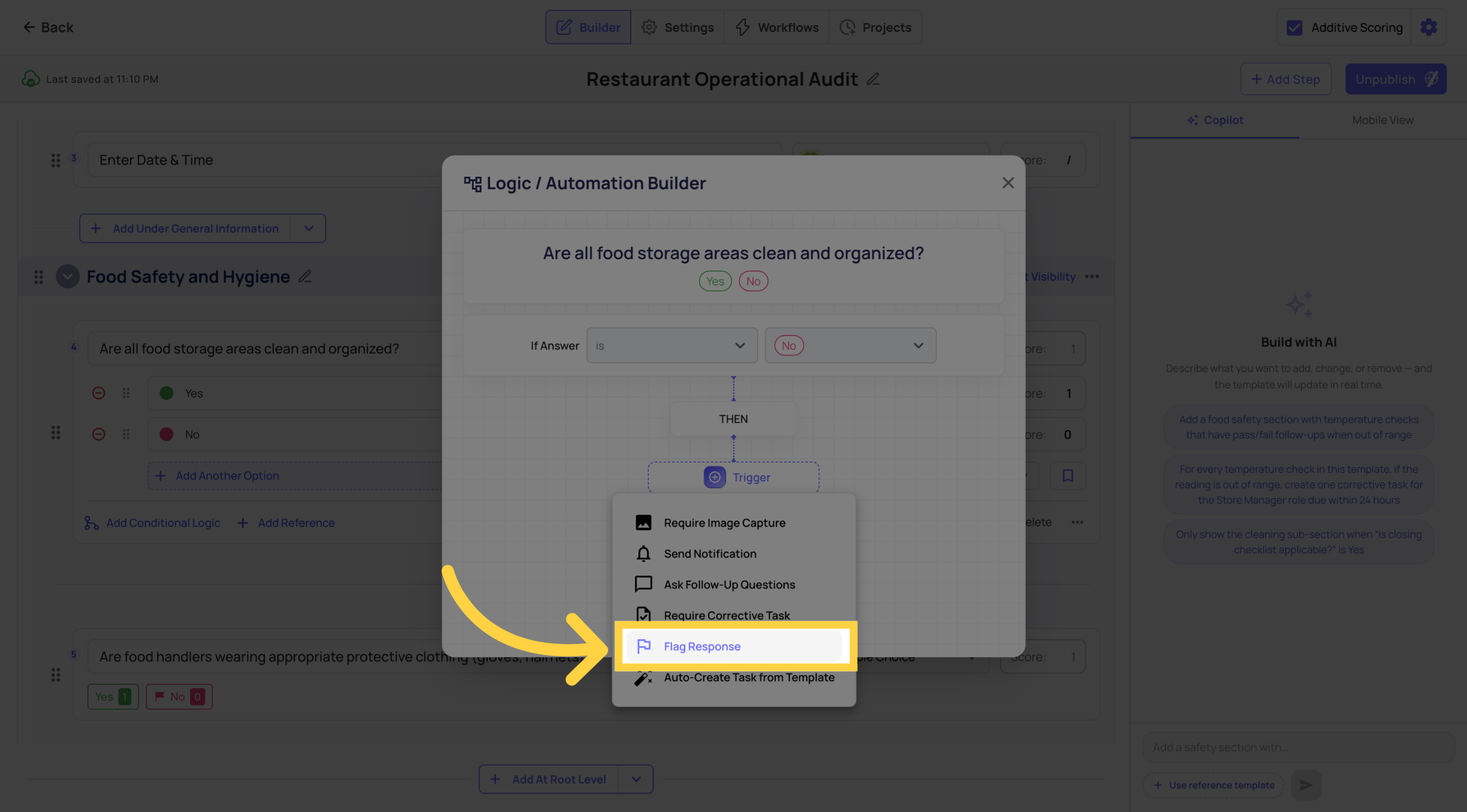
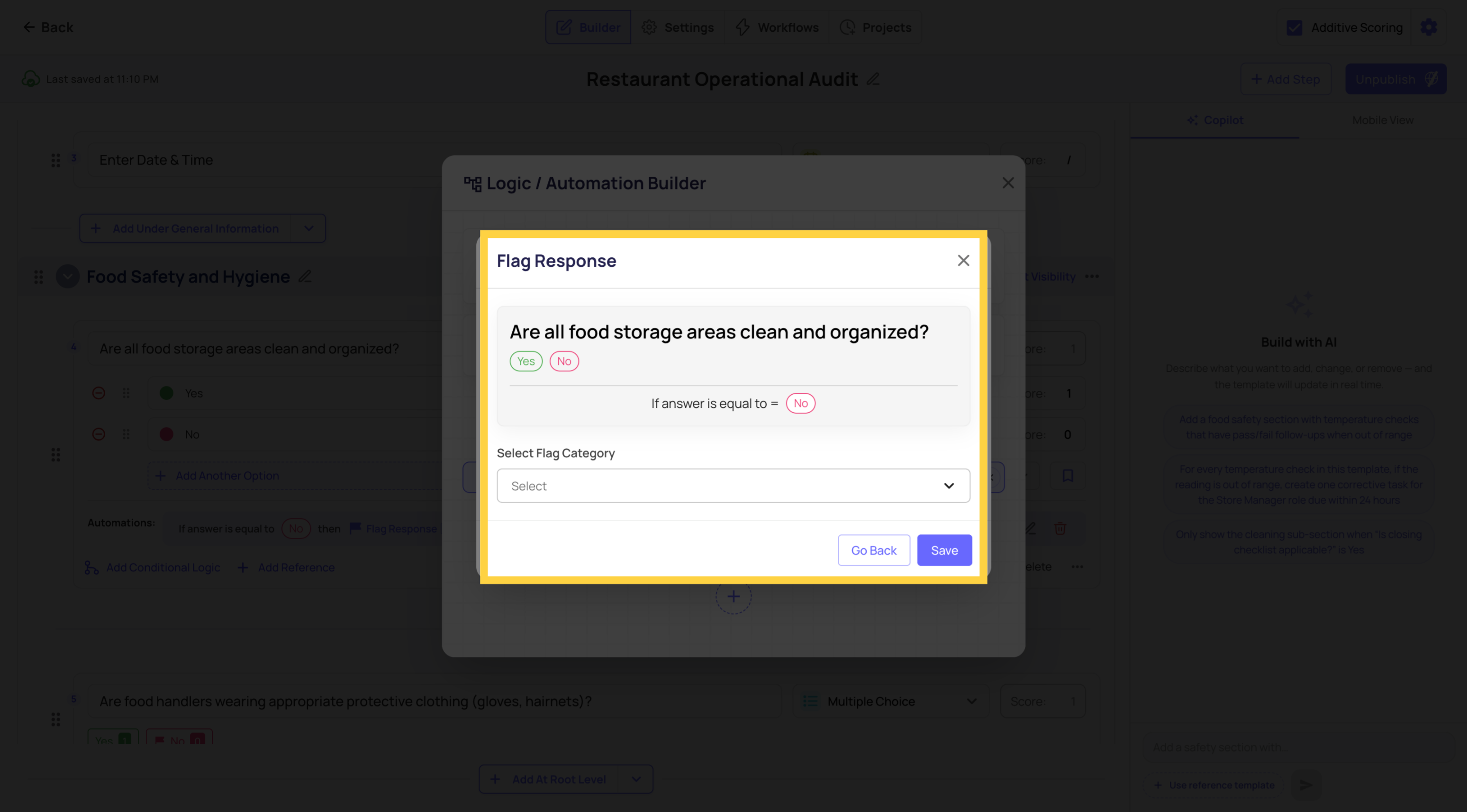
You can flag multiple steps in the same template, each assigned to different categories. A food temperature step flags to "CRITICAL — Shut down immediately" while a cleanliness step flags to "Low — Clean immediately" — all within the same checklist.
You can also combine flagging with other actions on the same trigger — flag the response AND require a photo AND create a corrective task simultaneously.
Step 3 — View Flagged Items in Reporting
Once flagging is configured and submissions are coming in, the data surfaces in two places:
Individual Submission Reports
When you open a completed submission, scroll to the Flagged Items section at the bottom. It lists every response in that submission that was flagged — with its category — giving the reviewer an instant summary of everything that failed without reading through the entire form.
Custom Dashboards — Flagged Items Overview Widget
This is where pattern recognition becomes operationally powerful. Add a Flagged Items Overview widget to any custom dashboard to see flagged responses grouped by category.
What the widget shows when grouped by Category:
At a glance you can see which types of problems are driving your flag count — not just which locations. In the example above: 28 total flagged items, with Food Safety generating nearly two-thirds of all flags. That's where operational attention needs to go first.
To configure the widget to show by Category (not by Location):
- Open the dashboard in Edit mode
- Click Filters on the Flagged Items Overview widget
- Change the grouping from Location to Category
- Save
To add this widget: Reporting → Custom Dashboards → Edit Dashboard → Add Widget → Flagged Items Overview.
Best Practices for Flag Categories
Use urgency-first naming when possible. "CRITICAL — Shut down immediately" tells the manager exactly what to do. "Food Safety Issue" requires interpretation. Embed the action in the category name.
Match categories to how your team reviews performance. If your area manager meetings are organized around Safety, Operations, and Maintenance — make those your categories. The dashboard will map directly to your review cadence.
Flag the responses that matter. Not every failing answer needs to be flagged. Reserve flagging for responses that represent recurring operational problems worth tracking at scale — issues you want surfacing in weekly or monthly reporting.
Combine with corrective tasks for the full accountability loop. Flagging tracks the pattern. Corrective tasks track the fix. For critical issues, configure both: flag the response for pattern reporting AND create a corrective task so someone resolves it. That's the complete loop.
Common Category Setups by Industry
Restaurants:
CRITICAL — Shut down immediately · Food Safety · Cleanliness · Equipment Issue · Guest Experience
Retail / C-Stores:
CRITICAL — Immediate professional inspection · High — Recalibrate or service · Planogram Compliance · MEDIUM · Low — Clean immediately
Facilities / Hospitality:
Safety Hazard · Maintenance Required · Cleanliness · Guest-Facing Issue · Regulatory Compliance
Frequently Asked Questions
Q: Can one step trigger both a flagged response and a corrective task?
Yes — you can configure both actions on the same conditional trigger. Flag the response for pattern reporting AND create a corrective task for accountability. Recommended for high-priority issues.
Q: Can I rename or delete a category after submissions have been collected?
Yes — renaming updates the category label going forward and in historical reporting. Deleting removes it from filter options but the underlying flagged responses are preserved.
Q: How many categories should I have?
Keep it to 5–10. Too many categories dilute the reporting signal. 5–8 well-chosen categories with meaningful flag volumes tell a much clearer story than 30 overlapping buckets.
Q: Can I see flagged items without a custom dashboard?
Yes — flagged items appear in the Flagged Items section of every individual submission report. The custom dashboard widget gives you the aggregate cross-location view where pattern recognition becomes actionable.
Q: Where exactly do I find Flag Categories in the navigation?
Operations → Templates → Configurations tab → Flag Categories in the left sidebar.
What Flagged Responses Are
A Flagged Response is a specific answer to a checklist step that you've marked as noteworthy — something that should be tracked, counted, and surfaced in reporting whenever it occurs.
When a response is flagged and that response is given during a submission, Xenia records and categorizes it automatically. Over time, these flagged responses accumulate into a pattern recognition layer — showing you which issues are recurring most frequently, at which locations, and how often.
Neil's framing from a training session: "Flagged items is pattern recognition. Corrective actions is accountability in action."
The two serve different purposes:
- Flagged Responses → identify and track patterns (what keeps going wrong, where, and how often)
- Corrective Tasks → ensure someone actually goes and fixes the specific problem
Most operations benefit from using both together.
Need Help?
Reach out to our Support Team at Support@xenia.team
Comments
0 comments
Please sign in to leave a comment.