
What My Draft Submissions Is
My Draft Submissions is a dedicated list of every checklist or form you've started but haven't submitted yet. It lives in the side menu and is always accessible — so you never lose progress on an in-progress form, no matter how long ago you started it.
Any checklist you exit mid-completion is automatically saved and appears here until you submit or delete it.
How to Find It
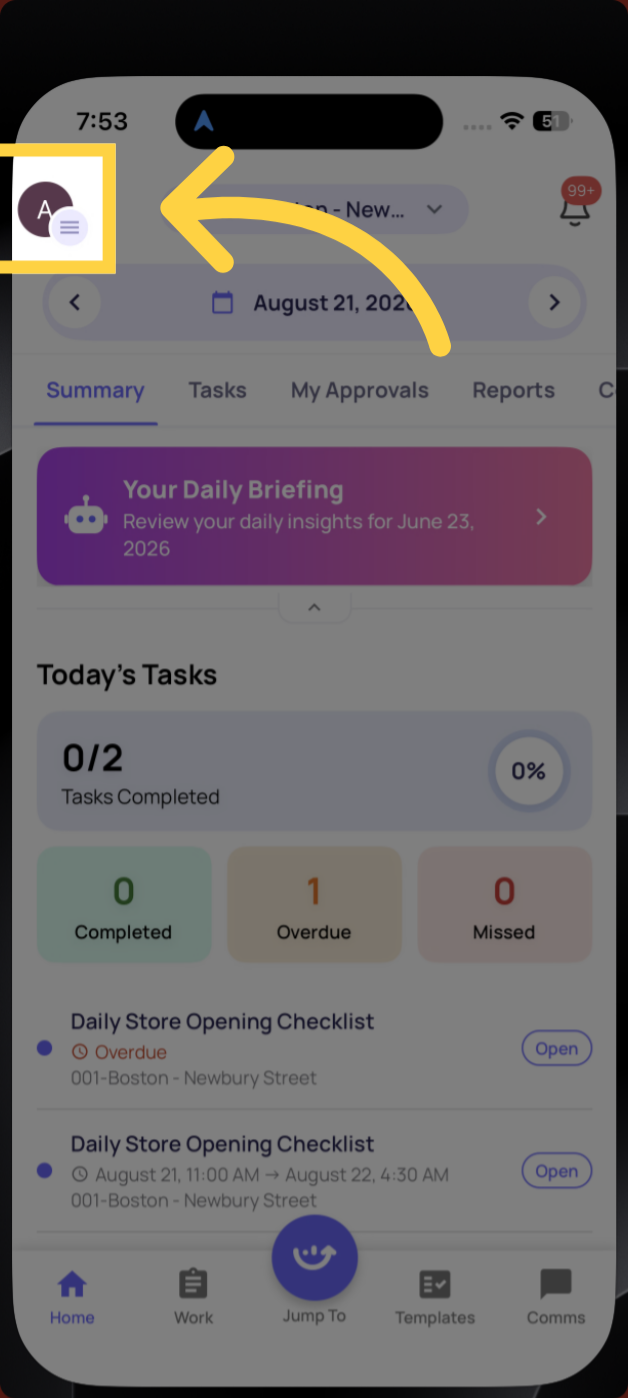
- Tap your profile icon or initials in the top left corner of the app
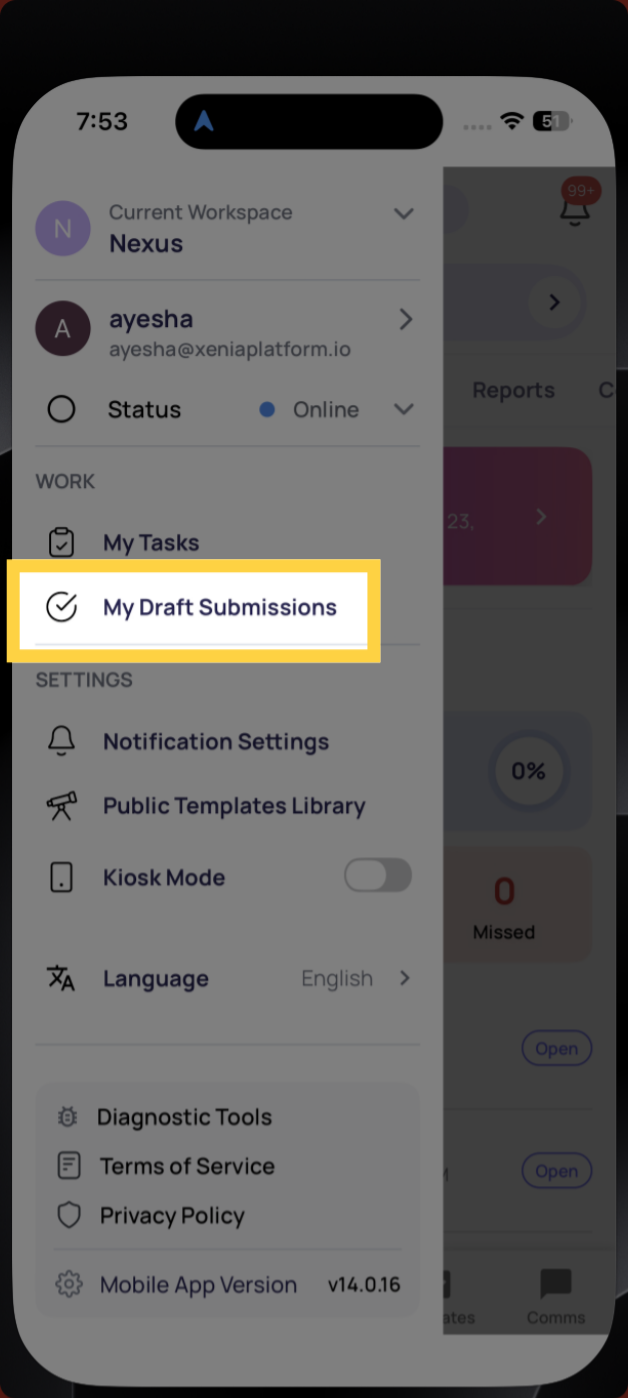
- The side menu opens
- Tap My Draft Submissions
What You'll See
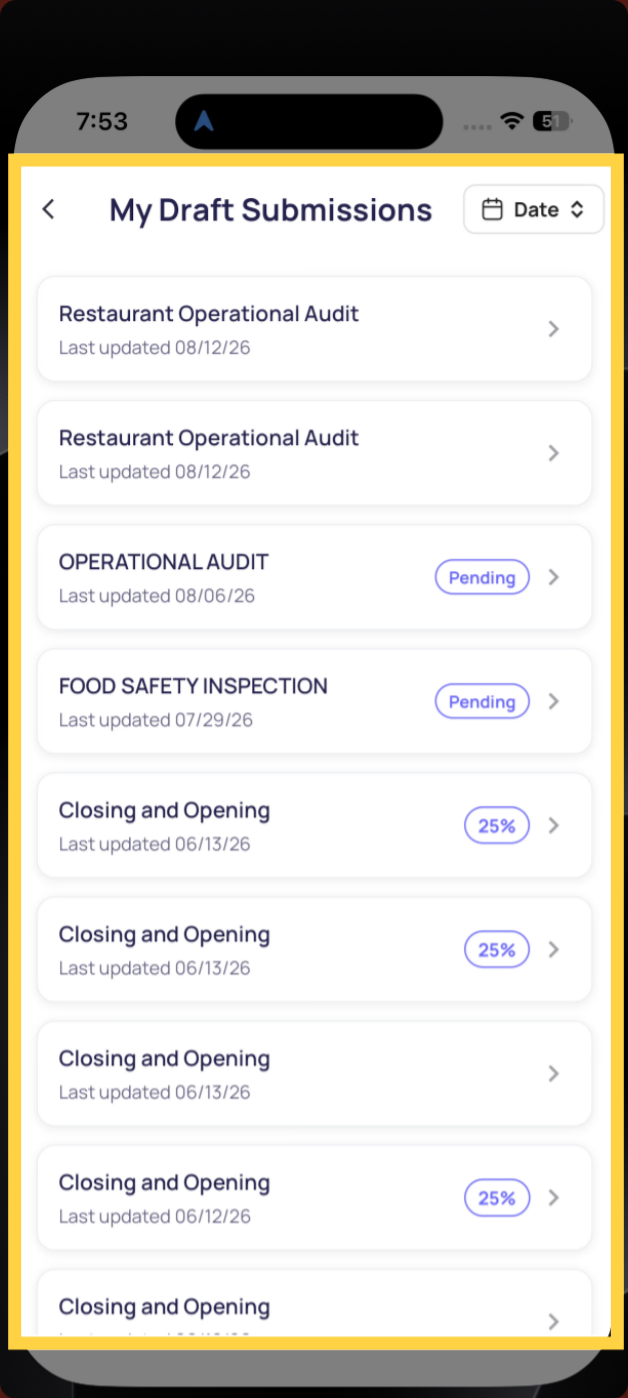
My Draft Submissions shows a list of all your in-progress checklists sorted by date. Each row shows:
- Template name — the checklist or form you started
- Last updated date — when you last opened or edited it
- Completion indicator — a percentage badge (e.g. 25%) showing how far through the form you are, or a Pending badge for submissions awaiting approval
What the badges mean:
| Badge | What It Means |
|---|---|
| 25% (or any %) | You've completed that percentage of the checklist — tap to continue |
| Pending | The form has been submitted and is waiting for an approver's review |
| No badge | You started the form but haven't answered any steps yet — or progress tracking isn't shown for this template type |
Continuing a Draft
Tap any draft in the list to open it. The checklist opens exactly where you left off — all your previous answers are preserved. Continue from where you stopped and tap Submit when done.
The Pending Badge — What It Means
If a draft shows a Pending badge, it means you've already submitted that form and it's now in an approval workflow waiting for a reviewer to approve, request changes, or reject it.
Pending items appear in My Draft Submissions so you can track their status in one place — alongside your actual in-progress drafts.
If a reviewer requests changes, the item will update and you'll be able to re-open it to make corrections and resubmit.
Sorting Your Drafts
Tap the Date button in the top right corner to sort your drafts — most recently updated first or oldest first. Useful when you have many drafts and need to find a specific one quickly.
Why Drafts Accumulate
Drafts build up when checklists are started but not submitted — this can happen when:
- You were interrupted mid-checklist and exited using the back arrow
- A checklist was opened by mistake and not completed
- A project task was started earlier in the week and never finished
- Multiple instances of the same template were started at different times
If you have many old drafts for the same template, review them — some may be outdated and can be discarded. Contact your admin if you're unsure whether an old draft still needs to be submitted.
How to Avoid Losing Progress
- Always exit a checklist using the back arrow (←) inside the app — this triggers an auto-save
- Do not force-close the app mid-checklist (swiping it away from the app switcher) — the last few seconds of responses may not save
- If you accidentally close the app, open My Draft Submissions immediately — your progress is almost always still there
Frequently Asked Questions
Q: How long are drafts kept?
Drafts are saved on your device indefinitely — they don't expire automatically. However, if a project task's due time passes while the checklist is still in draft, the task may become Overdue or Missed. Complete and submit as soon as possible.
Q: Can I delete a draft I no longer need?
Swipe left on any draft or use the three-dot menu to delete it. Deleting a draft is permanent — the progress cannot be recovered.
Q: Why do I see the same template listed multiple times?
Each time a template is started as a separate task or ad hoc submission, a separate draft is created. If you see duplicates, only submit the one that's current — contact your manager before deleting others if you're unsure which is relevant.
Q: I submitted a form but it's still showing in My Draft Submissions with a Pending badge — is that normal?
Yes. Pending means the submission went through and is waiting for approval. It stays visible here so you can track its status. Once approved or rejected, it will move out of this list.
Need Help?
Reach out to our Support Team at Support@xenia.team
Comments
0 comments
Please sign in to leave a comment.