
What This Feature Does
Previously, access settings on templates had to be configured one template at a time — opening each template's Settings → Access page individually. For workspaces with large template libraries, this meant repeating the same configuration dozens of times.
Folder-level access management lets you configure access once at the folder level and apply it to every template inside that folder at once. You control who can submit, who can edit, who can view submissions — and either apply those rules to all existing templates in the folder, set defaults for new templates going forward, or both.
⚠️ Important: Nothing Changes Until You Click Apply
Opening the Manage Access modal on a folder does not automatically change any template's access settings. Every template inside a folder keeps its own individual access settings untouched until you explicitly configure the folder-level rules and click Apply.
This is always an intentional, user-initiated action — never automatic.
Where to Find It
- Go to Operations → Templates
- Find the folder you want to configure
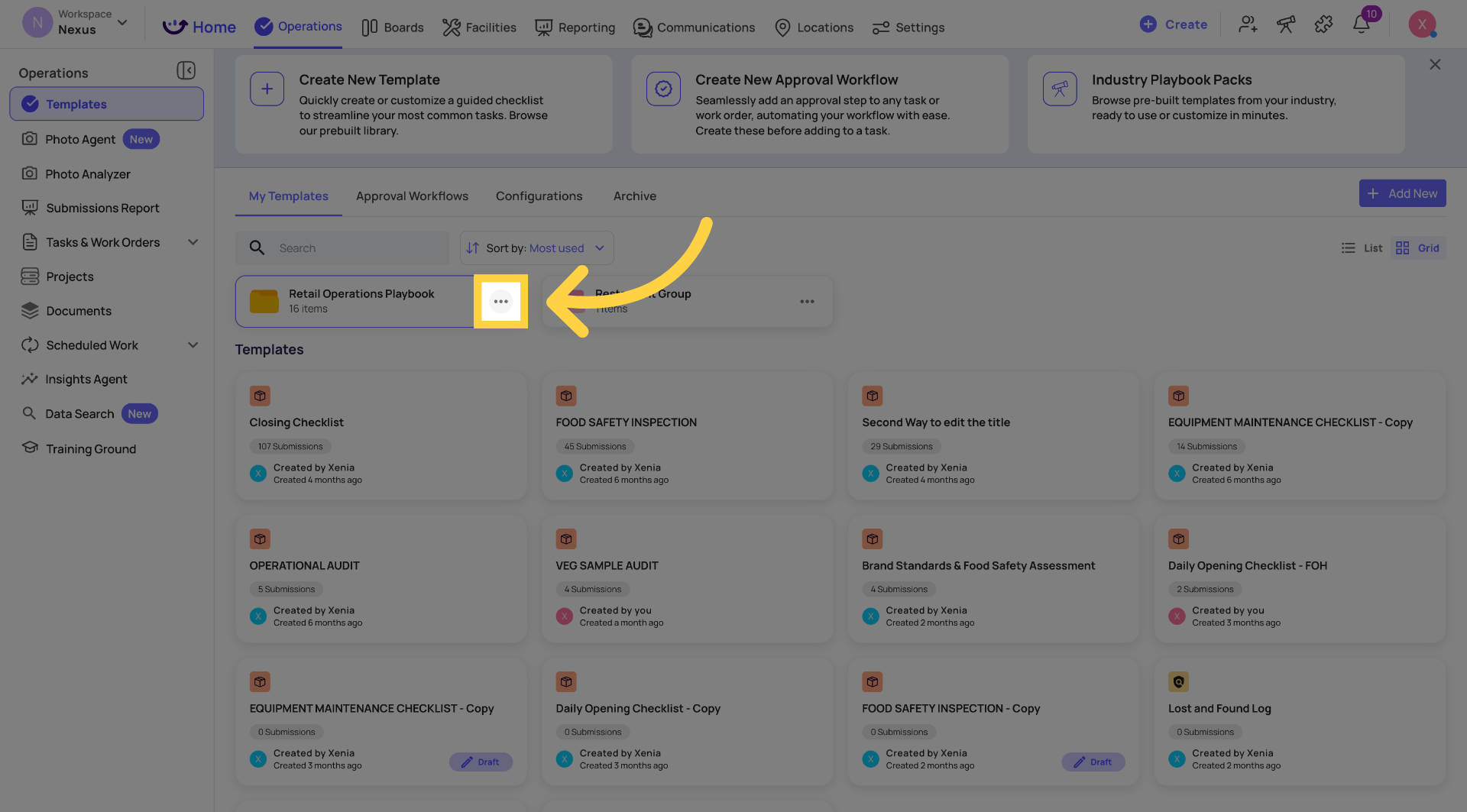
- Click the three-dot menu (⋯) on the folder
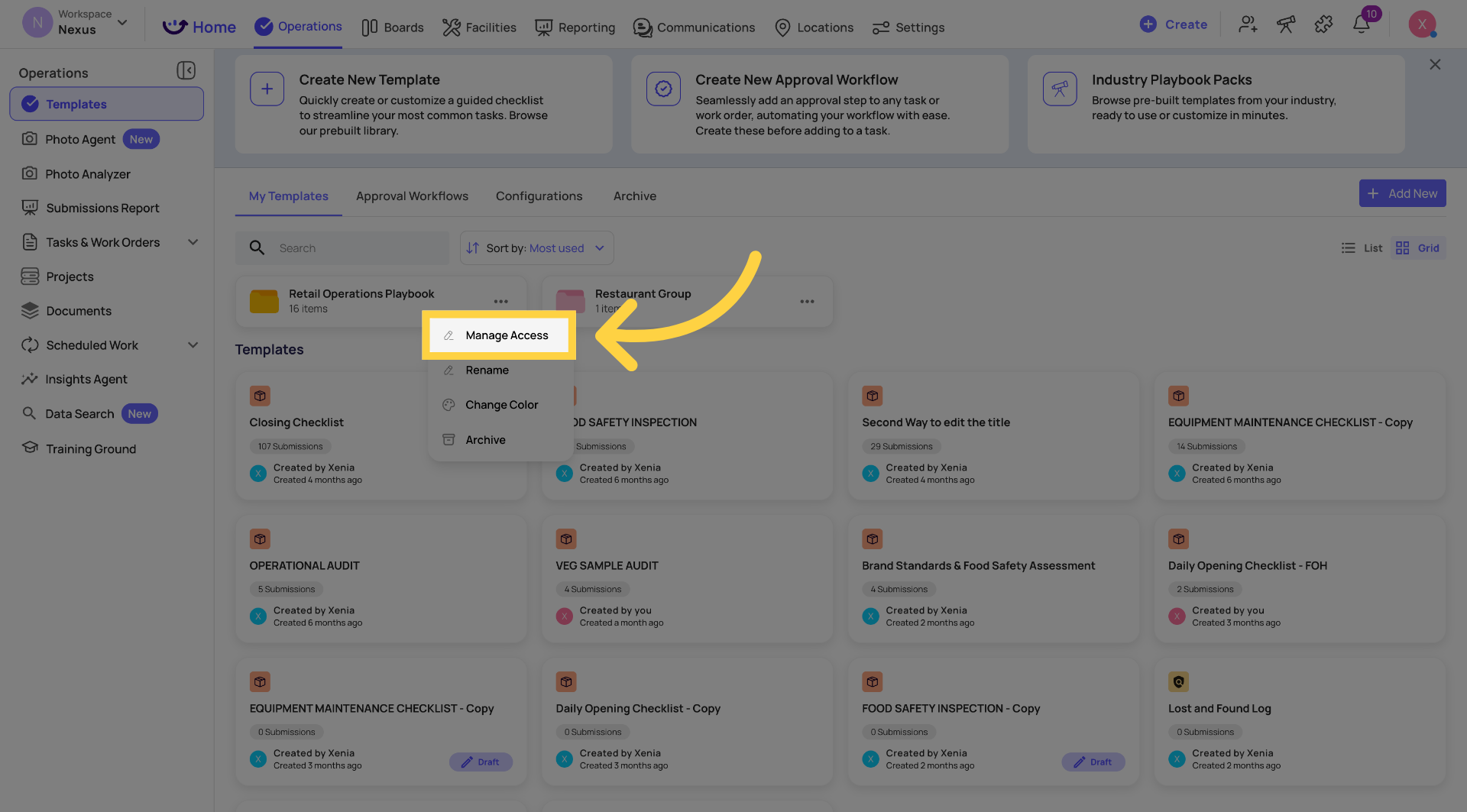
- Select Manage Access
The Manage Access option appears alongside Rename, Change Color, and Archive in the folder menu.
What You Can Configure
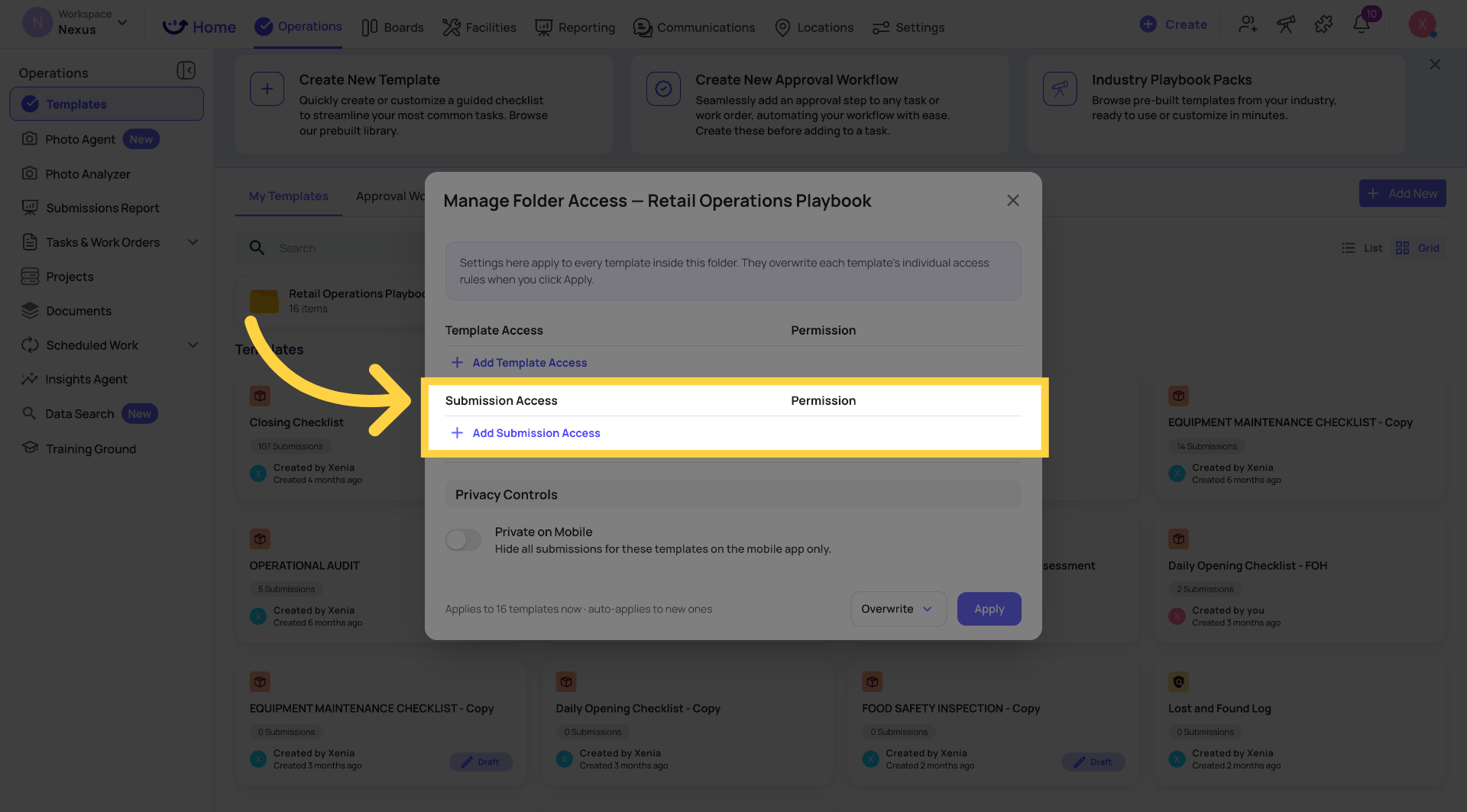
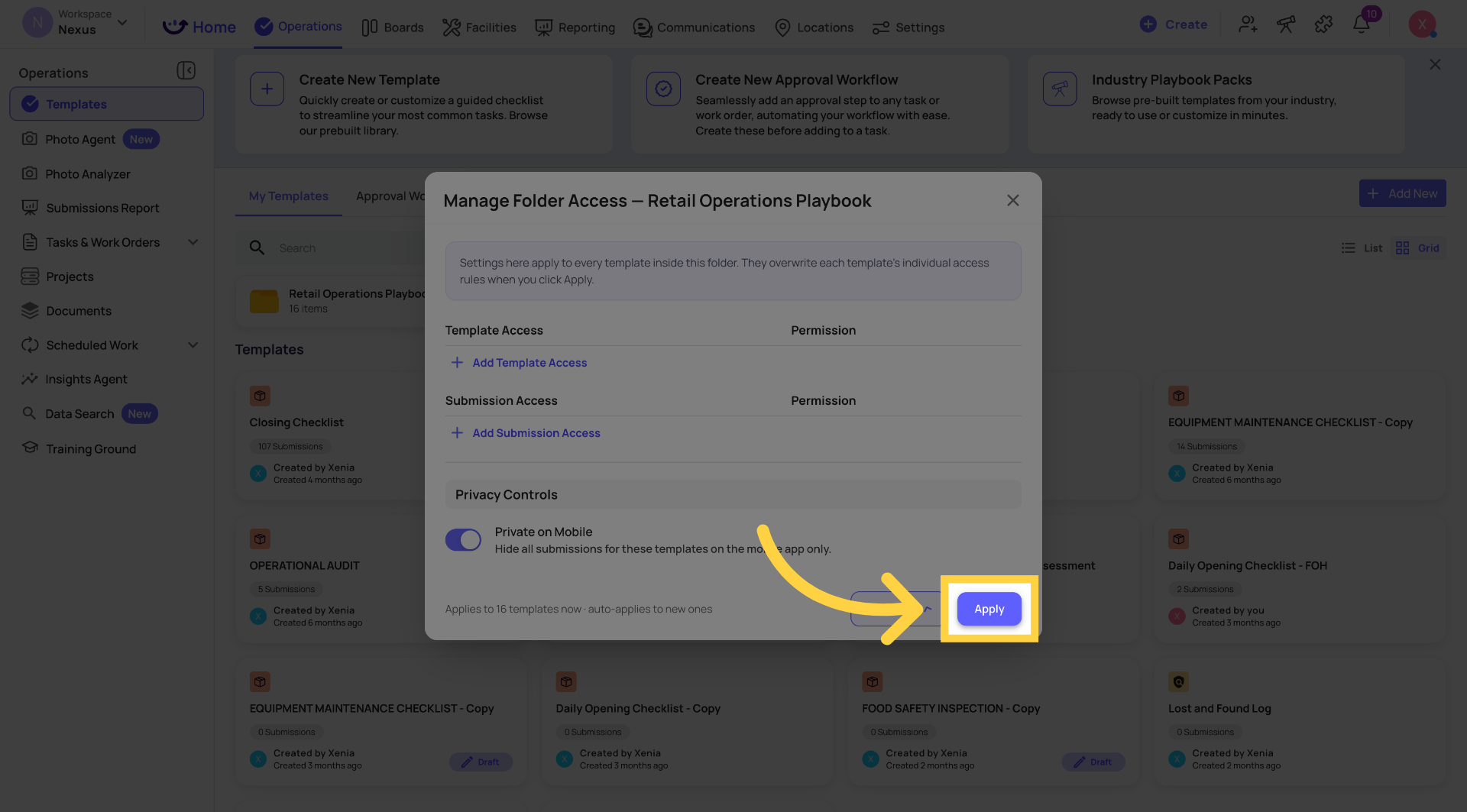
The Manage Access modal has three sections — matching the existing per-template Access page:
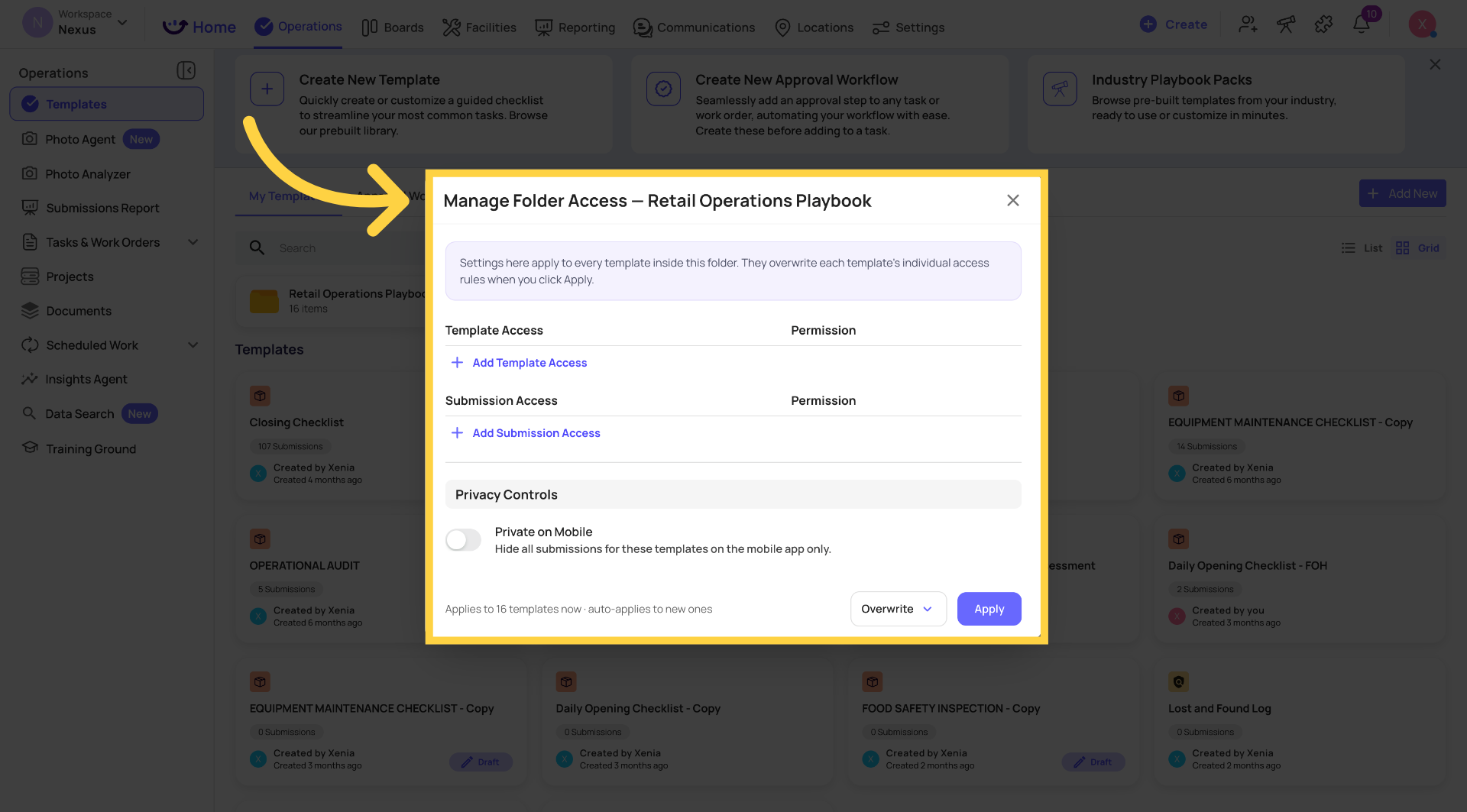
Template Access — Who Can Use These Templates
Add users, teams, locations, or roles with one of two permission levels:
- Can edit template — this person or group can open and modify templates in this folder
- Can only submit — this person or group can submit templates but cannot edit them
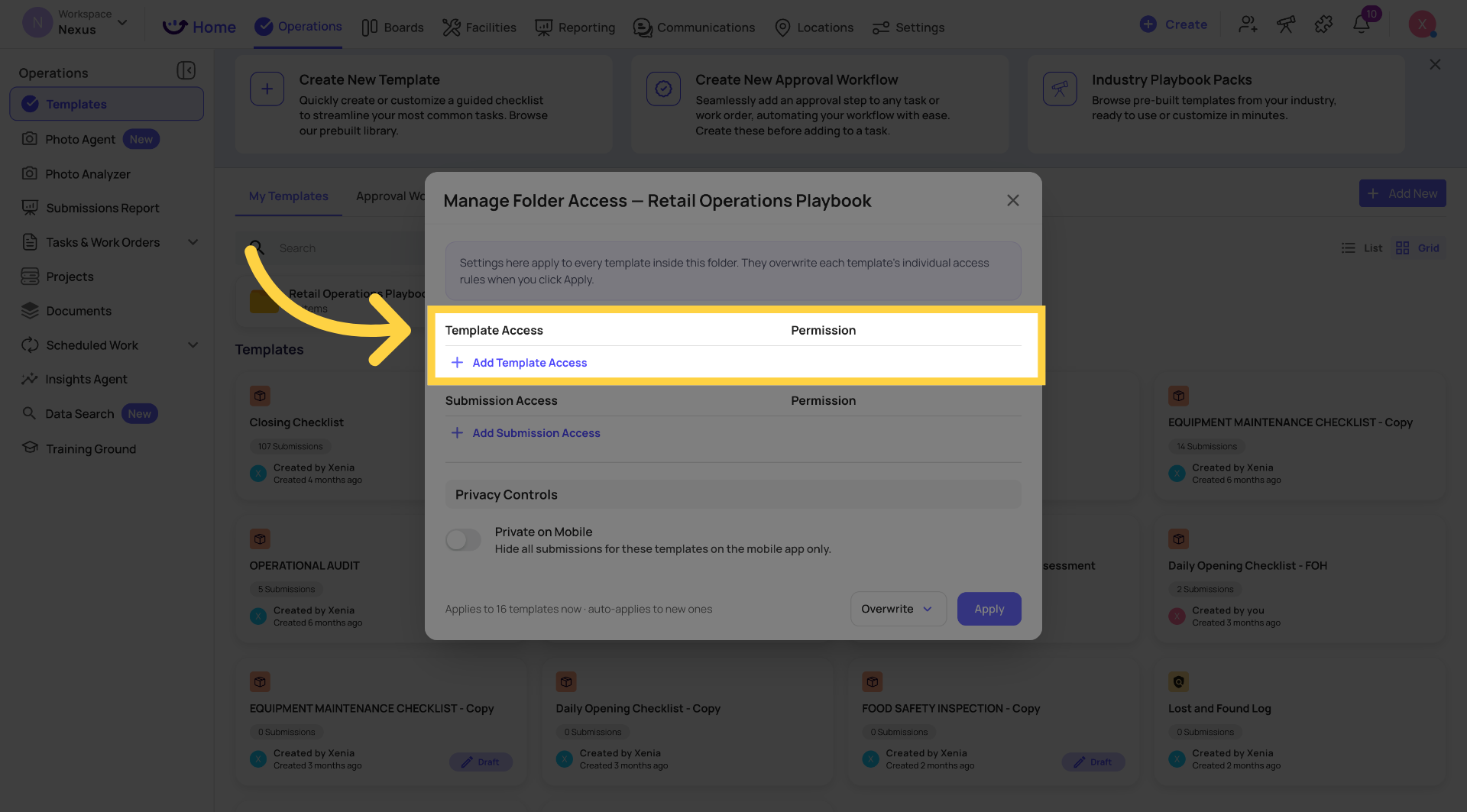
Submission Access — Who Can See Submissions
Add users, teams, locations, or roles with a visibility tier:
- Can view my own — sees only submissions they personally submitted
- Can view my own and my locations — sees their own plus all submissions from their member locations
- Can view all submissions across all locations — full visibility regardless of location
There is also a Can edit submissions toggle — enabling this allows the role or user to edit submitted forms after submission.
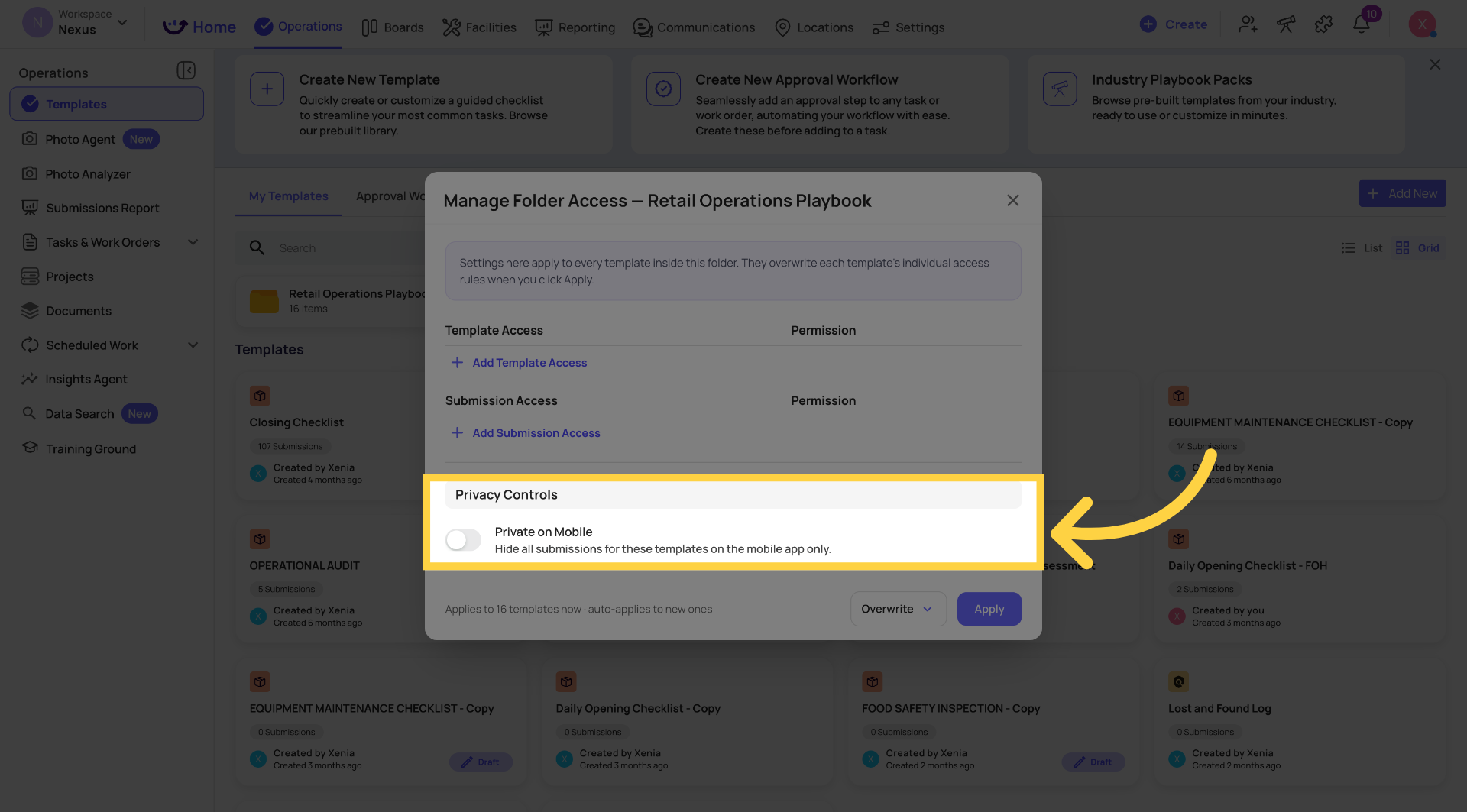
Privacy Controls
- Private on Mobile — hides submissions for these templates on the mobile app only. Submissions remain visible on the web app.
- Admin/Owner full-access bypass — Admins and Owners can always access these templates regardless of the settings above.
How to Apply the Settings
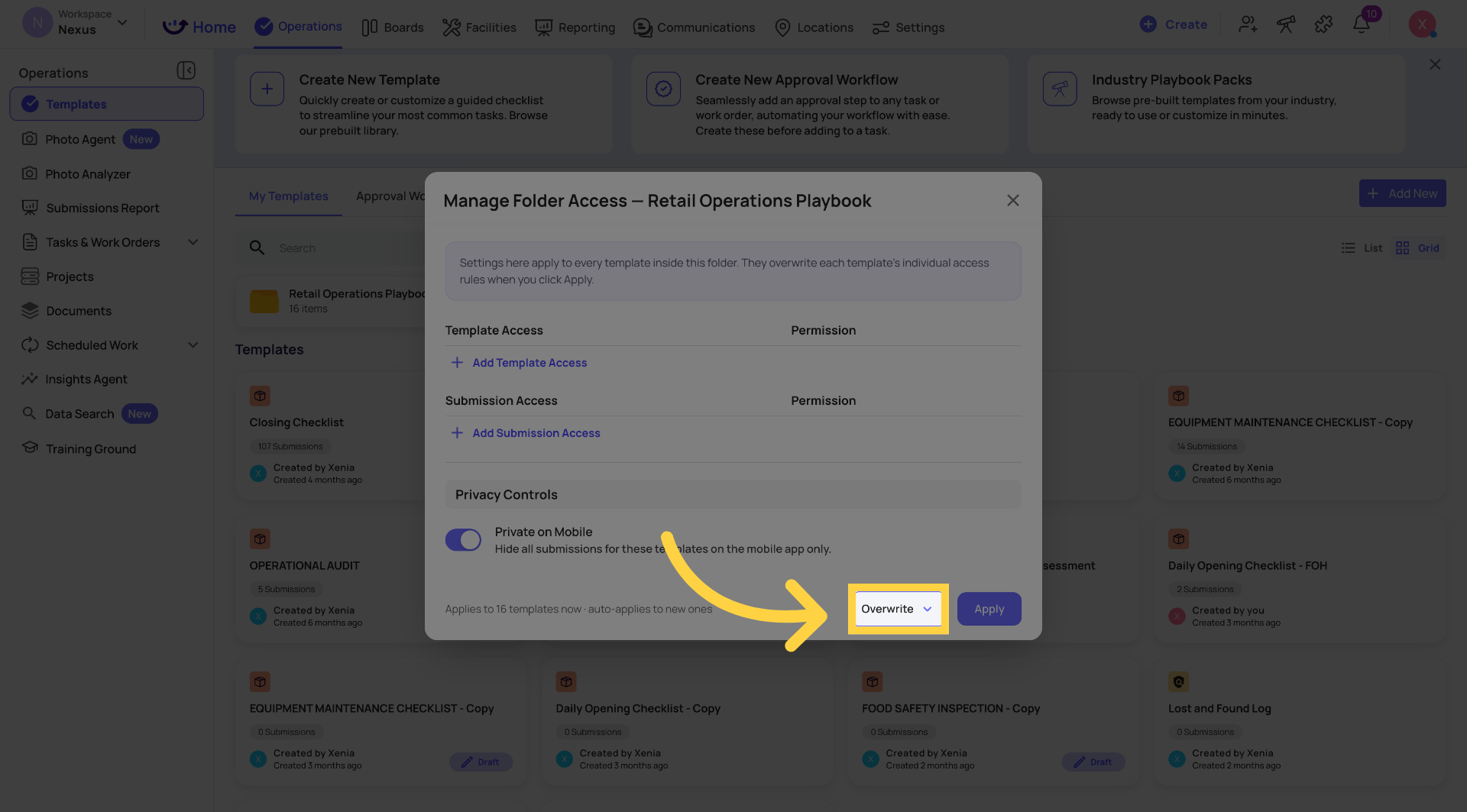
After configuring the access rules, choose how they should be applied using two independent toggles at the bottom of the modal:
Apply across existing templates in this folder (overwrite)
When ON — clicking Apply overwrites the individual access settings on every template currently in the folder with these new folder-level rules. Before applying, a confirmation lists every template that will be affected.
When OFF — existing templates keep their own individual settings untouched.
Auto-apply to new templates
When ON — any template created in or moved into this folder in the future automatically inherits these folder-level access settings.
When OFF — new templates start with no inherited access settings.
Both toggles are independent. You can set defaults for future templates only without touching anything that exists today — or apply to everything at once.
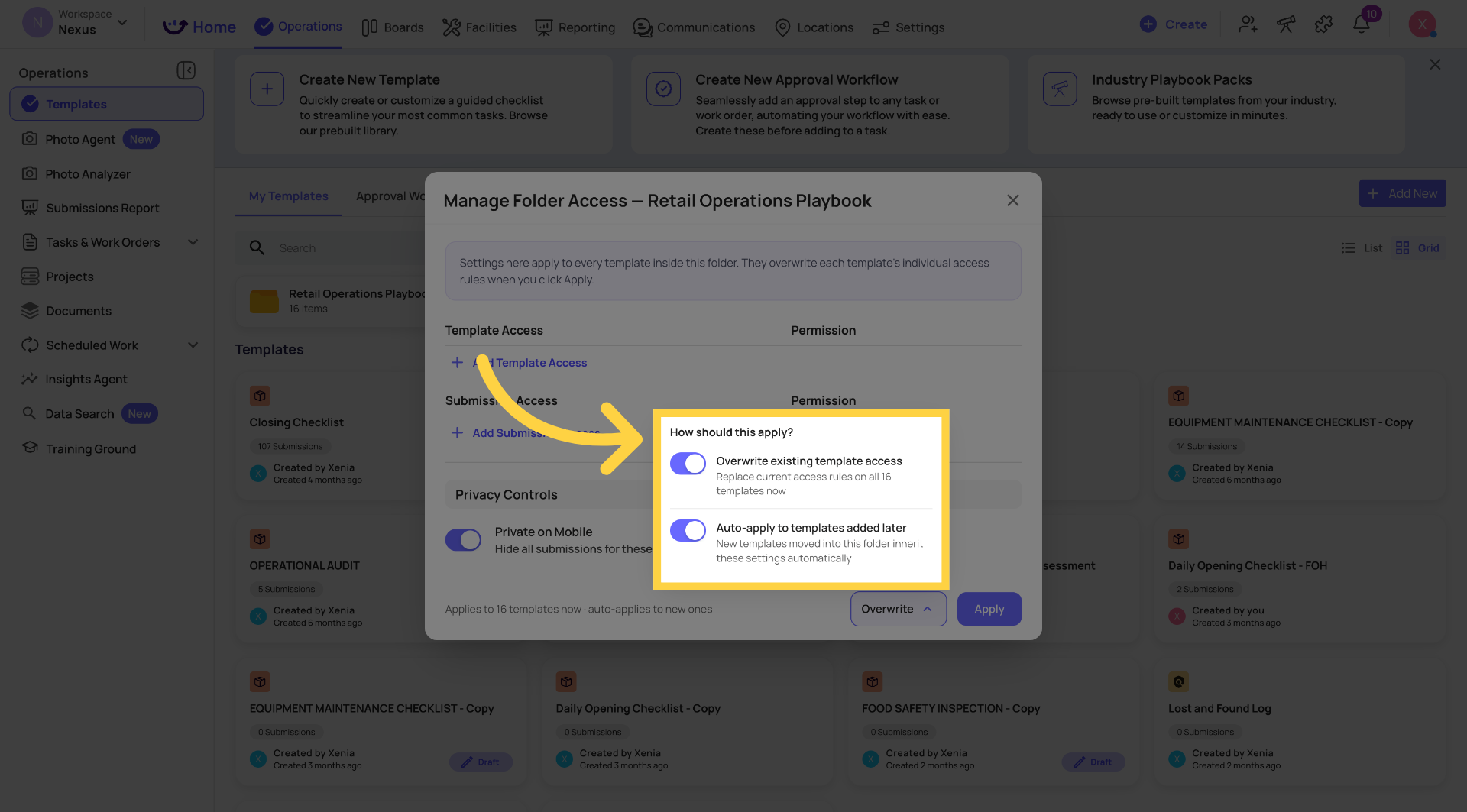
The footer dynamically updates as you adjust the toggles — showing something like "Applies to 4 templates now · auto-applies to new ones" so you always know exactly what will be affected before you confirm.
The Confirmation Step
When you click Apply with the overwrite toggle ON, a confirmation appears listing every template that will have its access settings replaced. Review the list and confirm to proceed.
Example Use Cases
HR forms folder — HR role only:
Template Access: HR Manager — Can only submit. Can edit template: HR Manager + Admin only. Submission Access: HR Manager — Can view all submissions. Apply to all existing HR templates and auto-apply to new ones.
Daily Operations folder — everyone submits, admins edit:
Template Access: All Users, Teams, Locations & Roles — Can only submit. Can edit template: Admin, Owner. Apply to all existing templates and enable auto-apply.
Regional inspections — location-scoped visibility:
Template Access: District Manager — Can only submit. Submission Access: District Manager — Can view my own and my locations. Each DM only sees submissions from their own stores.
Frequently Asked Questions
Q: Will this change my existing templates' access settings automatically?
No. Nothing changes until you open the modal, configure the settings, and explicitly click Apply. Existing templates keep their individual settings untouched unless you choose to overwrite.
Q: What if a template inside the folder already has its own access settings?
If you apply folder-level settings with the overwrite toggle ON, those individual settings are replaced. If you use auto-apply for new items only, existing templates with their own settings are not affected.
Q: Can I use folder access as a default for new templates without overwriting existing ones?
Yes. Turn the overwrite toggle OFF and the auto-apply toggle ON. New templates will inherit the folder settings; existing ones remain unchanged.
Q: Who can see the Manage Access option on a folder?
Only users whose role includes the permission to manage template access. If you don't see Manage Access in the folder's three-dot menu, your role doesn't have this permission.
Reach out to our Support Team at Support@xenia.team
Comments
0 comments
Please sign in to leave a comment.