
What This Feature Does
Previously, access settings on documents had to be set one document at a time through each document's individual Access modal. For workspaces with large document libraries organized into folders — SOPs, training materials, recipes, HR policies — this meant repeating the same configuration for every document.
Folder-level access management for Documents lets you set visibility, editors, and viewers at the folder level — and apply those settings to every document inside at once.
⚠️ Important: Nothing Changes Until You Click Apply
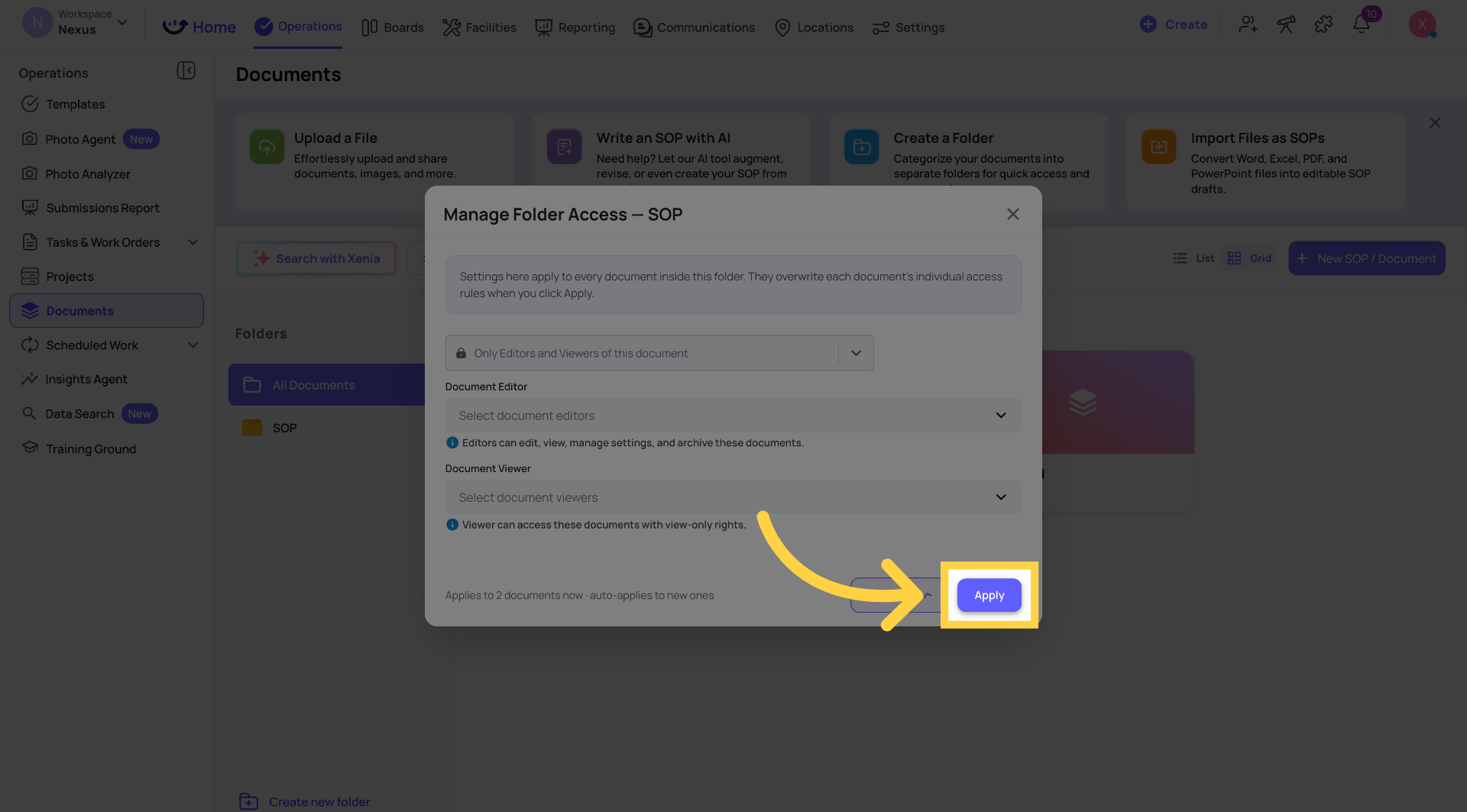
Opening the Manage Access modal on a document folder does not automatically change any document's access settings. Every document keeps its own individual settings untouched until you configure the folder-level rules and explicitly click Apply.
This is always an intentional, user-initiated action — never automatic.
Where to Find It
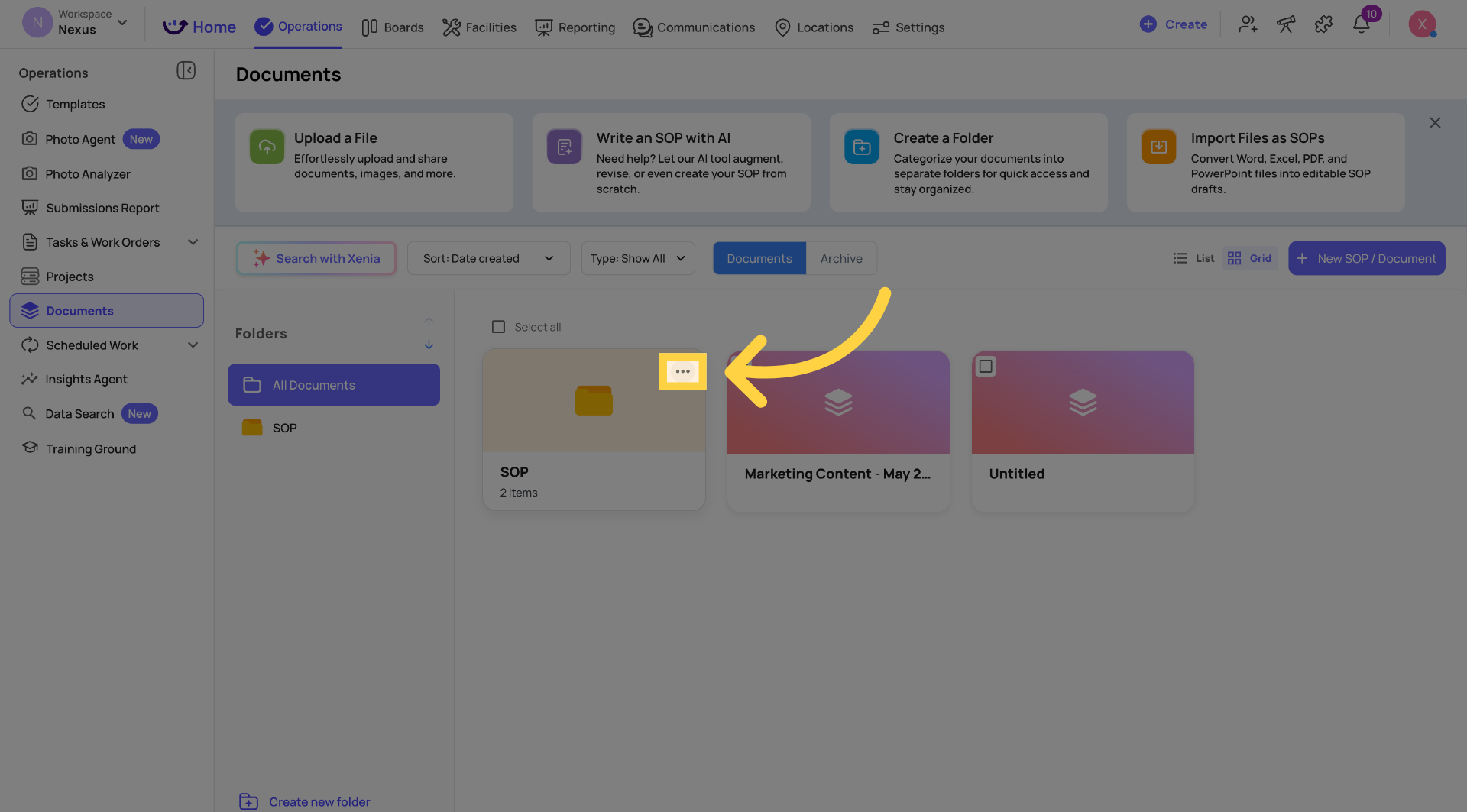
- Go to Operations → Documents
- Find the folder you want to configure
- Click the three-dot menu (⋯) on the folder
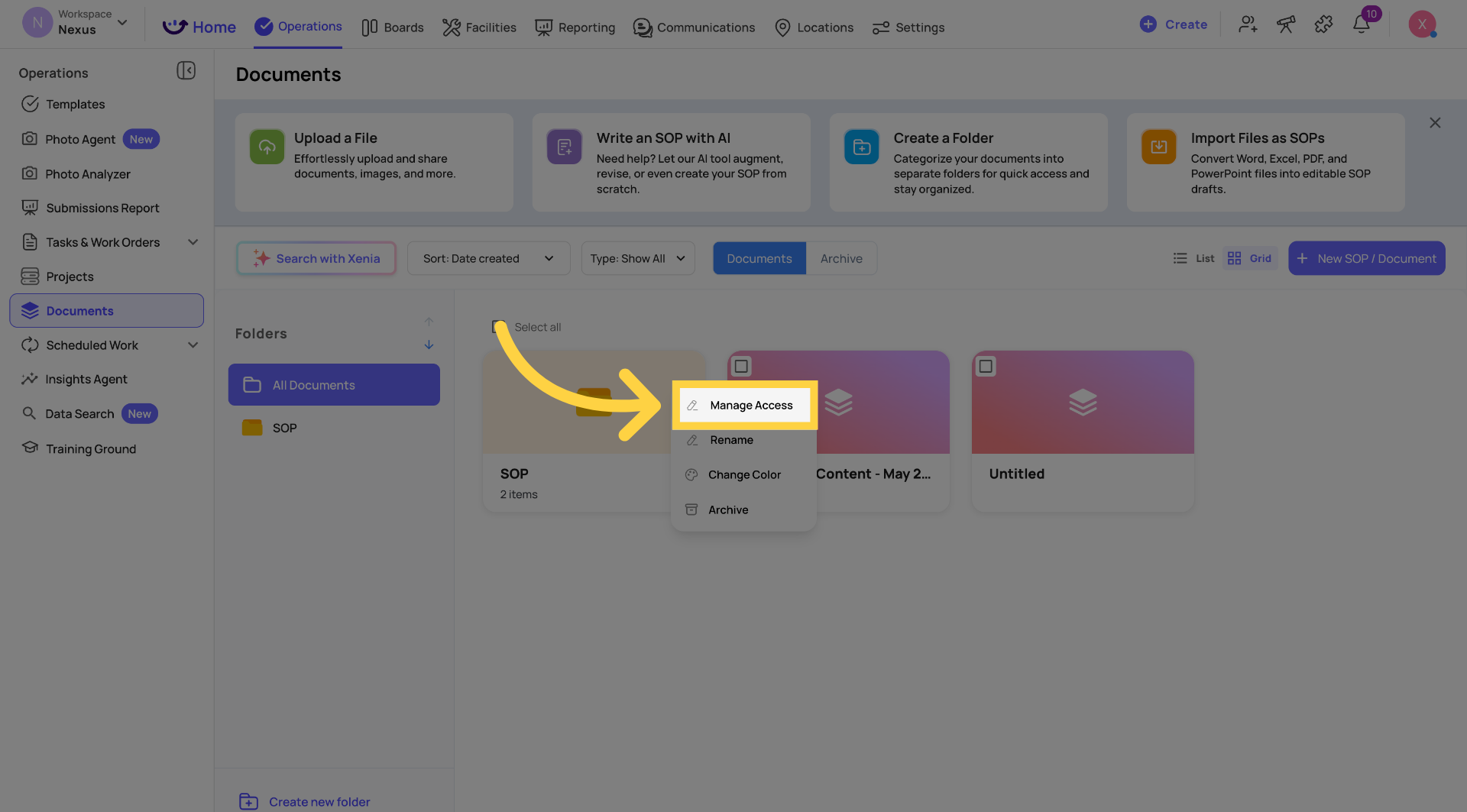
- Select Manage Access
The Manage Access option appears alongside Rename, Change Color, and Archive in the folder menu — the same entry point as for Templates.
What You Can Configure
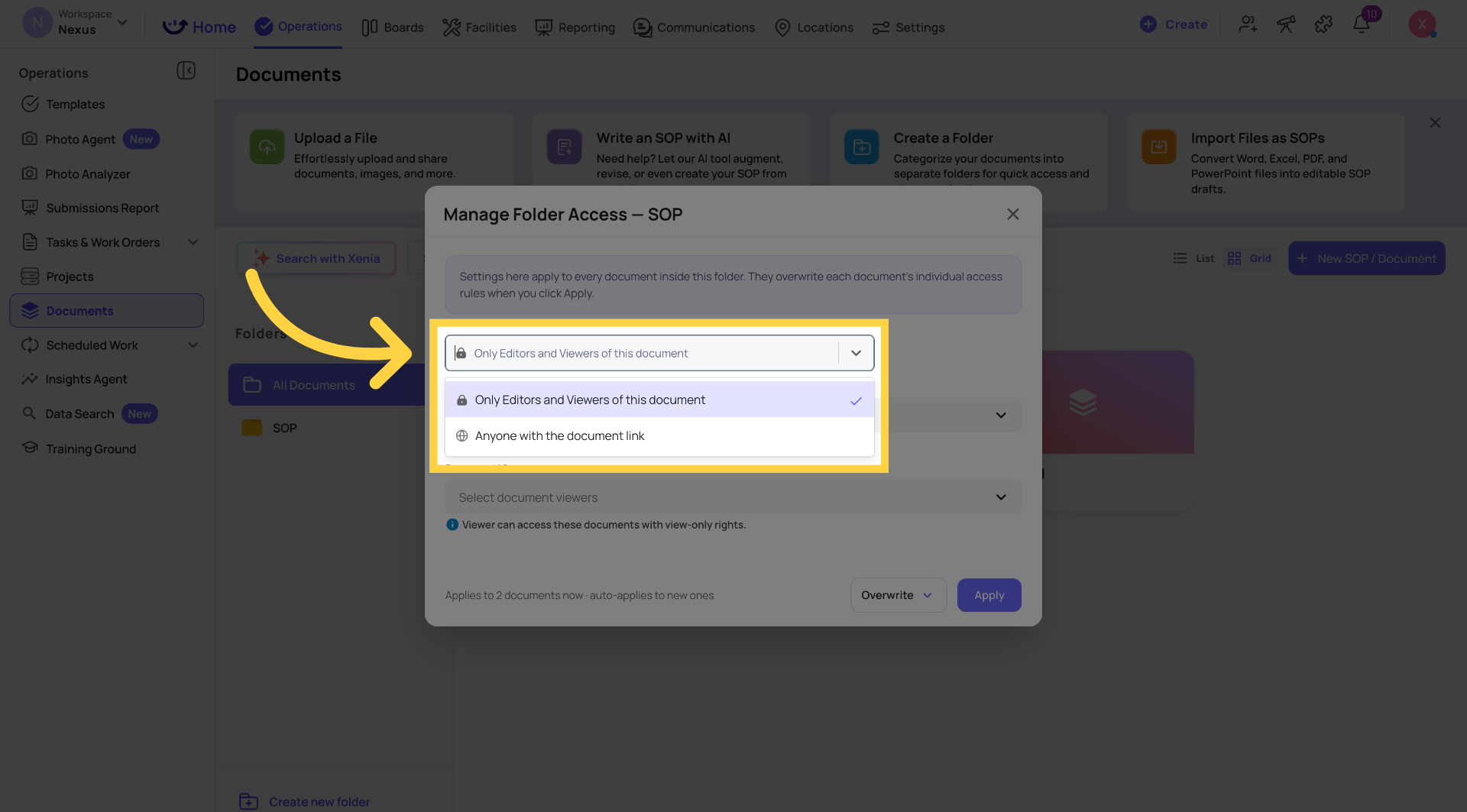
The Manage Access modal for Documents has three sections:
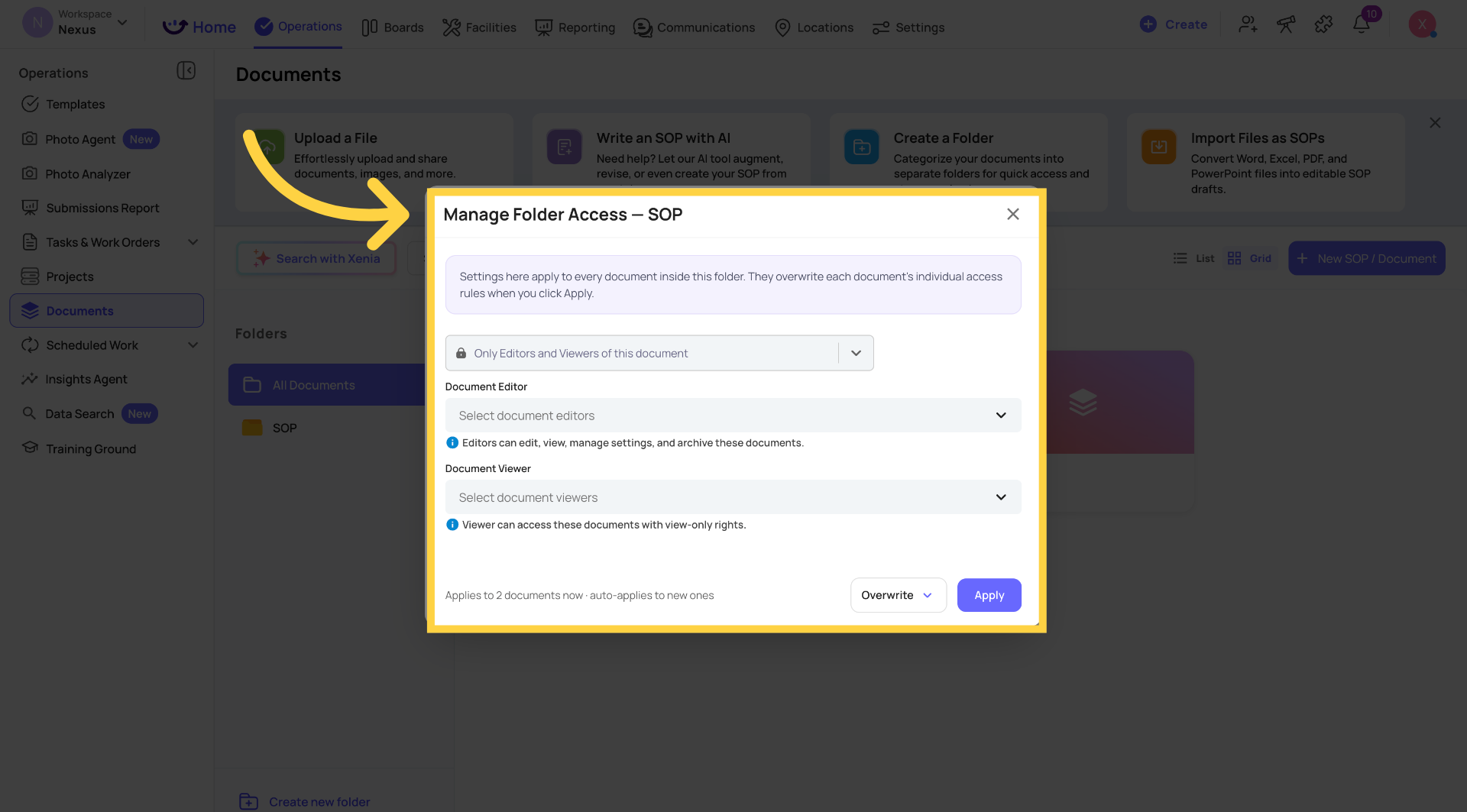
Visibility
A dropdown that controls who can see the documents in this folder at all:
- Only Editors and Viewers of this folder — only people explicitly added as Editors or Viewers below can access these documents
- Other visibility levels as configured for your workspace
There is also a Copy Link option to get a shareable link to the folder.
Document Editors
Add users, teams, locations, or roles as Editors of all documents in this folder.
Editors can edit, view, manage settings, and archive documents in this folder.
Document Viewers
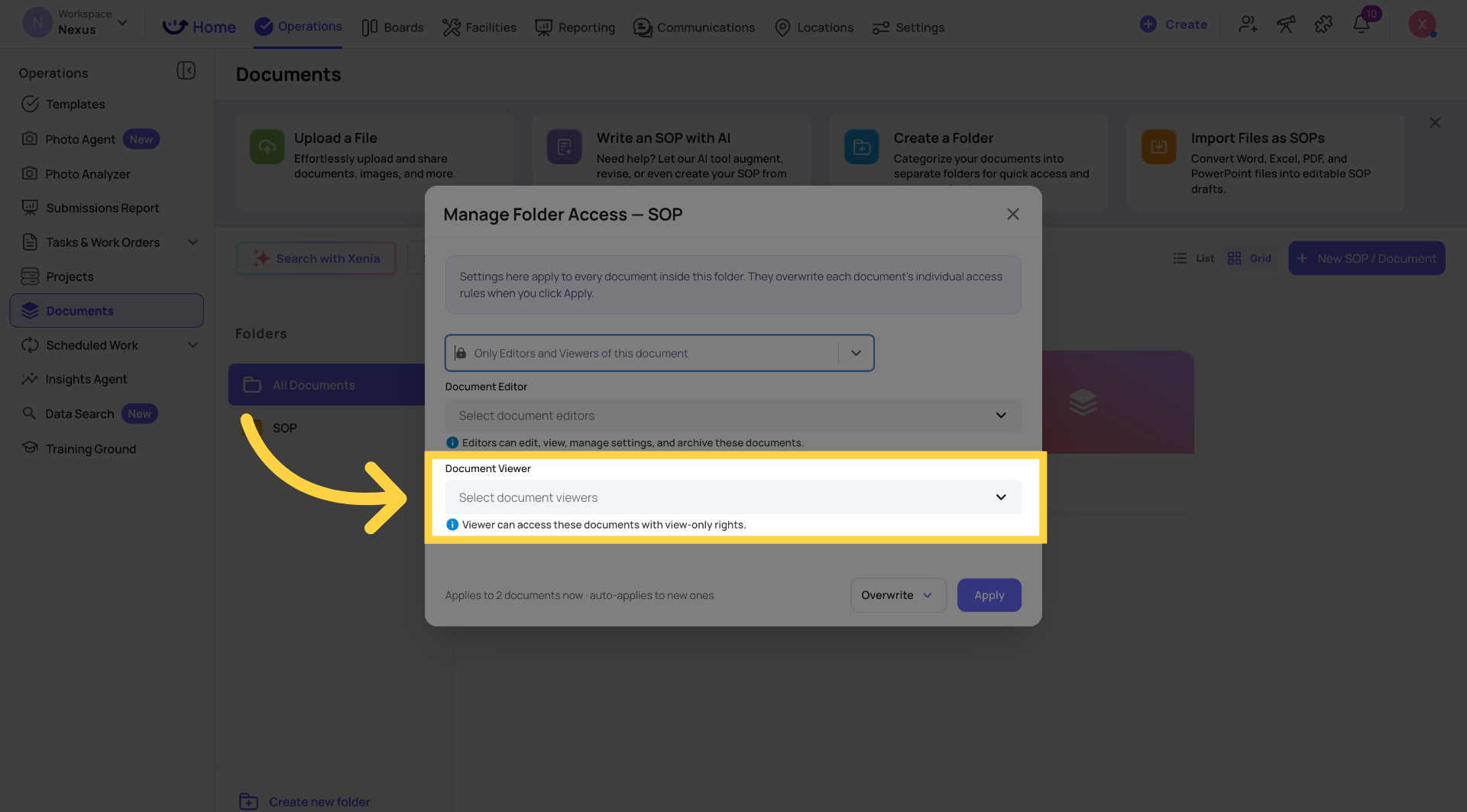
Add users, teams, locations, or roles as Viewers of all documents in this folder.
Viewers can access documents in this folder with view-only rights — they cannot edit, modify settings, or archive.
How to Apply the Settings
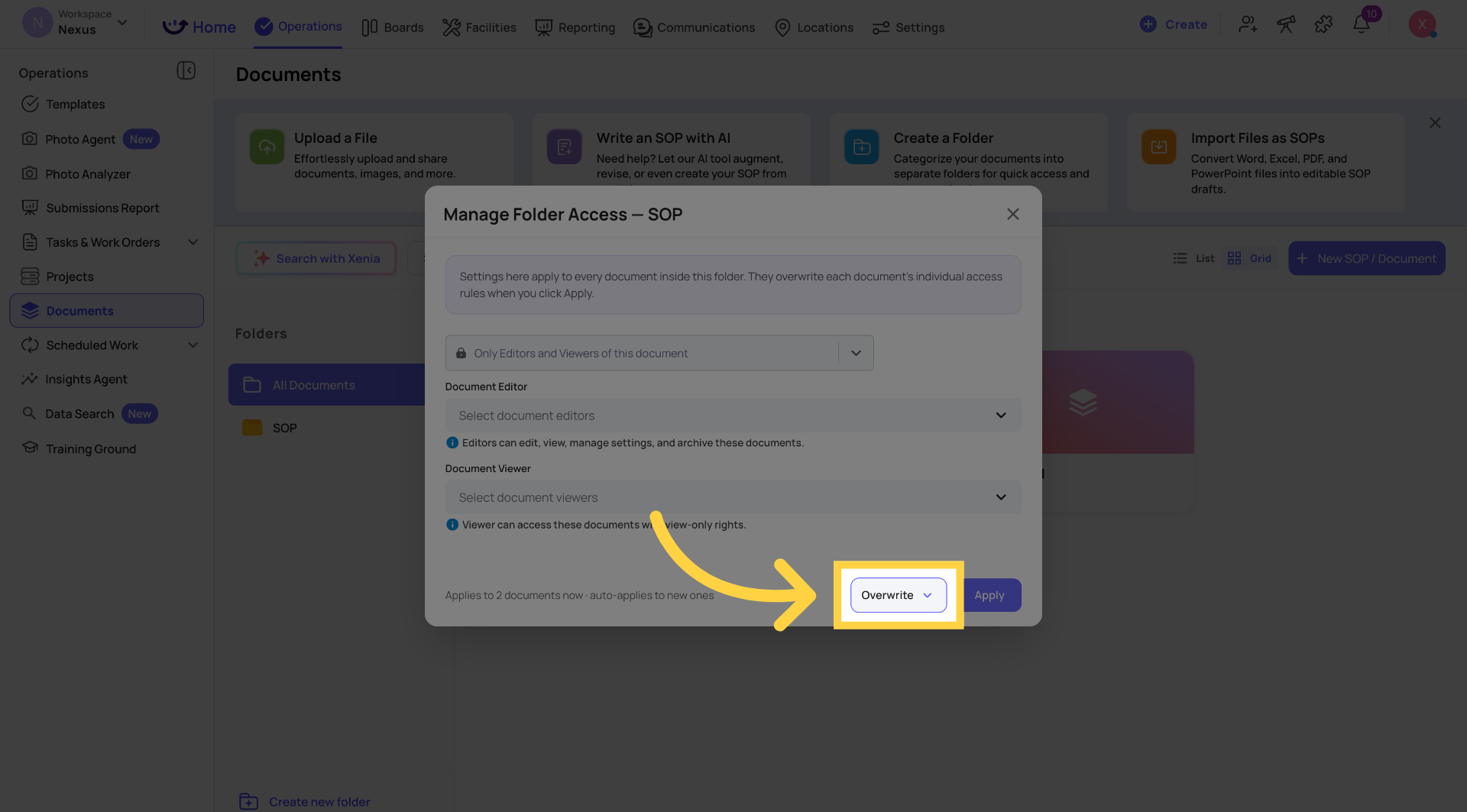
The same two independent toggles appear at the bottom of the Documents modal:
Apply across existing documents in this folder (overwrite)
When ON — clicking Apply replaces the individual access settings on every document currently in the folder. A confirmation lists every document that will be affected before you confirm.
When OFF — existing documents keep their own individual settings untouched.
Auto-apply to new documents
When ON — any document created in or moved into this folder automatically inherits these folder-level access settings.
When OFF — new documents start without inherited settings.
The Confirmation Step
When you click Apply with the overwrite toggle ON, a confirmation appears listing every document whose access settings will be replaced. Review the list and confirm to proceed.
Example Use Cases
HR Policies folder — HR team only:
Visibility: Only Editors and Viewers. Editors: HR Manager. Viewers: HR Manager + Employee role. Apply to all existing documents and enable auto-apply. No other role can access anything in this folder.
Training Materials folder — all staff can view, managers can edit:
Editors: Store Manager, District Manager. Viewers: All Users, Teams, Locations & Roles. Auto-apply ON so new training documents are immediately accessible when added.
Executive Reports folder — restricted to leadership:
Editors: Owner, Admin. Viewers: District Manager, Regional Manager. Overwrite existing documents and auto-apply to new ones.
Frequently Asked Questions
Q: Will this change my existing documents' access settings automatically?
No. Nothing changes until you open the modal, configure the settings, and explicitly click Apply. Existing documents keep their individual settings unless you choose to overwrite them.
Q: What's the difference between a Document Editor and a Document Viewer?
Editors can edit the document content, manage its settings, and archive it. Viewers can open and read the document but cannot modify it in any way.
Q: Can I set up auto-apply for new documents without changing existing ones?
Yes. Turn the overwrite toggle OFF and the auto-apply toggle ON. New documents added to the folder will inherit the settings; existing documents remain unchanged.
Q: Who can see the Manage Access option on a document folder?
Only users whose role includes the permission to manage document access. If Manage Access doesn't appear in the folder's three-dot menu, your role doesn't have this permission.
Reach out to our Support Team at Support@xenia.team
Comments
0 comments
Please sign in to leave a comment.