
Bring your live frontline operations data into Claude with the Xenia connector.
The Xenia connector links Claude directly to your Xenia workspace using the Model Context Protocol (MCP). Once connected, you can ask Claude about open tasks, work orders, checklist completion, and failed inspection items across any location — and create tasks, work orders, and projects — all from inside a normal conversation. This guide walks you through connecting in just a few minutes.
What you can do once connected
Surface data and take action
- Surface operations data — "Show me all open work orders across my locations from this week."
- Generate completion & compliance reports — "What's the checklist completion rate across all stores this week? Flag anything under 80%."
- Create and assign work — "Create a high-priority task for the Store Manager at Store #14 to fix the walk-in cooler, due tomorrow."
- Deploy projects across locations — "Deploy our daily opening checklist to all 22 locations assigned to the Shift Lead role."
Analyze risk, trends, and root causes
- Pinpoint at-risk locations before they fail — "Score every restaurant on near-term failure risk using avg weighted score, recent trend, and critical-fail load. Rank the top 10 we should audit first this month."
- Identify repeat offenders — "Which locations have failed the same critical question on 2+ separate audits in the last 30 days, and what was the issue?"
- Run root-cause analysis on any topic — "Why are Dining Room cleanliness scores trending down? Decompose into component drivers and show me which one is dragging the rest down."
- Spot related failure patterns — "Are there operational issues that tend to show up together? Do locations that fall short on temperature checks also fall short on cleanliness?"
- Trend any metric over time — "Show me monthly weighted score by franchise group for the last 9 months and flag any operator that slipped more than 3 percentage points."
- Extract themes from free-text notes — "Pull all inspector free-text notes from the last 60 days, group them into themes, and tell me what managers are reporting most often about equipment issues."
- See where risk is clustering — "Which locations and weeks have had the most critical fails over the last 8 weeks?"
- Benchmark franchise groups — "Rank our top 10 franchise groups by total failed responses and tell me which 3 issues are dominant in each."
Before you begin
- A Xenia account. You'll sign in with your normal Xenia credentials during setup — no special access or API key required.
- A Claude plan that supports connectors. Custom connectors are available on Claude Pro, Max, Team, and Enterprise plans.
-
The Xenia MCP URL:
https://mcp.xenia.team/mcpTeam & Enterprise note: On Team and Enterprise plans, a workspace Owner needs to add the connector once at the organization level. After that, each member connects their own Xenia account using Step 4 below.
Add the Xenia connector
Step 1. Open your Connector settings
In Claude, go to Settings → Connectors. (On Pro and Max you'll find this under Settings; on Team and Enterprise an Owner adds it under Organization settings → Connectors.)
Step 2. Choose "Add custom connector"
Click the + (or Add custom connector) button to start configuring a new connector.
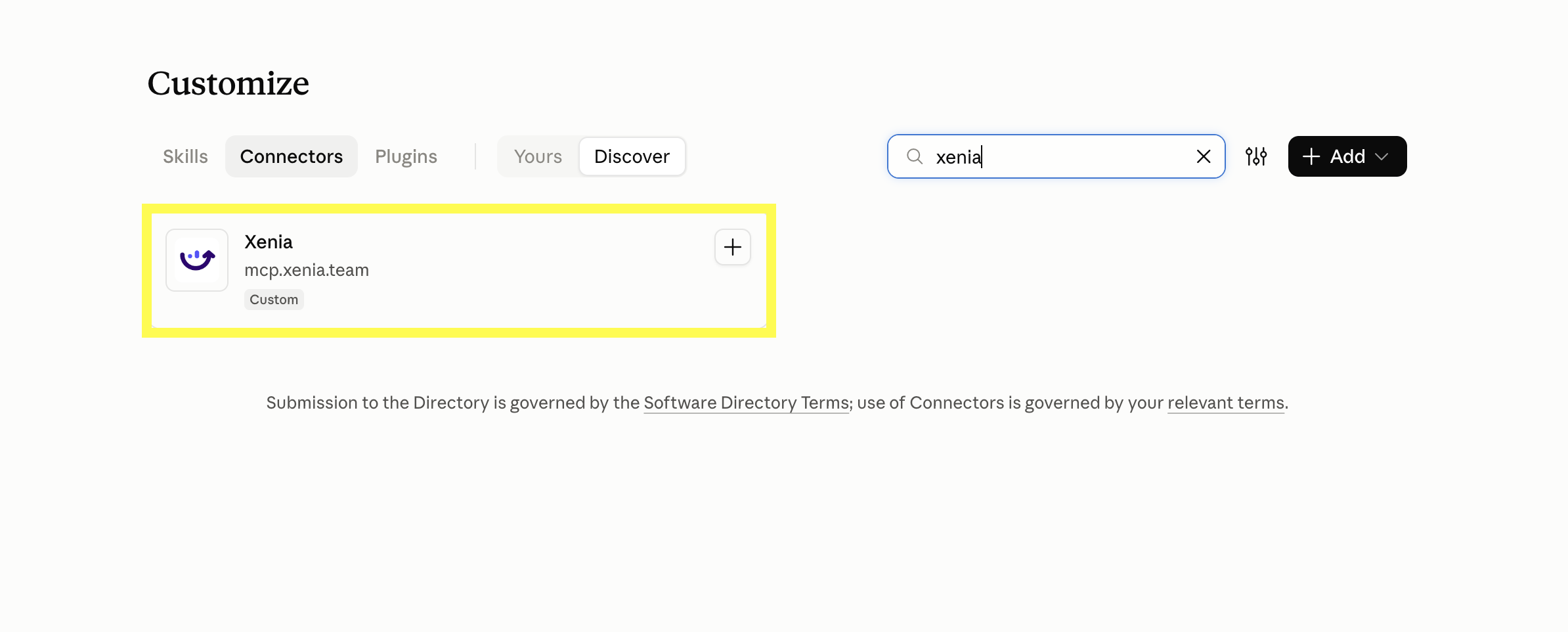
Step 3. Enter the Xenia connector details
Enter the following:
-
Name:
Xenia -
Remote MCP server URL:
https://mcp.xenia.team/mcp
Leave Advanced settings (OAuth Client ID / Secret) empty. No client ID or secret is needed — Claude detects everything automatically.
Click Add.
Step 4. Connect
Click Connect on the Xenia connector.
Step 5. Sign in to Xenia
Sign in to your Xenia account if prompted.
Step 6. Choose your workspace
On the Connect to Xenia screen, choose the workspace you want Claude to access, then click Allow.
(existing screenshot)
Step 7. You're connected
You'll be returned to Claude and the connector will show as connected. You're ready to go.
Try it out
Start with a simple read-only question to confirm everything is working, then move on to creating and deploying work:
- "Show me all open work orders across my locations from this week."
- "What's the status of the fryer repair work order at our Greenville location?"
- "Pull all failed responses from food safety audits submitted this week and summarize by location."
- "Create a high-priority task for the Store Manager at Store #14 to fix the walk-in cooler, due tomorrow."
Troubleshooting
Xenia doesn't appear in the "+" → Connectors menu.
Make sure you completed Step 4 and that Xenia shows as connected in Settings → Connectors. Connectors are enabled per conversation — toggle it on in each new chat.
The connection failed or asks you to sign in again.
Your session may have expired. Open Settings → Connectors, click Connect on Xenia, and re-authorize. Confirm you're using the exact URL https://mcp.xenia.team/mcp.
Claude can't see a location or task you expect.
The connector respects your Xenia account's permissions — you'll only see locations and data your role has access to. Check your access in Xenia or ask your workspace admin.
"Add custom connector" isn't available.
Custom connectors require a Pro, Max, Team, or Enterprise plan. On Team/Enterprise, an Owner must add Xenia at the organization level first.
Support & resources
- Support: support@xenia.team
- Privacy policy: https://www.xenia.team/privacy-policy
- Learn more about Xenia: https://www.xenia.team
Comments
0 comments
Please sign in to leave a comment.