
1. The Question This Article Answers
"I added the Manager role to my email notifications but I only want Managers to be notified for locations they actually manage — not all managers everywhere. How do I control this?"
This is one of the most common points of confusion around email notifications in Xenia. The answer depends entirely on which recipient type you use: Role, Team, or User — and they behave very differently.
The Key Difference at a Glance
| Recipient Type | Respects Location Membership? | Who Gets the Email |
|---|---|---|
| Role | ✅ Yes | Only role members who have membership at the submission's location |
| Team | ❌ No | All team members, regardless of location |
| Specific User | Depends on Submission Access | Based on their Submission Access visibility tier |
| Open Email Address | ❌ No | That address receives every submission notification |
2. Roles — The Location-Scoped Option
When you add a Role as an email notification recipient, Xenia checks two things before sending:
- Does this user have the selected role?
- Does this user have location membership at the location where the form was submitted?
Both must be true. If a user has the Manager role but no membership at Store 12 — and a form is submitted from Store 12 — they will not receive the notification. Only the Manager who has membership at Store 12 gets the email.
This is the recommended approach for most multi-location operations. One configuration handles all locations automatically.
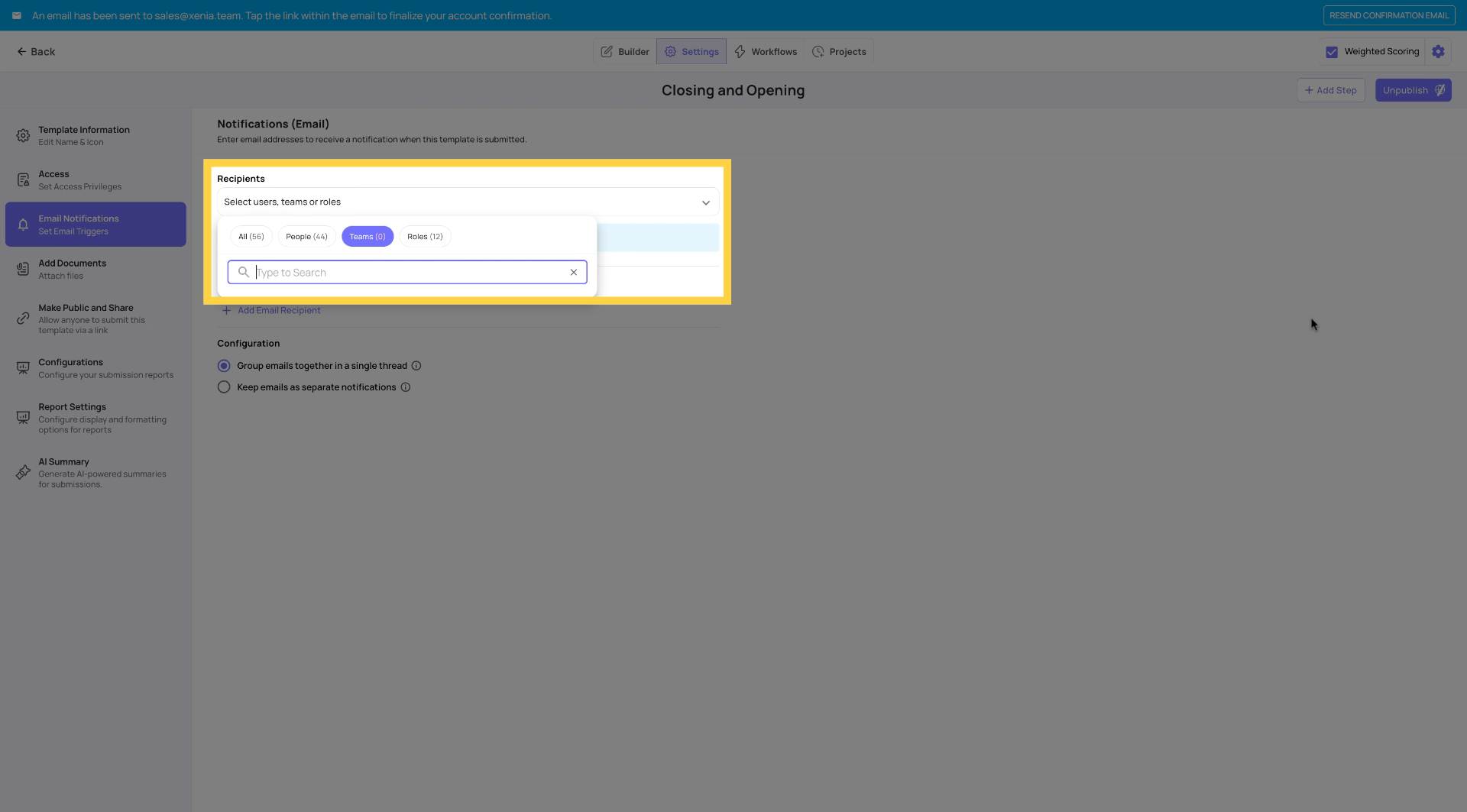
3. Teams — Not Location-Scoped
When you add a Team as an email notification recipient, all members of that team receive the notification — regardless of which location submitted the form or which locations those team members manage.
There is no location filtering on Team recipients.
If your Safety Management team has 12 members across the country and a form is submitted from Store 5, all 12 members receive the email — not just the one responsible for Store 5.
Use Teams only when you genuinely want everyone in the group to be notified for every submission — regardless of location.
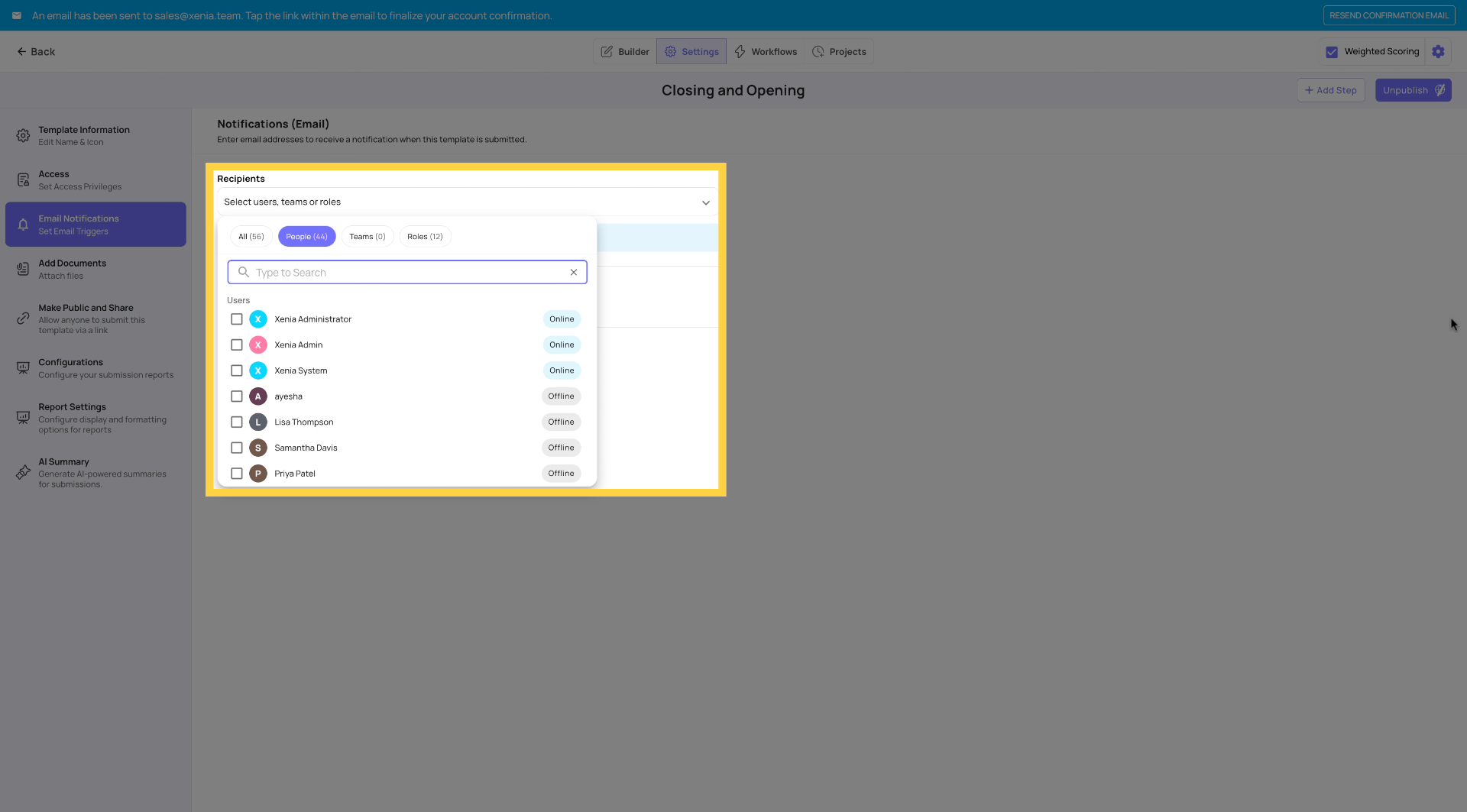
3. Specific Users — Controlled by Submission Access
When you add a specific named user as an email notification recipient, whether they receive location-scoped notifications depends on how their Submission Access is configured on that template.
Here's how it works:
- First, add the user to Submission Access in the template's Access settings
- Set their visibility tier: "Can view my own and my locations" — this restricts what submissions they can see to only their member locations
- Then add that same user to Email Notifications
Xenia will respect their Submission Access visibility when determining which submission notifications to send them. If their Submission Access says they can only see submissions from their locations, they'll only receive email notifications for submissions from those locations.
The Submission Access + Email Notifications Connection
This is the relationship that ties everything together:
Submission Access controls what submissions a role or user can view inside the Xenia app. But it also controls which email notifications they receive.
When you configure a user's or role's Submission Access visibility — own only, own and locations, or all — Xenia uses that same visibility rule to determine which submission notifications they get by email.
| Submission Access Tier | Email Notifications Received |
|---|---|
| Can view my own submissions | Emails only for their own submissions |
| Can view my own and my locations | Emails only for submissions from their member locations |
| Can view all submissions across all locations | Emails for all submissions |
Summary
- Use Roles when you want location-scoped notifications — Xenia routes to the right person at the right store automatically
- Use Teams only when every team member should receive every notification regardless of location
- Use specific Users + Submission Access when you need granular per-person control with location restrictions
- Never mix up Roles and Teams expecting the same behavior — they work fundamentally differently.
Need Help?
Reach out to our Support Team at Support@xenia.team
Comments
0 comments
Please sign in to leave a comment.