
When You Need to Edit a Submission
Once a checklist is submitted in Xenia, the record is permanent by default. But there are legitimate scenarios where submitted data needs to be corrected:
- An employee entered the wrong temperature reading
- A response was accidentally marked Fail instead of Pass
- A required field was filled in incorrectly
- HR or a compliance officer needs to make a modification to submitted form data
- An auditor wants to add clarifying notes to a completed audit
Xenia supports post-submission editing through the Can Edit permission in Submission Access — and provides an Edit Submission button directly on the submitted report for users who have it.
Part 1 — Configuring Who Can Edit Submissions
Before anyone can edit a submitted form, the permission must be enabled on the template. This is done in the template's Settings → Access section.
Step-by-step:
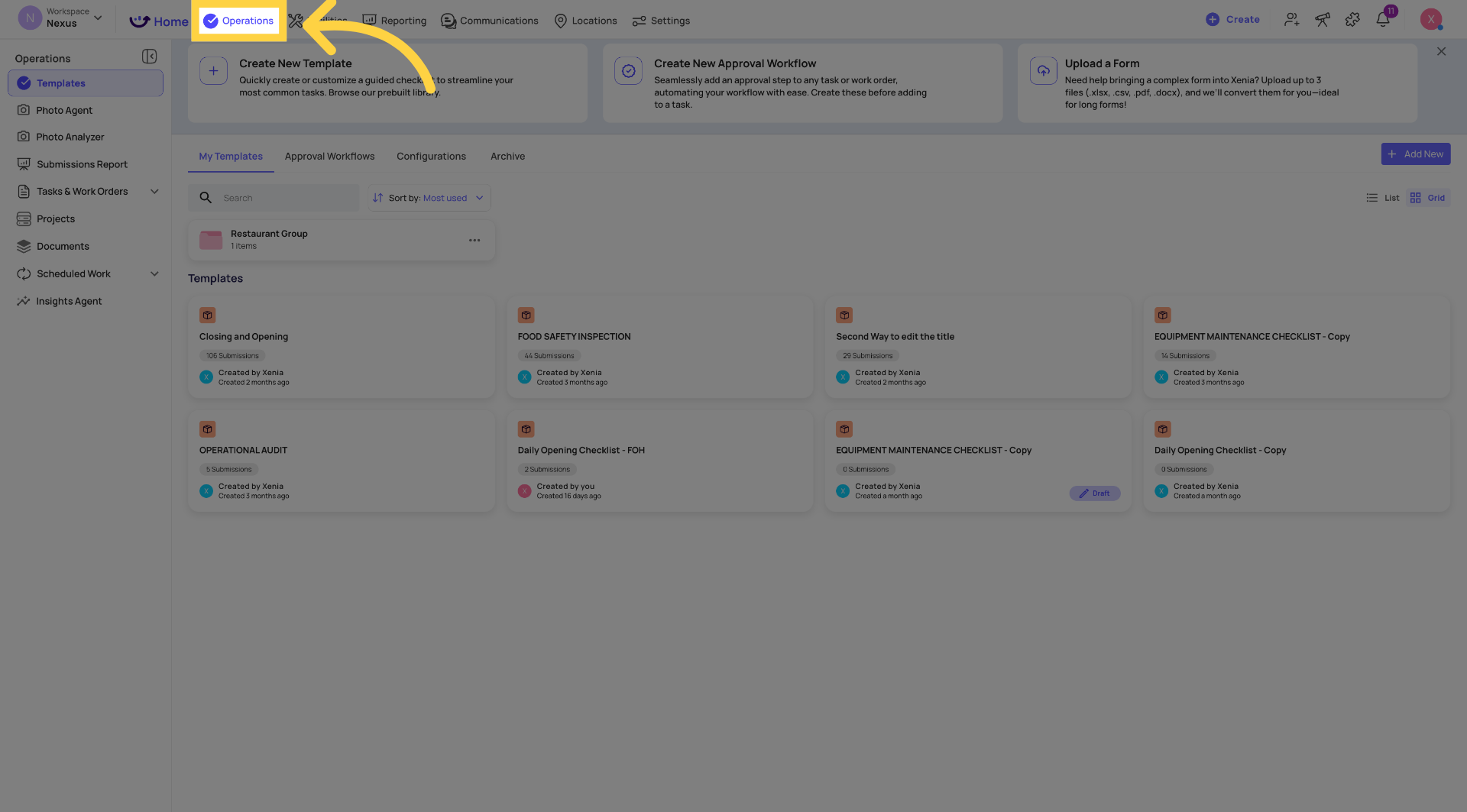
- Go to Operations → Templates
- Open the template you want to configure
- Click Settings in the top navigation bar (alongside Builder, Workflows, Projects)
- Click Access in the left sidebar
- Scroll to the Submission Access section
- Find the role or user you want to grant edit access to — they should already be listed in Submission Access with a visibility tier
- Look for the Can Edit toggle next to that role/user's row
- Toggle it ON
- Save
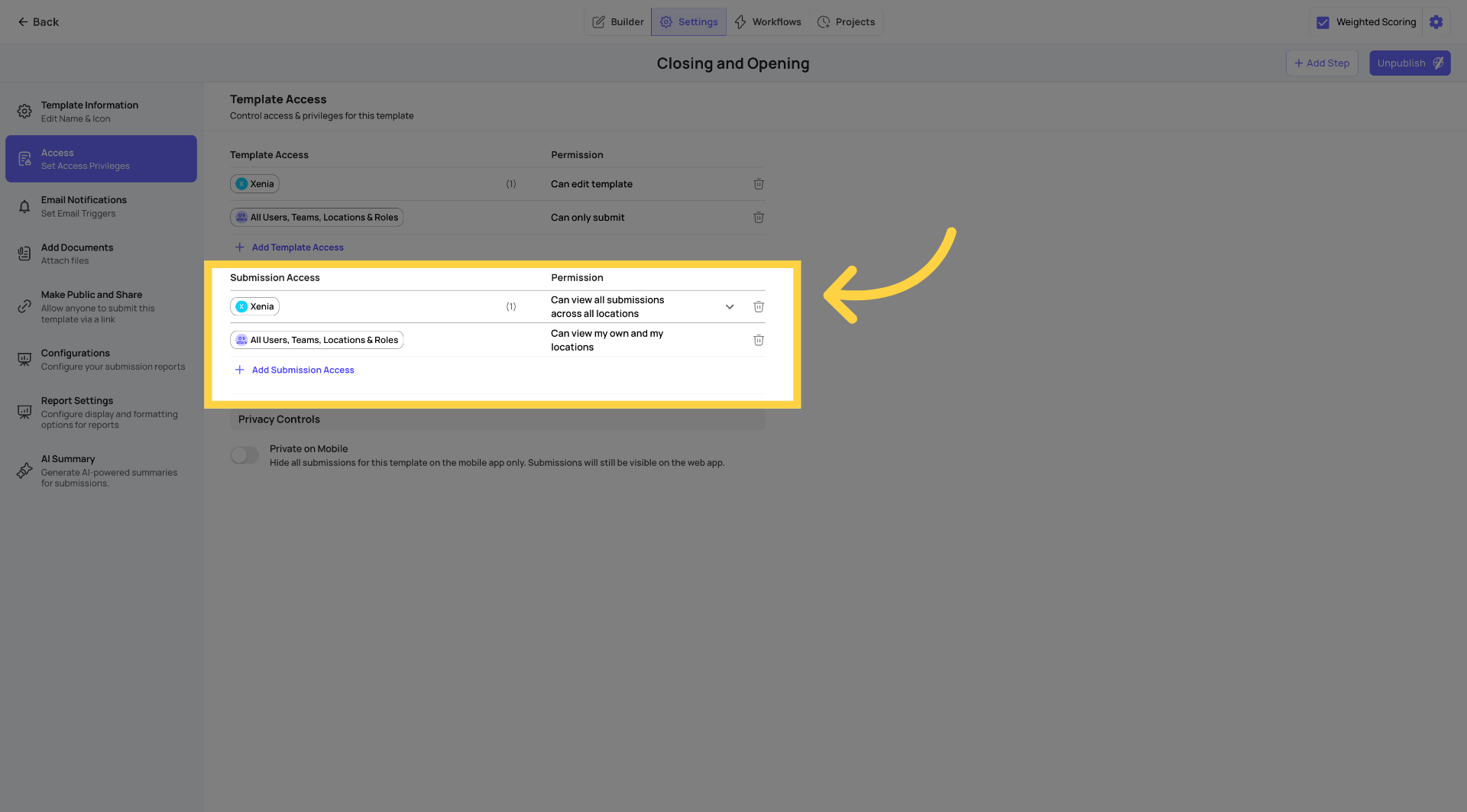
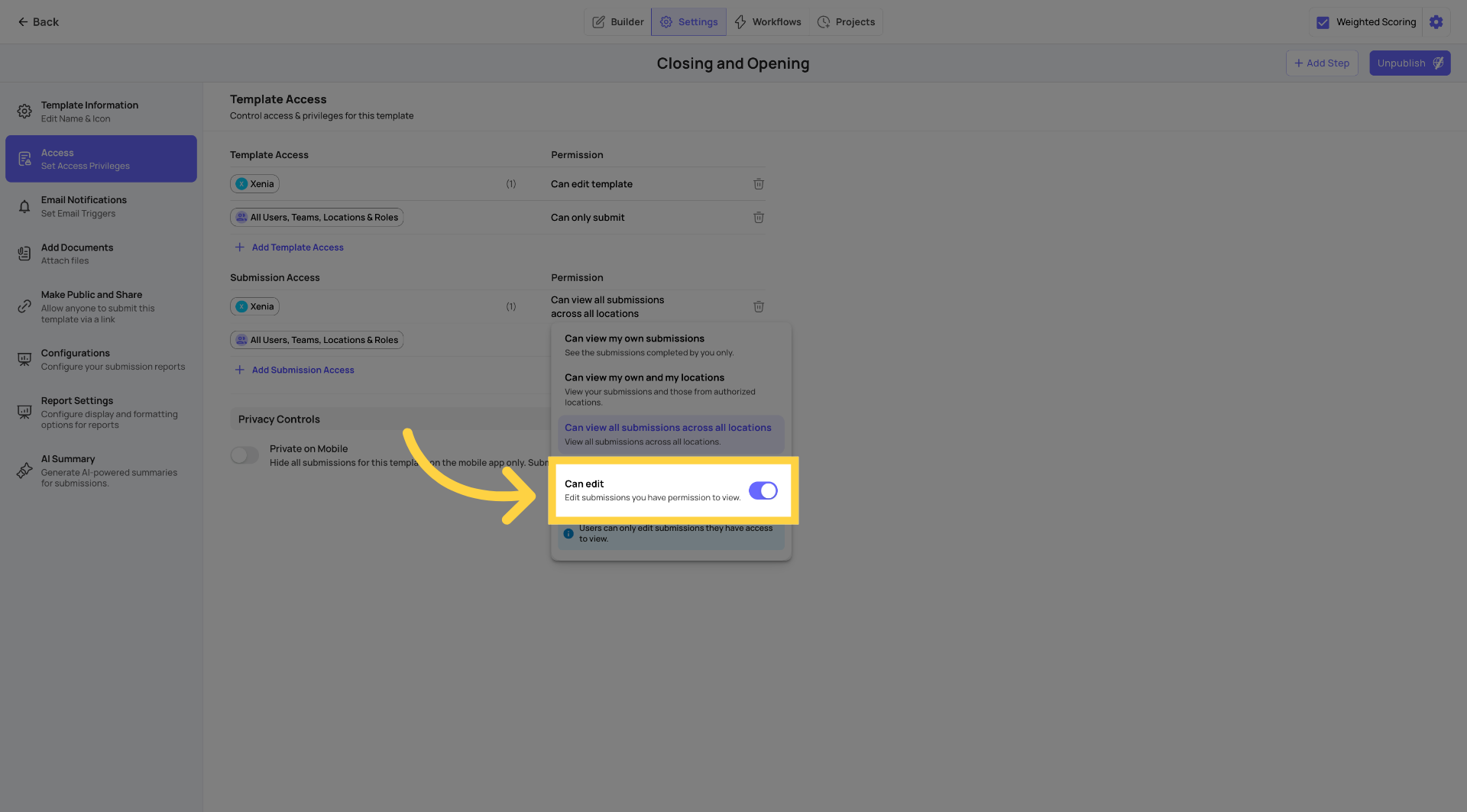 What "Can Edit" means: When Can Edit is enabled for a role or user, members of that role can open any submission they have access to view — and edit the response data directly. They can correct answers, update text fields, change selections, and add notes — then save those changes to the permanent record.
Important: Can Edit only applies to submissions the user already has permission to view. If their visibility tier is "View own submissions only," they can edit their own. If their tier is "View own and location," they can edit any submission from their member locations.
Part 2 — How to Edit a Submitted Form
Once Can Edit is configured (or for Admins who always have access):
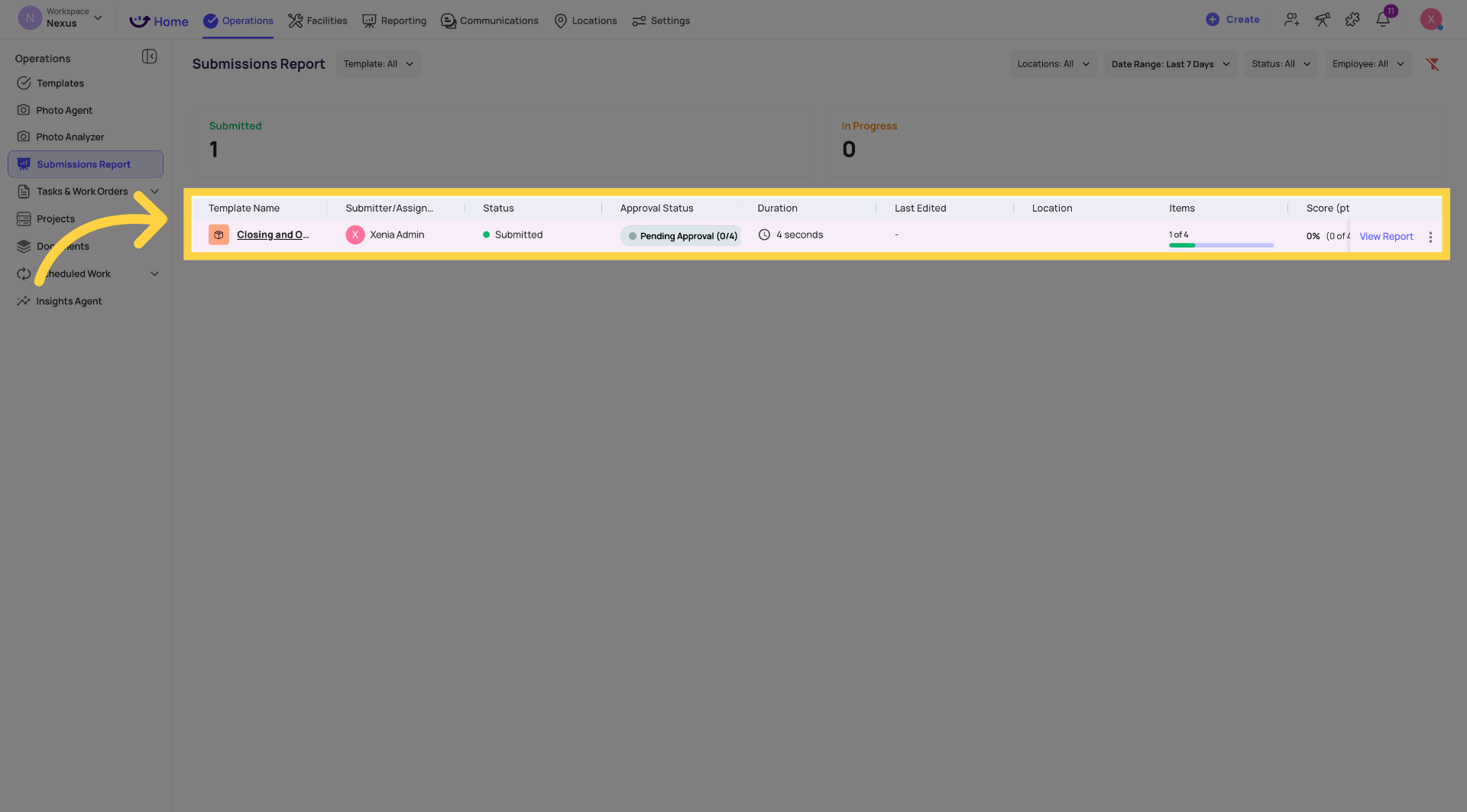
Step 1 — Find the submission
- Go to Operations → Templates → [Template Name]
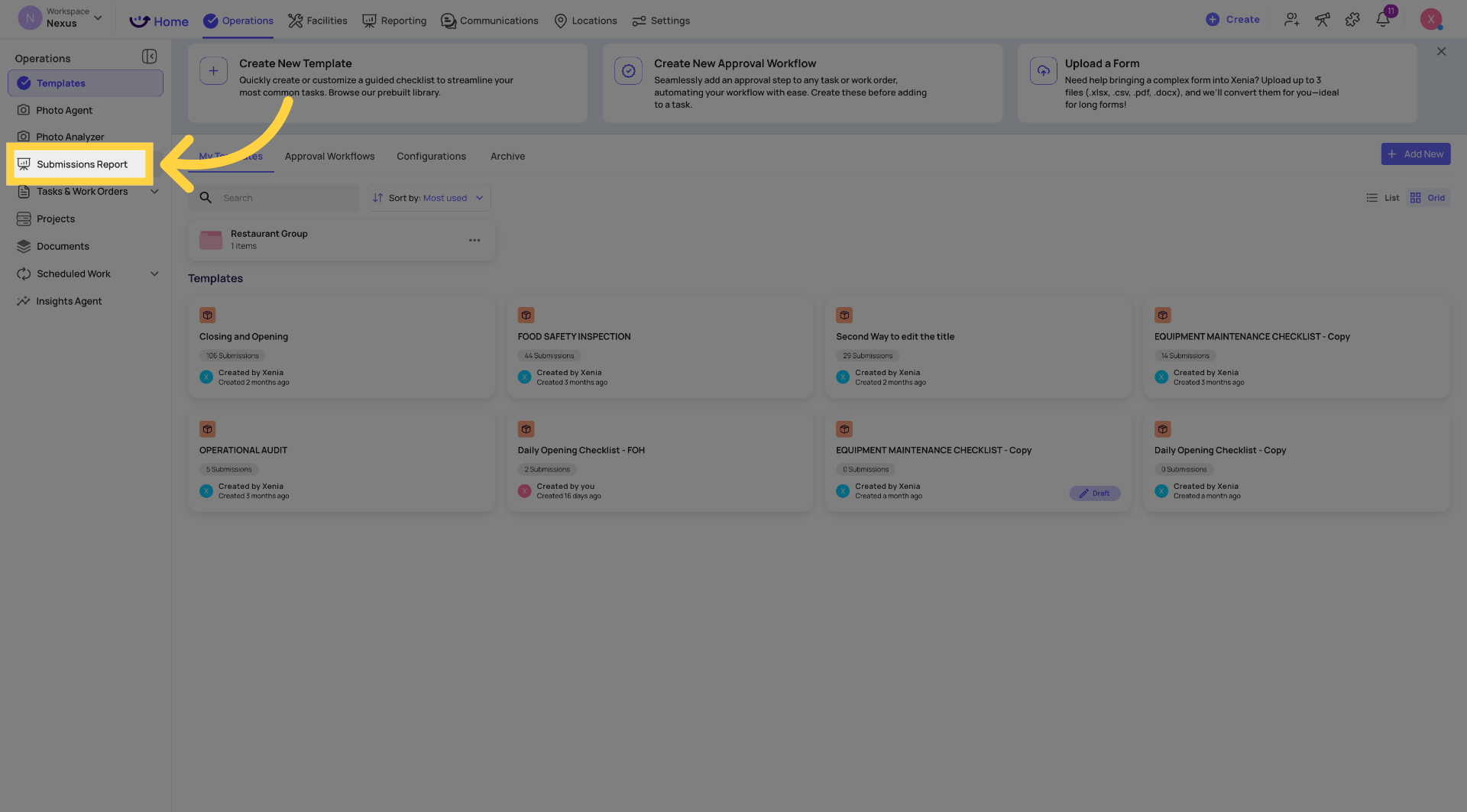
- Click into the Submissions view
- Find the submission you need to edit — filter by date, location, or submitter if needed
- Click the submission to open it
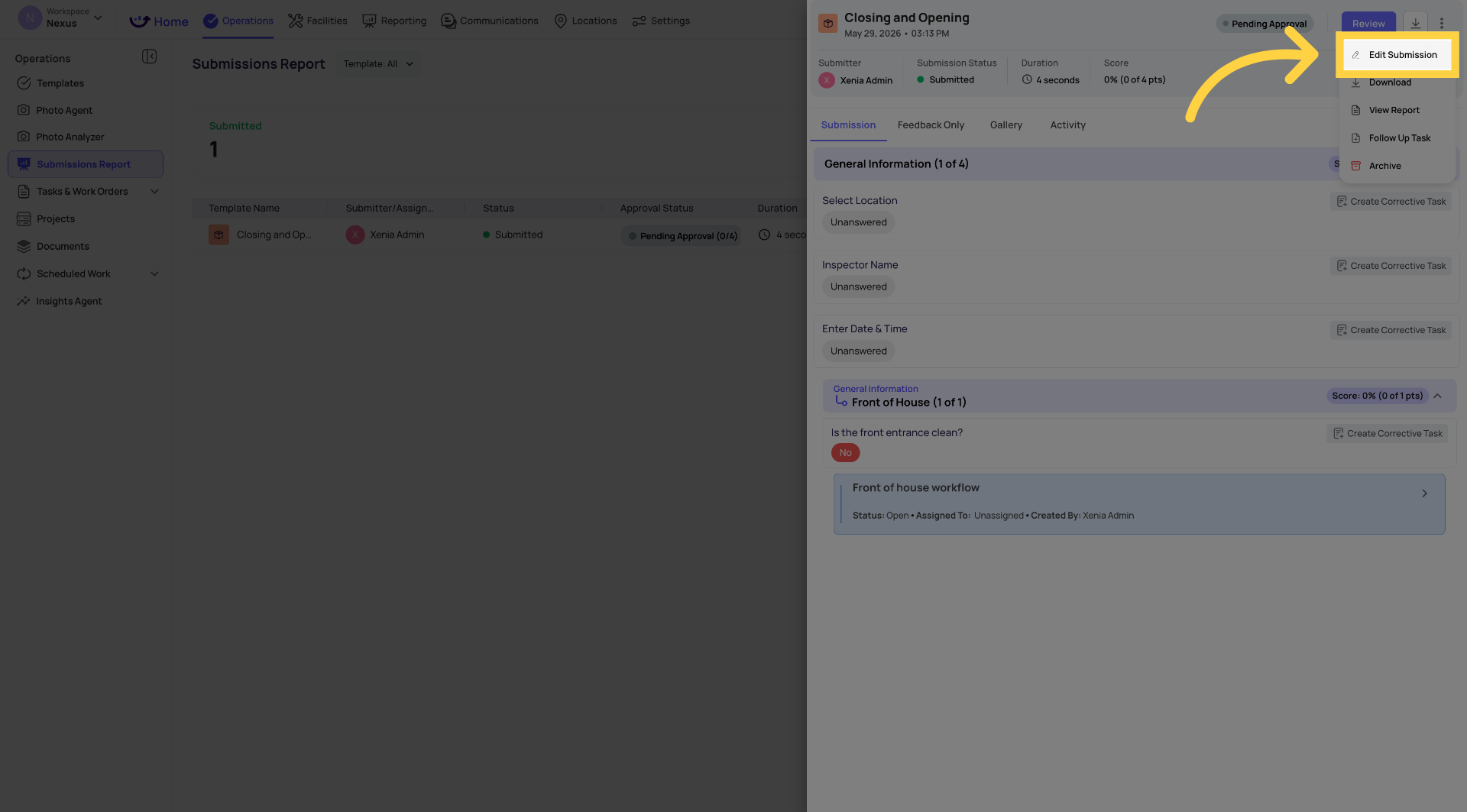
Step 2 — Open Edit Submission mode
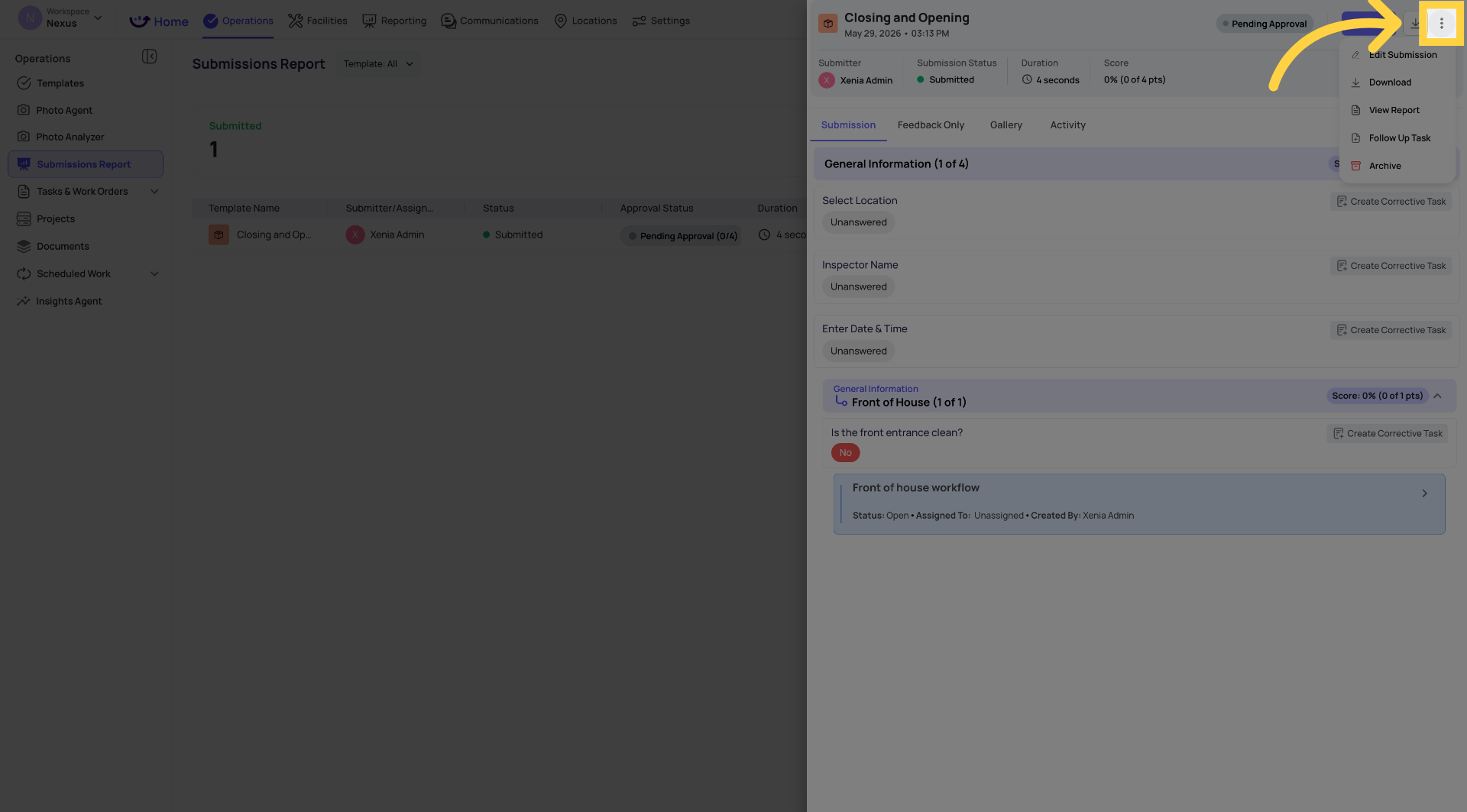
In the submission report view, look for the three-dot menu (⋯) in the upper right corner of the submission panel.
Click it. A dropdown appears with options including:
- Edit Submission
- Download
- View Report
- Follow Up Task
- Archive
Step 3 — Make your changes
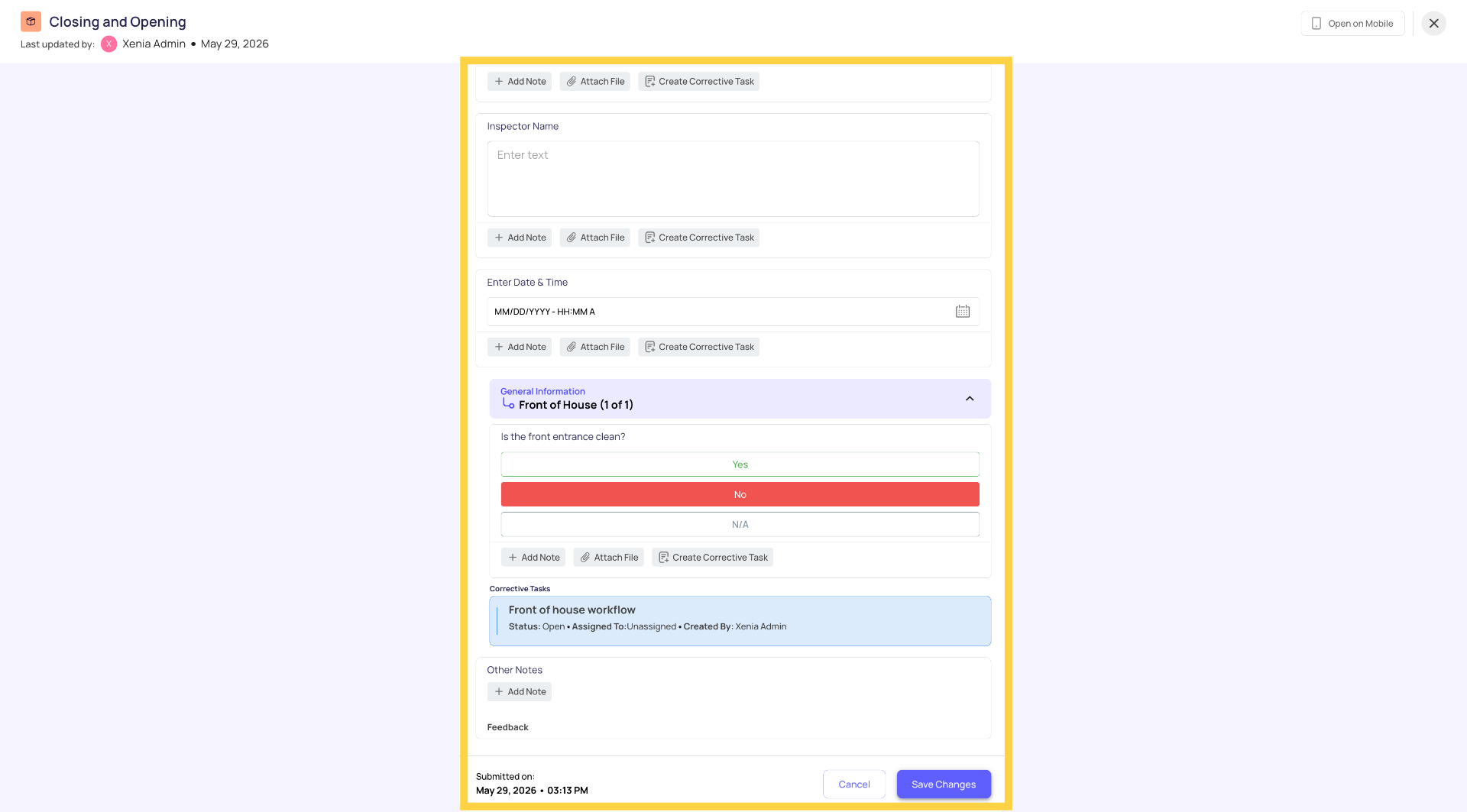
The submission opens in edit mode. The form is now interactive — you can:
- Change any response (tap or click the answer to change it)
- Update text fields — click and retype
- Change multiple choice or pass/fail selections
- Update number or temperature readings
- Add or change notes on any step
All steps that were originally answered are editable. Required steps remain required — you cannot clear a required field without replacing it with a valid response.
Step 4 — Save Changes
When you've made all necessary corrections, click Save Changes at the bottom or top of the form.
The submission record is updated immediately. The edit is logged in the submission's activity history — showing who made the change, what was changed, and when.
What Gets Logged When a Submission Is Edited
Every edit to a submission is recorded in the Activity tab of that submission. The activity log shows:
- Which user edited the submission
- The timestamp of the edit
- What changes were made
This creates an audit trail — the original response and the edited response are both visible in the history. This is important for compliance and accountability: edits are transparent, not silent.
What Cannot Be Changed
Even with Can Edit permission, some things cannot be modified through submission editing:
- The submitter — who originally submitted the form cannot be changed
- The original submission timestamp — the date and time it was submitted remains as-is
- Photos — existing photos cannot be replaced or removed (adding notes to a photo is possible)
- Locked/Missed tasks — if the task was Missed (locked by Mark as Missed), the underlying task status doesn't change when the submission is edited
Summary — Two Ways Edit Access Works
| Can Edit (Submission Access toggle) | Admin Bypass (Access All permission) | |
| Where configured | Template Settings → Access → Submission Access | Settings → Roles → Admin role permissions |
| Who it applies to | Specific roles or users you explicitly grant | Admin and Owner roles only |
| Scope | Submissions the user already has visibility access to | Any submission in the entire workspace |
| Use case | HR editing performance notices, compliance officers correcting audit data | Admin-level oversight and corrections |
Need Help?
Reach out to our Support Team at Support@xenia.team
Comments
0 comments
Please sign in to leave a comment.