
What is an Approval Workflow
An approval workflow is a review gate on a checklist submission. When configured by an admin, certain checklist submissions don't go directly to "Completed" — they enter a pending state and wait for a designated approver to review and either approve or send back for corrections.
You're assigned as an approver based on your role and location membership. A district manager configured as the approver for their district's GM inspection submissions will receive an approval task for every GM inspection submitted at their locations.
How you're Notified?
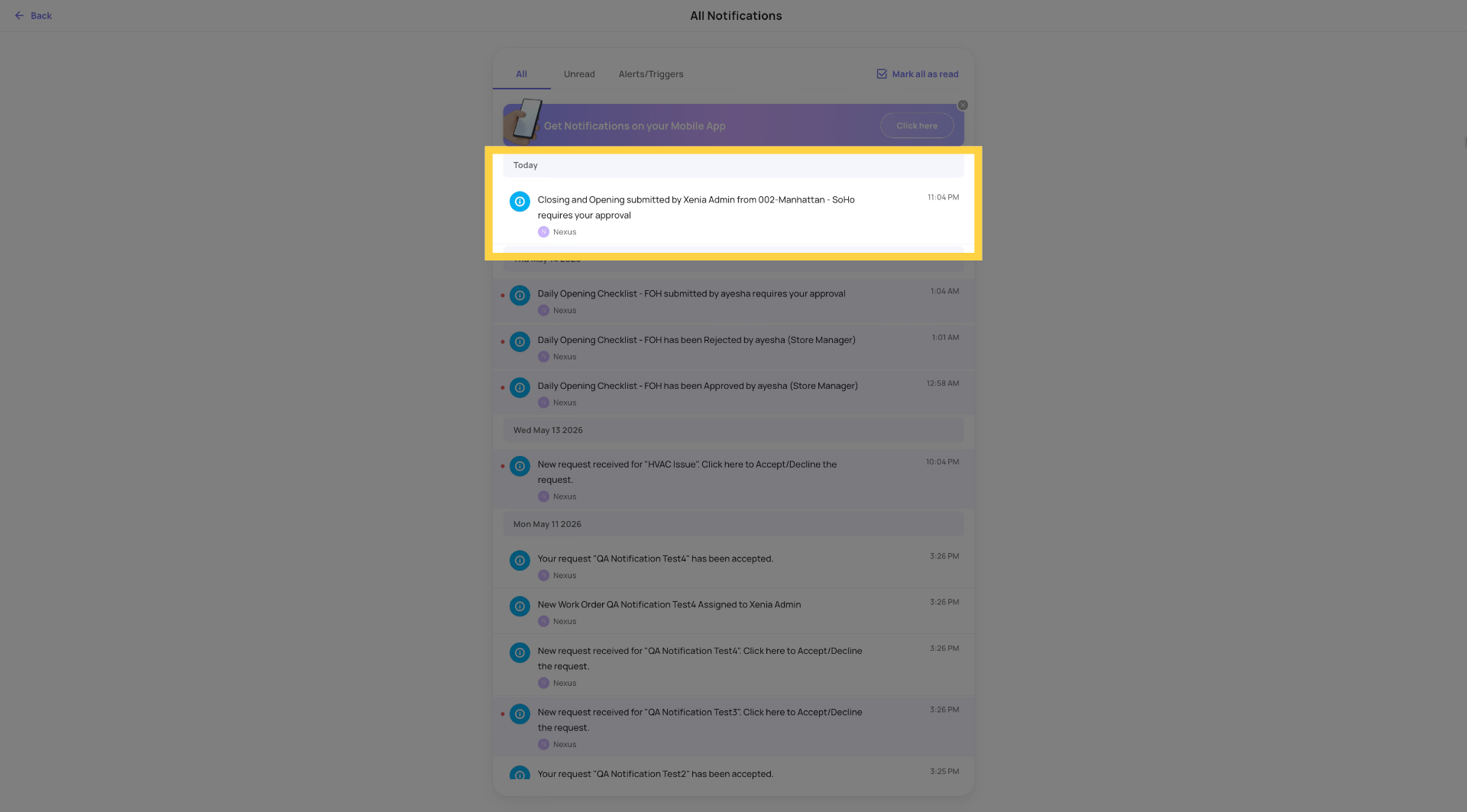
When a submission is waiting for your approval, you receive:
Push notification: A banner on your device telling you a submission requires your review. Tap it — it deep-links directly to the review screen.
Email notification: An email with the submission details and a PDF attached, plus a link to open the submission in Xenia.
Badge count: The Approvals tab on your home screen shows a number badge indicating how many approvals are pending.
How to Get to the Approvals Screen
How you access the Approvals screen depends on which home screen layout your role uses. Here's exactly where to find it on each.
Default Home Screen (Web)
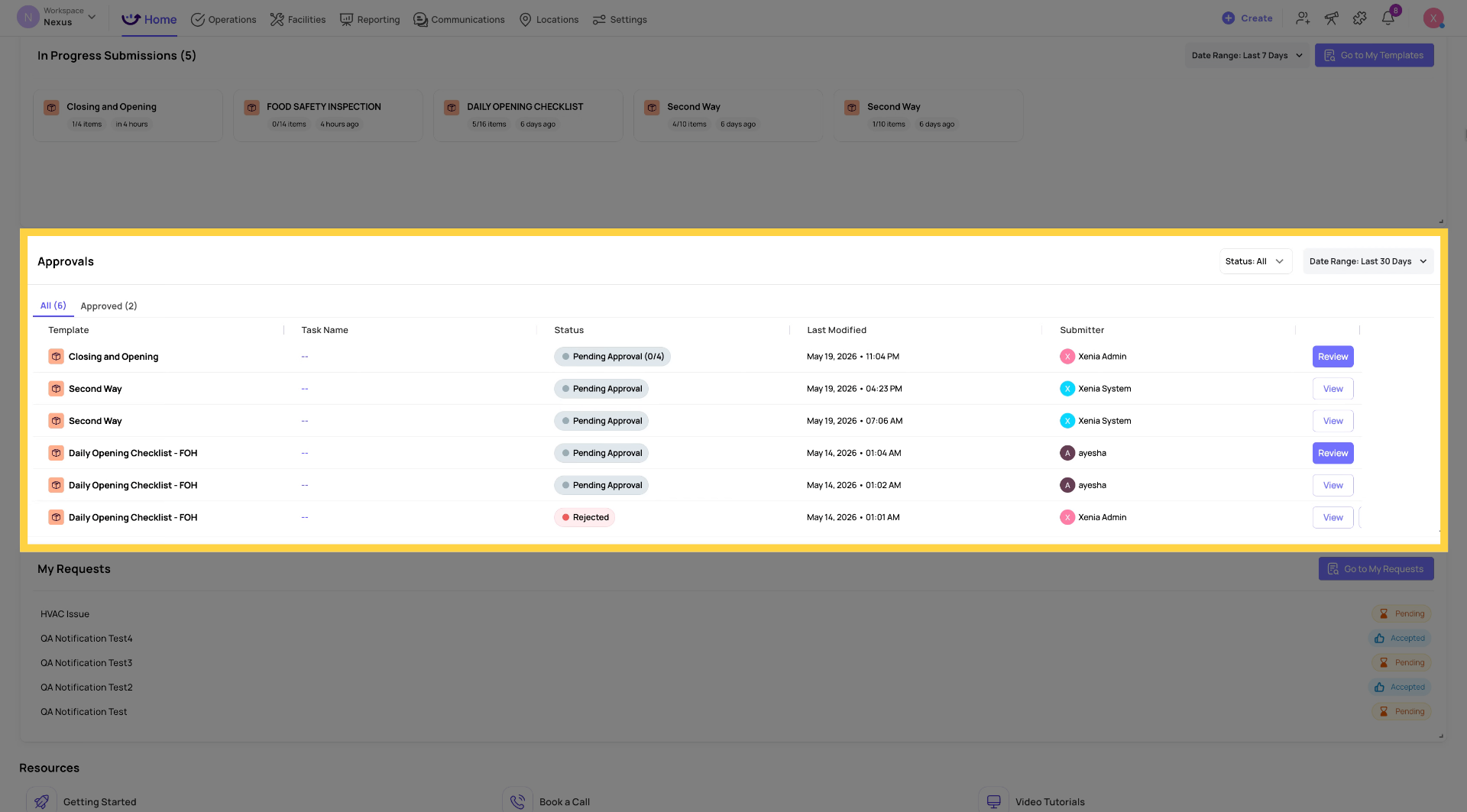
On the Default Home Screen on web, the Approvals widget appears directly on your home page as a table widget — similar to the Tasks & Work Orders widget.
- The All tab shows every approval that is pending, needs changes, or rejected — everything except Approved
- The Approved tab shows only completed approvals
- Click any row to open the submission in Review Mode
If you don't see the Approvals widget on your home screen, your role may not have approval permissions configured. Contact your admin.
Default Home Screen (Mobile)
On the Default Home Screen on mobile, the Approvals section appears as a tab on your home screen — positioned after Summary and Tasks.
- A badge count on the Approvals tab shows how many items need your attention
- Tap the Approvals tab to see your full list
- The list is divided into three views:
- Pending my review — submissions waiting for your approval action
- I submitted / Feedback requested — submissions you made that are in an approval process, or where feedback has been requested from you
- Approved — completed approvals
Tap any item to open it in Review Mode.
You can also access Approvals via the Jump To screen on mobile — swipe or tap the Jump To shortcut and select Approvals.
Location Pulse Home Screen (Web)
On the Location Pulse home screen on web, the Approvals widget appears as a section below the task summary — the same widget as on the Default home screen.
Click any row to open the submission in Review Mode.
Location Pulse Home Screen (Mobile)
On the Location Pulse home screen on mobile, the Approvals tab appears in the same position — as a tab on the home screen after Summary and Tasks.
Tap Approvals to see your list. Tap any item to open Review Mode.
Also Accessible From: Push Notification or Email
Regardless of which home screen layout you have, you can always reach a specific approval directly:
- Push notification — tap the notification banner or lock screen alert. It deep-links directly to that submission's Review Mode.
- Email notification — click the link in the approval email. Opens directly in Review Mode on web or the app on mobile.
Note for Admins: Location Pulse is the most common home screen for store-level roles. The Default home screen is typical for district managers, area managers, and above. Your admin controls which layout your role sees — if your home screen doesn't match what's shown above, contact them to confirm your role's layout.
Finding your Pending Approvals
On Web:
- Go to your Home tab — look for an Approvals widget on your home screen showing a table of submissions pending review with their status, submitter, and last modified date
- Or navigate to Operations → Templates → [Template Name] → Submissions — filter by status "Pending Approval"
- Or use the Jump To → Approvals shortcut if configured on your workspace
The Approvals widget on the home screen shows:
- Template name
- Task name (if linked to a task) — clicking opens the task detail sidebar
- Status (Pending Approval, Changes Requested, Approved)
- Submitter name and last modified date
- Tabs: All (everything except Approved) and Approved (approved items only)
- Filter: Date range, Approval status
- Reminder button — sends a reminder push notification to the submitter or to yourself as approver
On Mobile:
- Look at your home screen — an Approvals section or tab appears below your task summary when approvals are pending
- Or tap the Approvals tab directly on your home screen if it's configured for your role
- The badge count on the Approvals tab shows how many are waiting
The mobile Approvals tab shows three sub-views:
- Pending my review — submissions waiting for your approval action
- I submitted / feedback requested — submissions you submitted that are waiting on someone else's approval, or where feedback has been requested from you
- Approved — completed approvals
Opening Review Mode
Tap any pending submission from the web widget, the mobile Approvals tab, or directly from the push notification or email link.
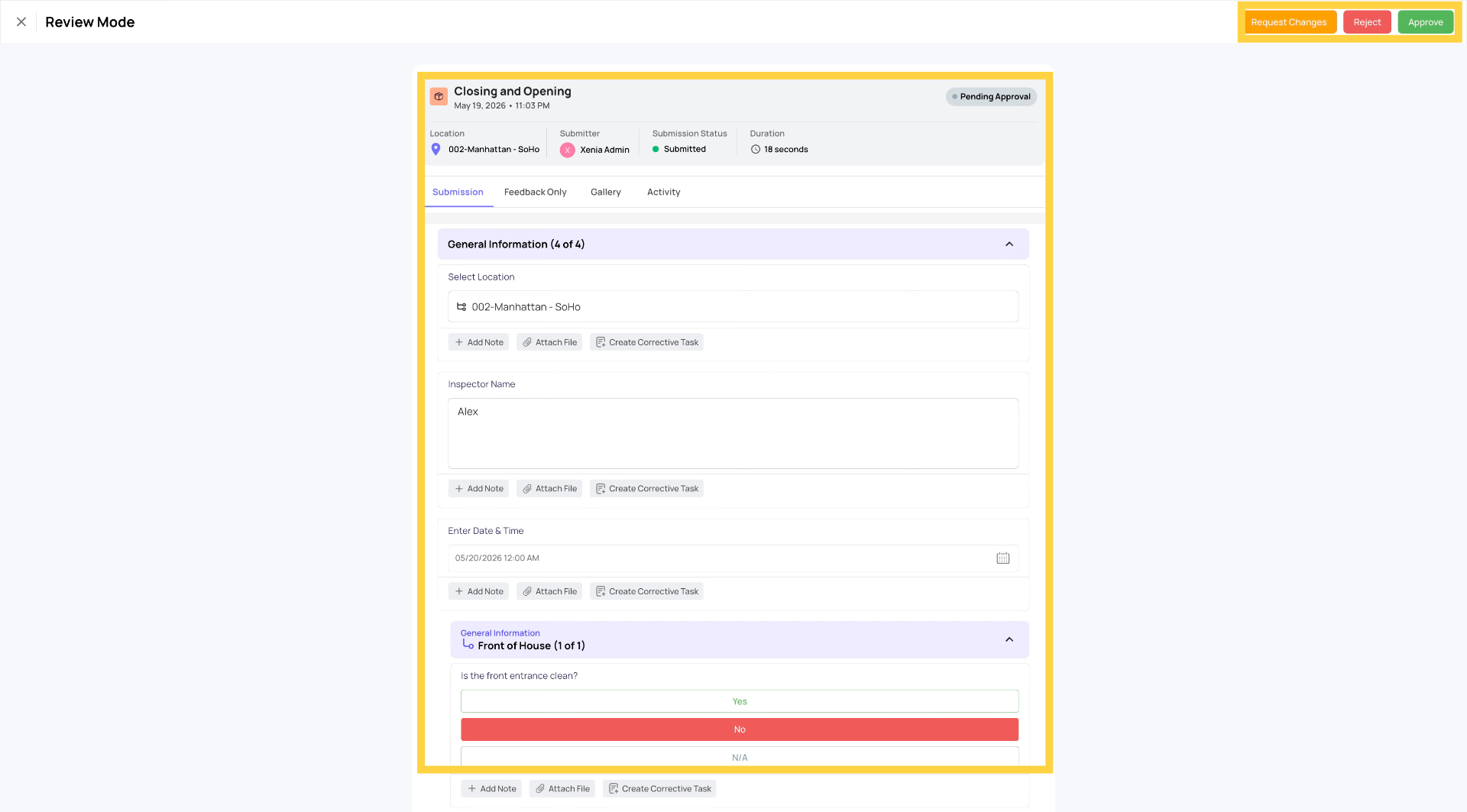
Review Mode opens — a full-screen view of the submission designed specifically for the approval experience. It is different from the regular submission view.
On Web App:
On Mobile App:
Leaving Step-Level Feedback
Before taking any approval action, you can leave specific feedback on individual steps:
On web: Click into any step in the Submission tab → a feedback field appears → type your comment → the feedback is saved
On mobile: Tap any step in the Submission tab → feedback input appears → type your comment → continue
Feedback capabilities:
- Add text comments to any step
- Attach images to a step's feedback (additional photos as evidence)
- Edit or delete your own feedback
- Mark feedback as resolved once addressed (useful during review rounds)
- Filter between resolved and unresolved feedback
Step-level feedback is visible to the submitter when you request changes — they see exactly which step has an issue and what you said about it. Your feedback appears in the final submission PDF.
Approving the Submission
When you're satisfied the submission is accurate and complete:
On web: Upper right corner of Review Mode → Approve button → a message pop-up appears (optional but recommended) → type a message if you want to add context or confirmation → click Confirm
On mobile: Upper right corner of Review Mode → Approve → optional message pop-up → type message if desired → confirm
What happens after approval:
- The submission status changes to Approved
- The submitter receives a push notification and email confirming their submission was approved
- If this is a multi-layer approval workflow, the next approver in the sequence is automatically notified
- The approved submission appears in the Approved tab of the Approvals view
On Web App:
On Mobile App:
Requesting Changes
When the submission has issues that can be corrected and resubmitted — incorrect answers, blurry photos, missing information:
- Leave step-level feedback on the specific steps that need attention (tap each one, add your comment)
- On web: Upper right → Request Changes (or "Needs Changes") button → a message field appears — this field is required → type a clear explanation of what needs to be fixed and why → Confirm
- On mobile: Upper right → Request Changes → required message field → type your explanation → confirm
What happens after requesting changes:
- The submission status changes to Needs Changes (or Changes Requested)
- The submitter receives a push notification and email with your overall message
- The submitter can see your step-level comments on each flagged step
- The submitter responds to your feedback in the submission and resubmits
- You receive a notification when they've responded and resubmitted
- Return to Review Mode to review the changes and approve, request further changes, or reject
On Web App:
On Mobile App:
Rejecting a Submission
When the submission is fundamentally invalid — the work clearly wasn't done, data appears fabricated, or the submission is irrelevant:
On web: Upper right → Reject button → a message field appears — this field is required → type a clear reason for the rejection → Confirm
On mobile: Upper right → Reject → required message field → type your reason → confirm
What happens after rejection:
- The submission status changes to Rejected
- The submitter receives a push notification and email with your rejection reason
- The submission is closed — no further review rounds are expected
- The rejected submission appears in the submission history for record purposes
Comments
0 comments
Please sign in to leave a comment.