
1. Structure
1. Where Your Tasks Live on Mobile
There are two places tasks appear on mobile:
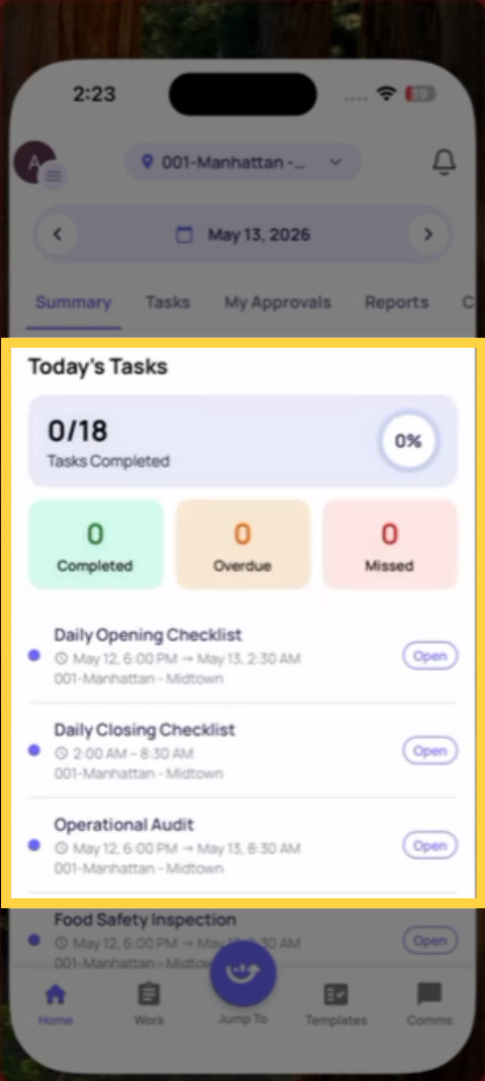
Home Screen (Location Pulse) — The default home screen for most frontline roles. Shows a focused, single-day view of what's due today, broken into what's completed and what still needs to be done. This is the fastest way to see your daily assignments without navigating anywhere.
Work Tab — The bottom navigation bar on mobile has a Work tab. Tap it and you'll see sub-tabs:
- All — every item assigned to you or your role
- Tasks — only tasks (no work orders)
- Work Orders — only work orders
- Corrective — only corrective action items
For daily operational task completion, most employees should start from the Home Screen or Work tab → Tasks.
2. Understanding What You See on a Task Card
Each task in the list shows:
- The task name
- The location it's assigned to
- The due date and time
- The current status (Open, In Progress, Overdue, Missed)
- Priority level if set
Tasks due today appear at the top. Overdue tasks are flagged with a visual indicator. Completed tasks move to a separate completed state.
Important: The home screen number ("10 tasks") shows tasks assigned specifically to you or your role. The Work tab may show additional tasks at your location that you can view. These are two different scopes — your tasks vs. tasks at your location.
3. Opening and Starting a Task
- Tap any task card on the home screen or Work tab
- The task detail screen opens — you'll see the full task name, description, assignee, location, start and due time
- If there's a checklist attached: tap Start to begin it
- If the task has no checklist attached: you'll update the status manually when the work is done
4. Completing the Checklist
Once inside the checklist:
- Work through each step in sequence — tap or type your response for each one
- Required steps show a required indicator — you must answer them before you can submit
- If a step triggers a conditional action (photo required, follow-up question), it appears immediately after your answer — complete it before moving on
- A completion percentage shows your progress at the top — "7 of 20 steps answered"
- Use the table of contents / section jump feature to navigate directly to a section on long checklists — tap the section name to auto-scroll there
5. Getting Interrupted — Auto-Save and Picking Back Up
If you need to stop mid-checklist — a customer needs help, an urgent situation comes up — tap Go Back (not X or force-close). This saves your progress exactly where you left off.
When you return to the task, tap Continue and you'll be taken back to where you stopped. All previously answered steps and photos are preserved.
Important: If you force-close the app or lose connectivity without tapping Go Back, your most recent unsaved responses may not be retained. Always tap Go Back when exiting a checklist mid-completion.
6. Submitting
When all required steps are answered, the Submit button becomes active. Tap it. A confirmation prompt appears — confirm the submission.
After submitting:
- The task status changes to Completed
- The home screen updates — the task moves out of the active list
- The submission is recorded instantly in reporting — your manager can see it immediately
7. Filtering and Finding Specific Tasks
On the Work tab, you can filter tasks by:
- Status (Open, In Progress, Overdue, Missed, Completed)
- Location
- Priority
- Assignee
Use filters if your task list is long and you need to find a specific item quickly.
Need Help?
Reach out to our Support Team at Support@xenia.team
Comments
0 comments
Please sign in to leave a comment.