
1. Structure
1. What You'll Need Before You Start
- Your Xenia login email and password (sent to you by your manager or admin)
- A smartphone (iPhone or Android) or a tablet
- An internet connection for the first login
2. Step 1 — Download the Xenia App
On iPhone/iPad:
- Open the App Store
- Search for "Xenia"
- Look for the app with the purple smiley face icon
- Tap Get to download
On Android:
- Open the Google Play Store
- Search for "Xenia"
- Look for the app with the purple smiley face icon
- Tap Install
The app is free to download. You need a Xenia account (set up by your admin) to log in.
3. Step 2 — Log In
- Open the Xenia app
- Enter your email address — this was sent to you by your manager or admin
- Enter your password — either set by you when you accepted the invite email, or given to you directly by your admin
- Tap Log In
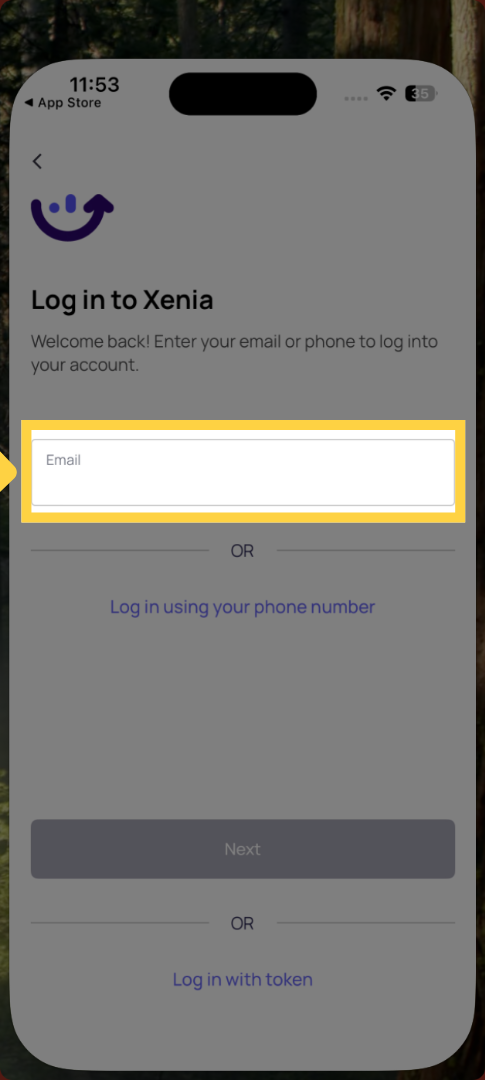
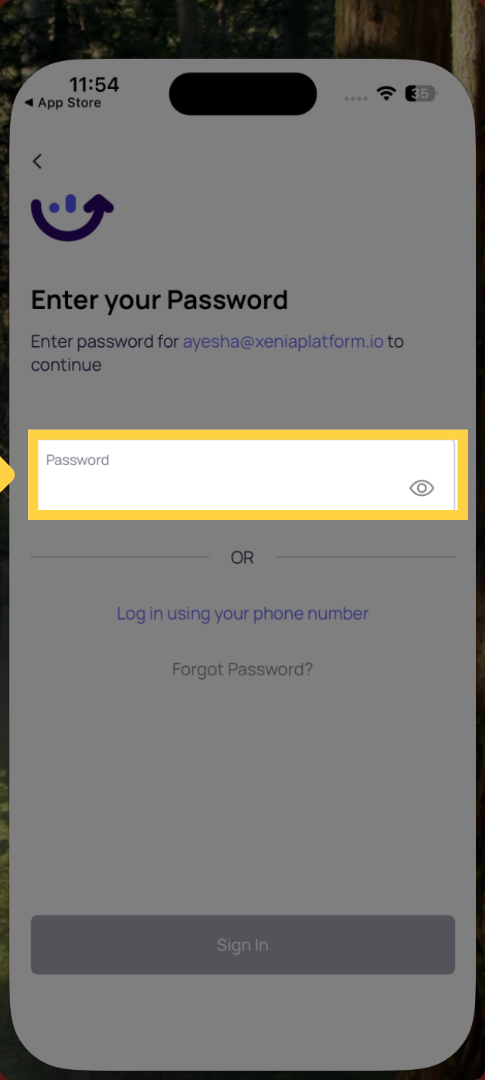
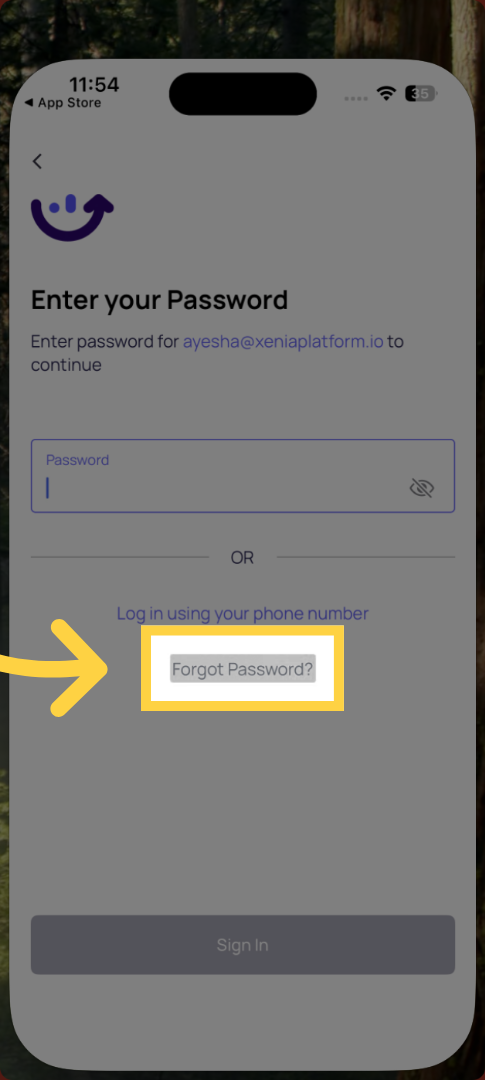
Forgot your password? Tap Forgot Password on the login screen and follow the steps to reset it via email. Or ask your admin to reset it for you from the Users settings.
First time logging in? If you received an invite email, open it, click the link, and set your password. Then come back to the app and log in.
4. Step 3 — What You'll See on Your Home Screen
Once you're logged in, your home screen shows everything you need to do today — nothing more, nothing less.
Depending on how your admin has configured your role, you'll see one of these views:
Location Pulse (most common for frontline roles):
- Your tasks due today, clearly listed
- How many you've completed out of your total (e.g., "1 of 3 completed")
- Any overdue or missed tasks
- Photos taken today and any flagged items
This is the only screen you really need to use. Everything you're assigned to complete will appear here automatically — you don't need to go searching for checklists.
5. Step 4 — Complete Your Checklist
- Tap on a task from your home screen
- You'll see the task details — what it is, where it's assigned, and when it's due
- Tap Start Checklist (or Start Submission)
- Go through each question or step:
- Tap Yes or No for yes/no questions
- Type your response for text or number questions
- Tap the camera icon to take a photo when required — note that photos must be taken live on the spot, you cannot use old images from your camera roll
- Add notes to any step if needed
- The app auto-saves your progress as you go — if you get interrupted, you can pick up where you left off
- When you've answered all required steps, tap Submit at the bottom
- Your task is now marked as complete ✅
Required steps: If a step is marked as required and you try to submit without completing it, the app will stop you and highlight what's missing. Go back and complete those steps before submitting.
6. A Few Things to Know
- Tasks appear at the right time — your checklist is scheduled to appear at a specific start time. It won't show up before that. If you don't see your checklist, check if it's scheduled to start later in the day.
- Missed tasks — if a task has a strict due time and it passes, the task may lock and show as "Missed." This means it can no longer be completed. Check with your manager if this happens unexpectedly.
- Overdue tasks — if your task is overdue but not locked, you can still complete it. It will be recorded as "Completed Late."
- No internet? — Xenia works best with a connection. If you're offline, some features may not load. Reconnect to submit your completed checklist.
- Multiple locations? — If you work across more than one location, you may need to switch your active location in the app. Tap your location name or profile area to change it.
Need Help?
Reach out to our Support Team at Support@xenia.team
Comments
0 comments
Please sign in to leave a comment.