
1. Check These in Order
Check These in Order
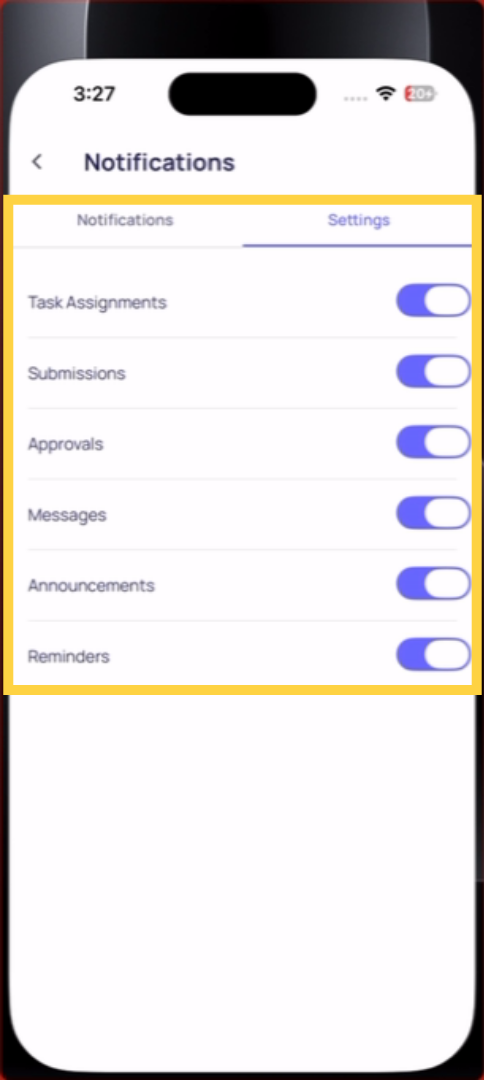
1. Push is turned off in Xenia: Side menu → Notification Settings → confirm Push is toggled ON. If it's off, no push notifications will arrive.
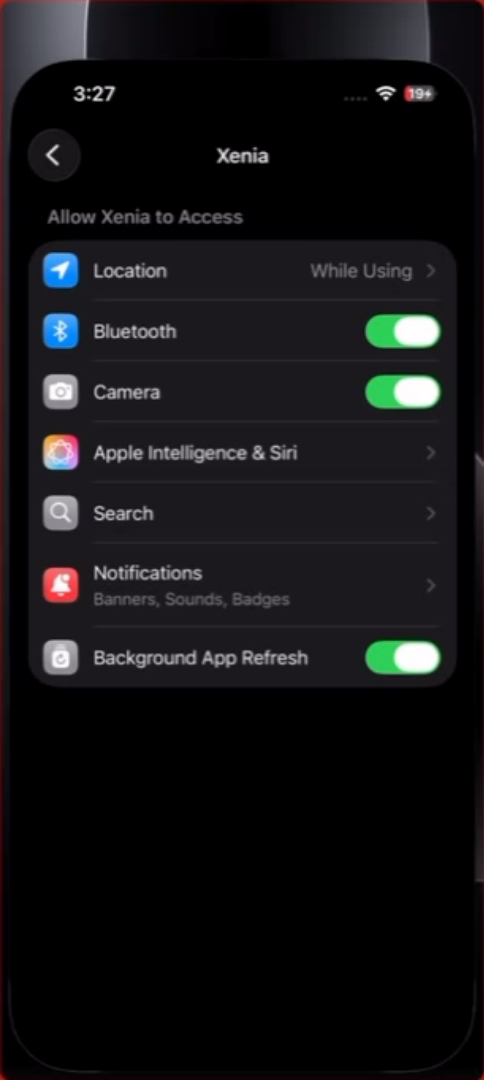
2. Xenia doesn't have device notification permission: Device Settings → scroll to Xenia → tap Notifications → confirm Allow Notifications is ON and alert style is Banners. This is the most commonly missed step — the app was installed without granting permission.
3. Do Not Disturb is on: If your device is in Do Not Disturb, Vibrate Only, or Silent mode, notifications may not appear visually or make sound even when they arrive. Check your device notification settings or control center.
4. App needs to be updated: An outdated Xenia app can cause notification delivery issues. Check the App Store or Google Play for pending updates. Install any available update and test again.
5. Notification token is stale: If you recently reinstalled the app, switched devices, or logged out and back in, your notification token may need to refresh. Log out of Xenia and log back in. This typically refreshes the push token.
6. Your account email is missing: For email notifications, your account must have a valid email address. Settings → your profile — confirm an email address is on file. If there's no email, no email notifications can be delivered.
7. The notification type isn't configured: In Notification Settings, specific notification types may be toggled off individually. Confirm the type you're expecting (task assignments, overdue alerts, announcements) is enabled.
Still not working: Contact your admin or send a diagnostics report to the Xenia support team (side menu → Diagnostic Tools → Send diagnostic report).
Reach out to our Support Team at Support@xenia.team
Comments
0 comments
Please sign in to leave a comment.