
1. What Deep Linking Means
When you tap a Xenia push notification, you don't land on the home screen. You land directly on the specific screen that notification is about. This is called deep linking.
No navigating, no searching, no tapping through menus. Tap the notification, go straight to what needs your attention.
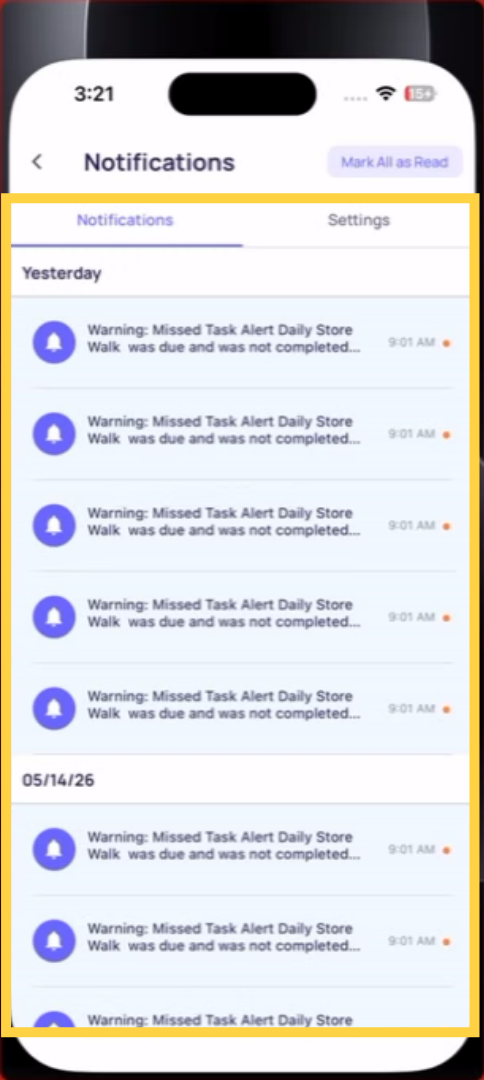
2. Where Each Notification Takes You
| Notification Type | Where It Takes You |
|---|---|
| New task assigned | That task's detail screen |
| Task overdue | That task's detail screen |
| New announcement | That announcement's full view |
| New chat message | That conversation thread |
| Work Order assigned | That Work Order's detail screen |
| Submission approved | That submission's detail view |
| Submission rejected | That submission with rejection message |
| Changes requested | That submission with feedback visible |
| Corrective task created | That corrective task's detail |
3. Tapping from a Lock Screen vs. Notification Center
From the lock screen: A banner appears when the notification arrives. Tap it directly. If your phone is locked, it may ask for Face ID or your passcode first, then takes you to the screen.
From the notification center: Swipe down from the top of your screen to see all notifications. Tap any Xenia notification there. Same deep-link behavior — goes directly to the relevant screen.
From email notifications: If you receive an email notification and tap the link inside the email, it opens the Xenia app and takes you to the same deep-linked screen — whether you're on a phone or computer.
Reach out to our Support Team at Support@xenia.team
Comments
0 comments
Please sign in to leave a comment.