
1. Where to Find Chat
Tap the Comms tab at the bottom of the screen. This opens the Communications section with two sub-tabs:
- Chats — direct and group messages
- Announcements — broadcast messages from your organization
Tap Chats to see your existing conversations listed, most recent first.
2. Sending a Direct Message
- Tap the compose icon (pencil or + icon) in the top right corner
- Select New Message
- Search for the person's name
- Tap their name to start the conversation
- Type your message in the text field at the bottom
- Tap Send
The recipient receives a push notification. Their reply appears in the same conversation thread.
3. Creating or Adding to a Group Chat
- Tap the compose icon → New Message
- Search for and add multiple people
- Give the group a name (e.g., "Kitchen Team Store 12" or "Opening Crew")
- Tap Create
- Type your message and send
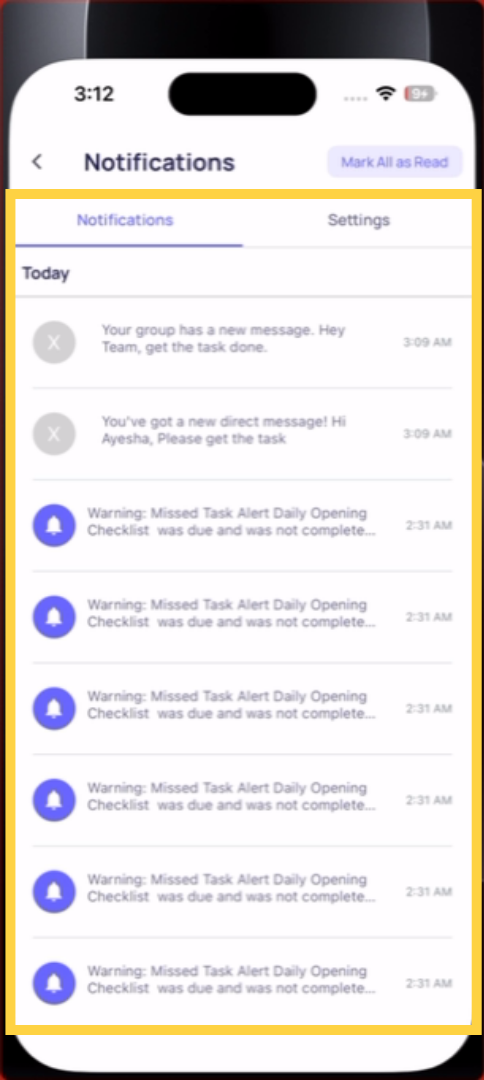
Group messages work the same as direct messages — everyone in the group sees the conversation. New messages appear with a notification badge on the Comms tab.
Replying to a Message
Tap any existing conversation in the Chats list to open it. Type your reply at the bottom and tap Send. Conversations are persistent — they don't expire and the history stays visible.
This article explains how to use Xenia's messaging features to send direct messages and manage group chats effectively. For more information, see related articles on team communication and notification settings.
Need help?
Reach out to our Support Team at Support@xenia.team
Comments
0 comments
Please sign in to leave a comment.