
What Happens After you Submit
If the template you completed has an approval workflow configured, your submission doesn't just record as "Completed" — it enters an approval process. The status changes to Pending Approval and an approver is notified to review it.
You don't need to do anything while it's pending. But you can track where it is.
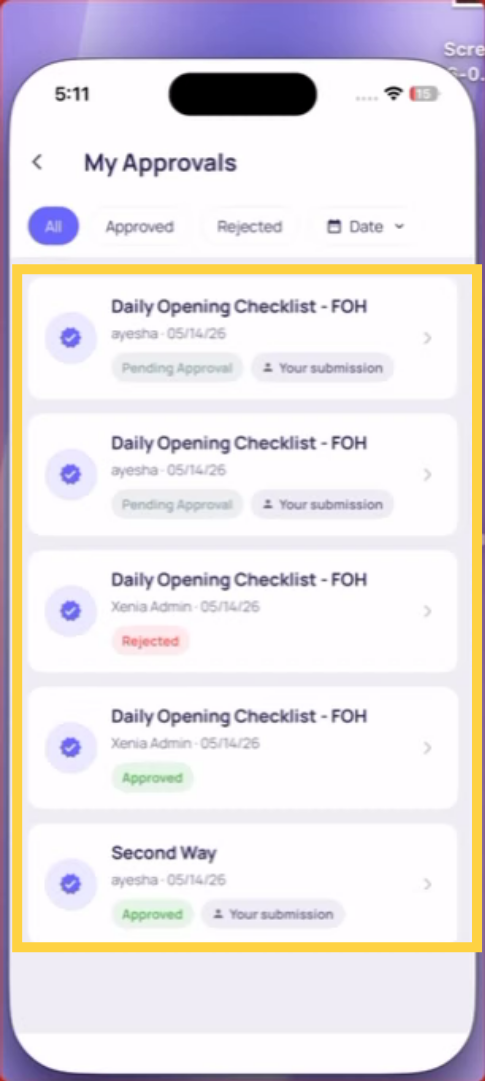
How to Get to the Approvals Screen
How you access the Approvals screen depends on which home screen layout your role uses. Here's exactly where to find it on each.
Default Home Screen (Web)
On the Default Home Screen on web, the Approvals widget appears directly on your home page as a table widget — similar to the Tasks & Work Orders widget.
- The All tab shows every approval that is pending, needs changes, or rejected — everything except Approved
- The Approved tab shows only completed approvals
- Click any row to open the submission in Review Mode
If you don't see the Approvals widget on your home screen, your role may not have approval permissions configured. Contact your admin.
Default Home Screen (Mobile)
On the Default Home Screen on mobile, the Approvals section appears as a tab on your home screen — positioned after Summary and Tasks.
- A badge count on the Approvals tab shows how many items need your attention
- Tap the Approvals tab to see your full list
- The list is divided into three views:
- Pending my review — submissions waiting for your approval action
- I submitted / Feedback requested — submissions you made that are in an approval process, or where feedback has been requested from you
- Approved — completed approvals
Tap any item to open it in Review Mode.
You can also access Approvals via the Jump To screen on mobile — swipe or tap the Jump To shortcut and select Approvals.
Location Pulse Home Screen (Web)
On the Location Pulse home screen on web, the Approvals widget appears as a section below the task summary — the same widget as on the Default home screen.
Click any row to open the submission in Review Mode.
Location Pulse Home Screen (Mobile)
On the Location Pulse home screen on mobile, the Approvals tab appears in the same position — as a tab on the home screen after Summary and Tasks.
Tap Approvals to see your list. Tap any item to open Review Mode.
Also Accessible From: Push Notification or Email
Regardless of which home screen layout you have, you can always reach a specific approval directly:
- Push notification — tap the notification banner or lock screen alert. It deep-links directly to that submission's Review Mode.
- Email notification — click the link in the approval email. Opens directly in Review Mode on web or the app on mobile.
Note for Admins: Location Pulse is the most common home screen for store-level roles. The Default home screen is typical for district managers, area managers, and above. Your admin controls which layout your role sees — if your home screen doesn't match what's shown above, contact them to confirm your role's layout.
Where to see your Approval Status
Approvals tab on your home screen: The Approvals tab shows all submissions you've made that are in an approval workflow — pending, approved, rejected, or changes requested. The status is visible on each item.
From the submission itself: Go to Templates → All Submissions → find your submission → tap to open. The approval status is shown at the top: Pending Approval, Approved, Rejected, or Changes Requested.
From a task: If the submission was tied to a task, open the task → tap the Template Attached tab → Review Submission button. The approval status is visible there.
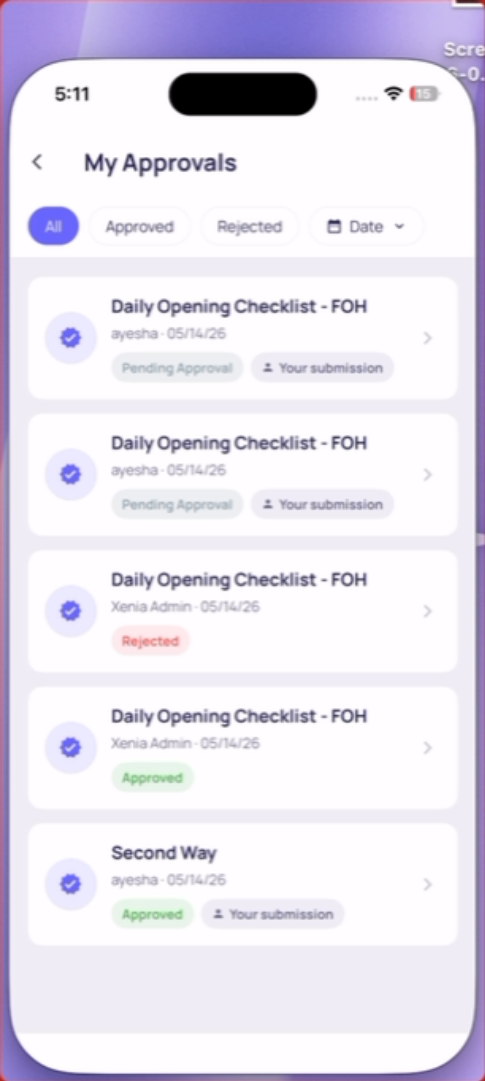
The Four Statuses
Pending Approval: Your submission is waiting for the approver to review it. No action needed from you yet.
Approved: The approver accepted your submission. You receive a push notification and email. The submission is complete.
Changes Requested: The approver found issues and wants you to address them. You receive a notification with their message and step-level comments. Go to the submission, read the feedback, make the corrections, and resubmit.
Rejected: The approver rejected the submission. You receive a notification with their reason. Contact your manager to understand next steps.
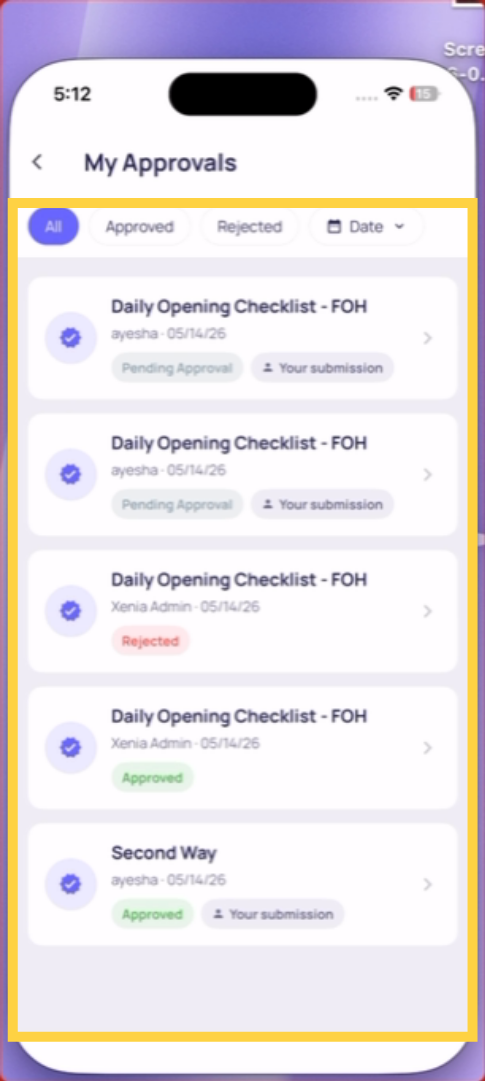
Responding to Changes Requested
When you receive a Changes Requested notification:
- Tap the notification — it takes you directly to the submission
- Read the overall message from the approver
- Scroll through the submission — steps with feedback have comment indicators
- Tap each flagged step to read the specific comment
- Respond to the feedback in the same comment field — type your clarification or corrective action
- Resubmit the form
Your response goes back to the approver. They're notified that feedback has been provided and can now review and approve.
This article explains how to track and manage checklist approvals using the My Approvals tab on your phone. You learned to understand status definitions, view pending approvals, and access detailed feedback to keep your submissions on track. For more information, see related articles on checklist management and approval workflows.
Need Help?
Reach out to our Support Team at Support@xenia.team
Comments
0 comments
Please sign in to leave a comment.