
1. Two Options When You Can't Approve
Request Changes (Needs Changes): The submission has issues that need to be corrected but can be fixed and resubmitted. Use this when the submitter can go back and address specific steps — incorrect answers, missing information, unclear photos.
Reject: The submission is fundamentally invalid and shouldn't be accepted. Use this when the work clearly wasn't done, the data is fabricated, or the submission is irrelevant to this review workflow.
2. How to Request Changes
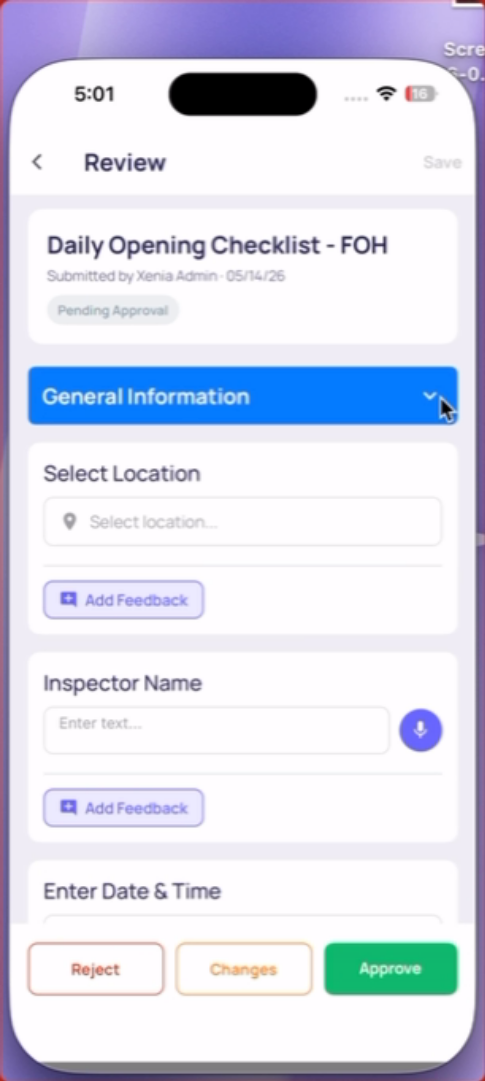
- In Review Mode, leave step-level feedback on any steps that need attention (tap the step → type your comment)
- Tap Request Changes (or Needs Changes) in the upper right
- A message pop-up appears — this message is required. Type a clear explanation of what needs to be corrected and why
- Confirm
The submitter receives a push notification and email with your message. They can see your step-level comments on each step that needs attention. They respond to the feedback directly in the submission and resubmit for your review.
3. How to Reject
- Tap Reject in the upper right of Review Mode
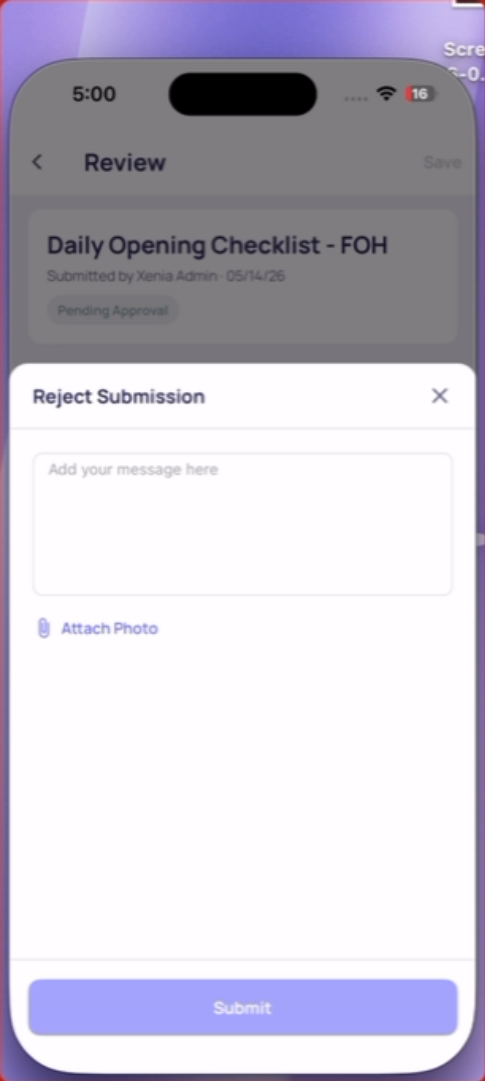
- A message pop-up appears — this message is required. Type a clear reason for the rejection
- Confirm
The submitter receives a notification with your rejection message. The submission status changes to Rejected. No further review rounds are expected — the submission is closed.
4. Differentiate Rejection and Request Changes
Once you request changes and the submitter responds and resubmits:
- You receive a notification that feedback has been provided
- The Approvals tab badge updates
- You return to Review Mode and can approve, request more changes, or reject
Need Help?
Reach out to our Support Team at Support@xenia.team
Comments
0 comments
Please sign in to leave a comment.