
1. Opening Review Mode
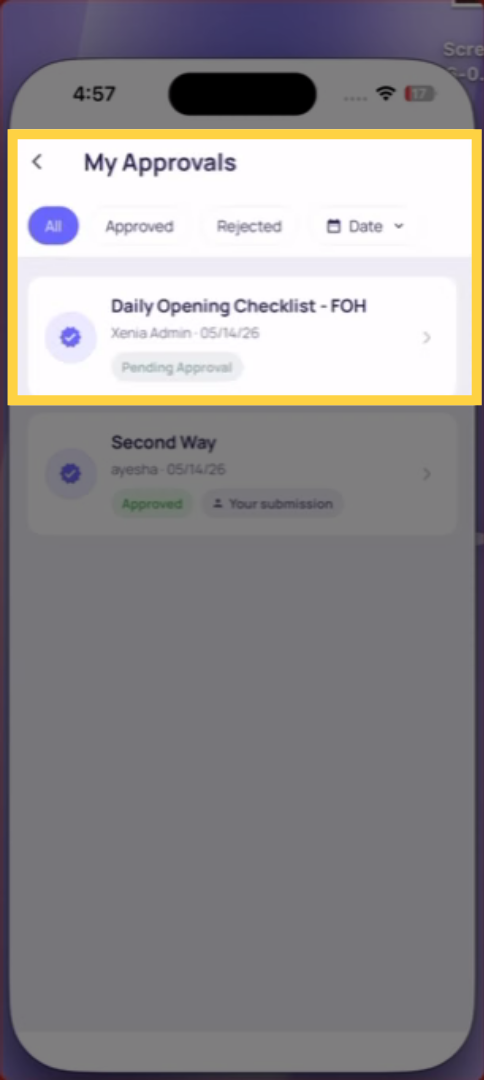
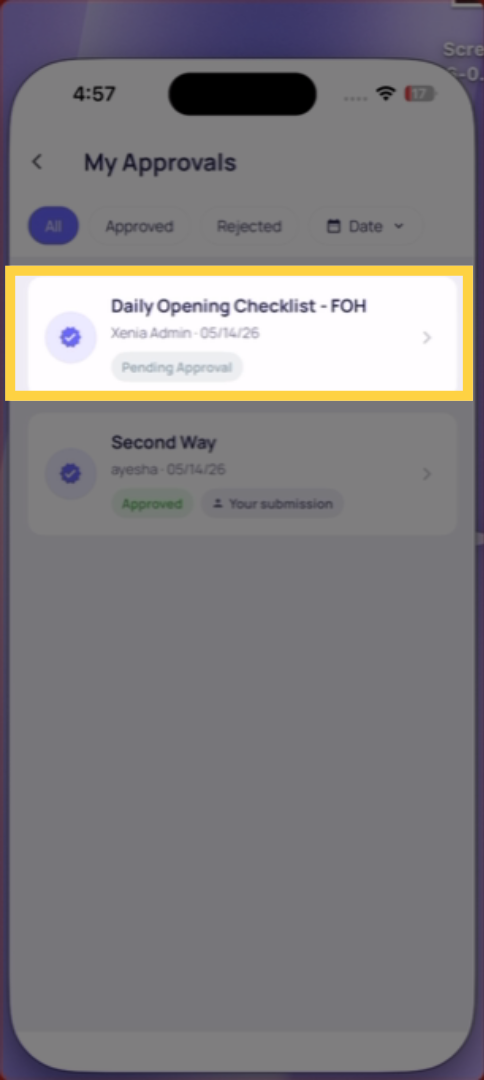
From a push notification, the Approvals tab, or the submission inbox — tap the pending submission. The Review Mode screen opens.
2. The Three Tabs in Review Mode
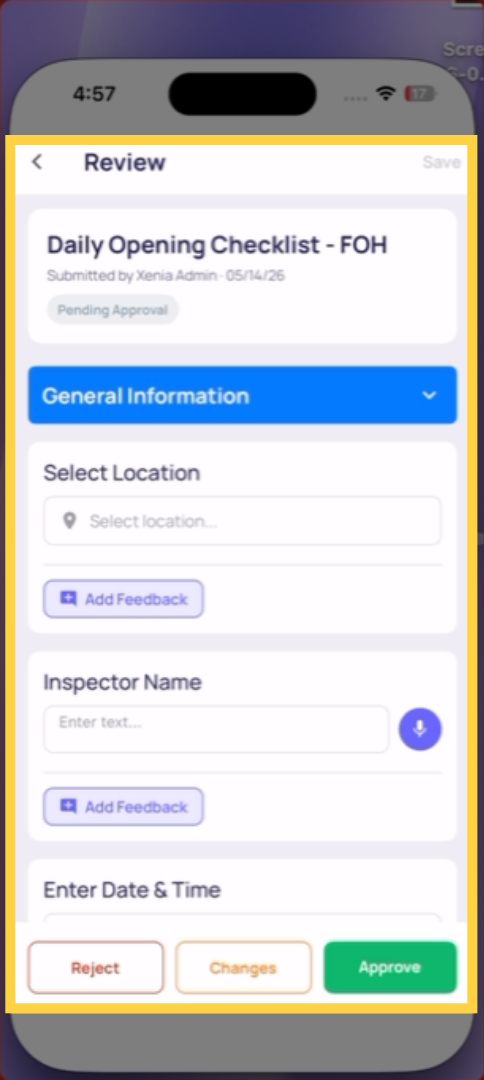
Submission tab: The full checklist — every question and every answer, in order. Scroll through to review all responses. Tap into any step to leave step-level feedback or a comment if needed.
Feedback Only tab: A filtered view showing only the steps that have feedback attached — useful when reviewing a submission after requesting changes, so you can quickly see what was addressed.
Photos tab: All photos from the submission in one scrollable gallery. Tap any photo for a full-size view.
3. Leaving Step-Level Feedback
If a specific answer is incorrect, incomplete, or needs clarification, you can leave feedback directly on that step:
- Tap the step in the Submission tab
- Type your feedback comment on that step
- Continue reviewing the rest of the submission
- Your step-level comments are saved and visible to the submitter when you request changes
Step-level feedback appears in the submission report and in the PDF.
4. How to Approve
When you're satisfied the submission is accurate and complete:
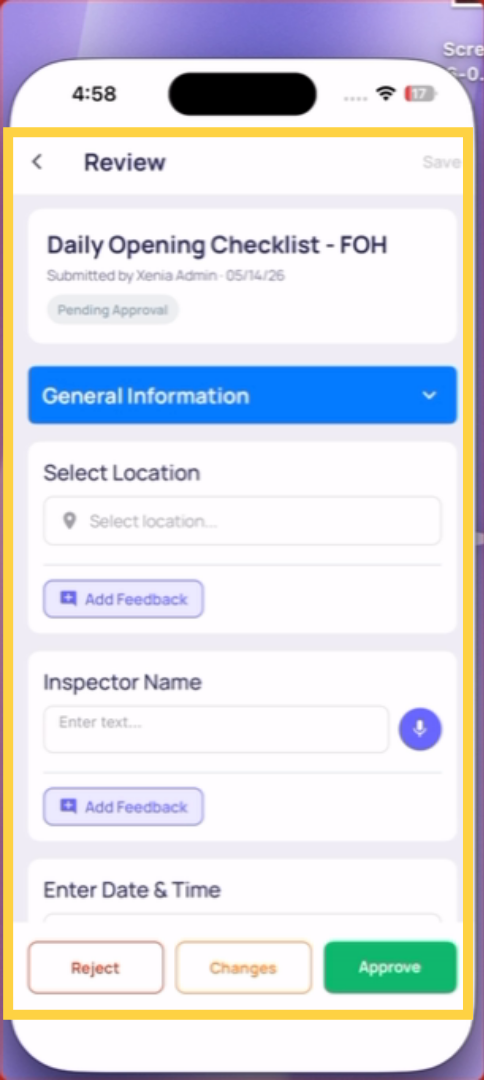
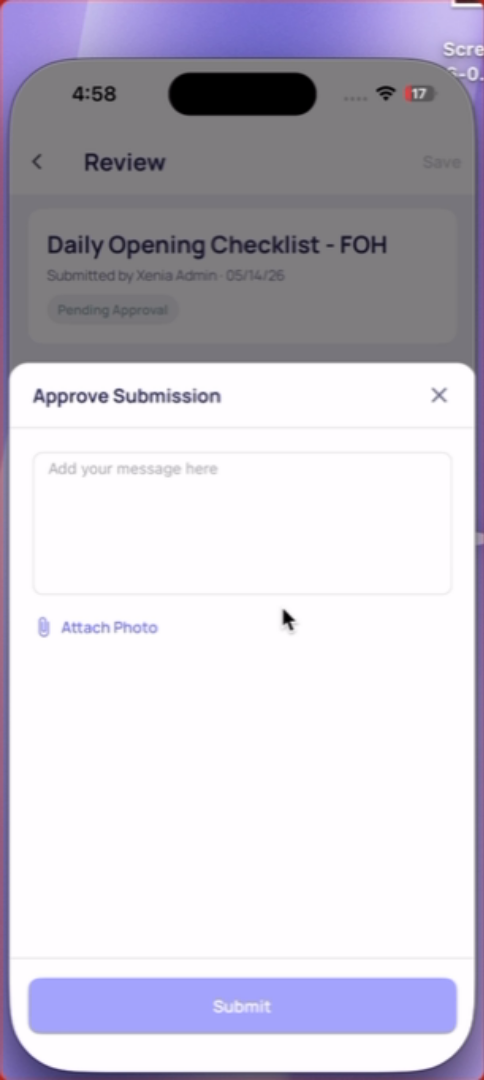
- Tap the Approve button in the upper right corner of the Review Mode screen
- A message pop-up appears — approval message is optional, type one if you want to add context
- Confirm the approval
The submitter receives a push notification and email that their submission has been approved. If this is a multi-layer approval workflow, the next approver is notified automatically.
Approval Is Location-Scoped
You can only approve submissions from locations in your membership. If a submission is from Store 12 and you're the District Manager for Stores 1–5, you won't see it or be asked to approve it. This is intentional — the right approver for each location handles that location's submissions.
Need Help?
Reach out to our Support Team at Support@xenia.team
Comments
0 comments
Please sign in to leave a comment.