
1. How You're Notified
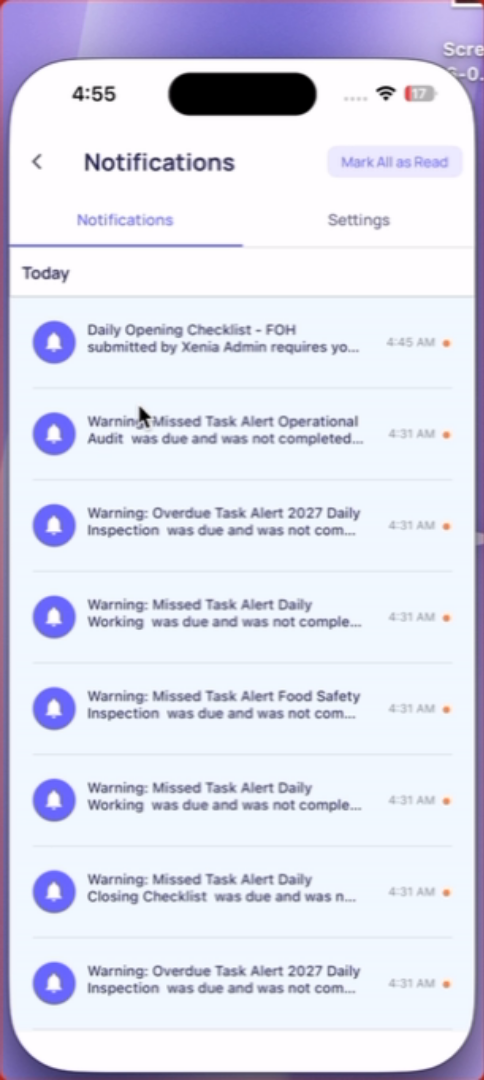
When someone submits a checklist that requires your approval, you receive:
Push notification: A banner alert appears on your device — even when the app isn't open. The notification tells you which submission is pending and who submitted it. Tap it to go directly to the review screen.
Email notification: An email is sent to your account address with the submission details and a link to review. The email includes the submitter's name, role, location, and a PDF of the submission.
Both notifications deep-link directly to the review screen — no navigating required.
2. The Approvals Badge
On your mobile home screen, an Approvals tab appears after the Summary and Tasks sections. When a submission is waiting for your review, a badge count appears on this tab — a number showing how many approvals are pending.
The badge updates in real time — as you approve or reject submissions, the count decrease
3. Where to Find Pending Approvals
From the push notification: Tap it — goes directly to the submission review screen.
From the home screen Approvals tab: Tap the Approvals tab on your home screen. A list shows:
- Submissions you need to approve
- Submissions you've submitted that are waiting for approval by someone else
- Submissions where feedback has been requested from you
From the Jump To screen: A quick navigation shortcut in the side menu or home screen may include a Jump To Approvals option.
4. Who Can See Approvals
Approvals are role and location-scoped. If you're a District Manager configured as an approver for Store 12, you'll only see approval requests from Store 12 — not from stores in another district. Only the right person at the right location receives the approval notification and sees the pending item.
This article explains how to receive and manage checklist approval notifications in Xenia, enabling you to efficiently review submissions and provide feedback or approval.
Need Help?
Reach out to our Support Team at Support@xenia.team
Comments
0 comments
Please sign in to leave a comment.