
1. Why Updating Status Matters
Status is how everyone tracking this Work Order — your manager, the facilities coordinator, the store that reported the issue — knows where things stand. A Work Order sitting at Open two days after you started the repair doesn't tell anyone anything useful. Keeping status current keeps the board accurate and prevents unnecessary follow-up calls.
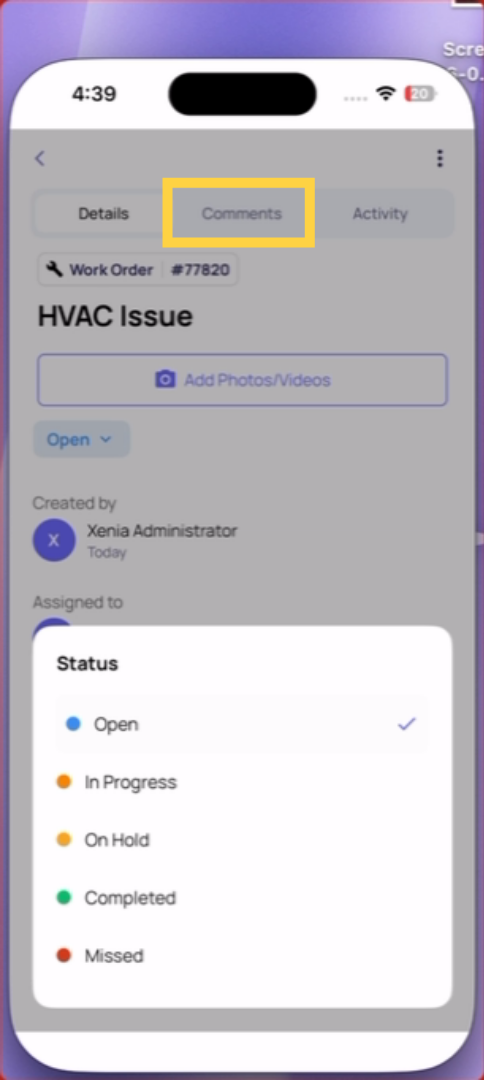
2. How to Update Status on Mobile
- Open → you're starting: change to In Progress
- In Progress → you're waiting on a part or vendor: change to On Hold
- In Progress / On Hold → work is done: change to Completed
Add a comment explaining the status change — especially when moving to On Hold or Completed Save
3. Adding a Comment When You Update
When you update status, always add a comment. Good comments give context:
Moving to On Hold: "Waiting for replacement compressor belt — ETA Thursday from supplier"
Moving to Completed: "Replaced seal on walk-in door. Door now closing flush. Tested three times — no gap. Photos attached."
A Work Order with a status and a clear comment is a useful maintenance record. One with just a status change is just a number.
Attaching Completion Photos
When marking a Work Order Completed, attach a photo showing the resolved condition. Same principle as checklist photos — a clear, close image of the repaired or restored item. This becomes part of the asset's permanent work history.
Need Help?
Reach out to our Support Team at Support@xenia.team
Comments
0 comments
Please sign in to leave a comment.