
1. What the QR Code Does
Each piece of equipment (asset) in Xenia can have a QR code label attached to it. When you scan that QR code with the Xenia mobile app, one of two things happens depending on your role and the context:
For frontline users: The Work Request form opens pre-filled with the asset name and location. You describe the issue and submit. No searching, no selecting the right equipment — it's already linked.
For maintenance technicians: The asset's detail page opens — showing the full work history, upcoming service dates, and any open Work Orders for that asset.
2. How to Scan a QR Code
- Open the Xenia mobile app
- Tap the + button (or find a QR scan option in the app under the Work section)
- Select Scan QR Code if it appears as an option on top, or use the Create Work Request path which may include a scan option
- Point your camera at the QR code label on the equipment
- The form or asset page opens automatically
Some devices may require you to allow camera access the first time.
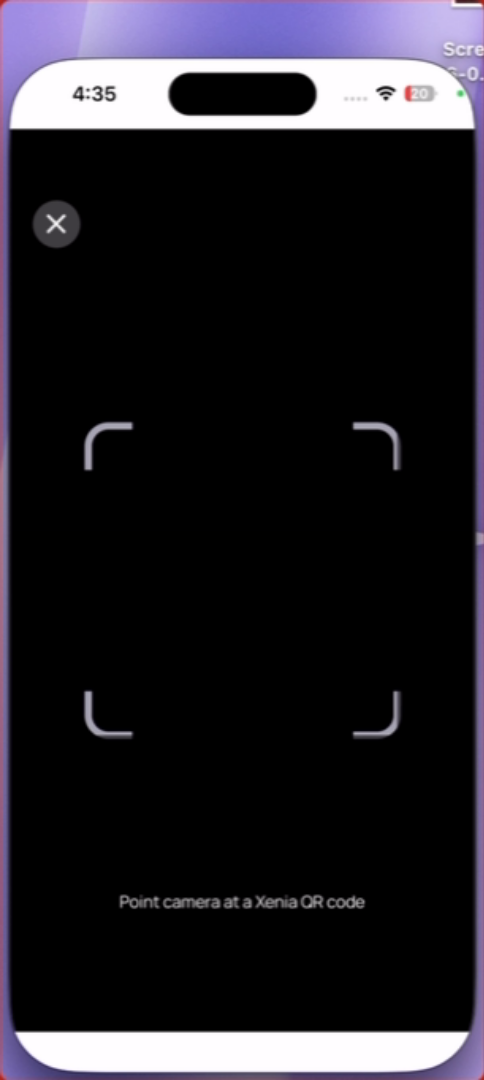
3. Creating the Work Request from a QR Scan
After scanning:
- The Work Request form opens with asset and location already filled in
- Add a title describing the issue
- Add a description and any relevant details
- Attach a photo if you can
- Tap Submit
The request is automatically linked to that specific piece of equipment. When a Work Order is created from the request, it appears in the asset's work history — building the maintenance record for that equipment over time.
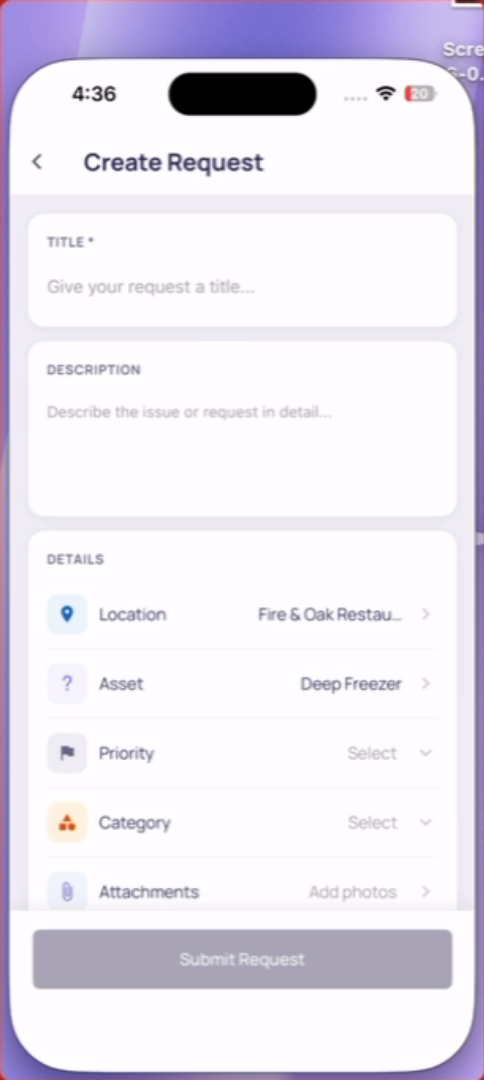
4. If There's No QR Code on the Equipment
Not all equipment has been tagged with a QR code yet. In that case, create a Work Request manually using the + button and select the asset from the list manually if the form includes an asset field. Contact your manager if you're unsure which asset to select.
This article explains how to scan equipment QR codes using the Xenia app to create linked work order requests efficiently. By following these steps, users can quickly generate accurate work requests tied to specific assets, ensuring clear communication and tracking.
Need Help?
Reach out to our Support Team at Support@xenia.team
Comments
0 comments
Please sign in to leave a comment.