
1. Where to Find Your Work Orders
Work tab → Work Orders sub-tab
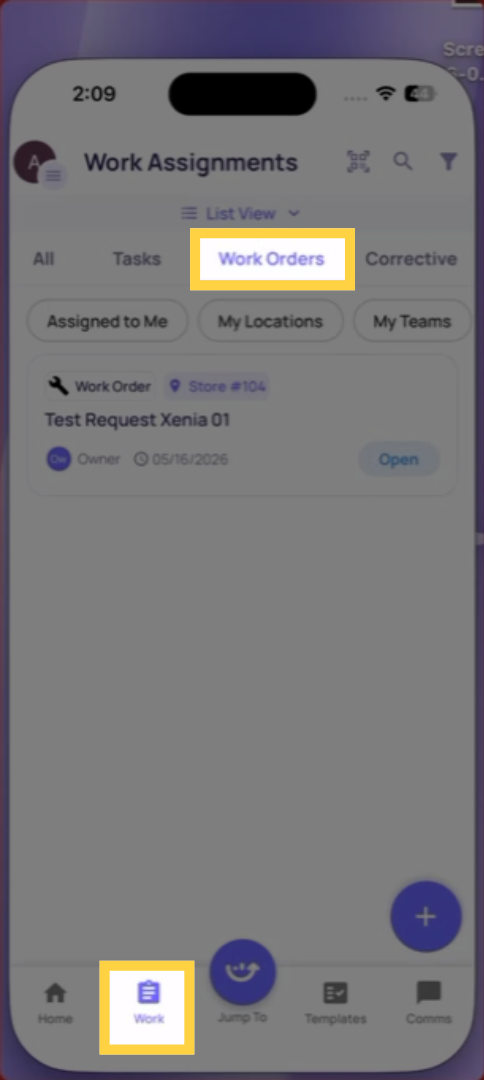
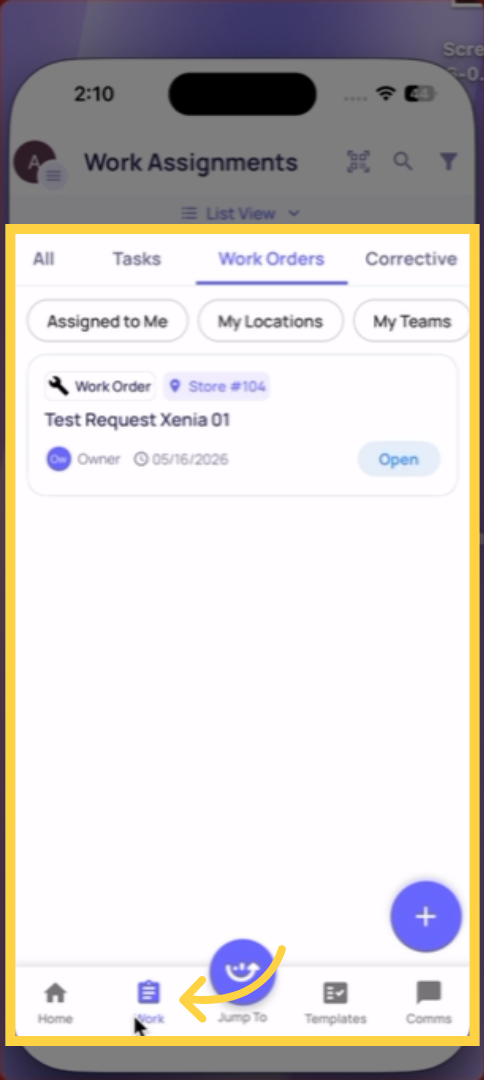
Tap Work at the bottom of the screen. Tap the Work Orders sub-tab. This view shows only Work Order items assigned to you or visible at your location — not general tasks.
What You See in the Work Orders View
Each Work Order in the list shows:
- Work Order ID
- Title and issue description
- Location (which store or site)
- Assignee and due date
- Current status (Open, In Progress, On Hold, Completed)
- Priority level if set
Tap any Work Order to open the full detail view — full description, photos attached, any comments, the status history, and the action buttons.
2. Filtering Your Work Orders
Use filters at the top of the Work Orders view to narrow the list:
- Status — Open, In Progress, On Hold, Completed
- Location — a specific store or site
- Priority — Critical, High, Medium, Low
- Assignee — tasks assigned to you vs. your team or role
Saved Views: You can create saved filter combinations — for example, "Open Critical Work Orders at My Location" — so you don't have to re-apply filters every time. These persist between sessions.
3. Viewing Work Orders You Submitted (Status Tracking)
If you submitted a Work Request that was accepted and converted to a Work Order, you can track its status here. Find it in the Work Orders list — the status shows where it is in the resolution process. This gives frontline staff visibility into whether their reported issue is being handled.
Need Help?
Reach out to our Support Team at Support@xenia.team
Comments
0 comments
Please sign in to leave a comment.