
1. What a Mandatory/Required Step Is
2. How to Identify Mandatory Steps
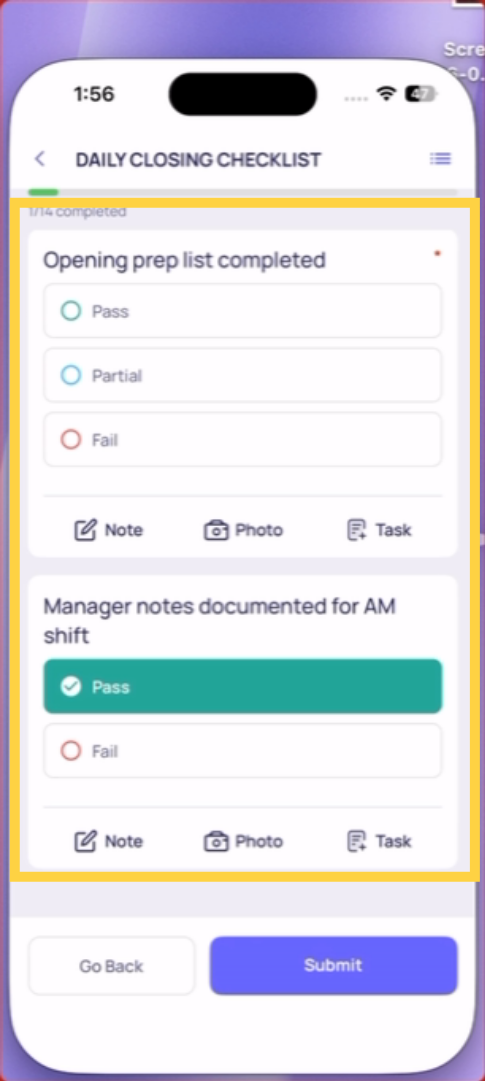
Mandatory steps have a visual indicator — typically a red asterisk (*), a "Required" label, or a distinct border or color. The exact appearance depends on your app version, but there's always a visual cue that distinguishes required from optional steps.
3. What Happens If You Try to Skip One
When you tap Submit with one or more required steps unanswered:
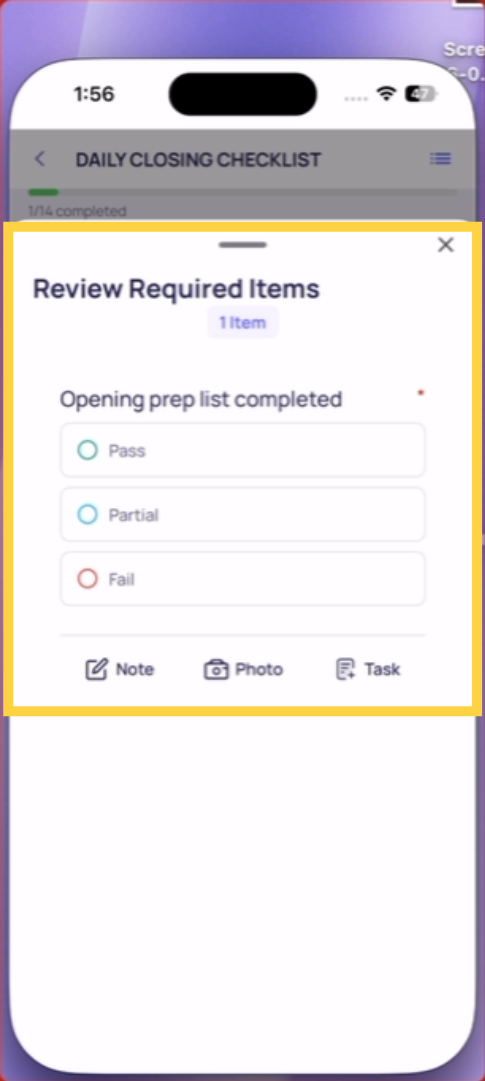
- The checklist highlights every incomplete required step with a visual indicator
- The screen scrolls to or identifies the first missing step
- Submission is blocked until all required steps are answered
The app won't let you submit an incomplete required step — you have to go back and answer it.
4. Resolving a Required Step Block
5. If You Genuinely Can't Answer a Required Step
Sometimes a required step asks about something that doesn't exist or isn't applicable in your situation. Common examples:
- A temperature step for equipment that's been removed
- A photo step for an area that's inaccessible due to maintenance
- A compliance step for a process that hasn't started yet
In these cases: do not guess or enter false data. Contact your manager before submitting. Your manager can edit the submission after the fact if needed, or can advise on how to handle the N/A scenario correctly.
This article explains how to identify and complete mandatory checklist steps to ensure successful submission. For more information, see related articles on checklist management and data accuracy.
Need Help?
Reach out to our Support Team at Support@xenia.team
Comments
0 comments
Please sign in to leave a comment.