
1. What Notes Are
A note is an optional free-text comment you can add to any step in a checklist — separate from the step's required response. Notes appear in the submission record attached to the specific step you wrote them on.
Notes are for capturing context that the step response alone doesn't convey: what you observed, what action you took, any relevant detail that helps whoever reviews the submission understand the situation.
2. When to Add a Note
Notes are most useful when:
- Something needs more explanation than a yes/no answer allows: "Yes — but the seal is starting to wear, monitor next week"
- You took a corrective action and want to document it: "Discarded item. Replaced with fresh batch from walk-in."
- There's relevant context about the condition: "Area clean but drain is slow — reported to maintenance"
- A step is answered as N/A and you want to explain why
3. How to Add a Note on Mobile
- Answer the step as usual
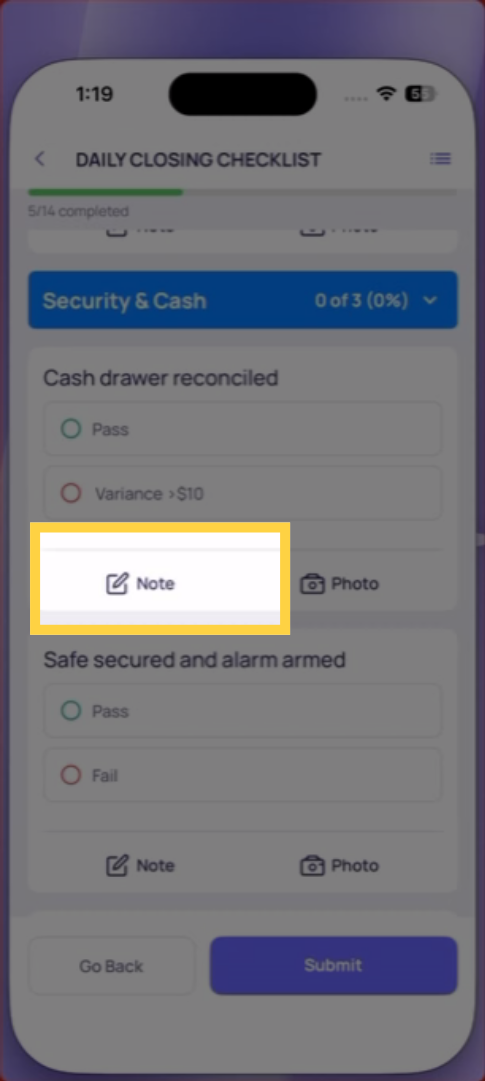
- Look for a Notes or Add Note option below the step — it may appear as a text field, a note icon, or a small "+" link
- Tap it
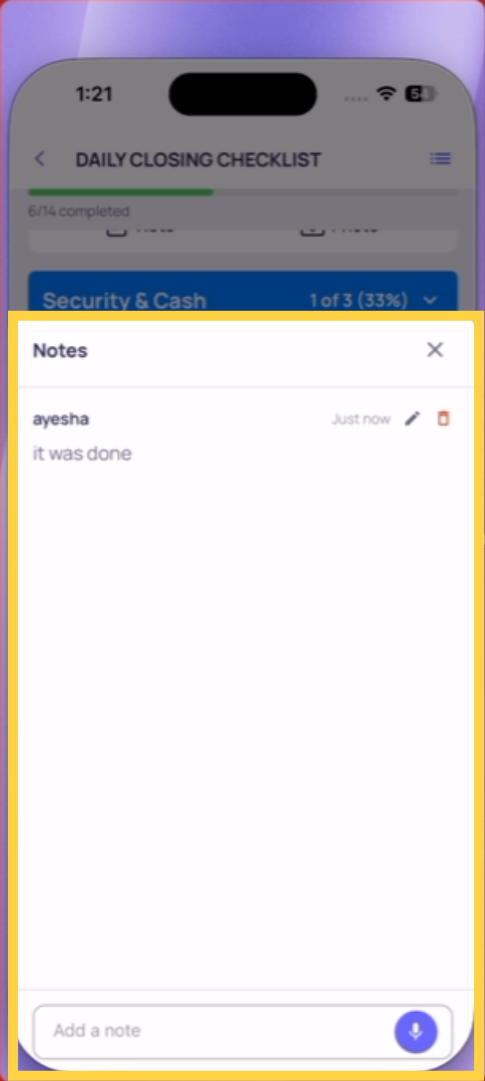
- A text field opens — type your note
- Continue to the next step
The note is saved with that step. It appears in the submission report beside the step response.
Notes vs. Follow-Up Questions
Notes are always optional and initiated by the employee. Follow-up questions are configured by the admin and appear automatically when a specific answer triggers them — they may be required.
If a follow-up question appeared after your answer, that's a mandatory field — answer it before continuing. A note you add yourself is additional context you choose to include.
This article explains how to add and use notes on checklist steps to provide detailed context and improve reporting accuracy for reviewers and managers.
Need Help?
Reach out to our Support Team at Support@xenia.team
Comments
0 comments
Please sign in to leave a comment.