
1. Two Ways to Complete a Checklist
There are two ways to fill out a checklist in Xenia on mobile. They use the same form, but they start differently and create different records.
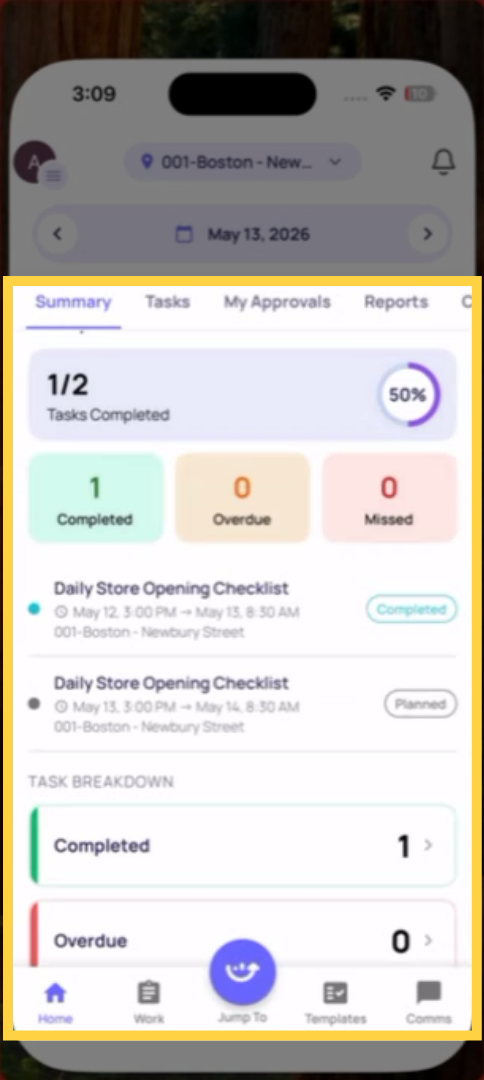
2. Path 1 — Completing a Task (Project-Generated)
This is the standard daily workflow. A project has been set up by your admin to deploy a checklist to your role at your location on a schedule. At the configured start time, a task appears on your home screen. You tap it, tap Start, complete the checklist, and submit.
What's different:
- The task was assigned to you automatically by the project
- The task has a start time and a due time — it's on a deadline
- The Location step is pre-filled automatically — you don't select your store
- Completing the task generates a submission AND marks the task as Completed
- If you don't complete it by the due time, it becomes Overdue or Missed
- The task appears in project completion reporting — your manager can see whether it was done on time, late, or not at all
When to use: Your daily operational checklists — opening procedures, temperature logs, cleaning verifications, weekly store walks. Anything your admin has scheduled for you.
3. Path 2 — Completing an Ad-Hoc Checklist (Templates Tab)
This is the on-demand path. You open the Templates tab, find a form, and start a new submission without any task assigned to you. There's no due time, no pre-filled location, and no project tracking it.
How to do it:
- Tap the Templates tab at the bottom of the screen
- Tap My Templates
- Browse the folders or search for the form you need
- Tap the form → tap Start Submission
- Fill in the Location step manually — select your store from the dropdown
- Complete the checklist and submit
What's different:
- No task — you're starting from scratch
- No due time — no deadline tracking, no overdue status
- You must manually select your location — it doesn't pre-fill
- The submission is recorded in the template's submission history
- It does NOT appear in project completion reporting (because there's no project)
- Corrective tasks and notifications still fire if configured
When to use: Incident reports, vendor issue forms, work requests, customer feedback forms, or any form that's completed when something happens — not on a fixed schedule.
4. Key Differences at a Glance
| Task (Project-Generated) | Ad-Hoc (Templates Tab) | |
| How it starts | Appears automatically on home screen | You open Templates and start it manually |
| Location step | Pre-fills automatically | You select your store manually |
| Deadline | Has a start and due time | No deadline |
| Overdue/Missed tracking | Yes | No |
| Project completion reporting | Yes | No |
| Submission history | Yes | Yes |
| Workflows/notifications fire | Yes | Yes |
Need Help?
Reach out to our Support Team at Support@xenia.team
Comments
0 comments
Please sign in to leave a comment.