
1. What You See Immediately
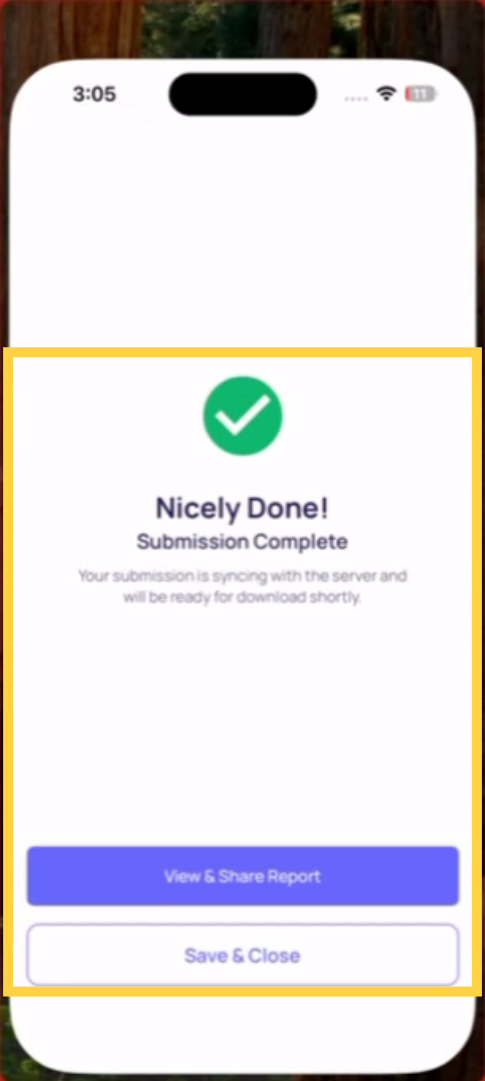
After tapping Submit and confirming, a confirmation screen appears showing:
- The submission was recorded successfully
- The template name and location
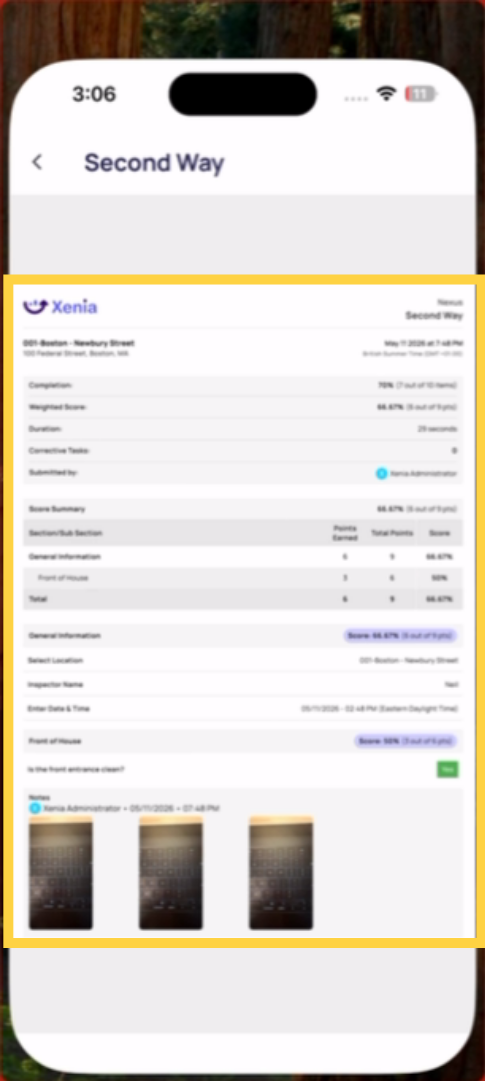
- For scored templates: your overall score and rating label (e.g., "87% — Gold")
- A summary of completed sections
- An option to download the PDF report (for managers or admins who need to share or file it)
After closing the confirmation, your home screen updates — the task moves out of the active list and shows as Completed. Your progress indicator updates ("3 of 3 tasks completed").
2. What Fires Automatically at Submission
The employee doesn't see most of this — it happens in the background the moment Submit is confirmed:
Corrective tasks: Any workflow triggers based on failing answers create corrective tasks immediately. The assignee at the relevant location receives a push notification. The tasks appear in the task board.
Notifications: Any email or push notifications configured on the template (post-submission email notifications to managers, district managers, or external contacts) are sent immediately.
Score calculation: If the template uses weighted scoring, the score is calculated and the rating label is applied in real time. The scored submission report is available immediately in the template's submission history.
Timestamp recording: Every step response is timestamped at the time it was answered — not at submission time. The submission record shows both when the checklist was started and when it was submitted.
3. What Your Manager Sees
Your manager — or anyone with Submission Access to this template — can see the completed submission the moment it's recorded. They can:
- View every response, every photo, and every score
- See the flagged items if any steps triggered a flag
- Download the PDF report
- See corrective tasks that were auto-generated from failing steps
There is no delay. Real-time visibility is one of the core reasons completing checklists in the moment — not hours later — matters.
4. If You Realize You Made an Error After Submitting
You cannot reopen a submitted checklist. The submission record is permanent. Options:
- Ask your admin to edit the submission (if they have Can Edit Submission permission)
- Submit the template again as a new submission with the correct information and note in the comments that it supersedes the previous submission
Need Help?
Reach out to our Support Team at Support@xenia.team
Comments
0 comments
Please sign in to leave a comment.