
1. Auto-Save Is Always On
As you answer steps in a checklist, your responses are saved automatically. You don't need to tap a Save button. Every answer you give is captured in real time.
This means: if you're interrupted mid-checklist, your progress is not lost.
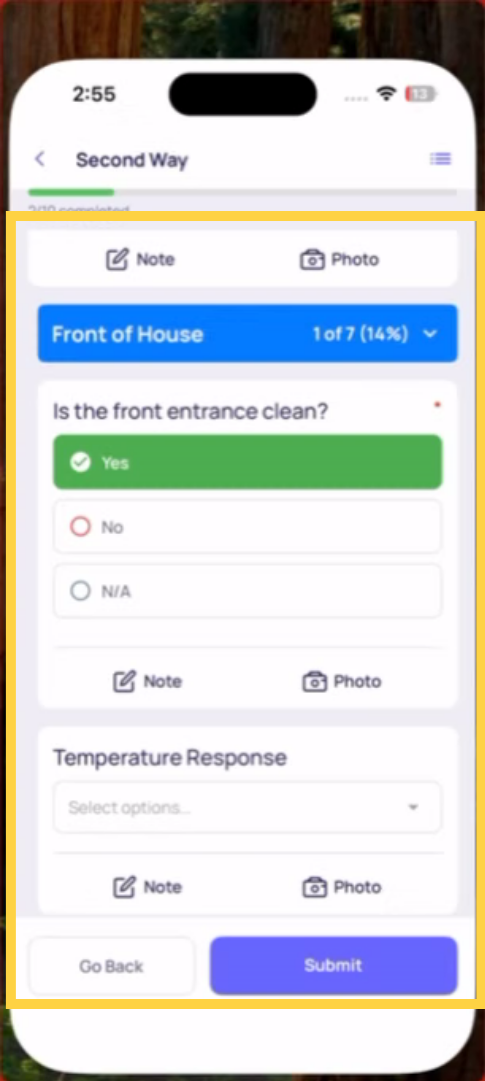
2. How to Correctly Exit a Checklist Mid-Completion
When you need to stop before finishing:
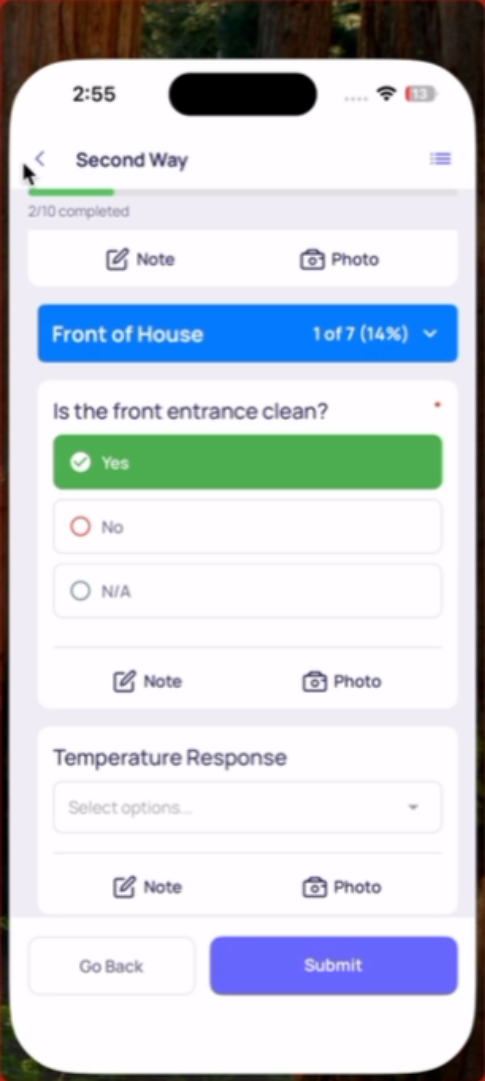
Tap the back arrow (←) or Go Back — do NOT force-close the app.
Tapping Go Back saves your current progress and returns you to the task detail screen. The task status changes to In Progress. Your answers remain saved exactly where you left off.
Do not force-close the app (swiping it away from the app switcher) while in the middle of a checklist. Your most recent unsaved responses from the last few seconds may not be preserved if the app is force-closed mid-write.
3. Finding a Draft Checklist (My Draft Submissions)
After exiting mid-checklist, your in-progress submission is accessible in two places:
From the task itself: Find the task on your home screen or Work tab. It now shows In Progress status. Tap it → tap Continue.
From the side menu — My Draft Submissions: Tap your profile icon (top left) → scroll to My Draft Submissions. This is a dedicated list of all checklists you've started but not submitted. Tap any draft to return to it.
4. What Auto-Save Does NOT Cover
- The very last response — if you answer a step and immediately force-close the app in the same second, that response may not have saved
- Photos — photos are saved when you tap confirm after taking them. If the app closes between taking a photo and confirming it, the photo may not be retained
- Conditional prompts — if a follow-up question appeared after a failing answer and you backed out without answering it, you'll need to re-answer the triggering step when you return
How Long Drafts Are Kept
In-progress submissions are saved on the device until you submit them or delete them manually. They do not expire automatically. However, if a project's due time passes while a checklist is In Progress, the task becomes Overdue — and if Mark as Missed is enabled on the project, the task locks. At that point, the draft may no longer be submittable.
Need Help?
Reach out to our Support Team at Support@xenia.team
Comments
0 comments
Please sign in to leave a comment.