
1. Where Your Tasks Are
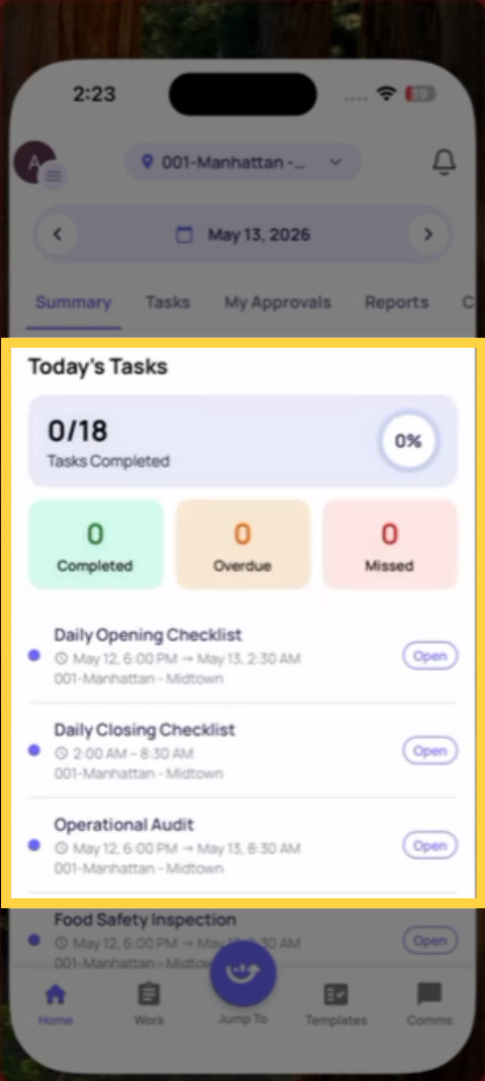
Assigned tasks appear in three places on mobile:
1. Home Screen (Location Pulse): Your most immediate view. Tasks due today appear listed by due time. This is the fastest way to find what you need to complete right now. Tap any task card to open it.
2. My Work Inbox: Side menu → My Work. Organized by Due Today, Missed, and Ongoing. Better for seeing your full picture across today and the week.
3. Work Tab → Tasks: Bottom navigation → Work → Tasks. A full list of all tasks assigned to you, filterable by status, priority, location, and more. Use this when you need to find a specific task, check something that's completed, or filter by a specific status.
2. How to Open a Task
Wherever you find the task — home screen, My Work, or Work tab — tap the task card to open it.
The task detail screen shows:
- Task name
- Location it's for
- Who assigned it
- Start time and due time
- Any description or special instructions
- The checklist attached (if one is attached)
- Current status
From the task detail, tap Start to open the attached checklist and begin completing it. If you've already started, the button shows Continue.
3. If You Can't Find Your Task
Check all three places: Home screen, My Work, and the Work tab. Tasks sometimes appear in one view before others depending on timing.
Check the status filter: In the Work tab, the default view may show only Open tasks. Tap the filter and make sure you're viewing All or the status you're looking for.
Check the date: If you're looking for a task from a previous day that hasn't been completed, check the Missed section in My Work or filter the Work tab by Overdue status.
Still can't find it: Contact your manager. The task may not have been generated yet, may be assigned to a different role, or may have been paused.
Need Help?
Reach out to our Support Team at Support@xenia.team
Comments
0 comments
Please sign in to leave a comment.