
1. Why Push Notifications Matter
Push notifications are how Xenia tells you when a new task has been assigned to you, when a task is approaching its due time, when a task goes overdue, and when an announcement has been sent to your team. Without notifications enabled, you'll only see updates when you open the app.
2. Step 1 — Enable Notifications in Xenia
- Open the Xenia app
- Tap your profile icon or initials in the top left corner
- Tap Notification Settings
- You'll see delivery channel options:
- Push notifications — banner alerts on your device
- Email — notifications sent to your account email
- SMS — text message alerts (if enabled for your workspace)
- Toggle on Push notifications (and any other channels you want)
- Save
This controls which types of notifications Xenia sends. But for push notifications to actually appear on your device, your phone or tablet also needs permission at the system level.
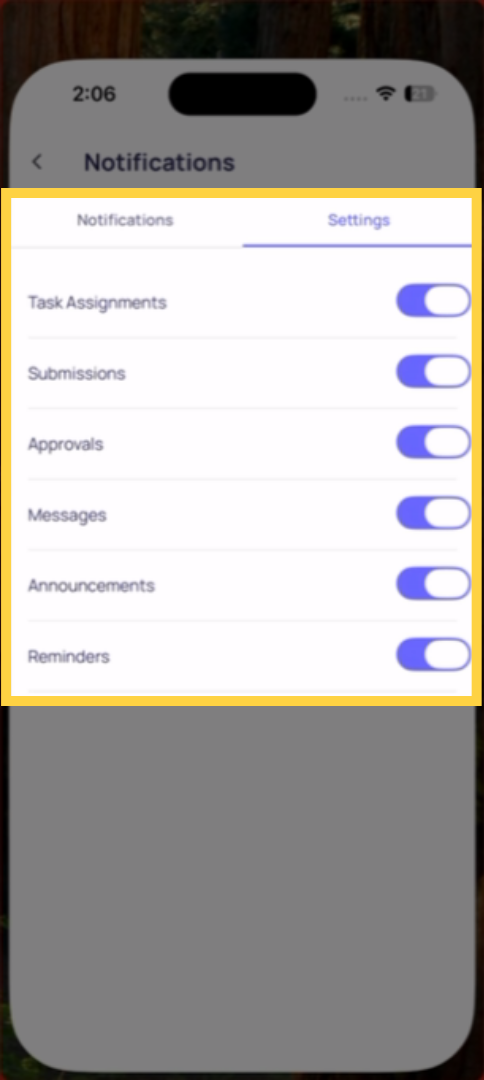
3. Step 2 — Allow Notifications at the Device Level
On iPhone/iPad (iOS):
- Open your device Settings (the gray gear icon — not the Xenia app)
- Scroll down and tap Xenia
- Tap Notifications
- Toggle Allow Notifications to ON
- Choose your alert style — Banners is the most visible option
On Android:
- Open your device Settings
- Tap Apps or Application Manager
- Find and tap Xenia
- Tap Notifications
- Toggle notifications to ON
Both Steps Are Required
Push notifications only work when both are enabled:
- Xenia's in-app notification settings (Step 1) ✅
- Your device's system notification permission for Xenia (Step 2) ✅
If you're not receiving notifications, check both places. A common issue is that the app was installed without granting notification permission, or the device settings were turned off later.
4. Notification Types in Xenia
Once enabled, you'll receive notifications for:
- New task assigned — a project generated a task or someone created a one-off task for you
- Task due soon — a reminder as a due time approaches (if configured by your admin)
- Task overdue — your task has passed its due time
- New announcement — your organization sent a team-wide message
New chat message — a teammate messaged you directly or in a group
If You're Still Not Receiving Notifications
- Confirm push is toggled on in Notification Settings (side menu → Notification Settings)
- Confirm Xenia has notification permission on your device (device Settings → Xenia → Notifications)
- Check that your phone is not in Do Not Disturb mode
- Try logging out and back in to refresh the notification token
- If still not working, contact your admin or the Xenia support team
Need Help?
Reach out to our Support Team at Support@xenia.team
Comments
0 comments
Please sign in to leave a comment.