
1. Who Needs to Switch Locations
Most frontline employees are members of a single store — they never need to switch. But if you're a store manager who covers an additional location, a district manager overseeing multiple stores, or an area manager with organization-wide visibility, you may need to switch between locations to view the right data.
2. How to Switch Locations
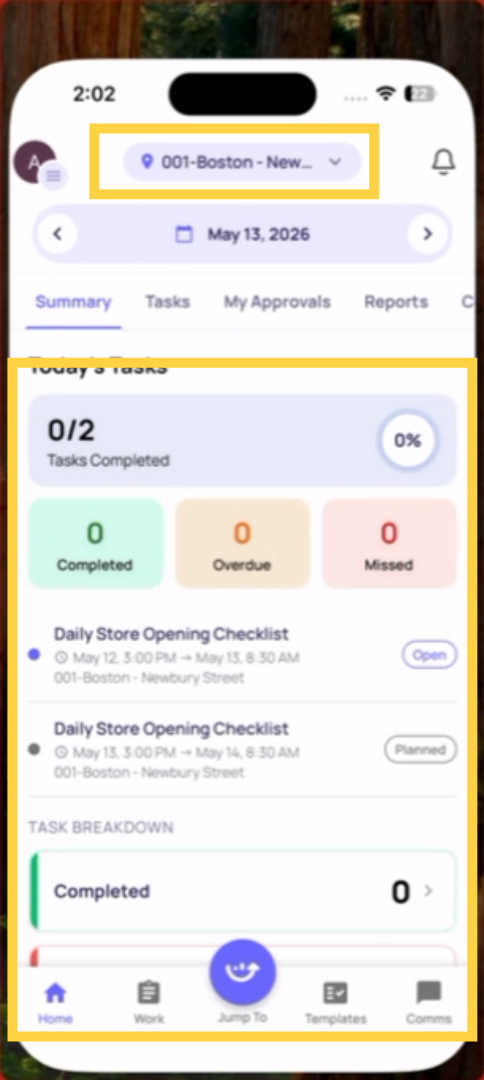
From the home screen: On the Location Pulse home screen, your current location name typically appears at the top of the screen. Tap it to open a location selector — a list of all locations you have membership at. Select the location you want to switch to.
From the side menu: Tap your profile icon (top left) to open the side menu. At the top you'll see your Current Workspace with a dropdown arrow. Depending on your configuration, workspace switching may also offer location switching within it.
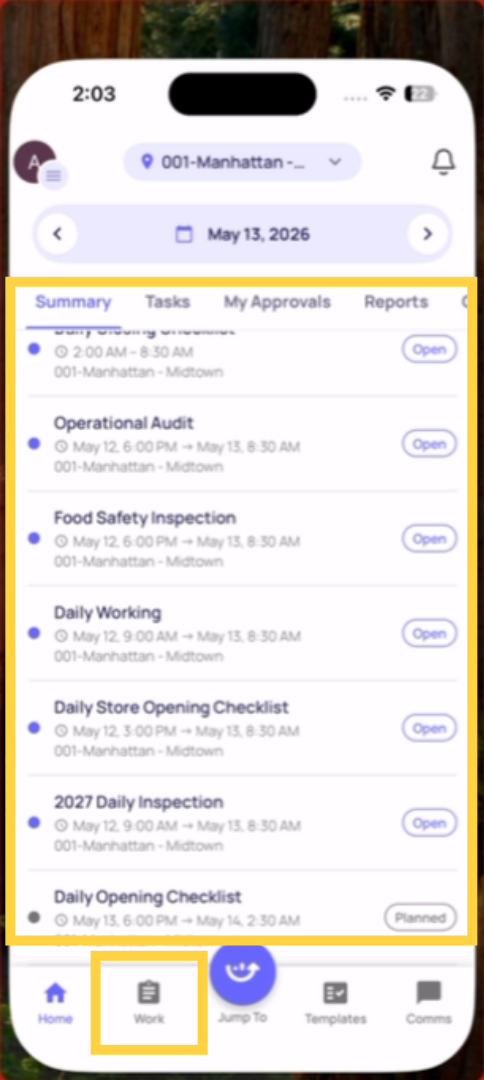
From the Work tab: When viewing your task list in the Work tab, use the Location filter to narrow your view to a specific store. This doesn't switch your home screen view but filters the task list to one location.
3. What Changes When You Switch Locations
When you switch to a different location:
- Your home screen (Location Pulse) updates to show that location's tasks and data
- The task list shows tasks at the new location
- Submission history filters to the new location
- Photos and flagged items shown are from the new location
Your role permissions don't change — only the location context of what you're viewing.
If a Location Is Missing from Your List
If you can't find a store in the location selector, you don't have location membership at that store. Contact your admin and ask them to add that location to your membership. They do this in Settings → Users → your profile → Location Membership.
This article showed how to switch between locations and filter tasks by location in the mobile app, helping managers efficiently manage multiple stores. For more information, see related articles on location management and task filtering.
Need Help?
Reach out to our Support Team at Support@xenia.team
Comments
0 comments
Please sign in to leave a comment.