
1. Opening the Side Menu
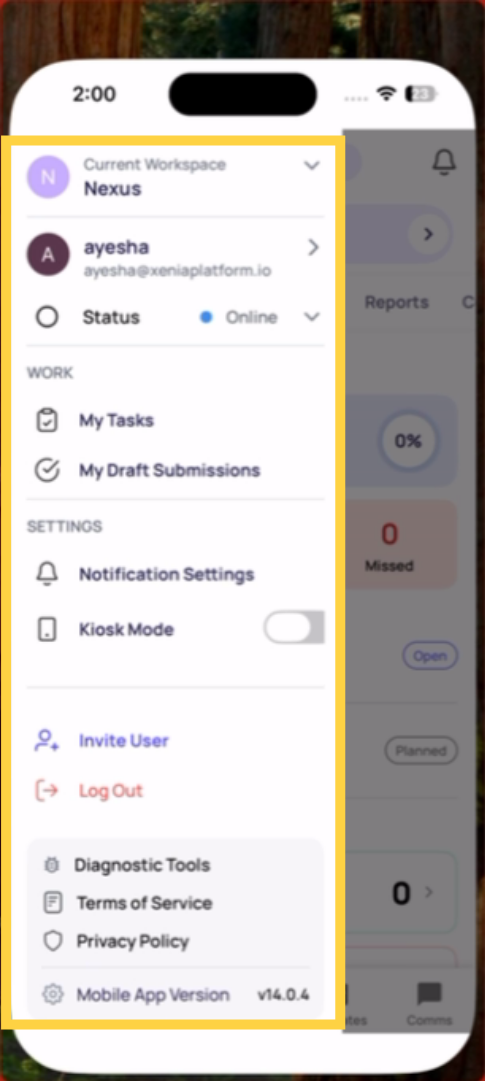
Tap the profile icon or initials in the top left corner of any screen. A side menu slides open from the left. This is sometimes called the hamburger menu or the profile menu.
2. What's In the Side Menu
Current Workspace: At the very top, you'll see your current workspace name. If you belong to multiple workspaces, you can switch between them here (see the Switching Between Locations article for more).
Your Account: Your name and email address are shown here. Tap your name to view or edit your profile details.
Status: Shows your current online/offline status — a green dot means Connected. You can update your availability status here if that feature is enabled for your workspace.
WORK section:
- My Tasks — quick shortcut to your task list
- My Draft Submissions — checklists you've started but haven't submitted yet. If you saved progress on a checklist and exited, you'll find it here.
SETTINGS section:
- Notification Settings — configure how you receive notifications (push, email, SMS). This is the first place to check if you're not receiving task alerts.
- Kiosk Mode — a toggle that locks the app to a simplified view for shared store tablets. When enabled, the app displays only the task list and prevents users from accessing other features or navigating away. Your admin may enable this for frontline store accounts.
Account actions:
- Invite User — send an invitation to add a new user to the workspace (visible if your role has invite permissions)
- Log Out — signs you out of the app
At the very bottom:
- Diagnostic Tools — opens the Debug Panel for sending diagnostics reports to the Xenia support team (see the Diagnostics article for full instructions)
- Terms of Service
- Privacy Policy
Mobile App Version — shows your current app version number (e.g., v14.0.4). Always useful to note this when contacting support.
3. Kiosk Mode — What It Is and When It's Used
Kiosk Mode is a setting used on shared store tablets to simplify the experience for frontline employees. When enabled:
- The app locks to a focused task view
- Navigation to other areas of the app is restricted
- The device stays on the task list — employees complete their assigned checklists and nothing else
Kiosk Mode is typically enabled by a manager or admin for shared tablets. Individual employees on their own devices generally don't need it.
Need Help?
Reach out to our Support Team at Support@xenia.team
Comments
0 comments
Please sign in to leave a comment.