
1. Location Pulse — The Frontline Home Screen
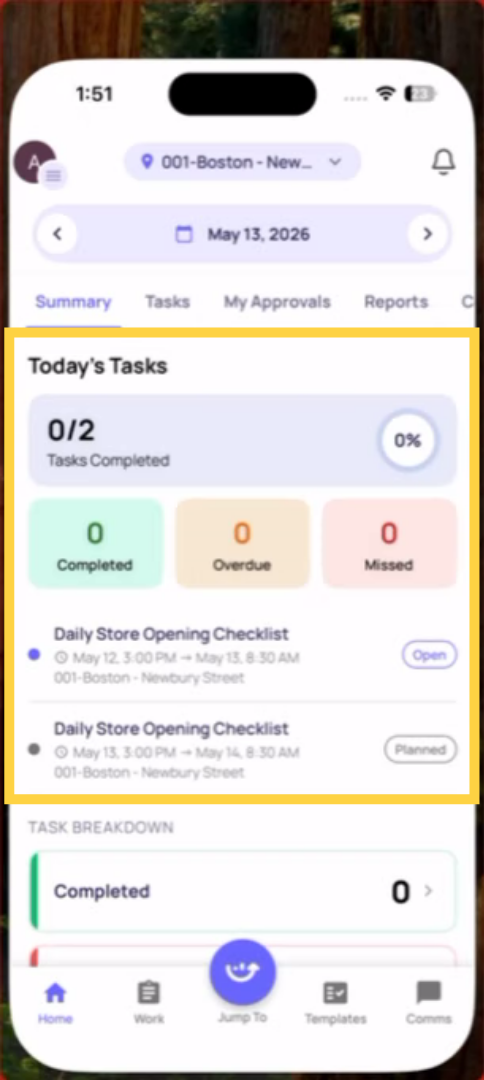
Location Pulse is the home screen layout designed for frontline employees and store-level managers. It shows a single-day, single-location view of what's happening right now at your store.
What it shows:
- Tasks due today — everything assigned to your role at your location for today
- Completion progress — how many are done vs. pending
- Overdue items — tasks that have passed their deadline
- Recent photos — photos submitted from recent checklist completions
- Compliance tab — quick access to submission exports (store managers only)
Location Pulse is designed to answer one question: "What do I need to do today?" Everything on the screen is relevant to your shift, your store, and your day.
2. Other Home Screen Views
Depending on your role, you may see a different home screen:
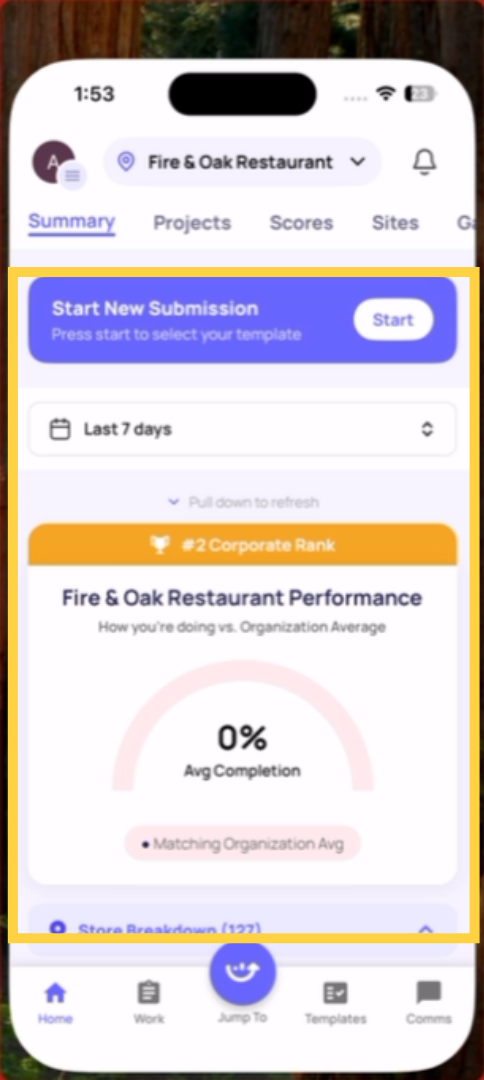
Manager Dashboard / Custom Dashboard: District managers, area managers, and operations roles often see a custom dashboard configured by their admin. Instead of today's task list, they see charts, completion rates, flagged item counts, and multi-location performance data. This is because their job isn't to complete individual tasks — it's to monitor the operation across many locations.
Operations Dashboard: Some manager roles see a view that combines Location Pulse-style task tracking with multi-location visibility — useful for a store manager who also oversees an adjacent location.
Why does my colleague see something different? Home screen layout is assigned by role. Your admin chooses which layout each role sees. If you and a colleague in a different role open Xenia, you may see completely different home screens — both are correct.
3. How to Tell Which View You're On
Look at the top of the screen:
- If you see your location name and today's tasks listed by due time → you're on Location Pulse
- If you see charts, percentages, or a multi-location summary → you're on a manager dashboard
- If you see a mixed view with both tasks and summary data → you're on a combined view
All views share the same bottom navigation tabs — those work the same regardless of which home screen layout you have.
Need Help?
Reach out to our Support Team at Support@xenia.team
Comments
0 comments
Please sign in to leave a comment.