
What the Select Location Step Is
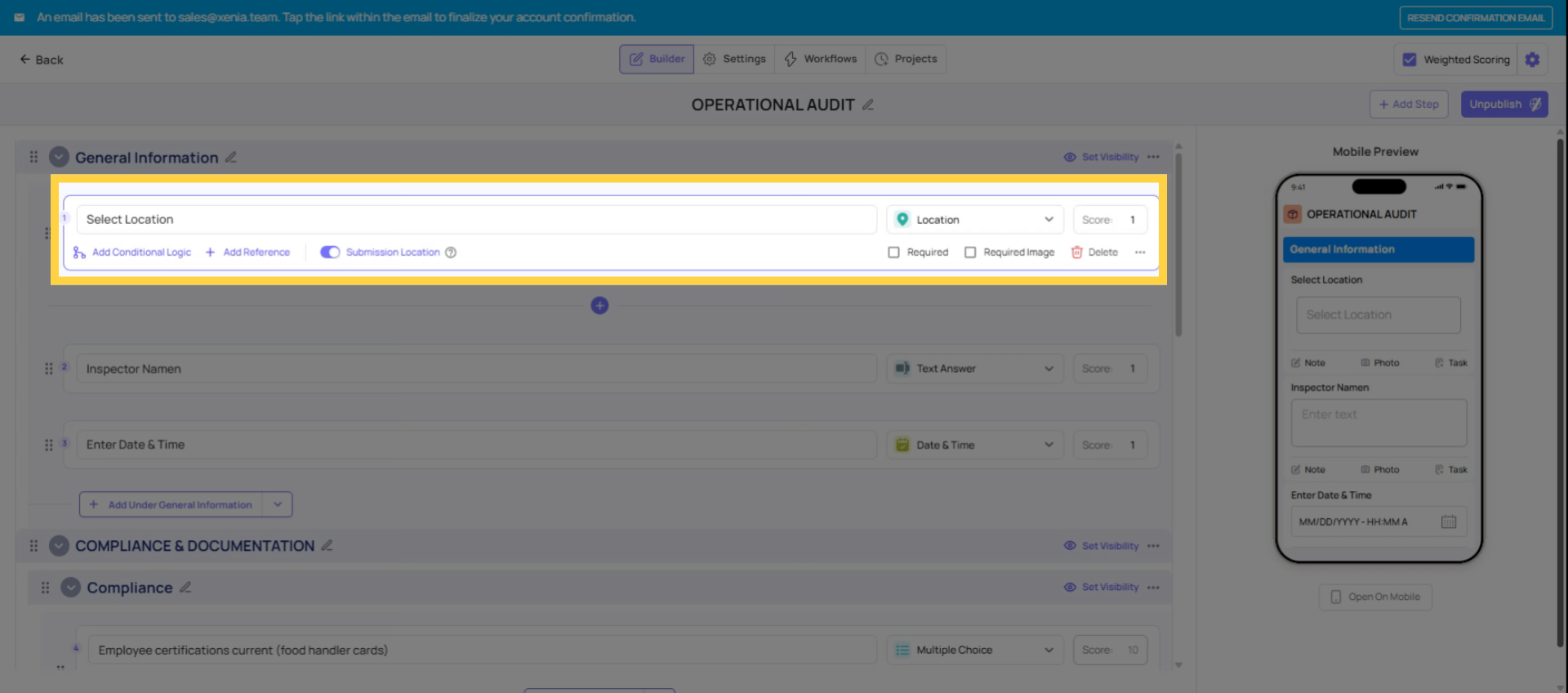
The Select Location step (step type: Location) is a dropdown field that captures which store or location a checklist submission came from. It's step number 11 in Xenia's step type library and it produces a single output: a location tag on the submission.
This location tag is not just metadata. It's the input that drives almost everything location-sensitive in Xenia:
- Which role member receives a corrective task when a workflow fires
- Which role member receives a post-submission email notification
- Whether a district manager sees a submission in their Submission Access tier
- Whether a Location Group condition in a workflow fires correctly
- Whether conditional visibility shows or hides sections based on the store
The Two Behaviors: Project-Based vs. Ad Hoc
This is the most important thing to understand about the Location step, and it's what most articles currently don't explain:
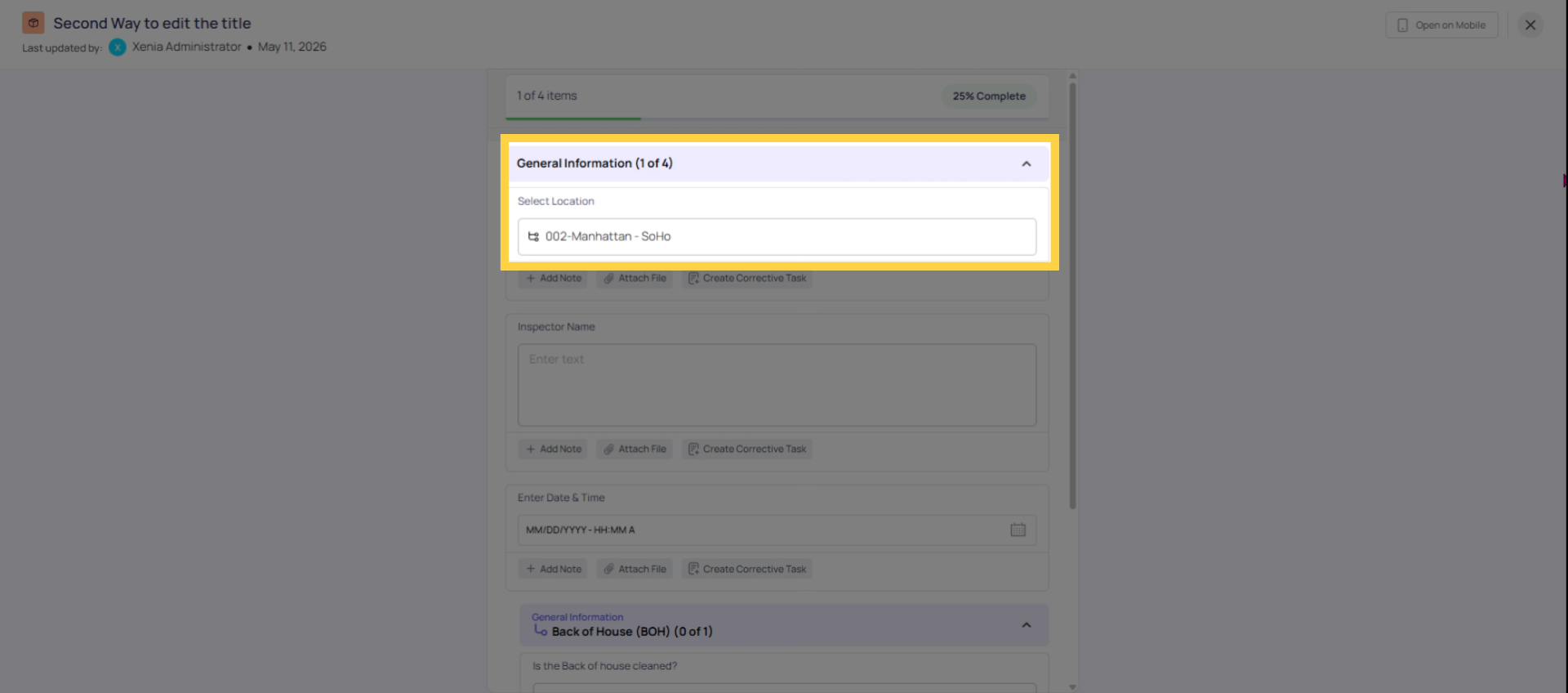
When the checklist is completed from a project task: The Location step pre-fills automatically with the location from the project's schedule. The employee sees the step at the top of the form with their store already populated. They do not need to select it. They do not need to interact with it at all. It's already done.
This is intentional and correct. The project knows which schedule this task belongs to, and therefore which location. The employee completing a task at Store 5 gets Store 5 pre-populated in the Location field automatically.
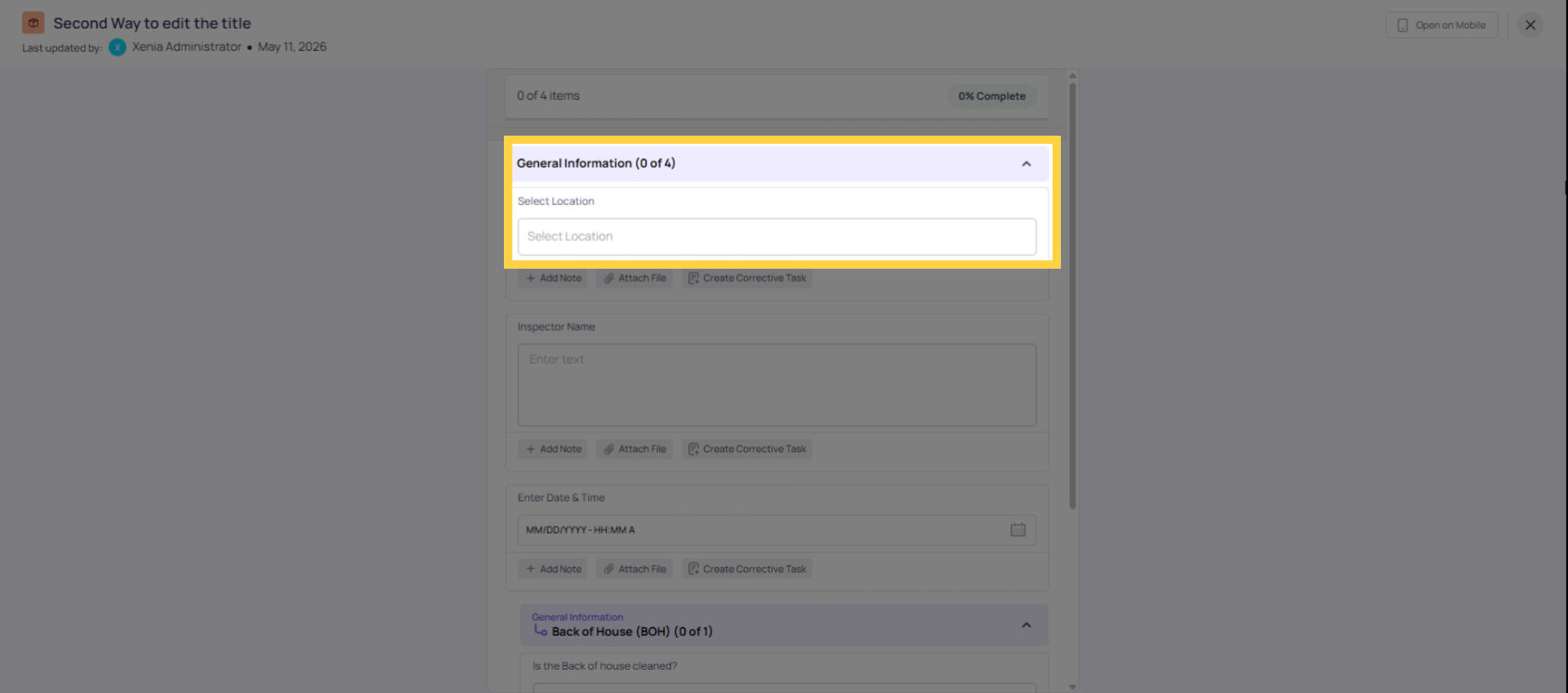
When the checklist is completed ad hoc (no project): The Location step does not pre-fill. The employee sees an empty dropdown and must manually select their location before they can continue. For ad hoc forms like incident reports, vendor issue forms, or anything submitted on demand — the employee makes the selection themselves.
This is why the step must still be in the form even for project-based checklists: it carries the location data through to everything downstream. Without it, even a pre-filled location has nowhere to be stored on the submission record.
What the Location Tag Powers
Once the submission has a location tag — whether pre-filled from the project or manually selected — that tag becomes the key for every location-sensitive feature in Xenia:
Submission Access (Tier 2): A Store Manager or District Manager with Tier 2 access sees submissions from locations in their membership. The matching is done against the location tag on each submission. No location tag = no match = the manager sees nothing even if they have the right permissions.
Post-Submission Email Notifications: When a role is configured as an email notification recipient on a template, Xenia checks the location tag on the submission and emails only the member of that role who has membership at that location. Remove the Location step → no tag → role-based email routing fails → no one receives the email.
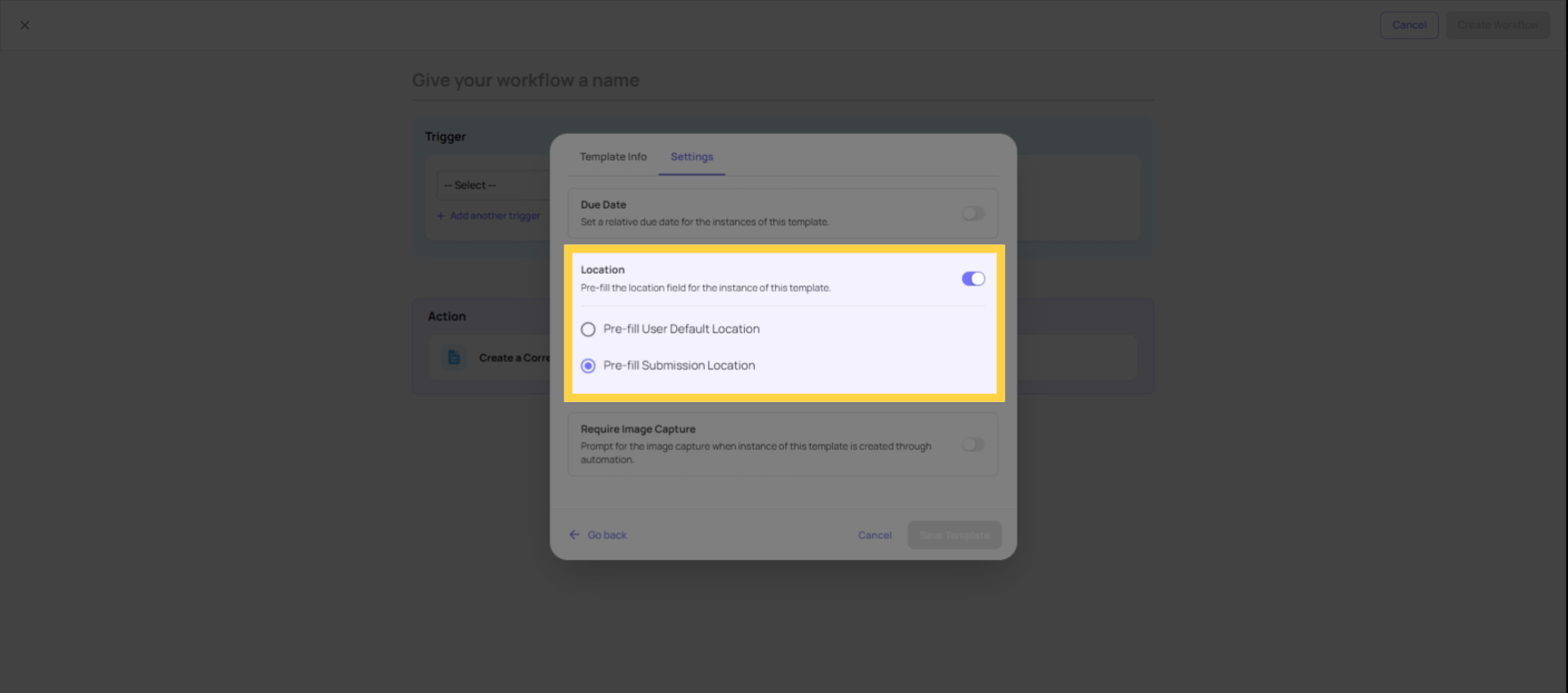
Workflow Corrective Tasks: When a workflow fires and creates a corrective task, the task should be tagged to the store where the submission came from. This tagging uses the "Pre-fill Submission Location" toggle on the corrective task configuration. When this is ON and the submission has a location tag, the corrective task inherits that location — and Xenia routes the task to the correct role member at that store.
Conditional Visibility (Location Group conditions): Sections configured with "If location is in group [X]" visibility conditions evaluate against the location tag. Without it, the condition has nothing to check and the section behavior is unpredictable.
The "Pre-fill Submission Location" Toggle — What It Does
This toggle appears inside the corrective task configuration — in both inline conditional logic and in the Workflows tab. It is separate from and in addition to the Location step on the form.
What it controls: When a corrective task is auto-created from a workflow or conditional logic trigger, this toggle determines where the task's location tag comes from:
- Toggle ON: The corrective task inherits its location from the submission's location tag (from the Select Location step). This is correct for multi-location operations — the task goes to the right person at the right store.
- Toggle OFF: The corrective task uses the user's default location instead. In most cases, this is wrong — the submitter's default location may not be the store where the issue was found.
Always turn this ON. It should be considered a mandatory setting on every corrective task configuration in every workflow. The only scenario where you'd leave it off is if you specifically want the task to be tagged to the submitter's personal default location rather than the store the form was about — which is rarely the right configuration.
How to Add a Select Location Step to a Template
- Open the template → Edit → Build tab
- Click Add Step
- Select step type: Location (step #11 in the type list — sometimes labeled "Select Location" or "Location (Select)")
- Title it clearly: "Select Your Location" or "Location" — keep it brief since it pre-fills from the project and most employees never interact with it
- Mark it as Required — this prevents the edge case of an ad hoc submission being accidentally submitted with no location tagged
- Place it at or near the top of the form — before any operational questions
- Save
Do not delete this step once the template is live. It is the foundation that every downstream feature depends on.
The Most Common Failures When the Location Step Is Missing or Wrong
| Symptom | Root Cause | Fix |
|---|---|---|
| Corrective task created with no location | No Location step in template, or Pre-fill Submission Location is OFF | Add Location step + enable the toggle |
| Post-submission email went to no one | No Location step → no location tag → role-based routing failed | Add Location step |
| Submission Access Tier 2 not working | No Location step → submissions untagged → manager's location filter has nothing to match | Add Location step |
| Corrective task went to wrong person | Pre-fill Submission Location is OFF → task used user's default location | Enable the toggle |
| Workflow didn't fire for the right location | No location tag → Location Group condition had nothing to evaluate | Add Location step |
This article explains the importance of the select location step in Xenia templates and corrective tasks. By ensuring every submission is correctly tagged with the appropriate store location, all related features like notifications, routing, and visibility function properly. For more information, see related articles on task configuration and workflow management.
Need Help?
Reach out to our Support Team at Support@xenia.team
Comments
0 comments
Please sign in to leave a comment.