
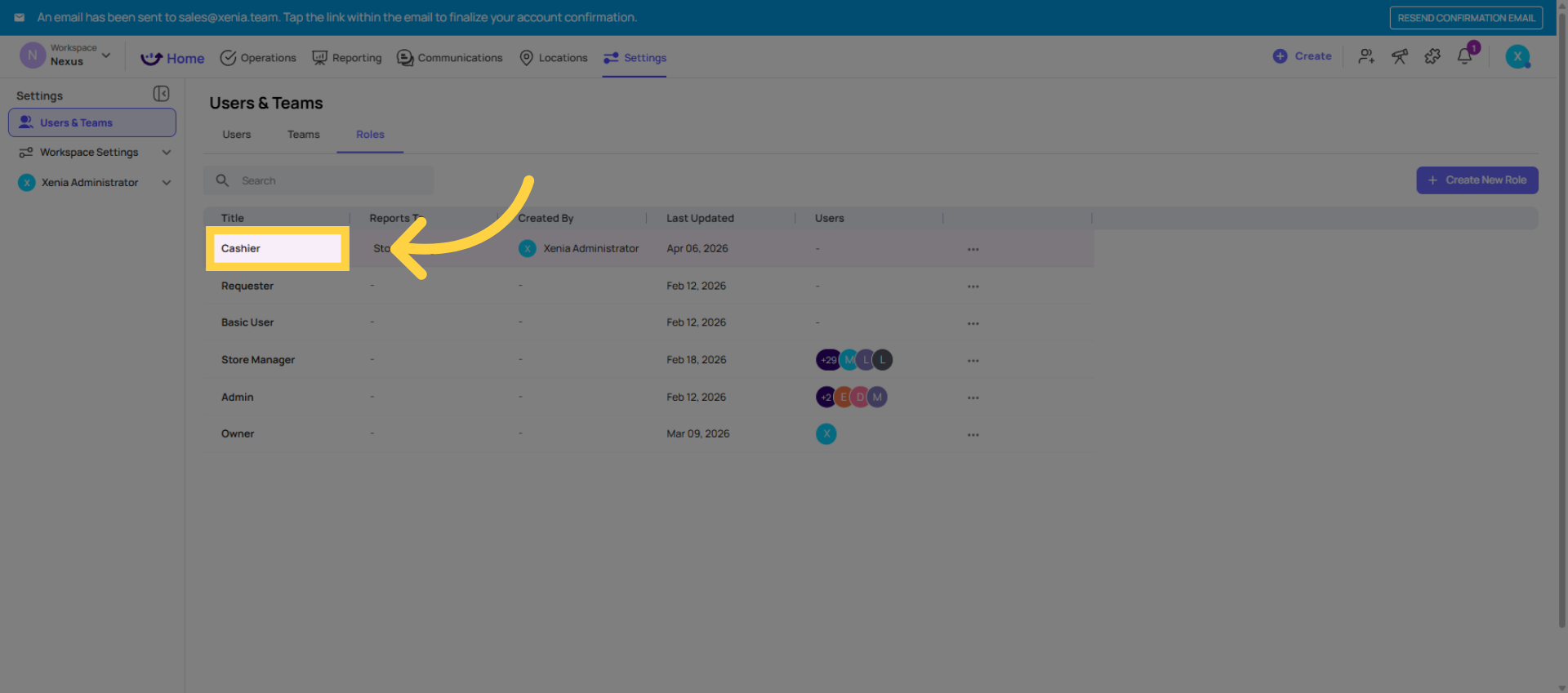
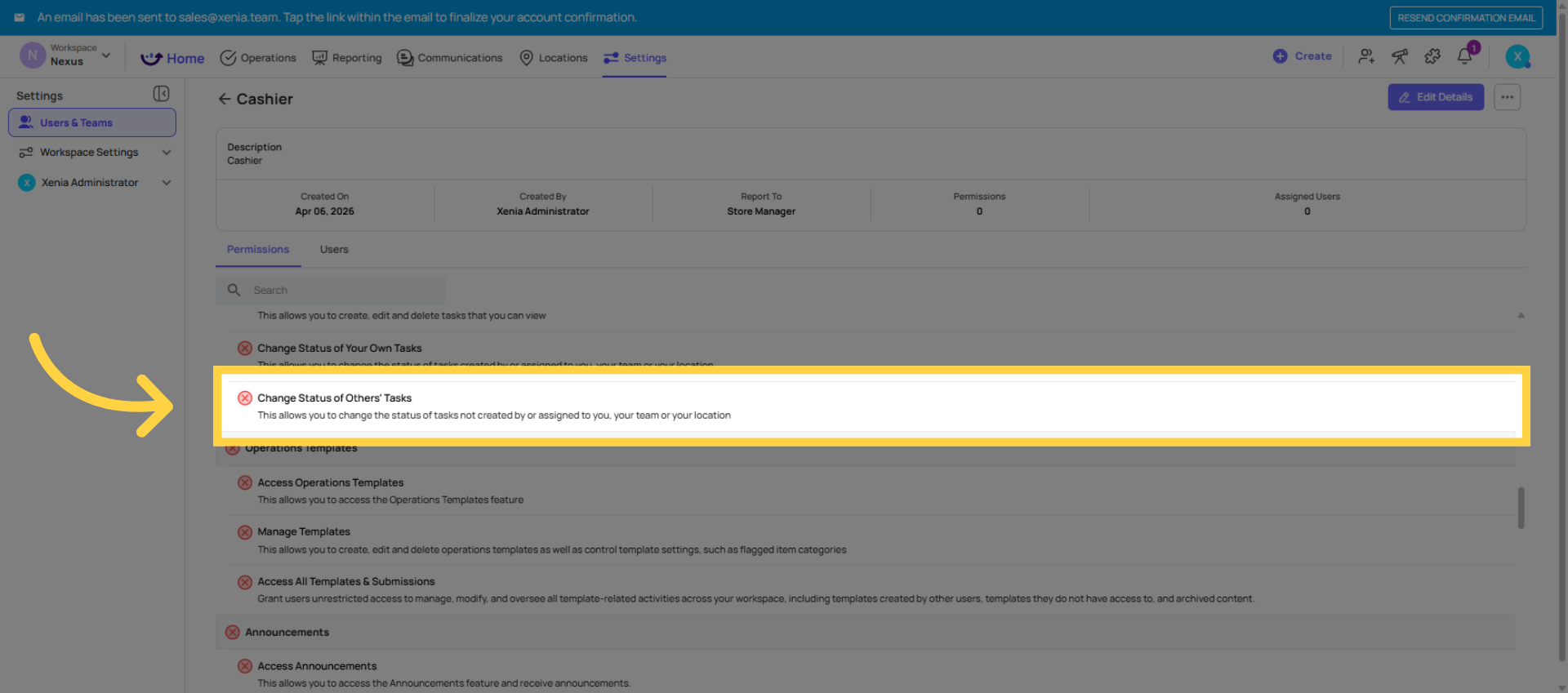
1. Gate 1 — Role-Level Permissions (Settings → Roles)
Role permissions are workspace-wide. They control whether a user can access a feature at all. The most relevant ones for templates:
Access Operations Templates (Checklists): If this is OFF, the user cannot see the Templates tab or any checklist at all. Gate 1 is locked shut.
Manage Templates: If this is OFF, the user cannot edit any template — even ones where they are specifically listed as an editor at the template level. This is the master gate for editing.
2. Gate 2 — Template-Level Access (per template, Settings → Access)
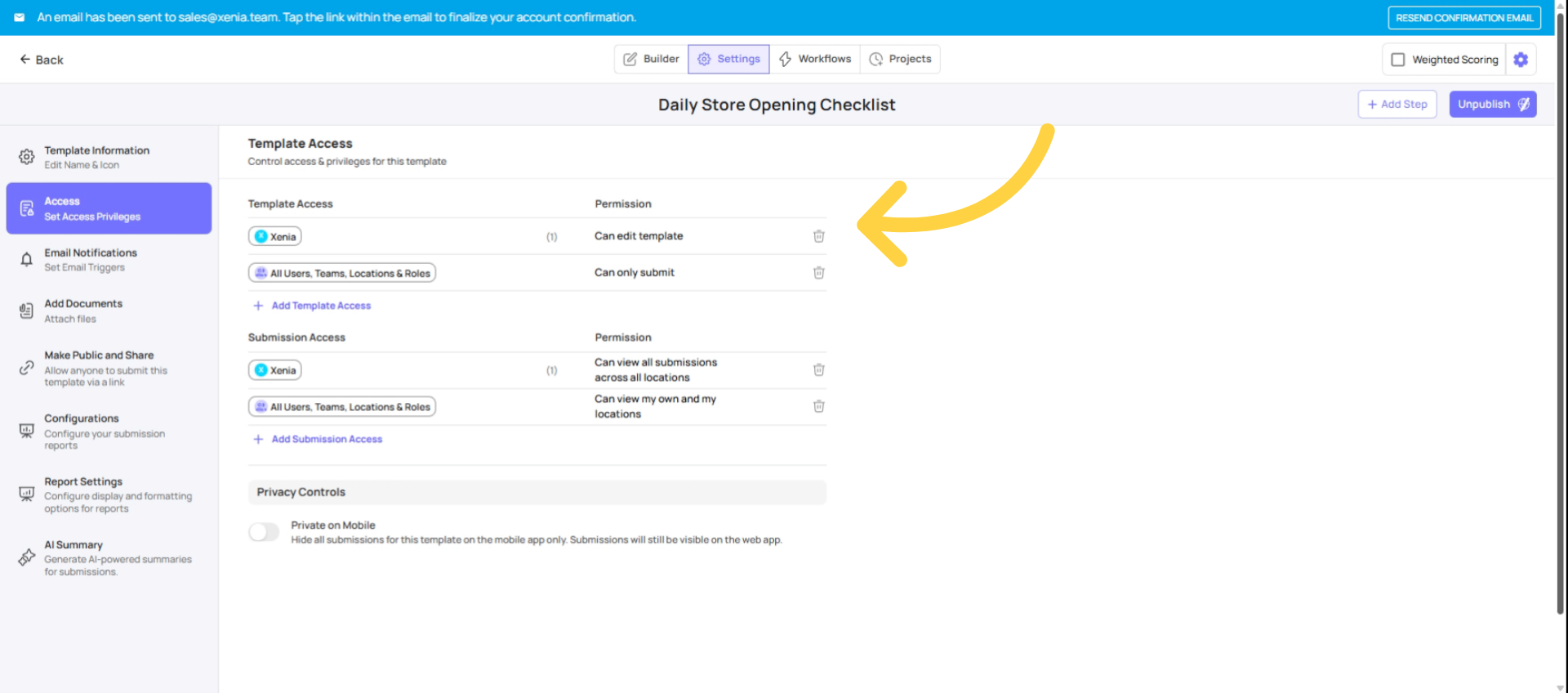
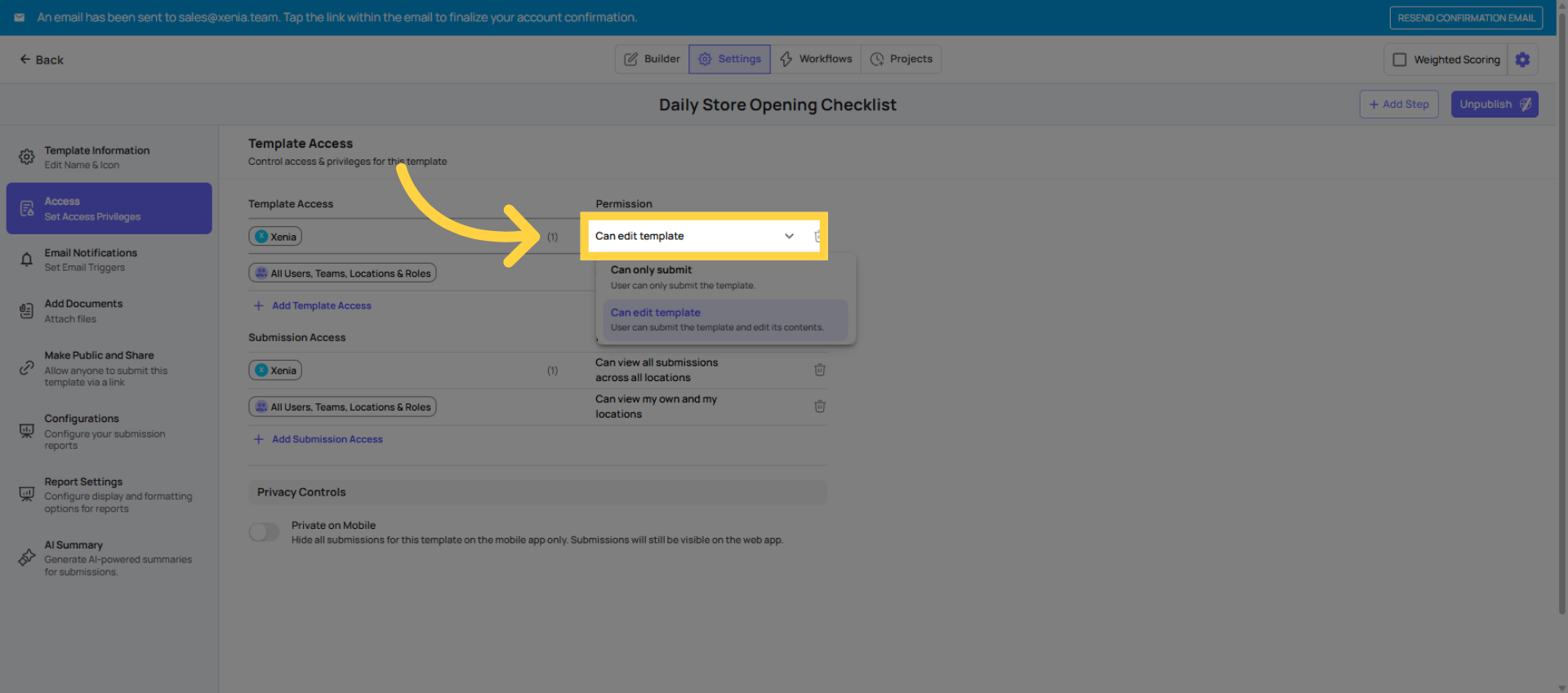
Template permissions are per-checklist. Even if Gate 1 is open (the role has access to templates), Gate 2 controls whether this specific template is visible to that role.
Can Submit: Which roles can see and complete this template. If a role isn't listed, the template is invisible to that role — not locked, truly invisible. They won't find it in any search or folder.
Can Edit: Which roles or users can open the builder and modify the template structure. This is the secondary gate — but only meaningful if Gate 1 (Manage Templates) is also open.
3. The Combined Check — What Must Be True
| Action | Gate 1 Required | Gate 2 Required |
| See the template at all | Access Operations Templates: ON | Role listed in Can Submit OR Can Edit |
| Submit the template | Access Operations Templates: ON | Role listed in Can Submit |
| Edit the template | Manage Templates: ON | Role listed in Can Edit |
For editing specifically: both must be true simultaneously. Manage Templates ON at the role level AND listed in Can Edit on the specific template. If either is off, the user is a submitter only.
4. Common Gate-Related Troubleshooting
"A user can't see a template." → Check Gate 1: is Access Operations Templates ON for their role? Check Gate 2: is their role listed in Can Submit on the template?
"A manager can't edit a template even though they can submit it." → Check Gate 1: is Manage Templates ON for their role? If yes, check Gate 2: are they or their role listed in Can Edit on the template?
"A user can edit templates they shouldn't be able to." → Check their role for the "Access All — Unrestricted Access" permission. If it's on, they can bypass all template-level restrictions.
Need Help?
Reach out to our Support Team at Support@xenia.team
Comments
0 comments
Please sign in to leave a comment.