
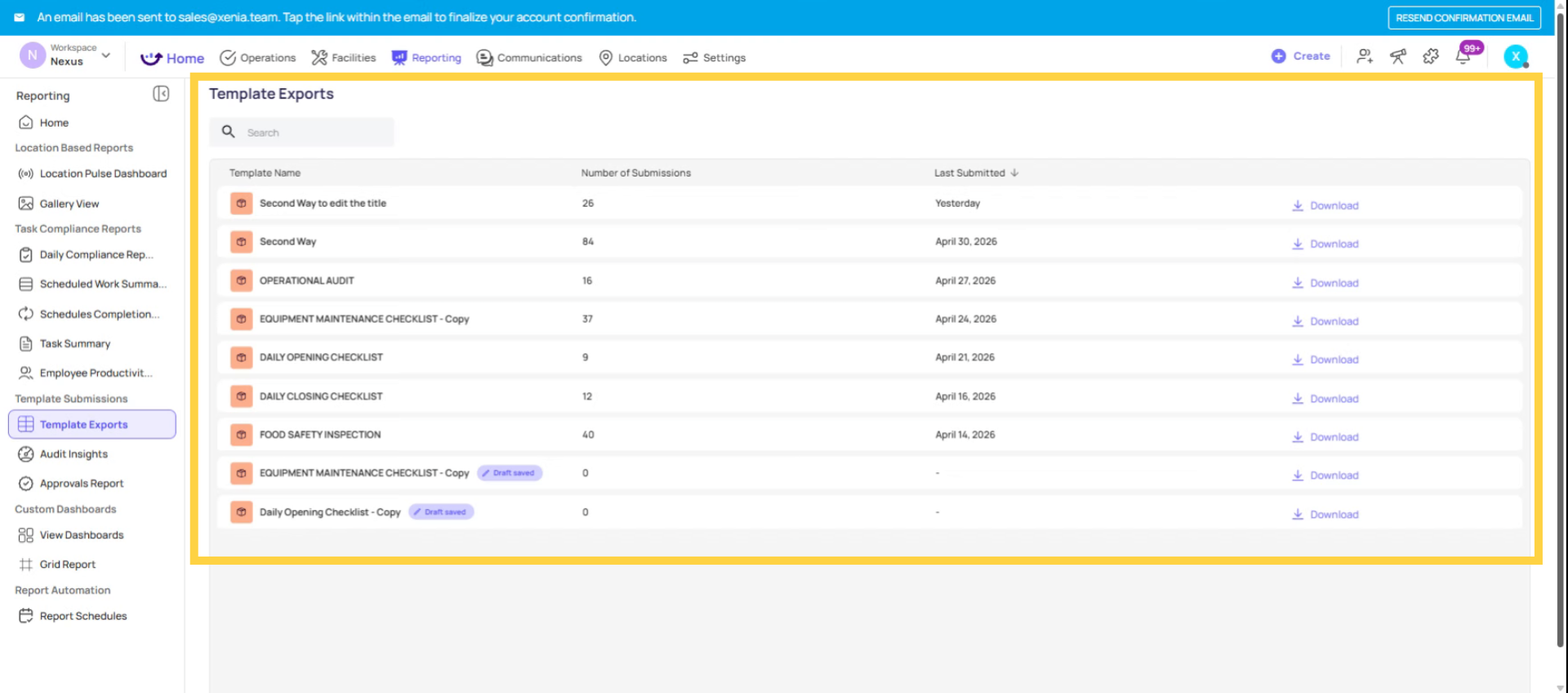
1. What the Template Export (Checklist Response Log) Is
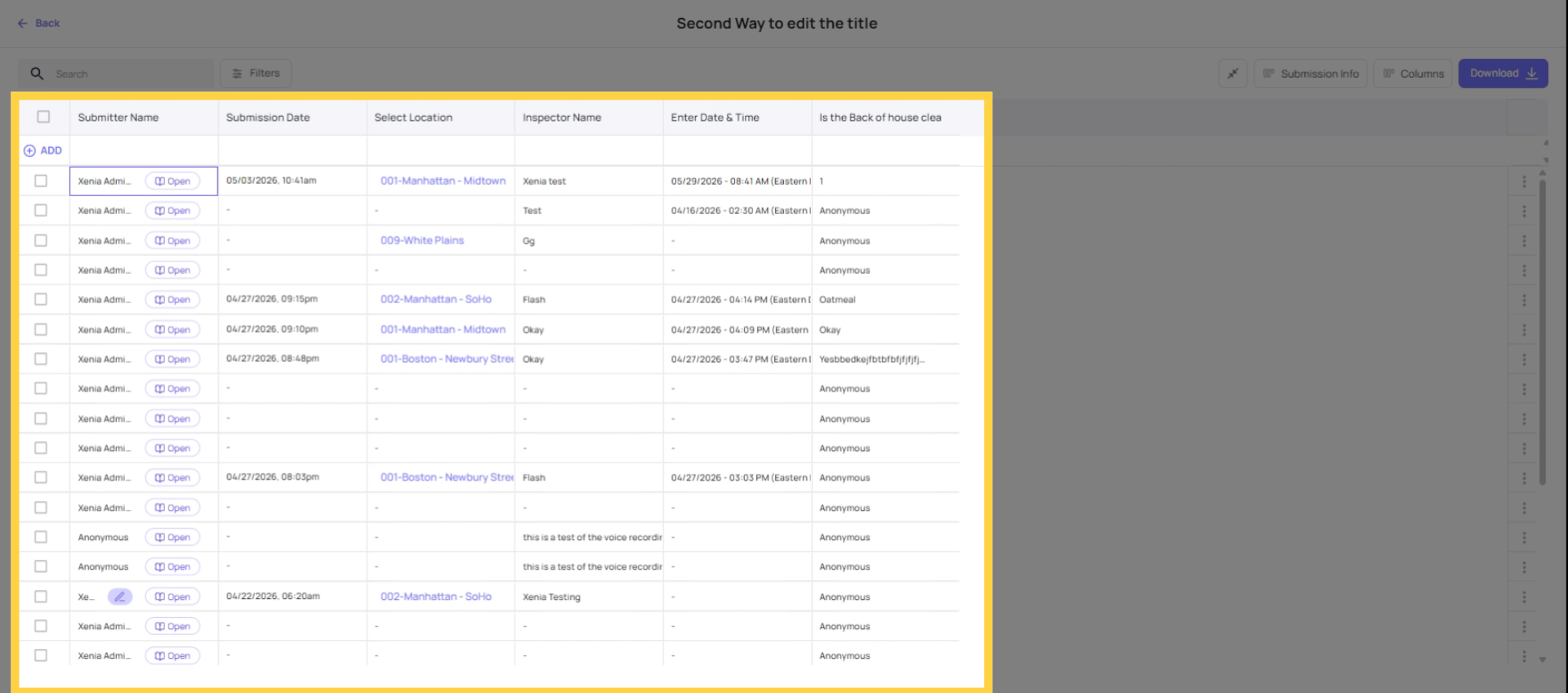
The Checklist Response Log export is an Excel or CSV file containing every response to every completed submission for a specific template — across all locations, for a defined date range. One row per submission. One column per step.
It takes all the submission records that exist inside Xenia's submission view and exports them in flat tabular format suitable for Excel pivot analysis, import into a reporting tool, or compliance record-keeping.
This is the bulk data export — as opposed to the individual PDF report (one submission in detail) or the Grid Report table (pre-structured summary views).
2. What the Spreadsheet Contains
Each row represents one submission. Columns include:
Metadata columns:
- Submission ID
- Template name
- Location (store name)
- Submitter name
- Submission date and time
- Score and rating (if scoring is enabled)
- Time to complete (start time to submission time)
Response columns: One column per step in the template. Each cell contains the response given by the employee for that step on that submission: the answer selected, the temperature recorded, the text typed, "Photo taken" for photo steps, the N/A or null value if applicable.
The result: a flat table where every row is one checklist and every column is one question. Pivot by column to analyze patterns — how often is question 12 answered "No"? What's the average temperature recorded in column C? Which location has the most fails on the kitchen section?
3. When to Use This Export
Temperature log analysis: All temperature readings from all locations for the last 30 days in one spreadsheet. Sort or filter to find any readings outside safe range.
Survey response aggregation: If a template is used as a survey (employee satisfaction, customer feedback), export the responses for quantitative analysis.
Compliance record archiving: A monthly export of all food safety logs for the month — stored externally as a backup or submitted to a regulatory body.
Identifying patterns in log data: Which employee's submissions most often answer "No" to a specific safety check? Which location has the most out-of-range temperature readings? Pivot the spreadsheet.
External reporting: Import submission data into PowerBI, Tableau, or a custom analytics tool that your organization uses.
4. How to Generate the Export
From the Template Submissions view:
- Go to Operations → Submission Report→ [Template Name]
- Open the Submissions Report Tab
- Apply any filters you want — date range, location, score range
- Look for the Export or Download option — select Checklist Response Log or Spreadsheet View
- The file generates and downloads as Excel/CSV
From the mobile Compliance tab (for store managers):
- Mobile app → Location Pulse → Compliance tab
- Select the template and date range
- Tap Export/Download
- An Excel file is emailed to your account email address
Via Report Automation (scheduled): Configure a Submissions Export in Report Automation for automated recurring delivery. See the Report Automation article for full configuration.
5. Searching Within Submissions Before Exporting
Before exporting, use the search function in the submissions view to verify you have the right data scope. You can search by:
- Submitter name — find submissions from a specific person
- Response content — find submissions containing a specific answer or name entered in a text field
- Location name — verify the location data is tagged correctly
This is useful when you're exporting data for a specific scenario — for example, filtering to submissions from a specific employee or a specific location before downloading.
6. The Three Export Types — Quick Reference
| Export Type | Format | Best For |
| Individual Checklist Report | One submission in full detail, sharing with inspectors/franchisors | |
| Checklist Response Log | Excel/CSV | Bulk data analysis, log data, external reporting, pivot analysis |
| Task & Work Order Board Report | PDF or CSV | Aggregate task/work order data, corrective action tracking |
Need Help?
Reach out to our Support Team at Support@xenia.team
Comments
0 comments
Please sign in to leave a comment.