
1. What Gallery View Is
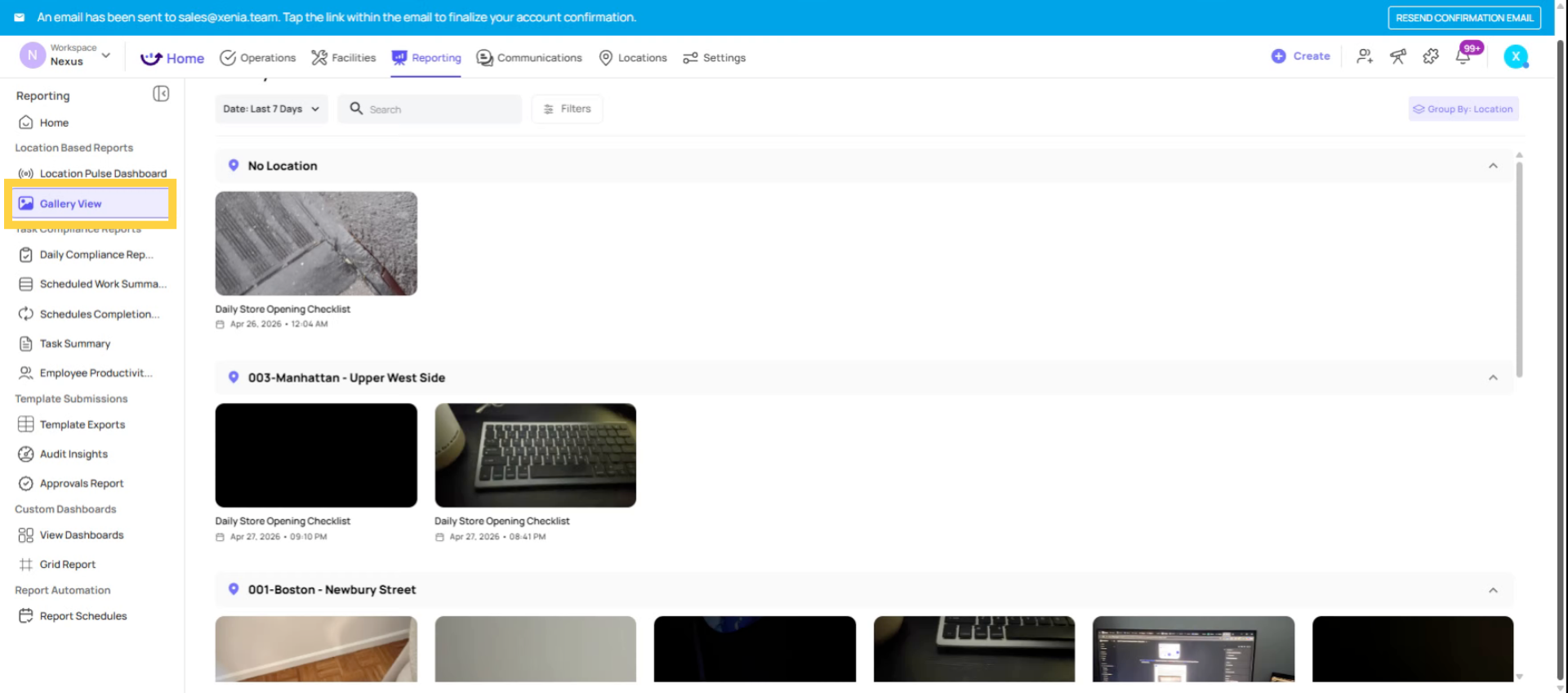
Gallery View is a visual reporting layer in Xenia that pulls together all photos from checklist submissions — from all locations, across all templates — and displays them in a browsable photo grid. Instead of opening each individual submission to see its photos, Gallery View extracts all the images and lets you scan them at scale.
Think of it as the photo evidence feed for your entire operation: every photo taken during every checklist completion, organized and filterable in one place.
2. Where to Find It
Web app: Reporting tab → Gallery (or within the template's submission view, a Photos or Gallery tab alongside the submission list). Some configurations display it at the template level; others at a workspace-wide Reporting view.
3. What You See
The Gallery View displays photos in a grid — thumbnail images with context:
- The template the photo came from
- The step it was attached to
- The location it was submitted from
- The submission date and submitter
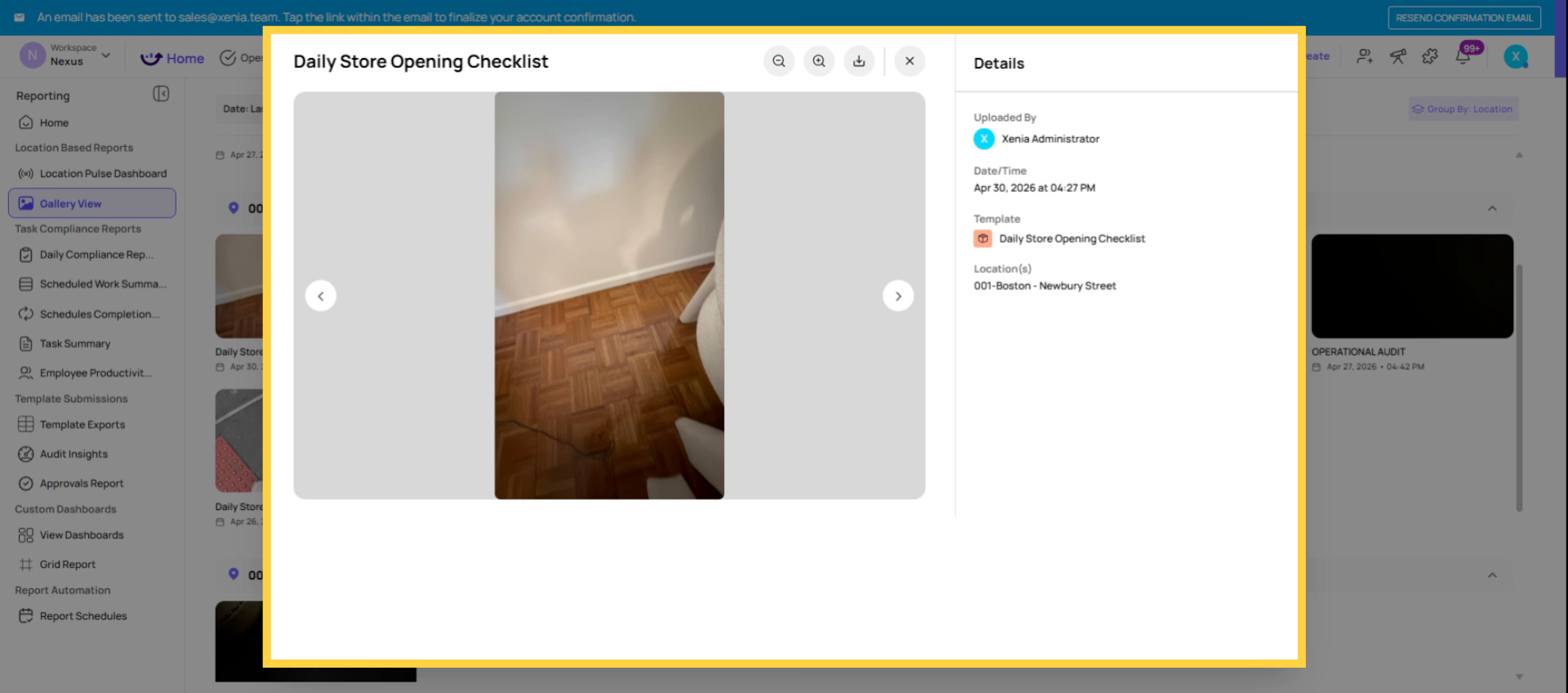
- Click any photo to open the full-size image and navigate to the full submission it came from
4. Filtering the Gallery
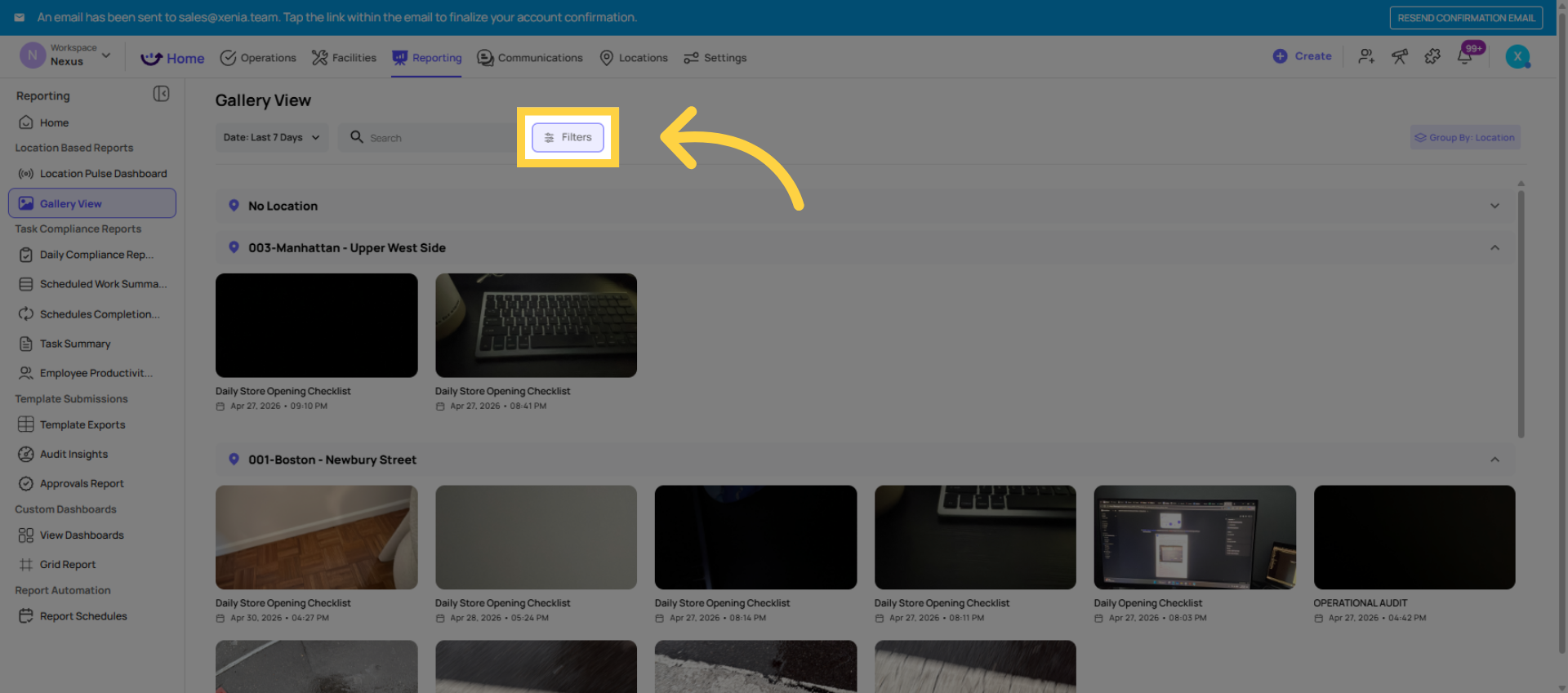
The Gallery View is fully filterable:
By template: Show only photos from the GM Inspection template, or only from the Daily Opening Checklist. Useful when you're doing a focused review of one type of checklist.
By location: Show only photos from Store 5, or only from locations in a specific district. A district manager can filter to their stores and see a visual representation of what the stores looked like today.
By date range: Photos from the last 7 days, the last 30 days, or a custom range. Useful for tracking whether conditions have improved or deteriorated over time.
Combining filters: "GM Inspection photos, Store 5–10, last 30 days" shows a visual history of the manager walkthroughs at those stores over the month.
5. Practical Use Cases
District manager visual review: A DM runs a GM walkthrough inspection across 10 stores. Instead of opening each of the 10 submissions individually, they go to Gallery View, filter to the GM Inspection template, filter to their district, and see all photos from this week's walkthroughs in a single scrollable grid. They can spot trends — the parking lot at Store 3 looks consistently poor across multiple weeks — without reading every report word by word.
Photo audit for backfilling: A manager suspects a store is submitting checklists without doing the work. Gallery View filtered to that store and template shows the photos from each submission. If the same photo appears multiple times on different dates — or photos don't match the step they're attached to — it's visible immediately in the gallery.
Food safety visual monitoring: All photos from food safety temperature logs, walk-in cooler checks, and kitchen inspections filtered to this week. A QA manager can see at a glance whether thermometers are being photographed correctly, whether cooler areas look clean, and whether photos are actually being taken in the moment.
Brand standards visual check: Photos from a monthly brand standards audit filtered to all locations. Comparing product displays, signage, and cleanliness across stores visually is dramatically faster in Gallery View than clicking through 50 individual PDF reports.
Clicking Into a Photo
Clicking any photo in Gallery View opens it full-size. From there:
- View the full context: which template, which step, which location, which submission, who submitted it, when
- Navigate directly to the full submission report that photo came from
- In some configurations, zoom in or rotate the photo
The Gallery View is a navigation shortcut — it surfaces photos for visual review and then links you directly to the detailed report when you need to drill in.
Need Help?
Reach out to our Support Team at Support@xenia.team
Comments
0 comments
Please sign in to leave a comment.