
1. Where Submission Data Lives
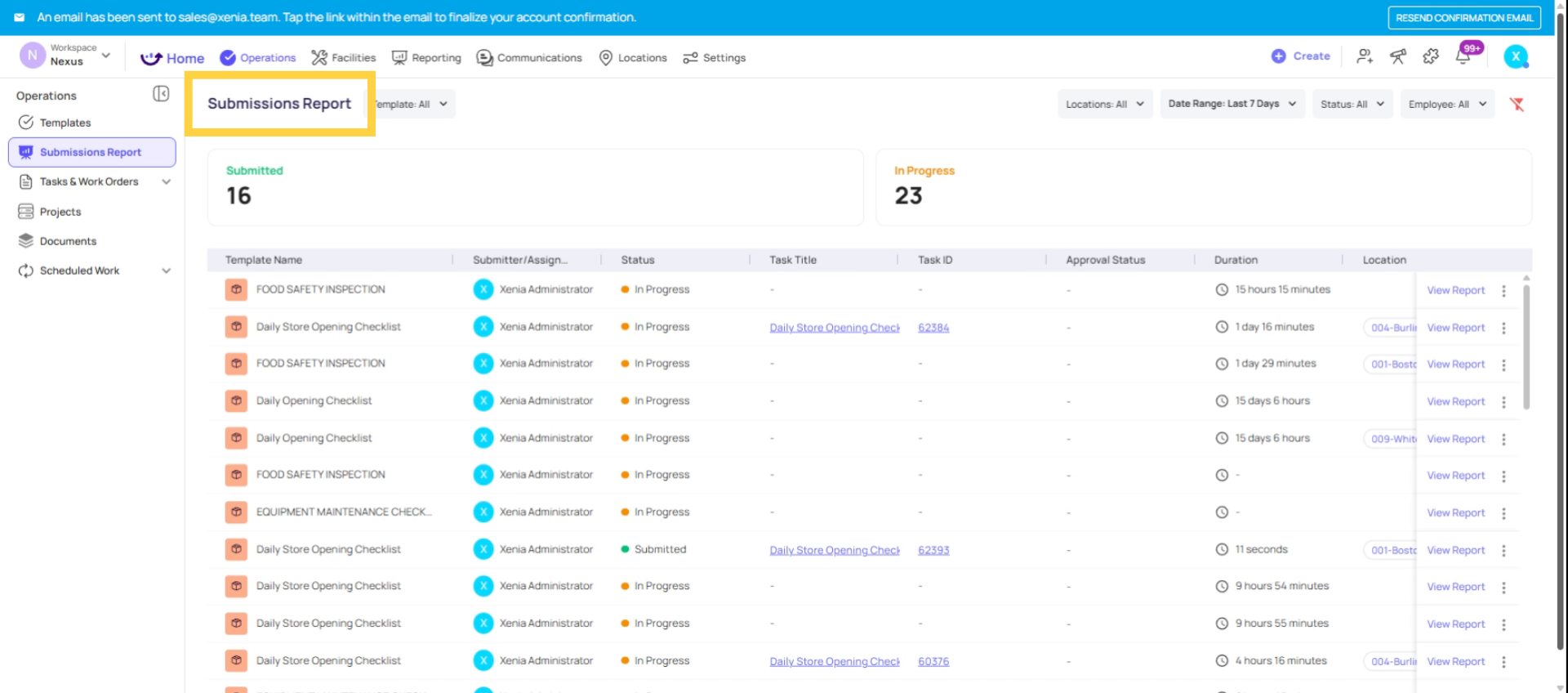
Every completed checklist in Xenia creates a permanent submission record. That record includes every response, every photo, every timestamp, every flagged item, every score (if scoring is enabled), and a link to any corrective tasks generated by workflow automations.
The submission data is accessible from multiple places depending on what you need:
Individual submission history: Operations → Templates → [Template Name] → Submissions tab. View and filter all submissions for one specific template. Click into any submission to read the full report. Download the PDF.
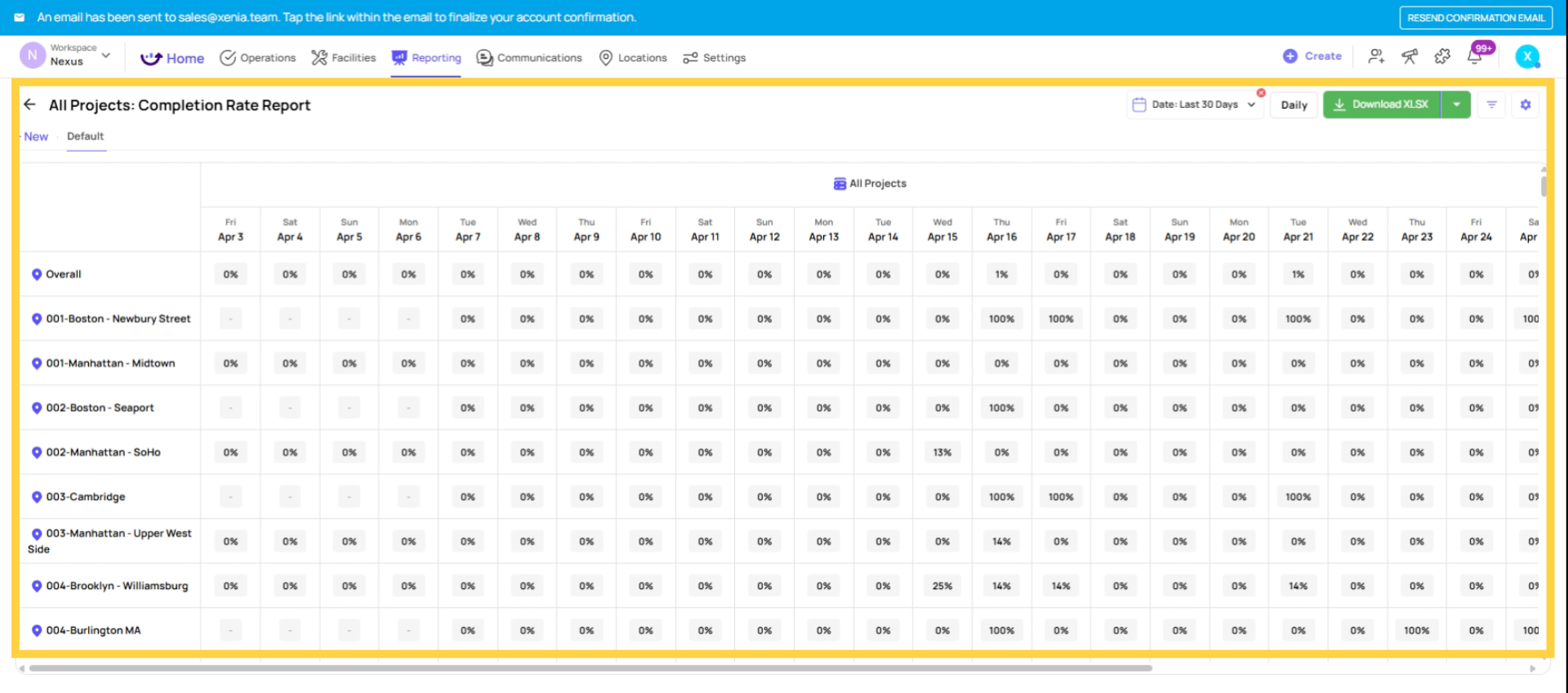
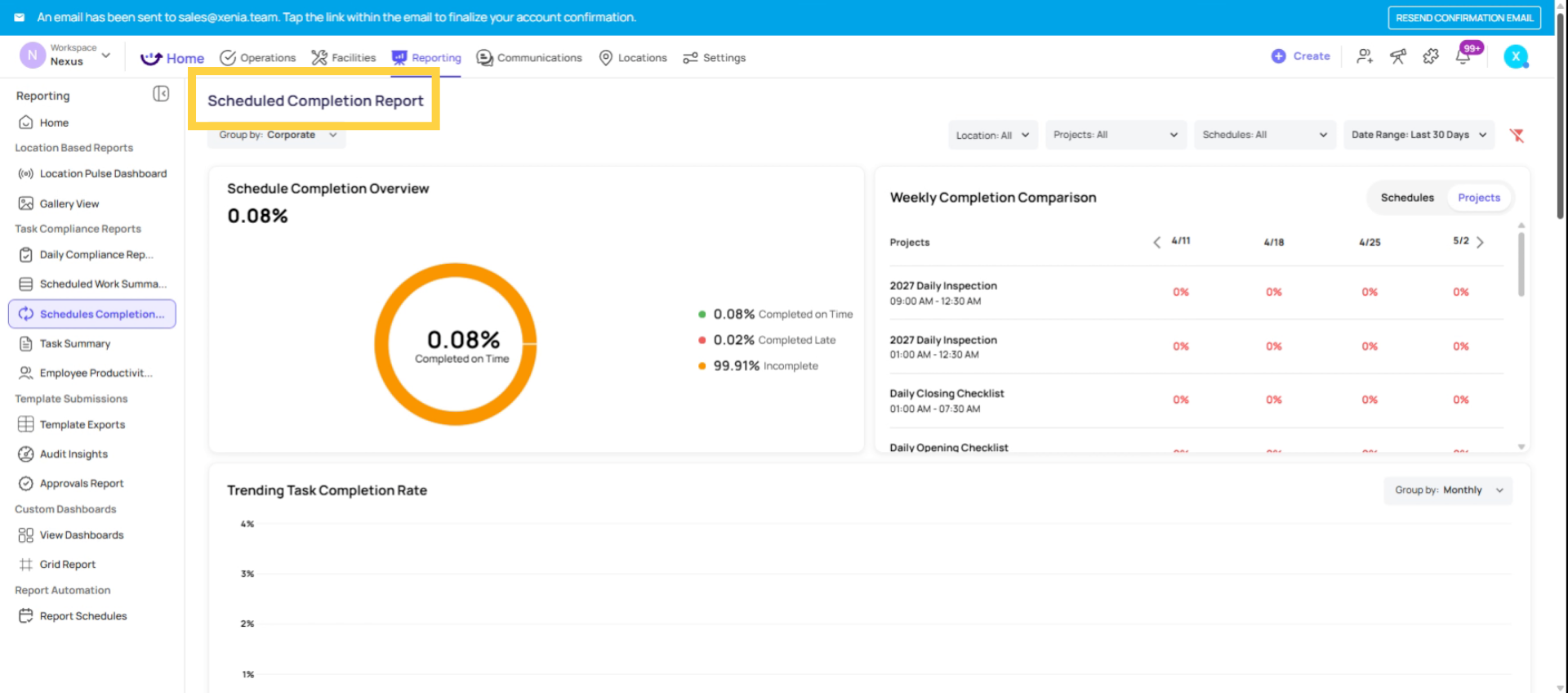
Project completion data: Operations → Projects → [Project Name] → Tasks tab or Metrics. See which locations completed their scheduled tasks on time, late, or not at all. Completion percentages by location.
Audit Insights: Reporting tab → Audit Insights. Pre-built analytics for scored templates — average score by location, section-level scoring, flagged item categories, submission list.
Custom Dashboards: Reporting tab → Custom Dashboards. Build chart-based dashboards combining task completion, submission data, flagged items, and more.
Gallery View: Reporting tab → Gallery. A visual view of all photos from submissions, filterable by template and location.
Scheduled Report Exports: Reporting → Report Automation. Configure automatic delivery of Excel/CSV or PDF reports to recipients on a daily, weekly, or monthly schedule.
2. The Three Questions Reporting Answers
Every reporting tool in Xenia answers one of three fundamental questions:
Did it happen? (Completion reporting) Are scheduled checklists being submitted on time? What percentage of tasks are completed vs. overdue vs. missed? Which locations are behind? → Project metrics, Custom Dashboards.
How well did it happen? (Quality reporting) For scored audits: what are the scores by location? Which sections score lowest? How is performance trending over time? → Audit Insights, scored submission reports.
What issues came up? (Exception reporting) Which checklist steps are being answered with Fail or a flagged response? Which issue categories are most common? Which locations have the most flagged items? → Custom Dashboards (flagged items widget), Audit Insights (flagged items view), Gallery View.
3. Role-Based Reporting Scope
Who can see what in reporting is determined by Submission Access tiers configured on each template:
- Tier 1: The user sees only their own submissions for that template
- Tier 2: The user sees all submissions from locations in their location membership
- Tier 3: The user sees all submissions across the workspace
Dashboards and Audit Insights respect these tiers — a Store Manager sees their store's data, a District Manager sees their district's data, an Admin sees everything.
Custom Dashboards can also be published to specific roles so each role's home screen shows exactly the data relevant to their scope.
4. Real-Time vs. Historical Data
Real-time: Submission data is captured the moment the form is submitted. Dashboards, project metrics, and the submission list update immediately. A manager can see a completed audit submission the moment the auditor taps Submit.
Historical: All submission data is stored indefinitely and accessible by date range filter. Run a report for last 30 days, last 90 days, or any custom date range. Historical data is never automatically deleted.
Reporting for Compliance and Audits
Xenia's submission records are audit-ready:
- Every step is timestamped — the exact time each question was answered is recorded
- All photos are timestamped and live — taken through the in-app camera at the moment of completion
- Submission metadata includes who submitted, from which device, and from which location
- PDFs can be downloaded and stored externally for compliance files, regulatory inspections, or legal protection
If a health inspector, franchisor, or auditor asks for the maintenance history, food safety log, or inspection record for a specific location and time period — all of it is accessible and exportable from within Xenia.
This article explains how to access, filter, and analyze checklist submission data in Xenia, including audit scores, flagged items, and completion tracking. It also covers building custom dashboards and exporting audit reports for compliance and review.
Need Help?
Reach out to our Support Team at Support@xenia.team
Comments
0 comments
Please sign in to leave a comment.