
1. What the Post-Submission Email Report Is
Every time a template is submitted in Xenia, a copy of the submission can be automatically emailed to configured recipients — with the full submission content in the email body and a formatted PDF attached. This is the post-submission email report.
This is a push report — it goes to recipients automatically at the moment of submission, without them having to log into Xenia to find it. It's "the checklist just got submitted, here's the full report."
Who uses this:
- A District Manager who needs to review every GM inspection submission without logging in to check
- An HR Manager who needs a copy of every Performance Notice filed at any location
- A quality compliance officer who receives every food safety audit as a PDF
- An external franchisor who needs a copy of every brand standards audit submitted.
2. What the Email Contains
The email recipients receive:
In the email body: The complete submission — every question and answer, in order. Readable inline without clicking anywhere.
PDF attachment: A formatted report of the same content, with the organization's logo, timestamps, section breakdown (for scored templates), and all photos embedded or linked. This is the archivable, shareable, printable record.
PDF size note: If the submission contained many high-resolution photos, the PDF may exceed ~25MB. In that case, a download link is provided in the email instead of a direct attachment. The full inline content is always present regardless.
3. How to Configure Email Recipients
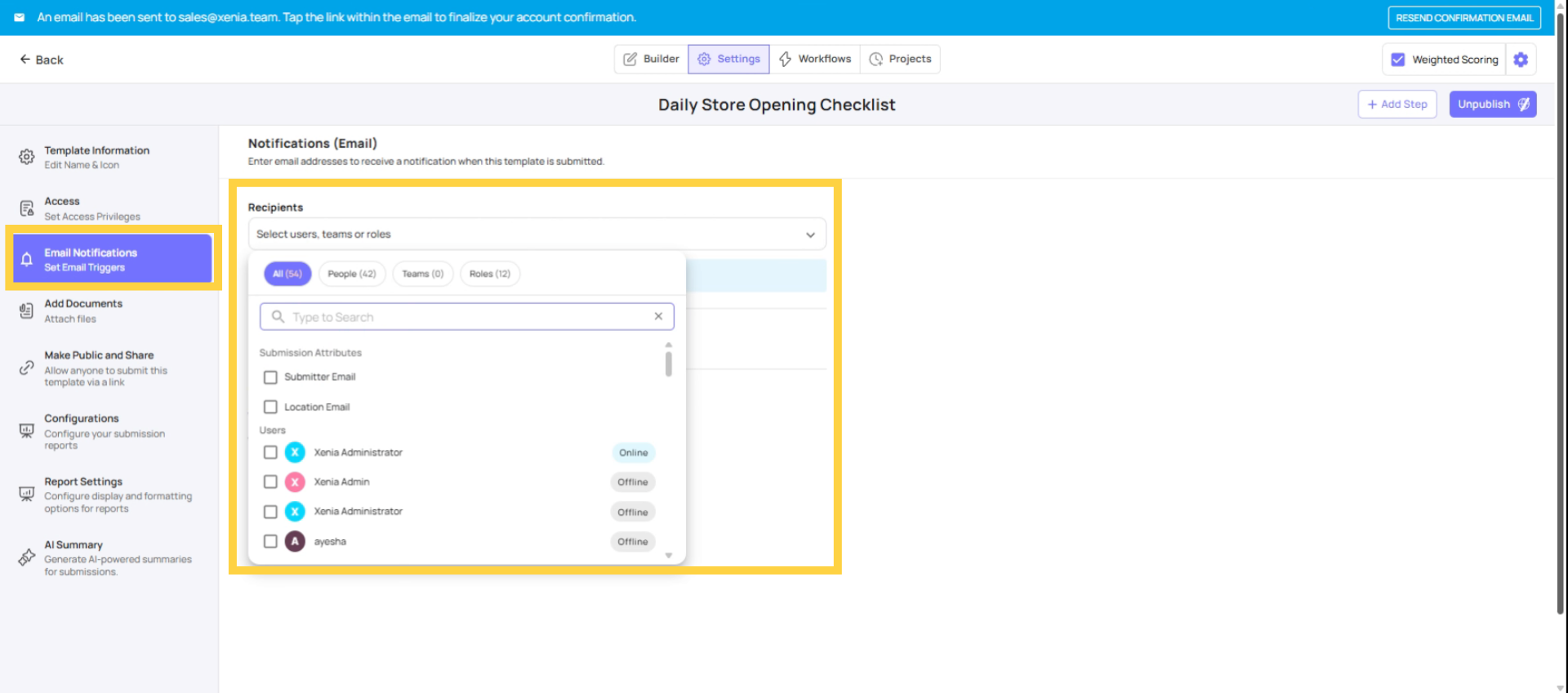
- Go to Operations → Templates → [Template Name] → Edit → Settings tab
- Find the Email Notifications section
- Add recipients:
- Specific email addresses — anyone, including non-Xenia users (external franchisors, auditors, compliance bodies)
- Named Xenia users — receive the email at their account email address
- Teams — all team members receive it
- Roles — location-scoped (see below)
- Save
4. Role-Based Recipients: Location Scoping
When a role is added as an email notification recipient, the notification is location-scoped. Xenia checks the location tagged on the submission and emails only the member of that role who has membership at that location.
Example: District Manager role is added. 5 District Managers, each managing 10 stores. A submission comes in from Store 22. Only the District Manager who has Store 22 in their location membership receives the email. The other 4 DMs receive nothing.
This requires a Select Location step in the template. Without it, there's no location tag on the submission, and the role-based routing fails — no one in the role receives the email.
5. Email Notifications vs. Submission Access — Two Different Things
This is the most common point of confusion:
| Email Notifications | Submission Access | |
| What it is | Push email at submission time | In-app viewing of submission history |
| Where configured | Template Settings → Email Notifications | Template Settings → Submission Access |
| When it fires | The moment a submission is recorded | When the user opens the template and views submissions |
| Who receives it | Everyone in the notification list | Anyone with Tier 1/2/3 submission access |
| Format | Email with inline content + PDF | In-app report viewer |
| For external parties | Yes — any email address | No — Xenia users only |
Giving them submission access does NOT send them an email. Configure each independently for what each is supposed to do.
6. The Double-Notification Warning
Need Help?
Reach out to our Support Team at Support@xenia.team
Comments
0 comments
Please sign in to leave a comment.