
1. What the Documents Module Is
The Documents module is a file library inside Xenia where you store and organize SOPs, procedure guides, training materials, reference documents, and any written resources your team needs access to during operations.
Unlike Announcements (which are broadcasts employees acknowledge once) or Chats (which are conversations), Documents are persistent reference resources — always available, always findable, accessible on-demand.
Common document types stored here:
- Standard operating procedures (opening/closing, food safety, customer service standards)
- Training guides and onboarding materials
- Equipment manuals and maintenance guides
- Brand standards and merchandising guides
- Recipe bibles and product information
- HR policies and employee handbooks
The value: employees on a store tablet or their phone can access any SOP immediately — without printing, emailing, or hunting through a shared drive. Everything is in the same app they're already using.
2. Where Documents Lives
Web app: Documents tab in the top navigation (sometimes within the Communications section). Admins and managers access the full library and management view from here.
Mobile/Tablet app: Documents are accessible from the app — employees can browse the document library, search by name, and open or download any document they have access to.
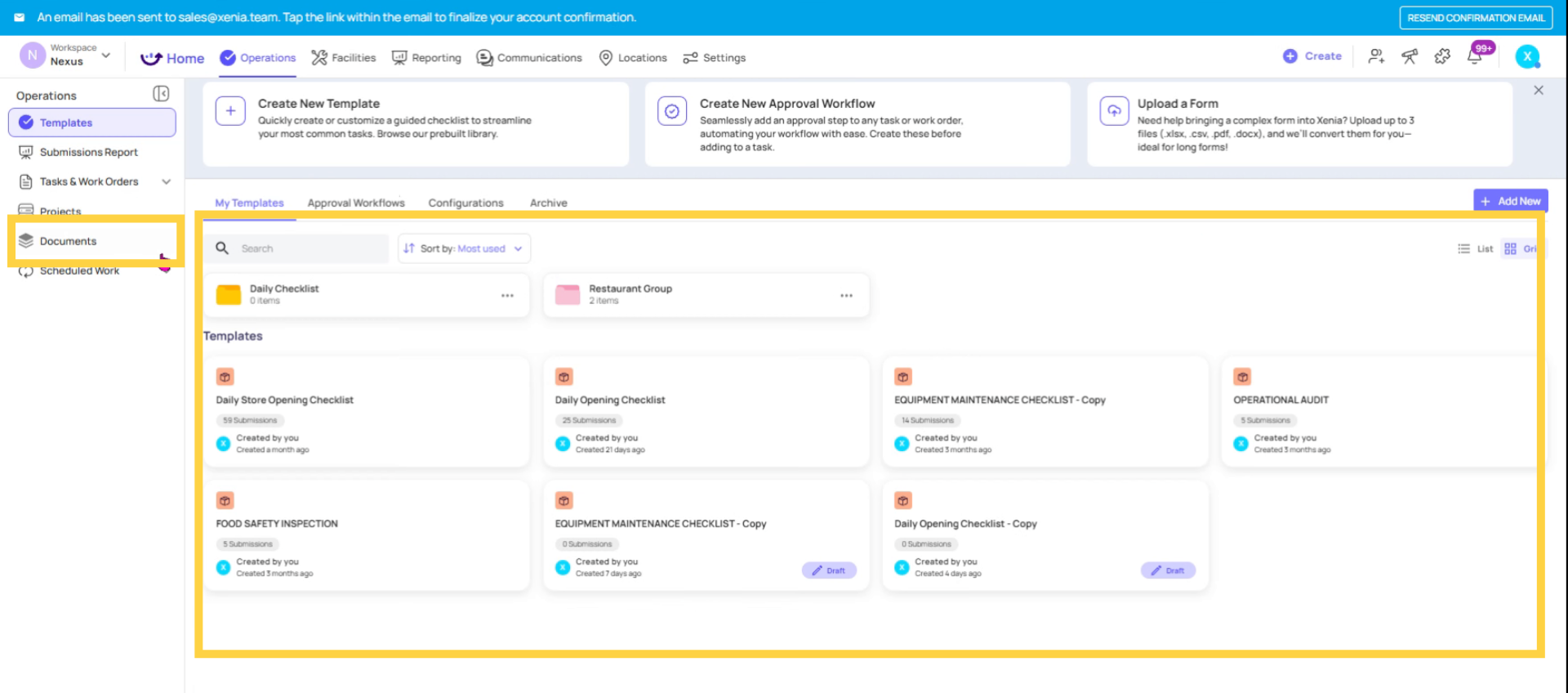
3. Uploading Documents
- Go to Documents
- Click + Add Document or the upload button
- Select the file to upload — supported formats include PDF, Word (.docx), images, and other common file types
- Give the document a clear name
- Assign it to a folder (or create a new folder)
- Set access permissions — which roles or locations can view this document
- Save / Publish
The document is now in the library and accessible to configured users
4. Organizing the Document Library with Folders
Like templates, documents are organized into folders. Create folders that match how your team thinks about their work:
- "Daily Operations SOPs"
- "Food Safety"
- "Equipment Manuals"
- "HR & Training"
- "Brand Standards"
- "Emergency Procedures"
Each folder can contain multiple documents. Employees browsing the library on a tablet can navigate directly to the folder relevant to their role rather than scrolling through a flat list.
5. Access Control on Documents
Documents can be restricted to specific roles, locations, or teams — the same principles as template access.
Examples:
- Emergency procedures → All roles at all locations (everyone needs these)
- HR policies → HR Manager and Store Manager only
- Equipment manuals for specific equipment → Only locations where that equipment exists
- Recipe bibles → Kitchen staff only
Configure access per document or per folder depending on how granular your library needs to be. Employees without access cannot see the document in their library.
6. Document vs. Template — The Right Tool
A common question: should this be a document or a checklist template?
Use Documents for: Reference material the employee reads and follows. SOPs, guides, manuals, training content. The employee reads it — no data is collected, no checklist is completed.
Use Templates for: Processes where you need to collect data, track completion, or create a submission record. Opening checklists, inspection forms, temperature logs. The employee does something and the data is captured.
If both are needed — employees read the SOP AND complete a checklist confirming they followed it — store the SOP as a Document and build a separate checklist Template. Link to the document in the checklist's description if helpful.
Need Help?
Reach out to our Support Team at Support@xenia.team
Comments
0 comments
Please sign in to leave a comment.