
1. What Chats Is
Chats is Xenia's internal messaging layer. It gives your team direct and group messaging inside the same app they're already using for tasks and checklists — so operational communication stays in one place rather than spilling into WhatsApp, SMS, or email threads that no one can track.
The main use cases:
- A store manager asks a district manager a quick clarification question
- A maintenance crew has a group chat to coordinate across locations
- A shift lead loops in a teammate on a task that needs help
- A kitchen team has a shared group for food safety questions
- Field teams communicate from the floor without switching apps
Chats is not for broadcast communications — those belong in Announcements (where you track acknowledgment). Chats is for real conversations: back-and-forth, specific topics, immediate context.
2. Where Chats Lives
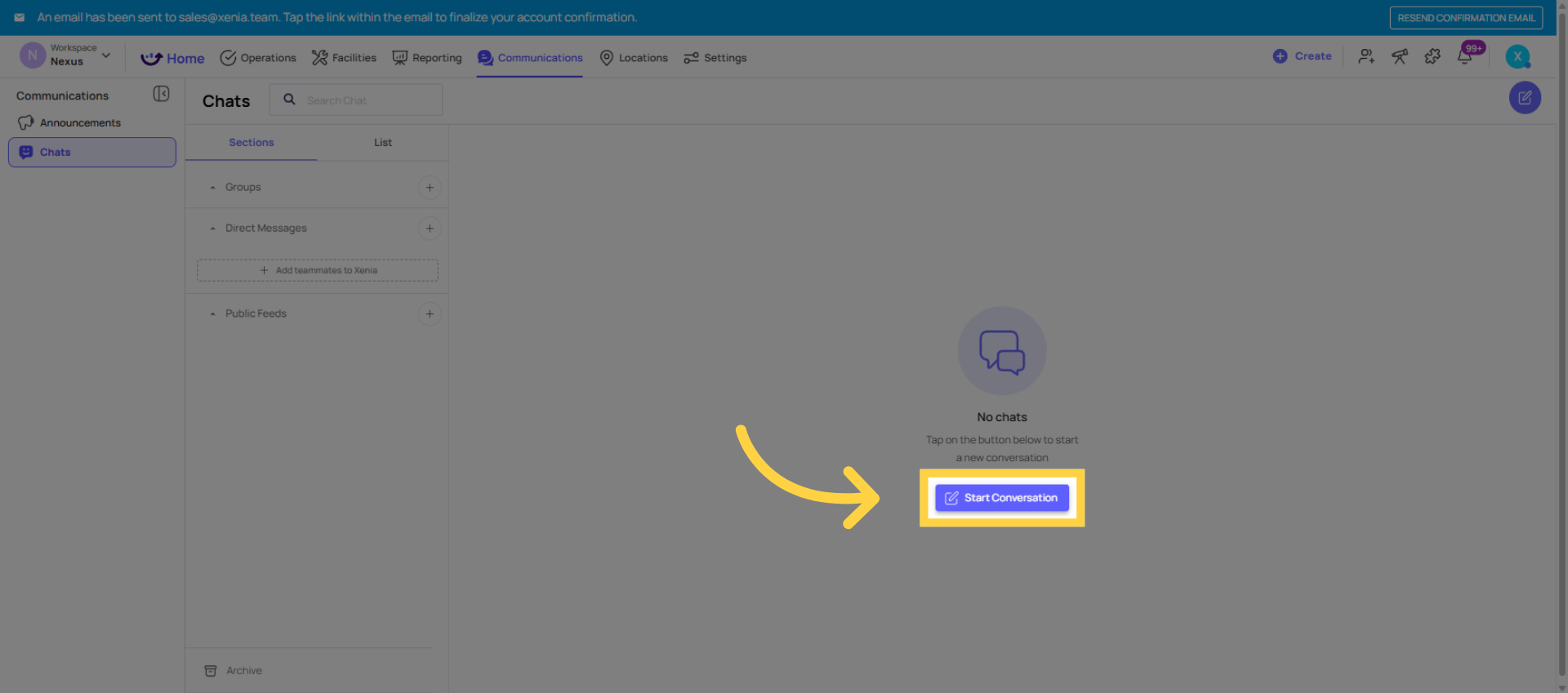
Web app: Communications tab in the top navigation → Chats section. Shows your active conversations listed in the left panel. Click any conversation to open it.
Mobile app: Comms tab (or Communications tab) in the bottom navigation — the fourth tab on most configurations. All conversations are listed here, with unread message indicators. Most frontline teams access chats from mobile during their shift.
3. Direct Messages
A direct message is a one-on-one conversation between two users.
To start a direct message:
- Go to Communications → Chats
- Click + New Message or the compose icon
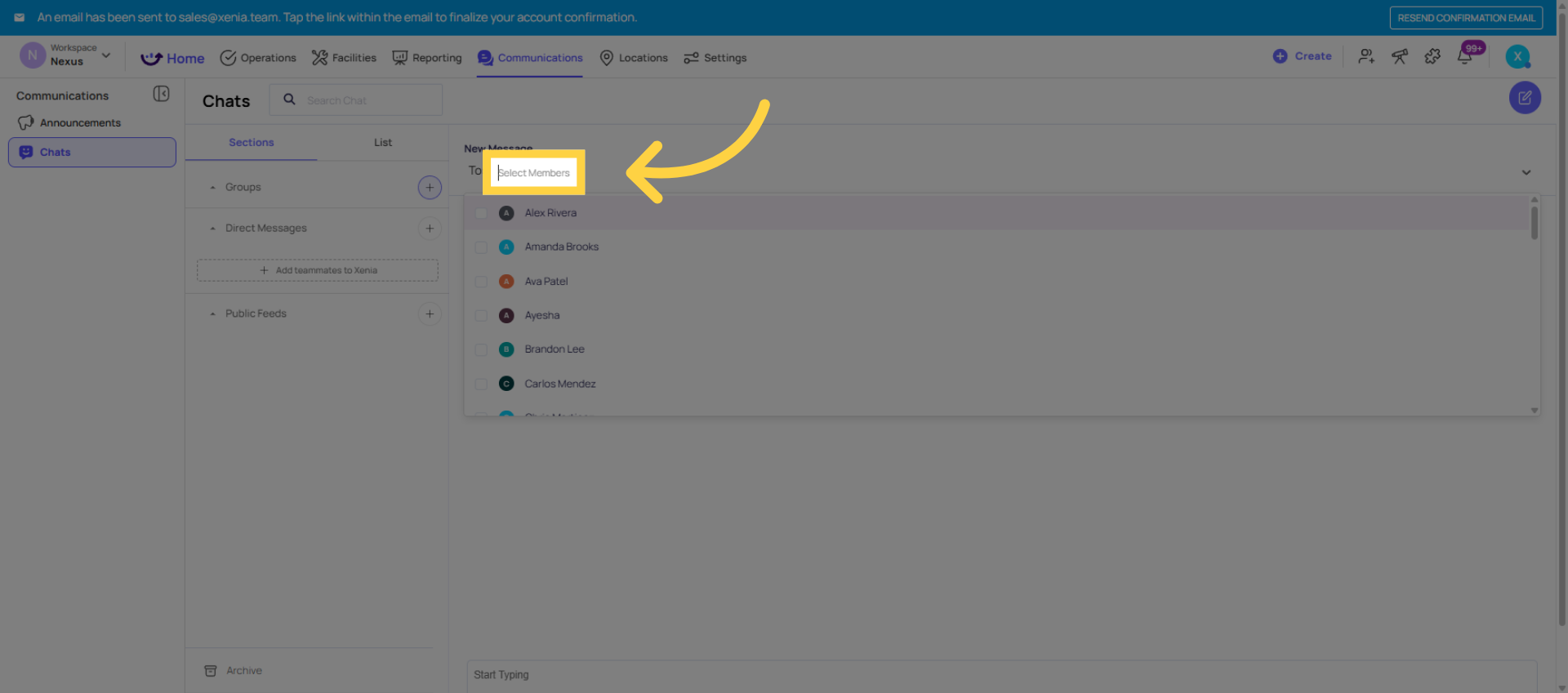
- Search for the person's name or role
- Start typing
The conversation is private — only the two participants can see it. Messages are delivered as push notifications to the recipient (based on their notification preferences).
4. Group Messages
A group message is a conversation between three or more users — a team, a crew, or a location-based group.
To create a group:
- Communications → Chats → + New Message
- Search for and add multiple participants
- Give the group a name (e.g., "Kitchen Team — Store 12," "District 3 Managers")
- Start the conversation
Group chats persist as a shared space — messages stay visible to all participants. New participants added later can see the message history from when they were added.
Common group configurations:
- One group per location (all employees at Store 5)
- One group per team type (all maintenance technicians)
- One group per management tier (all district managers)
- One group per shift (opening crew, closing crew)
Chats vs. Announcements — Which to Use
| Use Case | Use Chats | Use Announcements |
| Quick back-and-forth question | ✅ | — |
| Coordinating a shift handoff | ✅ | — |
| New SOP that needs acknowledgment | — | ✅ |
| Safety alert to all locations | — | ✅ |
| Looping someone in on a task | ✅ | — |
| Policy change that needs a read receipt | — | ✅ |
| Team asking questions about today's special | ✅ | — |
Chat Permissions
Chat access is controlled by role permissions. The relevant permission is typically found in Settings → Roles → Communications or Chat section. Admins can:
- Enable or disable chat entirely for a role
- Restrict who the role can message (all users vs. within their location only)
- Control group chat creation permissions
For frontline roles on shared tablets, it may be appropriate to restrict or disable personal chat access — communications can happen through the task comment layer instead.
Need Help?
Reach out to our Support Team at Support@xenia.team
Comments
0 comments
Please sign in to leave a comment.