
1. What Acknowledgment Tracking Is
Acknowledgment Tracking is the feature that turns an Announcement from a one-way broadcast into a compliance record. When acknowledgment is required on an announcement, each recipient must actively confirm they've read it — by tapping an Acknowledge button, adding a digital signature, or both — before the announcement is considered seen by that person.
The result: you know exactly who has confirmed the announcement and who hasn't. Not just whether the notification was delivered — whether the person actually opened it and explicitly confirmed.
Use acknowledgment tracking for:
- New SOPs that all employees must formally confirm they've received and understood
- Policy changes with compliance implications
- Safety alerts that require documented awareness
- Limited-time offer rollouts where stores need to confirm they're ready to execute
- Training material distribution where sign-off is required
Don't require acknowledgment for routine informational announcements where a read receipt isn't necessary — it adds friction for lower-stakes communications.
2. Configuring Acknowledgment on an Announcement
During announcement creation:
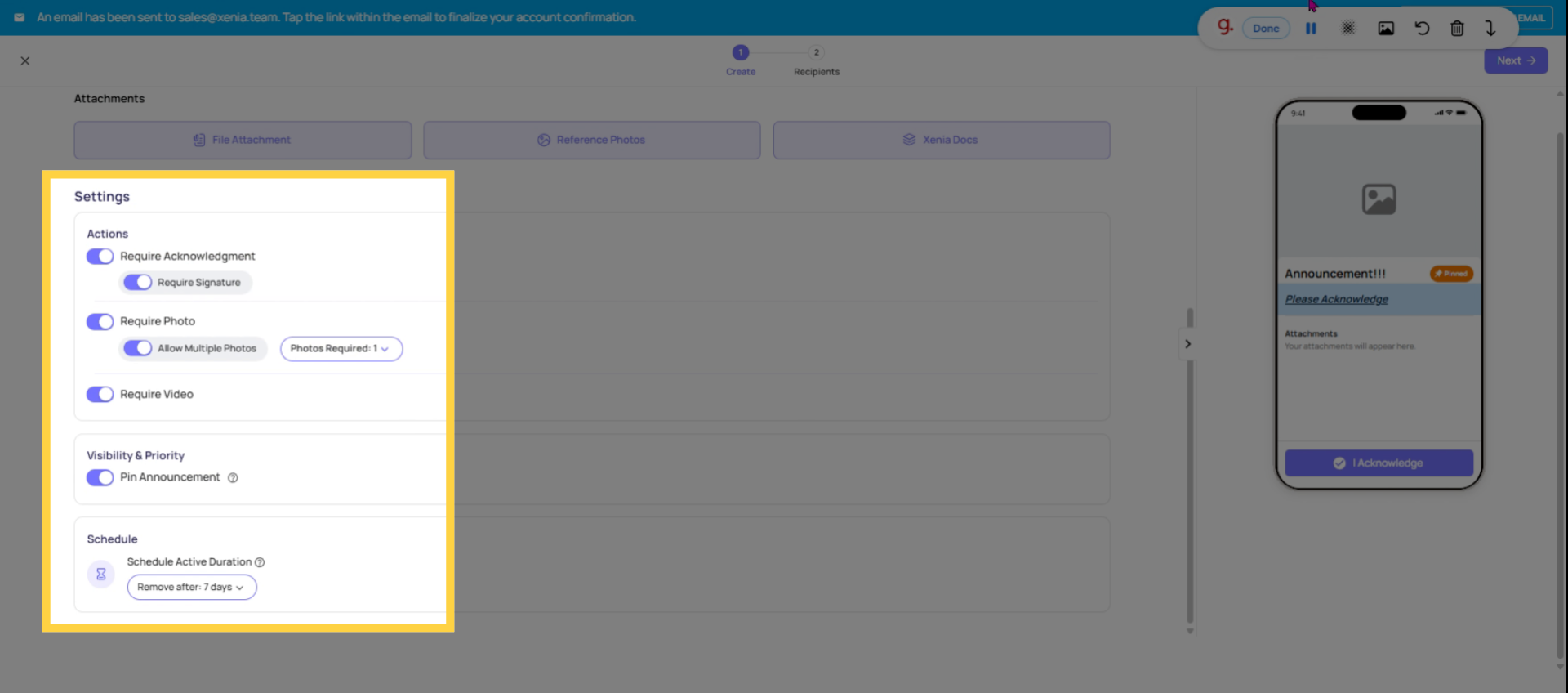
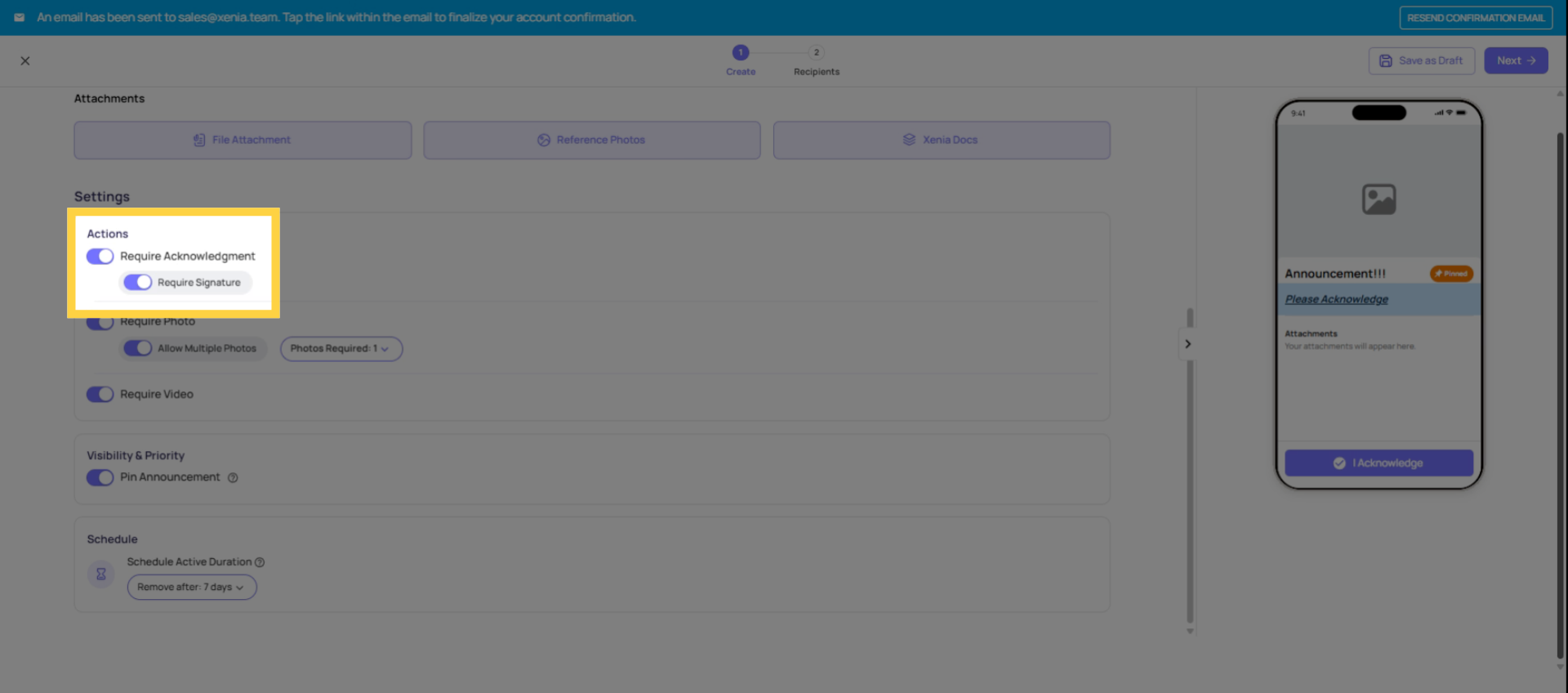
- Find the Acknowledgment or Require Acknowledgment setting
- Toggle it on
- Configure acknowledgment type:
- Tap to Acknowledge: Recipient taps a button confirming they've read the announcement. Simple, low-friction. Good for most SOP and policy updates.
- Signature Required: Recipient draws or types a digital signature before the announcement is considered acknowledged. Higher-friction but creates a formal signed record. Good for HR documents, legal notices, or compliance-critical communications.
- Optional: add a custom acknowledgment message — the text the recipient sees on the confirmation button or above the signature field. "I have read and understood the new closing procedure." "I confirm I have received this safety notice."
3. What the Recipient Sees
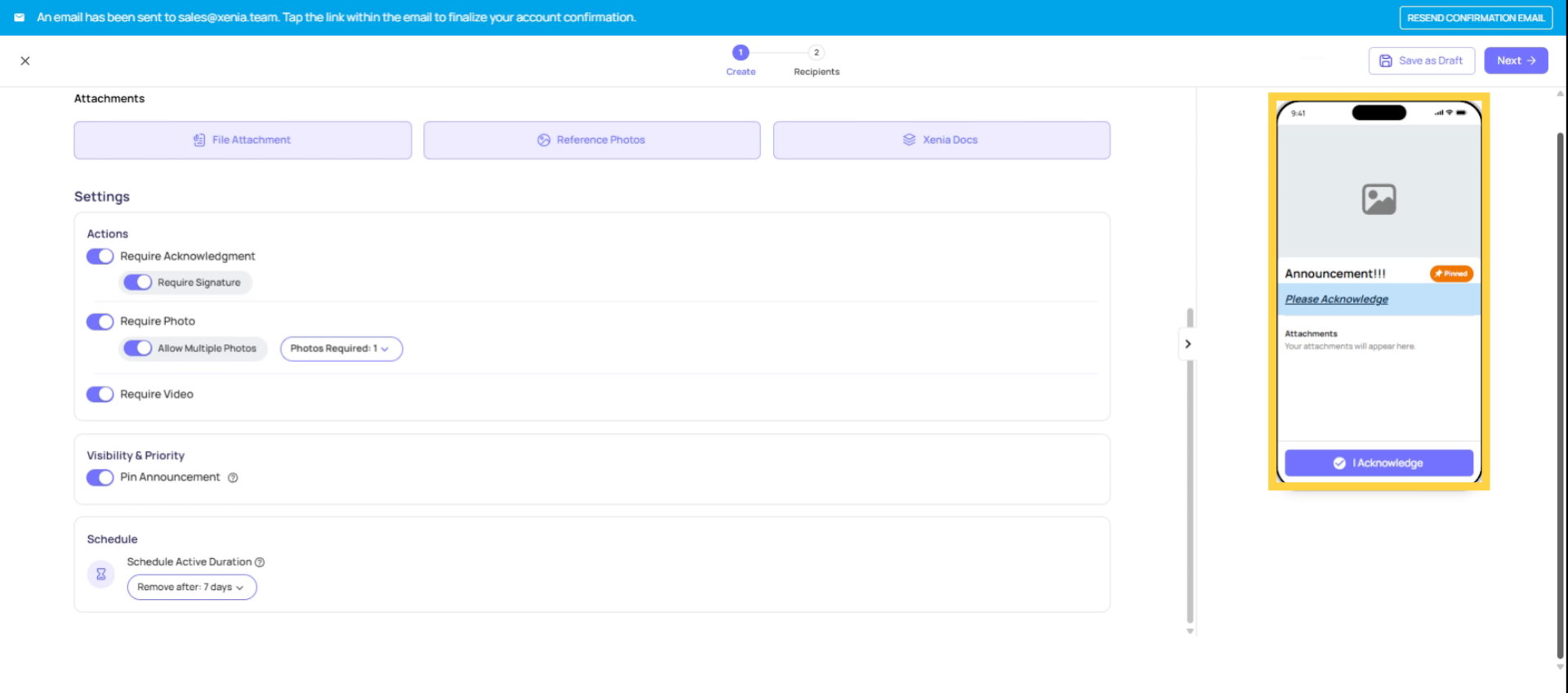
When a recipient opens an announcement that requires acknowledgment:
- The announcement content is displayed — they read the full text and any attachments
- At the bottom, the acknowledgment prompt appears — an Acknowledge button or a signature field
- They tap or sign to confirm
- The acknowledgment is timestamped and recorded
On mobile, this takes about 5 seconds for a tap acknowledgment. A signature requires the recipient to draw on the screen — about 15–20 seconds. Neither requires any additional login or verification.
4. Viewing Acknowledgment Tracking Data
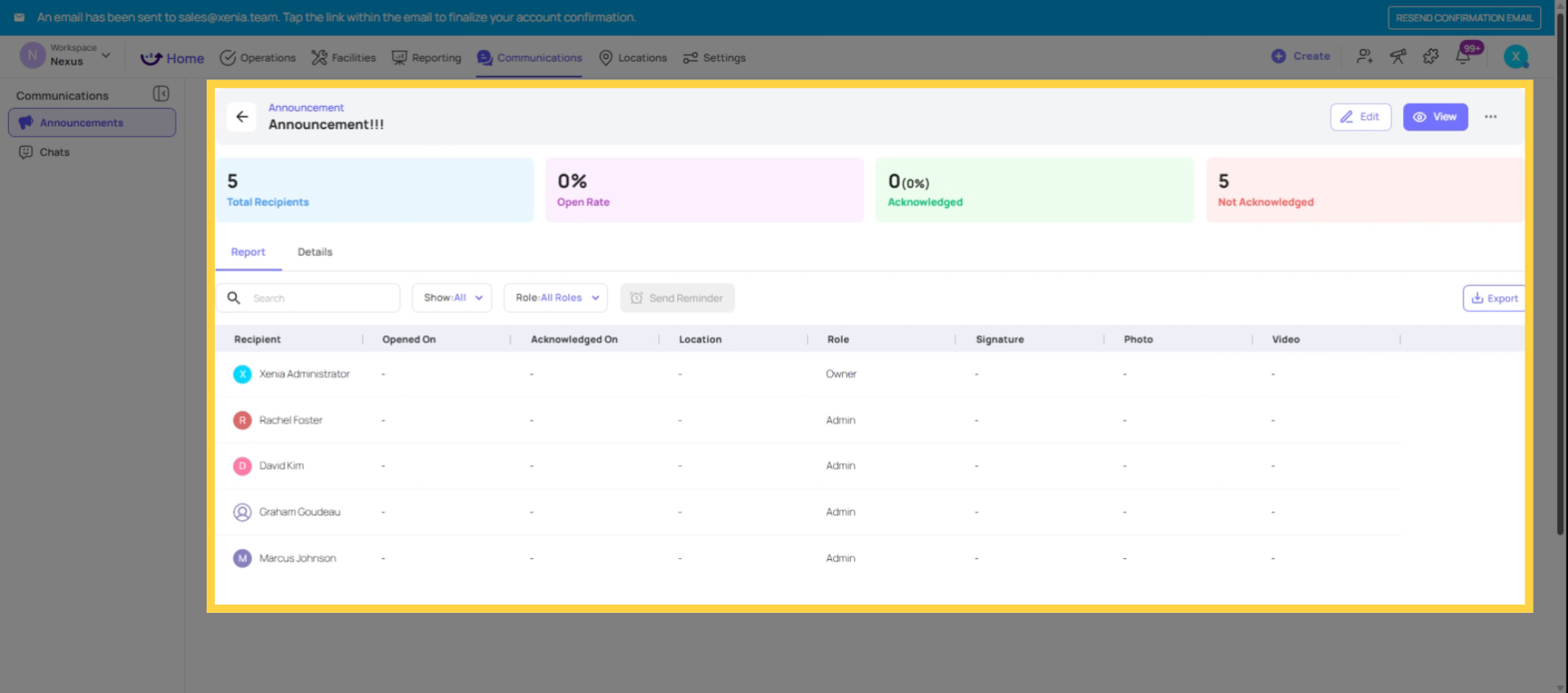
From Communications → Announcements → [Announcement Name]:
The acknowledgment tracking view shows:
- Acknowledged: The count and list of users who have confirmed, with timestamp for each
- Pending: The count and list of users who have received the announcement but not yet acknowledged
- Filterable by location — "Show me who hasn't acknowledged at Store 12 specifically"
- Exportable as a list for compliance records
This data is available in real time — as each person acknowledges, the count updates immediately. You can check status an hour after publishing, a day later, or a week out.
5. Following Up on Pending Acknowledgments
When acknowledgments are pending, there are two approaches:
Send a reminder: From inside the announcement, look for a Remind Pending or Follow Up option that sends a push notification to all users who haven't yet acknowledged. The reminder references the original announcement so recipients go directly to it.
Escalate through a manager: If specific stores or roles have high pending rates, contact the relevant store manager or shift lead. They can prompt their team to complete the acknowledgment during a shift briefing or handoff.
Set a deadline: Some announcement configurations allow setting an acknowledgment deadline — a date by which all recipients should have confirmed. After the deadline, unacknowledged recipients are clearly flagged in the tracking view.
Acknowledgments as a Compliance Record
The acknowledgment tracking data is exportable. From the announcement view, export the acknowledgment list as a CSV or PDF showing:
- Employee name
- Role and location
- Acknowledgment timestamp (or "Pending" if not acknowledged)
- Signature image (if signature acknowledgment was required)
Best Practices for SOP Distribution via Announcements
For organizations using Announcements as the primary SOP distribution channel:
- Name announcements with effective dates: "Closing Procedure v2 — Effective 01/15" makes historical tracking clear
- Require signature acknowledgment for high-stakes SOPs: The extra friction is worth it when the record matters
- Set a 48–72 hour acknowledgment window: Give employees time across shifts to complete it, but maintain urgency
- Follow up at the 24-hour mark: Check who's pending, remind managers for locations with low acknowledgment rates
- Export the record on deadline day: File the compliance record in whatever system your organization uses for documentation
This export is the compliance record — usable for audits, regulatory inspections, HR files, or franchise compliance reporting. If a health inspector asks whether all employees received and acknowledged the updated food safety SOP, this export is your answer.
Need Help?
Reach out to our Support Team at Support@xenia.team
Comments
0 comments
Please sign in to leave a comment.