
1. What Dual Vendor Means
A Dual Vendor situation is when one Work Order involves two parties who both need to be notified and tracked:
Scenario A — Two external vendors: A kitchen leak requires both a plumber (to fix the pipe) and a flooring contractor (to repair the water-damaged floor). One Work Order captures the issue; two vendors need to know.
Scenario B — Internal team + external vendor: The most common. An internal maintenance tech does an initial assessment and temporary fix. An external HVAC contractor comes to do the permanent repair. Both need to be on the same Work Order thread.
Scenario C — Primary vendor + escalation vendor: A preferred vendor handles the issue normally, but if they can't respond in time, a backup contractor gets escalated to. Both exist in the contact book; one is notified first, the second conditionally.
2. Approach 1 — Multiple Notification Recipients on One Work Order
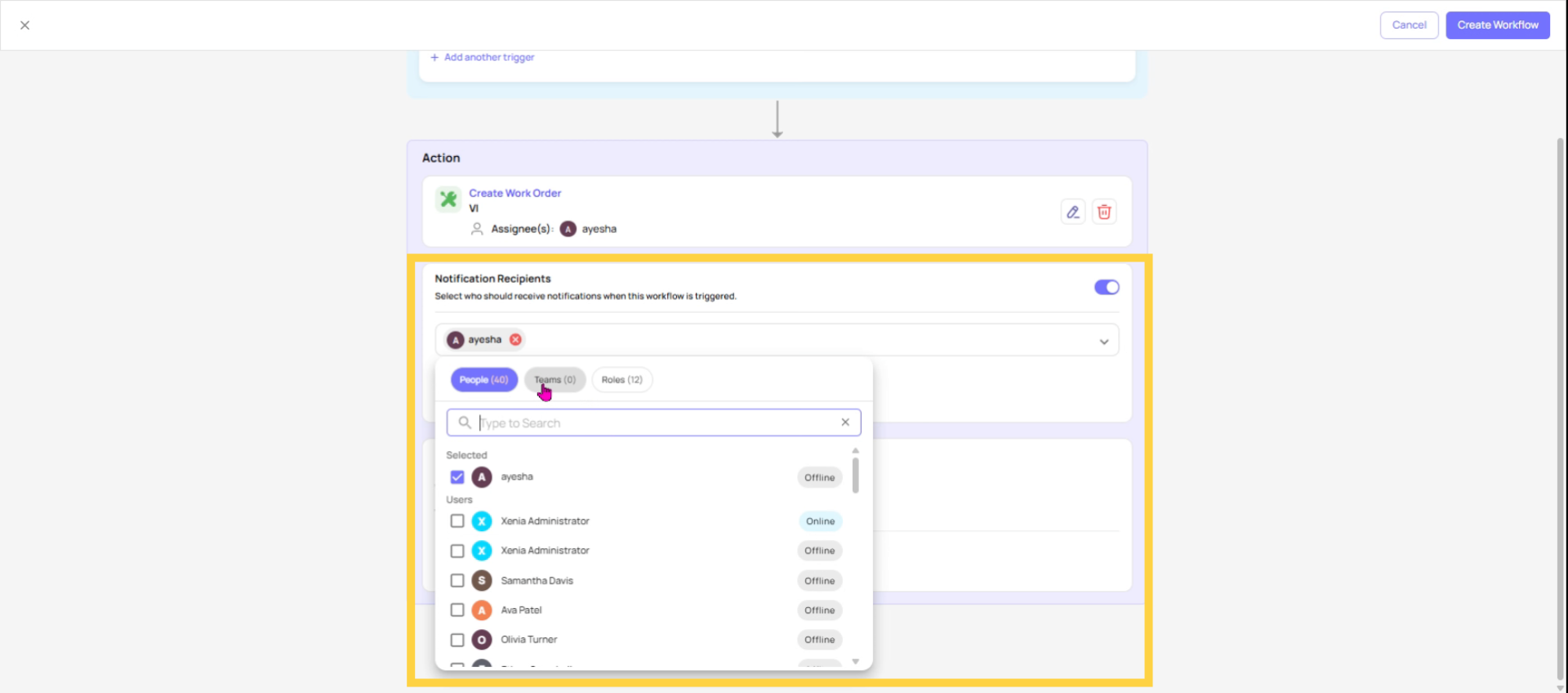
The simplest setup: add both parties as notification recipients on the Work Order.
When creating or editing the Work Order, add:
- The internal assignee (role or team)
- Vendor A (from the Vendors contact book or as an external email)
- Vendor B (from the Vendors contact book or as an external email)
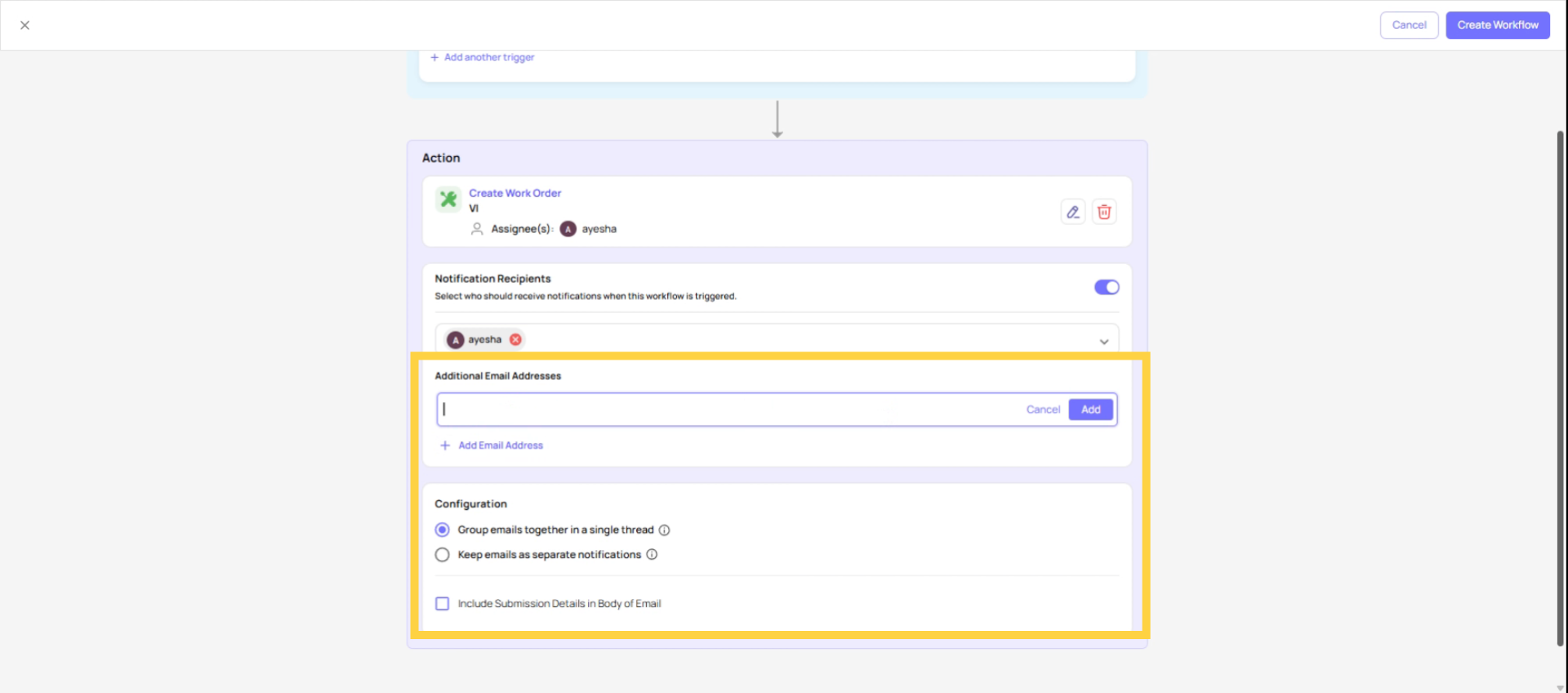
Both vendors receive the Work Order notification email. If grouped threading is selected, all three parties (internal coordinator, Vendor A, Vendor B) are on the same email chain. Replies from any party are visible to all.
Best for: Scenario B (internal + external) and simple Scenario A cases where both vendors need the same information and coordinating on one thread makes sense.
Limitation: All recipients see each other's replies. If you don't want Vendor A and Vendor B to have visibility into each other's communication, use separate threads or separate Work Orders.
3. Approach 2 — Two Work Orders for One Issue
When the two vendors are handling genuinely different scopes of work — the plumber fixes the pipe, the flooring contractor repairs the damage — create two separate Work Orders from the same original incident.
- Create the first Work Order — "Kitchen Leak — Plumbing Repair" → assigned internally, vendor: ABC Plumbing
- Create the second Work Order — "Kitchen Leak — Floor Damage Repair" → assigned internally, vendor: XYZ Flooring
- Link both Work Orders with a comment on each referencing the other: "Related to Kitchen Leak — Plumbing Repair WO#1045"
Both are tracked to completion independently. Each vendor only receives their own Work Order notification. Reporting on each is clean and separate.
Best for: Scenario A with genuinely separate scopes. Each party tracks their own deliverable and the Work Order board accurately reflects two distinct resolution paths.
Approach 3 — Primary Assignment + On Hold for Vendor Transfer
When an internal tech handles the initial response and then hands off to an external vendor:
- Create the Work Order → assign to internal Maintenance role
- Internal tech does the initial assessment and temporary fix → updates status to In Progress, adds comment
- Determines external vendor is needed → sends vendor notification manually (adds vendor to notification recipients)
- Changes status to On Hold with comment: "Awaiting response from ABC Plumbing — scheduled for Thursday"
- When external vendor completes → internal coordinator confirms → marks Completed, adds completion note
The single Work Order tracks the full lifecycle: internal response → vendor handoff → vendor completion → internal verification. The activity log shows every status change, every comment, every notification in sequence.
Best for: Scenario B. Keeps one clean record of the issue from report to resolution.
Approach 4 — Routing Rules with Location + Category Specificity for Backup Vendors
For Scenario C (primary + backup vendor), configure two Routing Rules with different conditions:
- Rule 1: Category = HVAC AND Priority = High → auto-assign to Maintenance + notify Preferred HVAC Vendor
- Rule 2: Category = HVAC AND Priority = Critical → auto-assign to Maintenance + notify Backup HVAC Vendor (faster response guarantee)
Different priority levels trigger different vendor notifications. The coordinator still handles handoff, but the initial notification goes to the right contact automatically based on urgency.
This article explains how to manage issues involving multiple parties by structuring notifications, selecting recipients, and creating linked work orders for clear accountability. For more information, see related articles on work order management and vendor coordination.
Need Help?
Reach out to our Support Team at Support@xenia.team
Comments
0 comments
Please sign in to leave a comment.