
1. Two Ways to Involve a Vendor on a Work Order
Vendors are external — they don't have Xenia accounts and don't log into your workspace. Xenia involves them via email notification, not by adding them as a user or an assignee in the traditional sense.
There are two ways a vendor gets notified on a Work Order:
Method 1 — Automatic via Routing Rules: When a Work Request matches a routing rule that includes a vendor notification, the vendor receives an email the moment the request is converted to a Work Order. No manual action required. The routing rule fires, the Work Order is created, and the vendor email goes out simultaneously.
Method 2 — Manual via Workflow or notification on the Work Order: A facilities coordinator reviews a Work Order and manually triggers a vendor notification — either by adding the vendor as a notification recipient on the Work Order form, or via a workflow that routes based on a category selection made when the Work Order was created.
2. Automatic Vendor Notification via Routing Rules
The cleanest setup: build a Routing Rule that includes the vendor as a notification recipient.
- Go to Facilities → Routing Rules → Create Rule
- Set the condition — e.g., Category = HVAC, or Category = Pest Control
- Set the internal assignee — Maintenance role or a specific team
- In the Vendor Notification field (or Notification Recipients), add the vendor from your Vendors contact book
- Set the email threading preference — grouped (vendor and internal team on the same thread) or separate
- Save
When a Work Request matching this rule comes in, the vendor receives an email with:
- The Work Order title and issue description
- The location and priority
- Any photos attached to the original request
- Your organization as sender — the vendor replies directly to this thread
The vendor does not need a Xenia account. The email is the interface.
3. Manual Vendor Notification on a Work Order
For situations where the right vendor isn't determined by a routing rule — perhaps the coordinator reviews the issue and decides which contractor to send it to — the vendor can be added manually:
- Open the Work Order (in Facilities → Work Orders)
- Find the Vendor or Notification Recipients field
- Search for the vendor name from your Vendors contact book, or type an external email address directly
- Save or confirm
The vendor receives an email notification with the Work Order details at that moment.
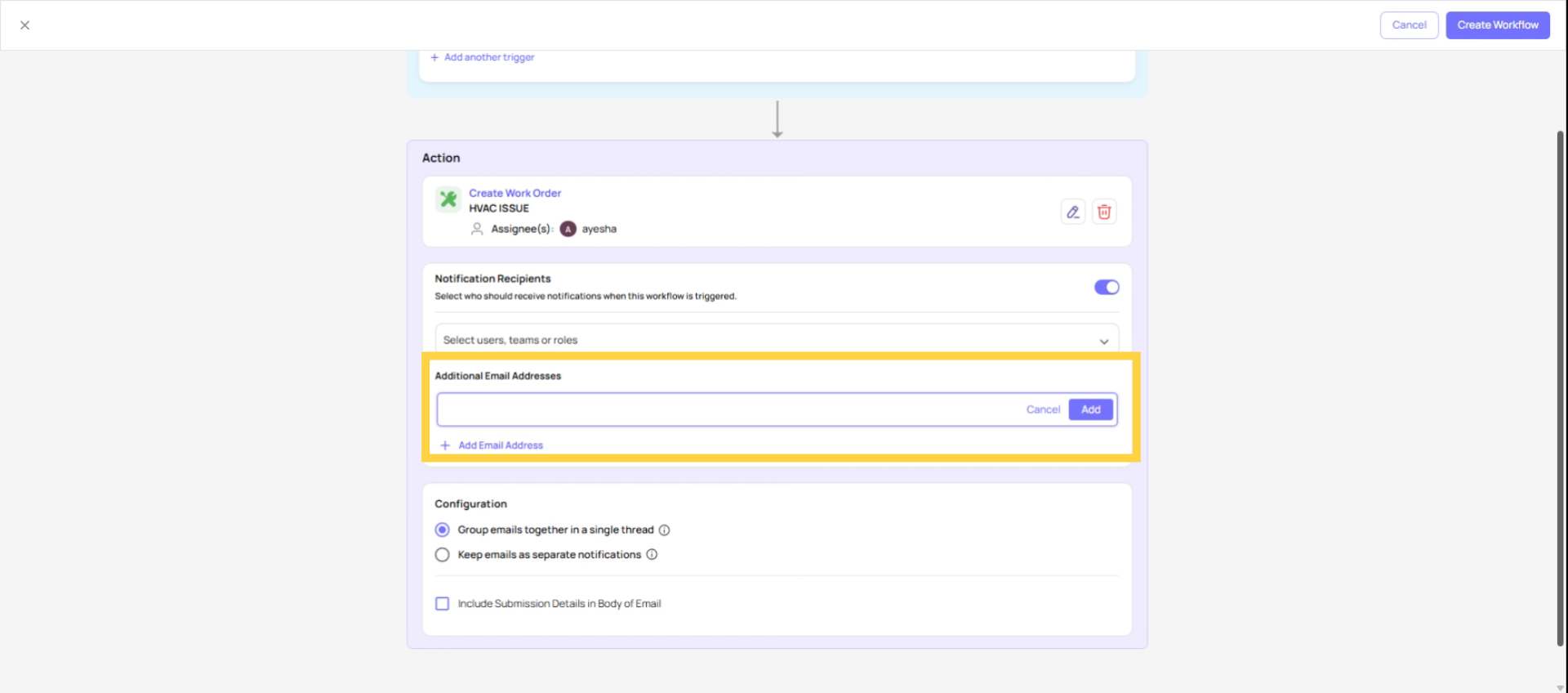
If no Vendors module: vendors can also be added as external email address recipients directly on workflow notifications configured in the template builder (for Work Request-triggered workflows). The Vendors module provides the contact book structure; direct external email entry is the fallback.
4. What the Vendor Receives
When a vendor is notified on a Work Order, their email includes:
- Work Order title and description
- Location (store/facility address or name)
- Priority level
- Photos from the Work Request if attached
- Contact information for the internal coordinator
The vendor can reply to the email. Their replies are captured in the Work Order's communication thread in Xenia (email-to-comment integration). The coordinator sees the vendor's response without leaving Xenia.
Important: Marking the Work Order as Complete is always done internally. The vendor cannot close a Work Order. Someone at your organization marks it complete after confirming the work was done.
5. Using On Hold Status for External Vendor Work
A practical approach many facilities teams use when a Work Order is waiting on an external vendor:
- Create or accept the Work Order internally
- Notify the vendor
- Change the Work Order status to On Hold with a comment: "Assigned to Elite HVAC Solutions — awaiting scheduling"
- The Work Order stays visible but is clearly marked as pending external action
- When the vendor completes the work, update the status to Completed and add a completion note
This keeps the Work Order board accurate — the issue isn't being ignored, it's waiting on a vendor — without it sitting indefinitely as Open or In Progress with no explanation.
Need Help?
Reach out to our Support Team at Support@xenia.team
Comments
0 comments
Please sign in to leave a comment.