
1. What the Vendors Module Is
The Vendors module in Xenia's Facilities tab is a contact book for your external service providers — the contractors, suppliers, and vendors who handle maintenance, repairs, and deliveries at your locations. Adding a vendor to Xenia lets you include them in Work Order routing and notifications without giving them a Xenia account.
The core capability: when a Work Request or Work Order matches a routing condition tied to a vendor, Xenia sends the vendor an email — with the Work Order details, relevant photos, and your internal contact on the same email thread — so the issue goes to the right vendor immediately, without a coordinator having to find the contact information, compose an email, and send it manually.
Important context: The Vendors tab and its routing integration is a feature being actively developed. Core vendor contact management and email notifications are available; additional capabilities including deeper routing integration are being added. Confirm current feature availability with your Xenia account team.
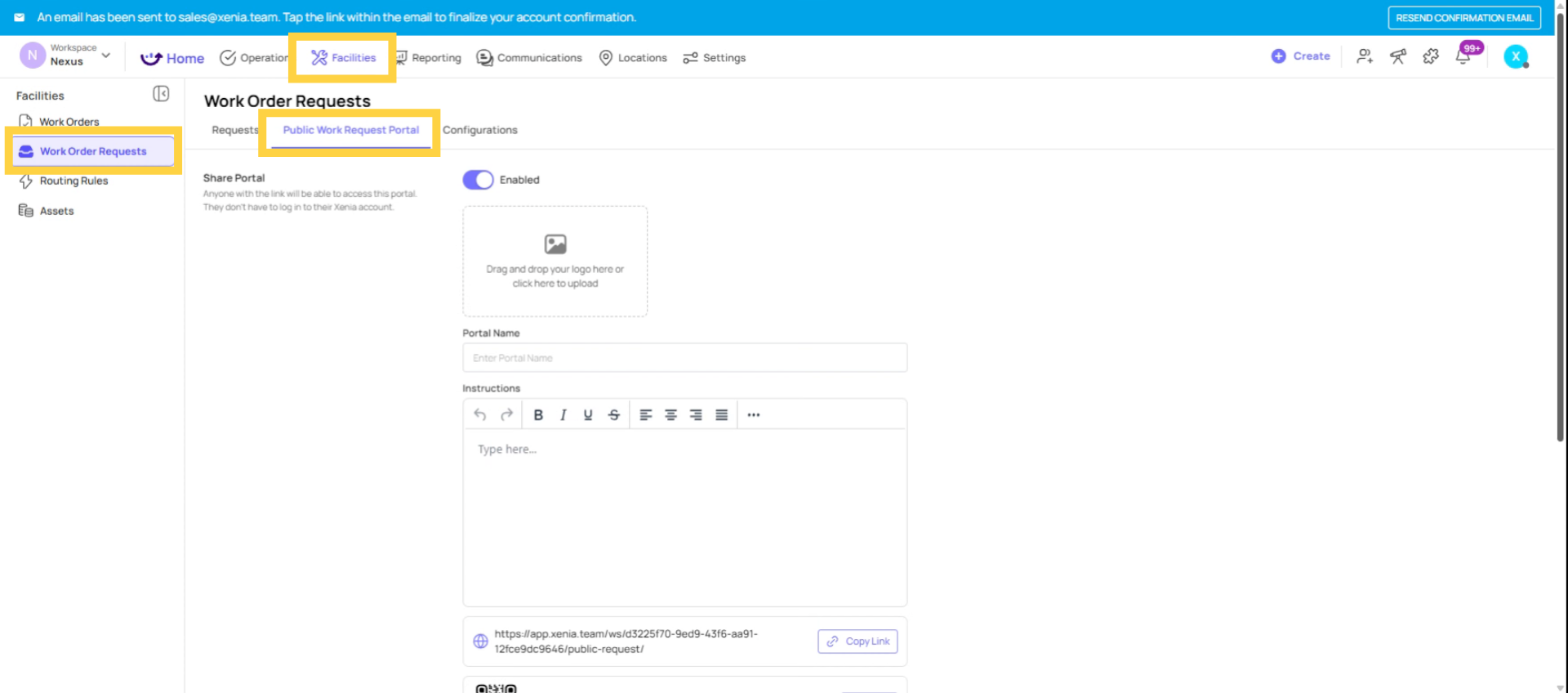
2. Where the Vendors Module Lives
3. Connecting Vendors to Routing Rules
Once a vendor is added to the contact book, they can be specified in Routing Rules as a notification recipient when a Work Request of a matching type is received.
Example: A Routing Rule configured as:
- Condition: Category = HVAC
- Assignee: Internal Maintenance role
- Vendor notification: Elite HVAC Solutions
When an HVAC Work Request comes in and matches this rule, the Work Order is assigned to the internal Maintenance role AND Elite HVAC Solutions receives an email notification with the Work Order details.
The email thread: Xenia sends the vendor notification on the same email thread as the internal notification (or a separate thread, depending on configuration). The result: the store manager, the internal maintenance team, and the vendor are all on the same email chain discussing the same issue — without the vendor needing a Xenia account.
4. How Vendor Email Notifications Work
When a vendor is notified about a Work Order, the email they receive contains:
- The Work Order title and description
- The location (store/facility)
- Priority level
- Any photos attached to the Work Request
- A summary of the issue
The vendor can reply to the email and their reply is captured in the Work Order's communication thread. This keeps all communication about the issue in one place rather than scattered across email inboxes and text messages.
5. The Single Point of Contact Principle
The most practical advice for managing vendors in Xenia: add only one contact per vendor. Not every representative at the vendor company — just the primary dispatcher, account manager, or coordinator who routes work internally at the vendor's end.
When a vendor representative changes (which happens frequently), you update one email address in one vendor record. If you've added 8 individual contacts at the same vendor company, you have to hunt down and update all 8 when the team changes. One contact, one record, one update.
The vendor's job is to route the notification internally to whoever handles it. Your job is to have one reliable contact who receives every notification for that vendor category.
6. Vendor Management Best Practices
Keep descriptions current: When a vendor's contract changes, their service category expands, or their primary contact changes, update the record immediately. Stale vendor information creates communication failures.
One vendor per service category: If you have multiple HVAC contractors for different regions, create separate vendor records for each. "Elite HVAC — Southeast" and "Apex HVAC — Northwest" are two distinct records, each with their own contact and routing logic.
Don't add vendors who never need to be notified automatically: Only add vendors you actually want to receive Work Order notifications or that your team references frequently. A vendor you call once a year for a specialty repair doesn't need to be in the contact book.
Review quarterly: Set a quarterly reminder to review the Vendors list. Update contacts who have changed, archive vendors you no longer work with, and add new contractors you've brought on.
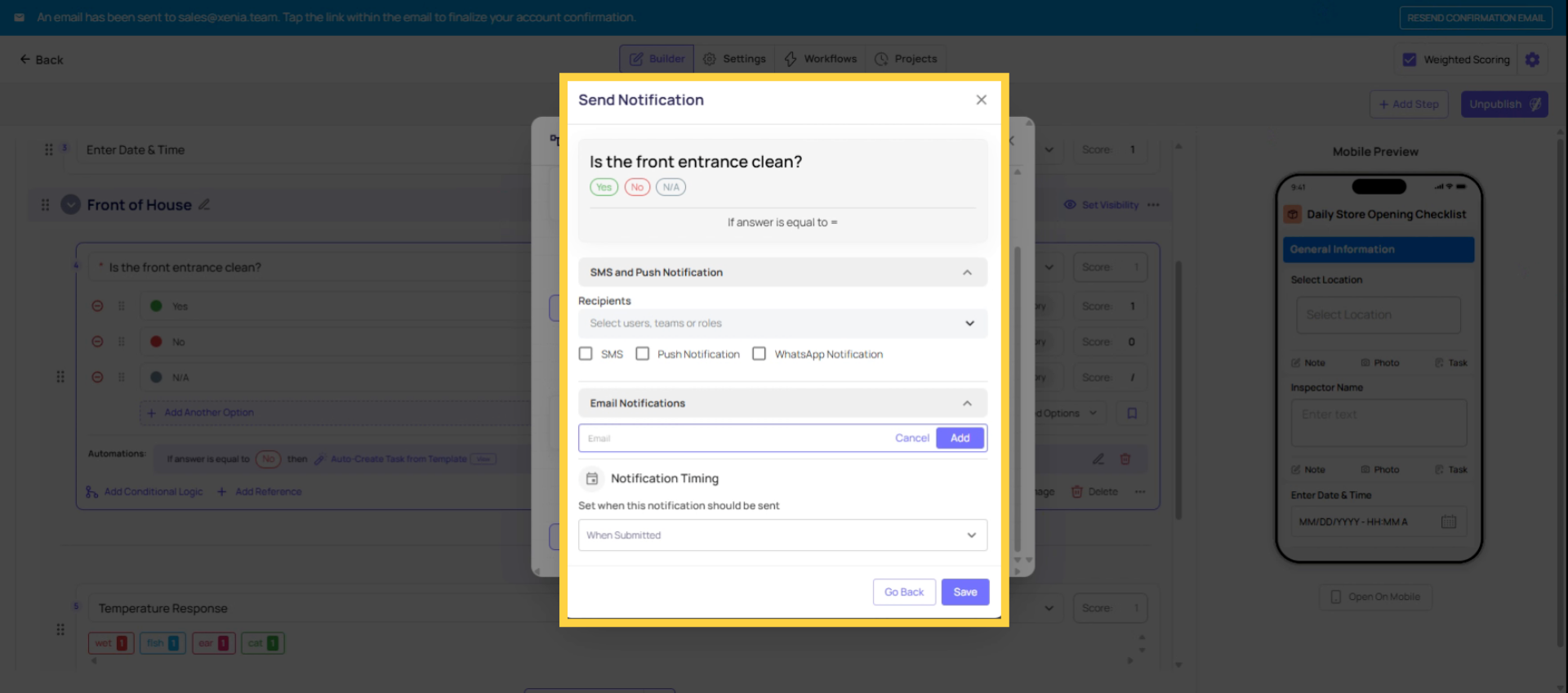
7. Add Vendor Emails For Notifications
8. Add Email Address
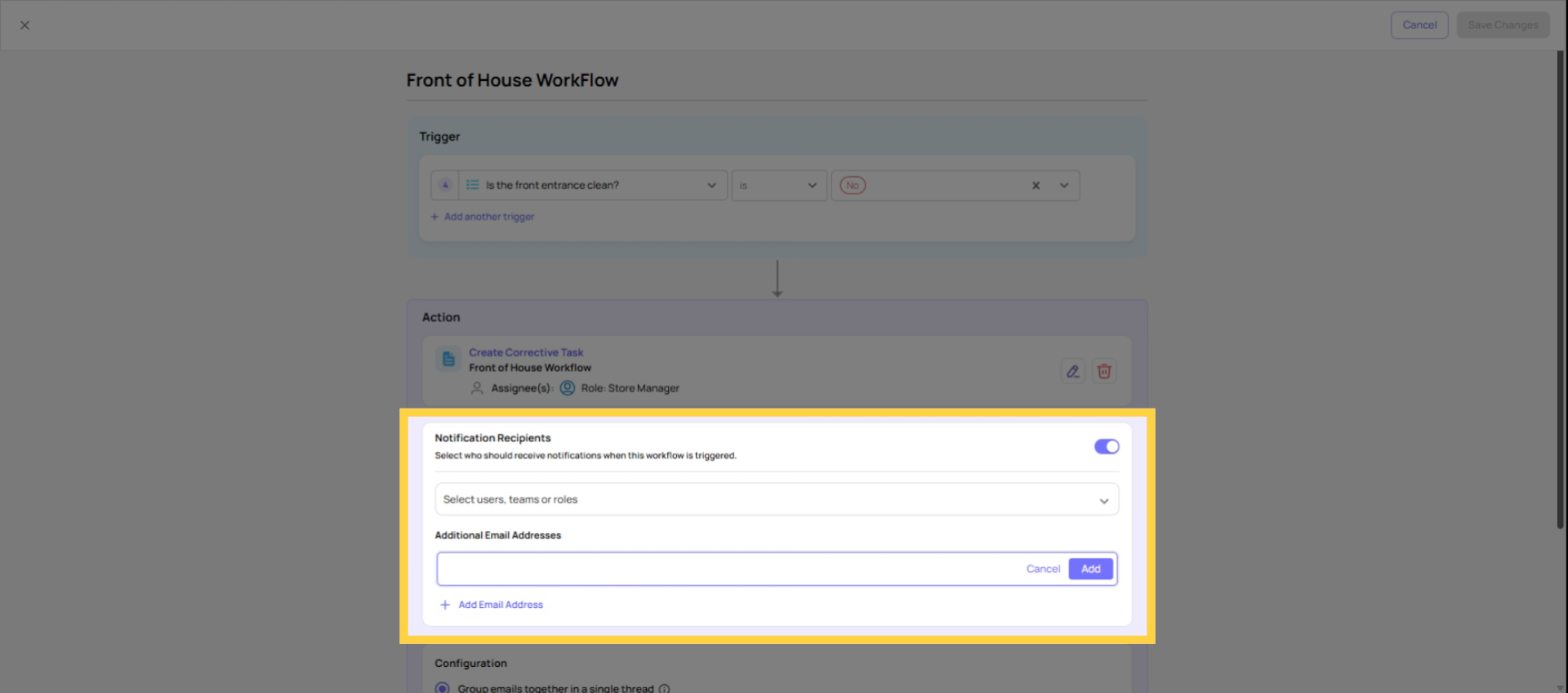
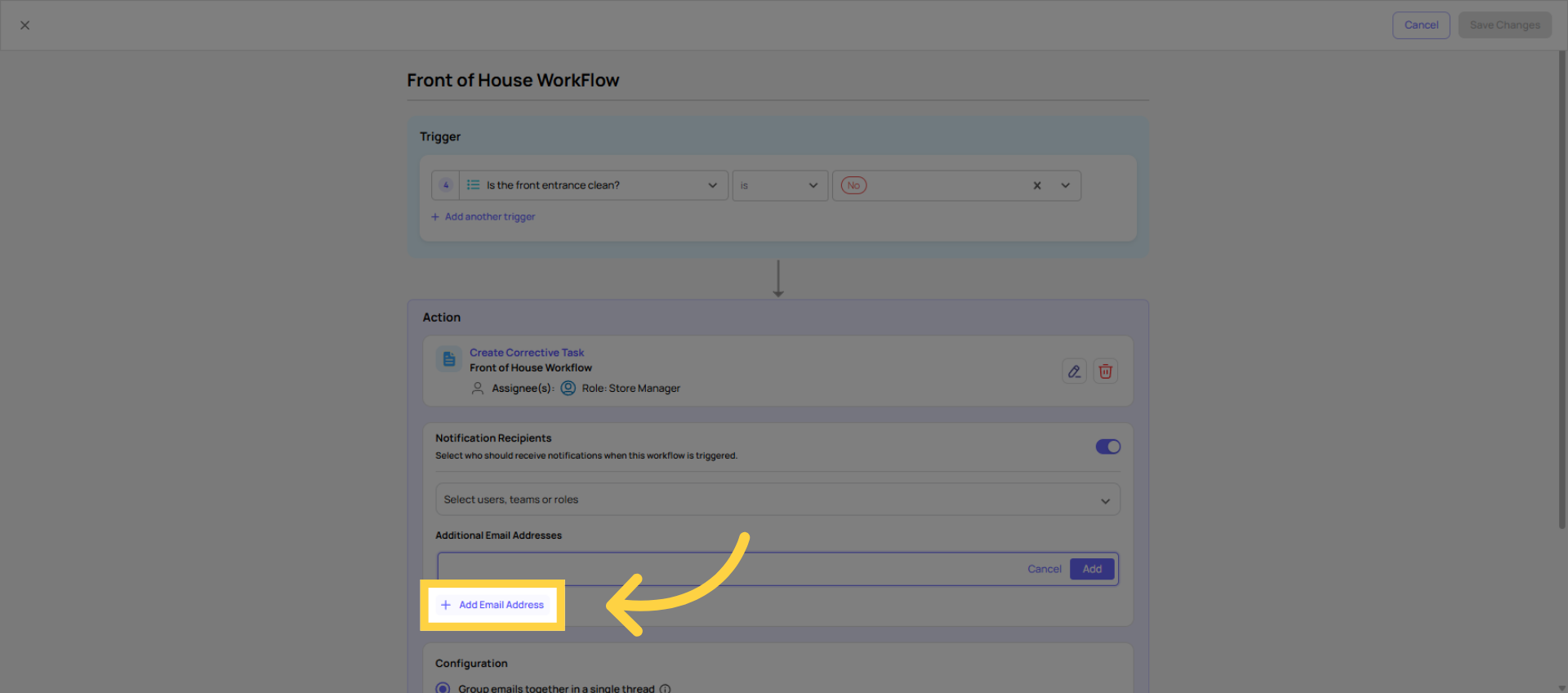 Add additional vendor email addresses in your workflows. When creating a work order or corrective task, linking these emails ensures vendors automatically receive notifications whenever the workflow is submitted.
Need Help?
Reach out to our Support Team at Support@xenia.team
Comments
0 comments
Please sign in to leave a comment.