
1. What an Asset Is
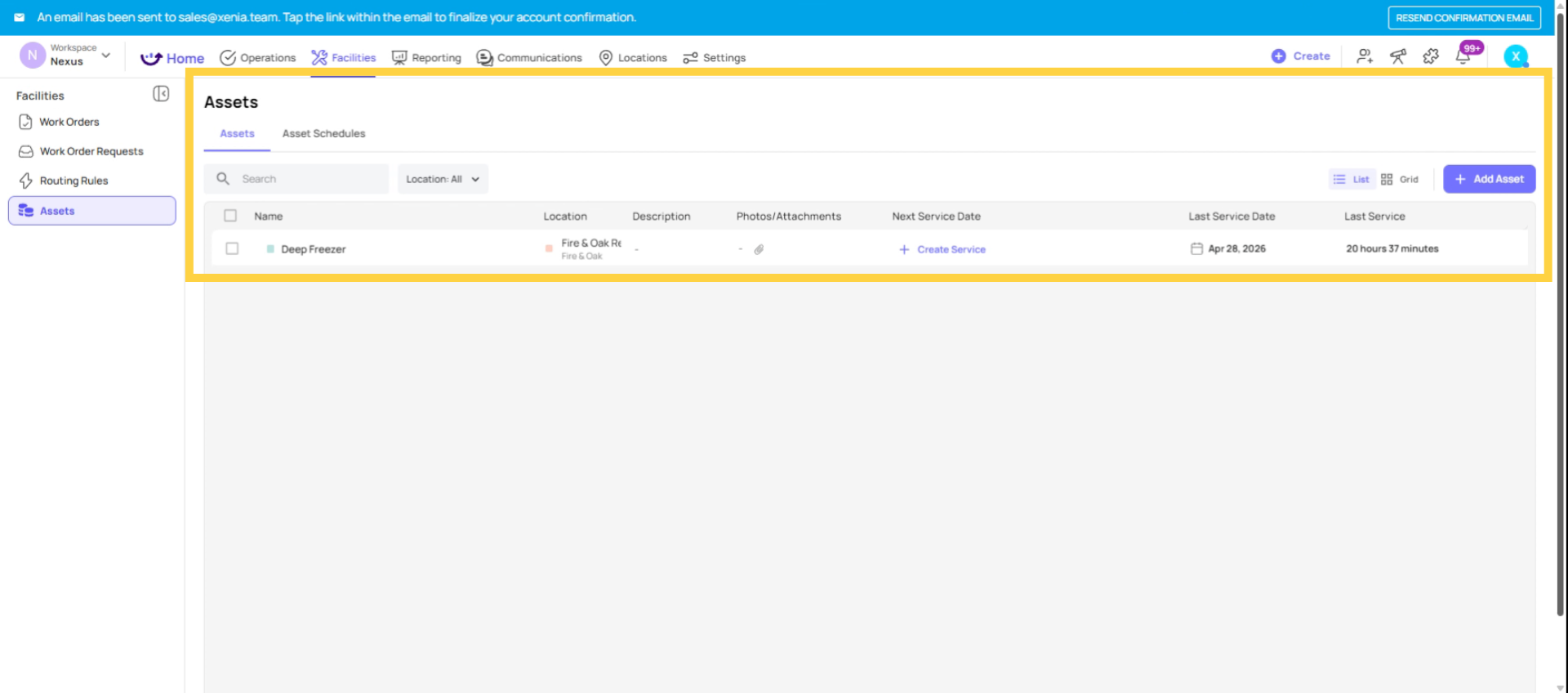
An Asset in Xenia is a digital record for a specific piece of physical equipment, machinery, or property that you want to track maintenance on over time. Every Work Order, Work Request, and checklist submission tagged to that asset builds its history — so you have a complete, searchable record of everything that's ever happened to that piece of equipment.
Common examples of assets in Xenia:
- HVAC units
- Walk-in coolers and refrigerators
- Commercial kitchen equipment (fryers, grills, ovens)
- Golf carts, irrigation systems, vehicles
- Elevators, generators, fire suppression systems
- Point-of-sale terminals, computers, networking equipment
- Pool equipment, fitness machines
An asset is any piece of equipment that has its own maintenance needs, failure history, and service schedule worth tracking independently. Not every piece of equipment needs to be an asset — but any equipment where "what happened to it and when" matters for operations, compliance, or budgeting belongs in the Assets module.
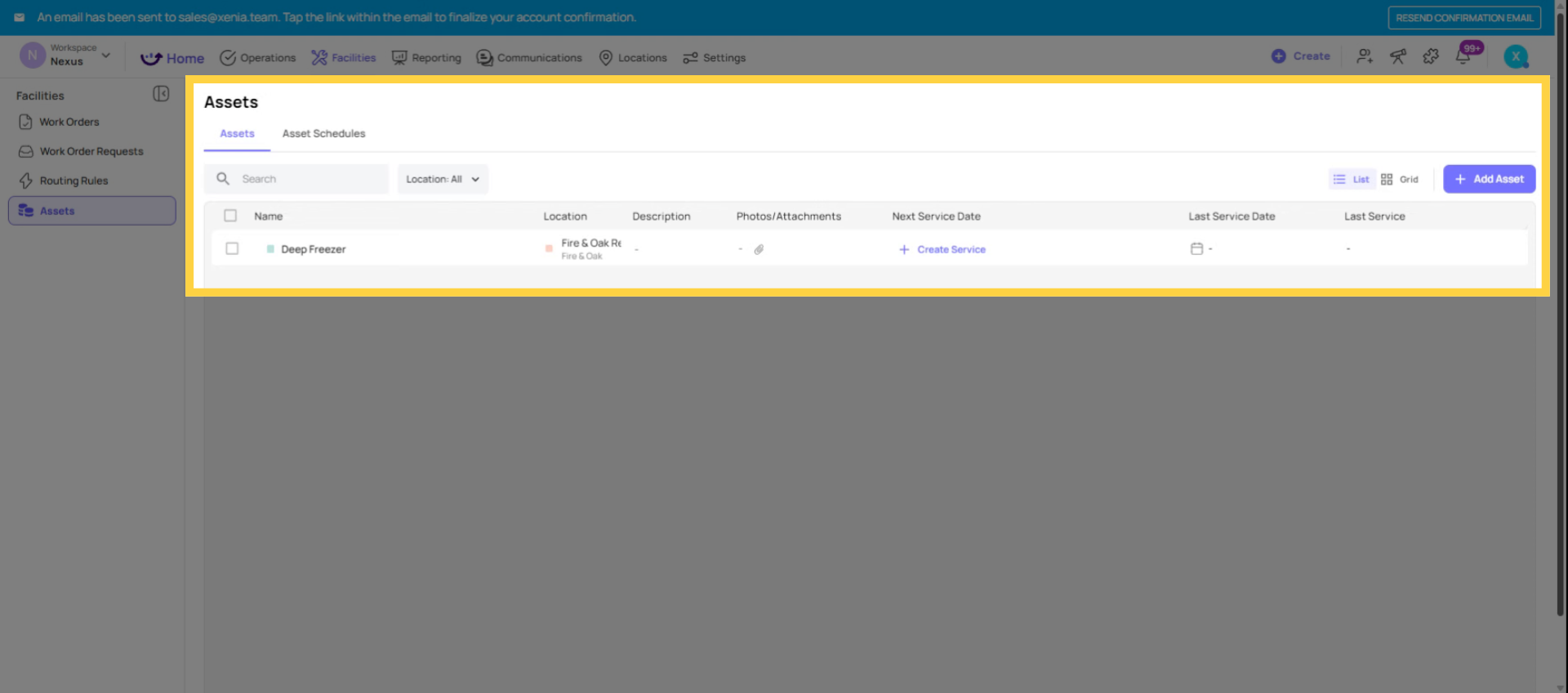
2. What an Asset Record Contains
When you create an asset in Xenia, the record holds:
Basic Information:
- Asset name (e.g., "Walk-in Cooler Unit 3 — Kitchen")
- Asset type or category
- Location (which store or facility it belongs to)
- Description and any relevant notes
- Photos of the asset
Service Schedule:
- Last service date
- Next service date
- Service interval (how often it should be serviced)
- Reminders — configured to send push, email, or SMS notifications to a role or user before a service date is due
Work History:
- All Work Orders ever linked to this asset
- All Work Requests submitted for this asset
- All checklist submissions tagged to this asset
- Timestamps, photos, notes, and completion records for every item
Sub-assets: A parent asset can have sub-assets. For example, an HVAC system (parent asset) might have three individual units (sub-assets). Work Orders can be tagged to the specific unit rather than the parent system.
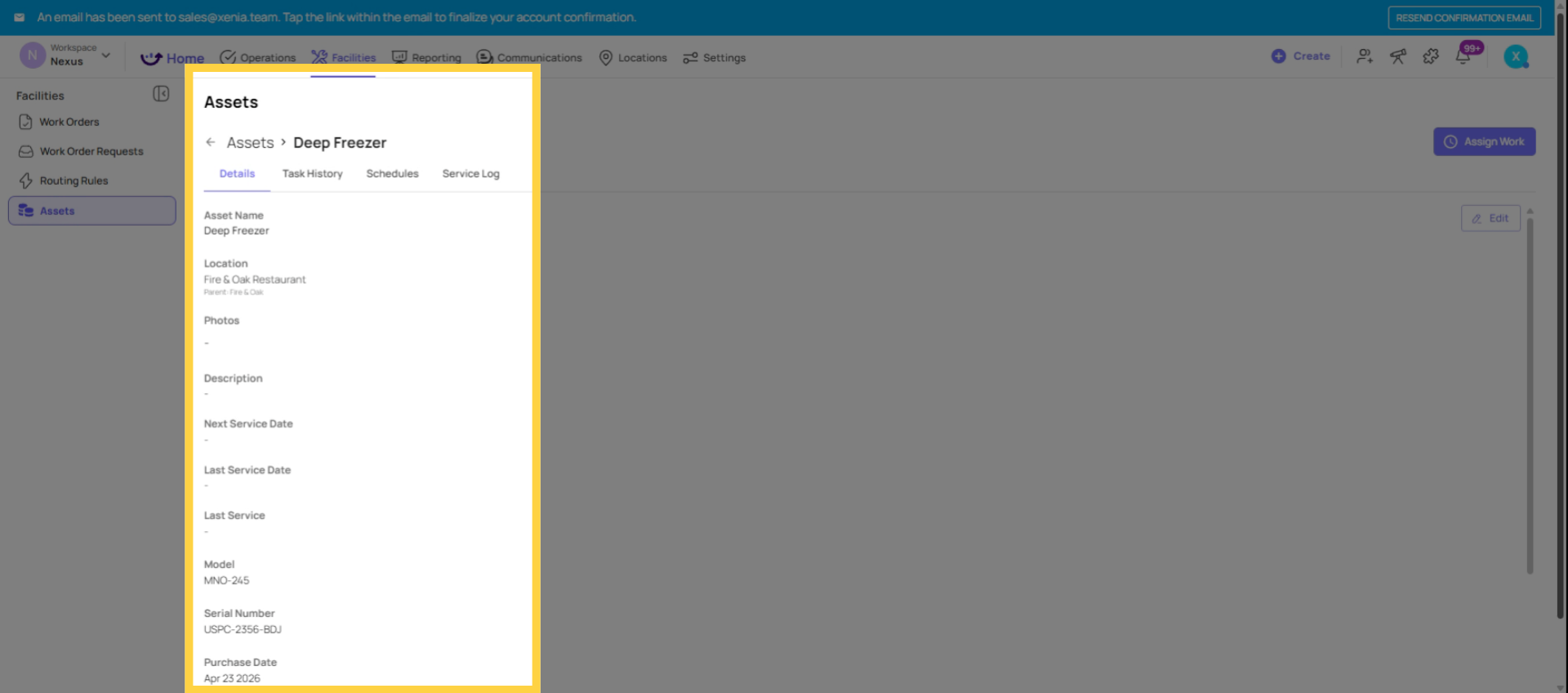
3. Asset Servicing and Reminders
The Asset Servicing feature is for proactive, scheduled maintenance tracking — not reactive repairs. It answers the question: "When does this equipment need to be serviced next, and who gets notified?"
How it works:
- Set a next service date on the asset record
- Configure a reminder notification — e.g., "Send a push notification to the Facilities Manager 7 days before the next service date"
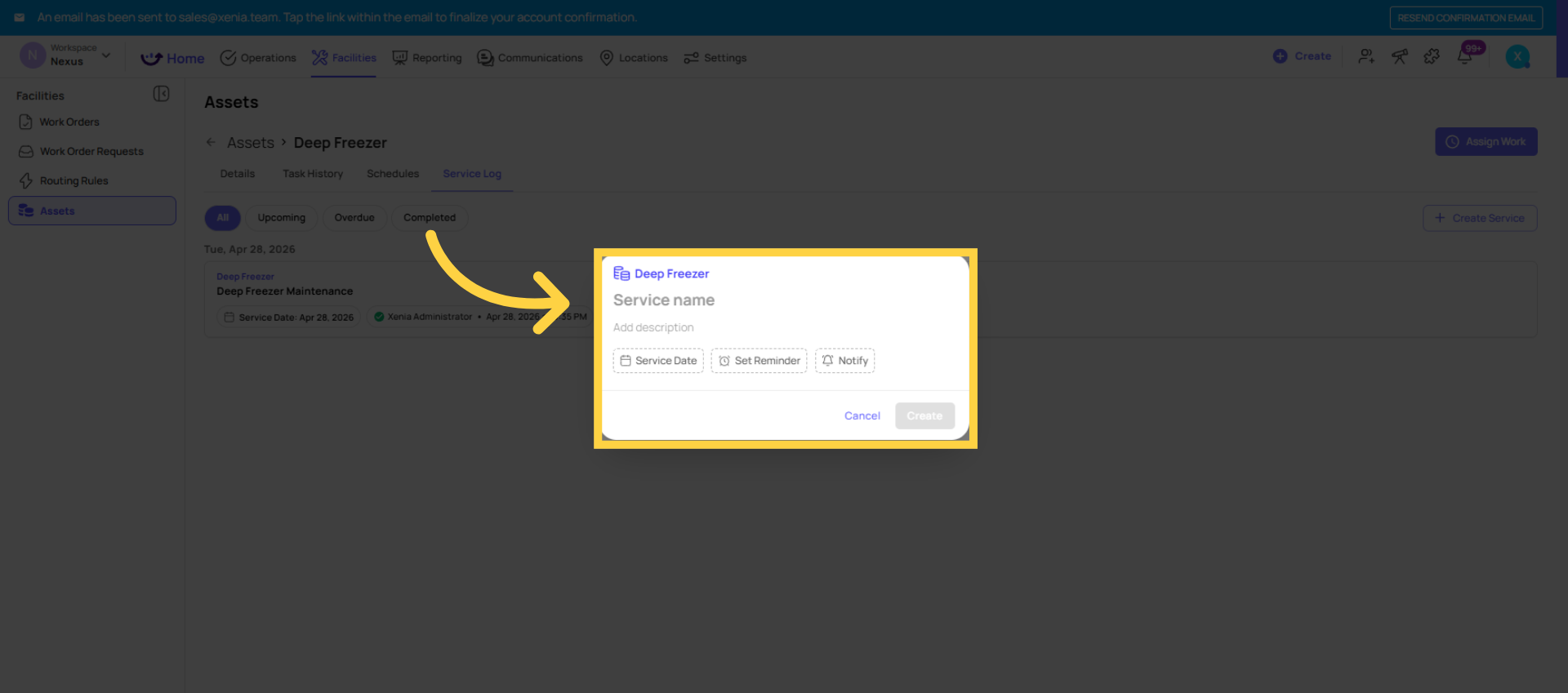
- When the service is completed, record it on the asset — updating the last service date and calculating the next scheduled date
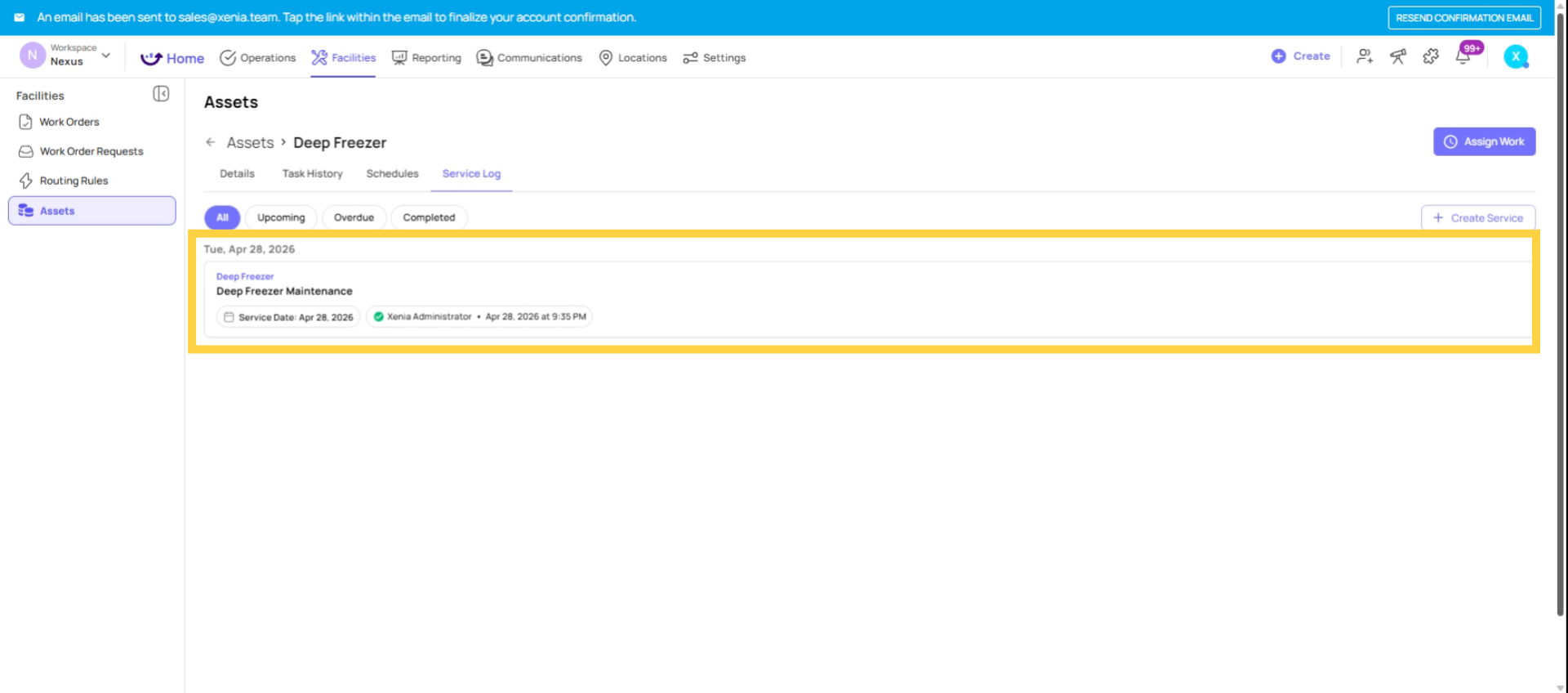
- View a service history log showing all past services, who completed them, any costs recorded, and notes
This replaces manual tracking systems (spreadsheets, calendar reminders, sticky notes) with a centralized, auditable service record for every piece of equipment.
4. QR Codes on Assets
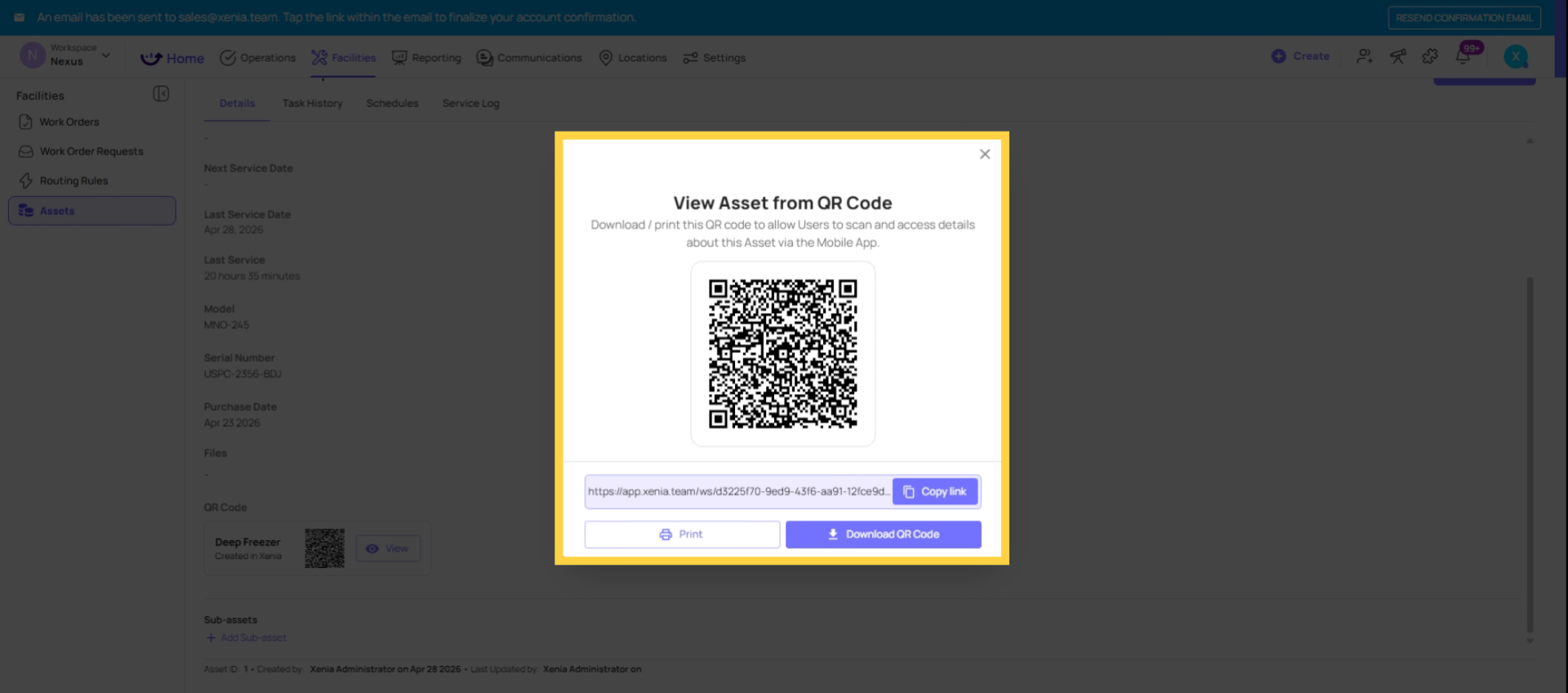
Every asset in Xenia can generate a QR code. Print the QR code label and attach it physically to the equipment. From that point, anyone can scan the QR code with the Xenia mobile app (or even without a Xenia account for Work Request QR codes) to:
- Submit a Work Request directly linked to that asset — no manual data entry, no searching for the right asset in the form
- View the asset's work history and upcoming service dates
- Access relevant maintenance information
The QR code turns every piece of equipment into an access point. A maintenance technician scanning the QR code on a fryer sees its full history immediately. A store employee scanning the code on a broken refrigerator creates a Work Request tagged to exactly that piece of equipment, from that location, without having to know anything about how the system is organized.
Important note from Xenia's team: Asset QR codes and asset tagging take time to implement — every asset needs to be created in the system and physically labeled. This doesn't need to happen before going live with the rest of the Facilities module. Start with Work Orders and Routing Rules, and add the Assets module as a second phase when you have the capacity to tag your equipment systematically.
5. Assets vs. Locations
A common question: what's the difference between an Asset and a Location in Xenia?
Locations are the places where work happens — stores, buildings, floors, rooms. They're used for routing, reporting, and access control.
Assets are the things at those locations that need maintenance — the refrigerator in the kitchen, the HVAC on the roof. Assets belong to locations.
A Work Order can be tagged to both a location (Store 5) and a specific asset at that location (Walk-in Cooler Unit 3 — Kitchen). This creates the richest reporting: you can see how many work orders are at Store 5, and you can see how many work orders are specifically for Walk-in Cooler Unit 3 across its entire history.
Need Help?
Reach out to our Support Team at Support@xenia.team
Comments
0 comments
Please sign in to leave a comment.