
1. What Routing Rules Are
- Routing Rules are automated assignment rules that convert incoming Work Requests into Work Orders and assign them to the right person or team — without requiring a human to manually review, accept, and route each one.
- Without Routing Rules, every Work Request lands in the pending inbox and waits for a coordinator to open it, decide who should handle it, and accept it. For high-volume operations with dozens of requests per day, that manual review step creates a bottleneck — and for urgent issues like a safety hazard or critical equipment failure, delay is unacceptable.
- Routing Rules eliminate the inbox bottleneck for predictable, rule-based issue types. When a request matches a rule — the right category, the right location, the right priority level — it automatically converts to a Work Order and is assigned immediately. No one has to touch it.
- The main reason to keep manual review for some requests: control. If a store submits something that's a large ticket item, an expensive repair, or something that needs to be evaluated before committing a team to it — you don't want it auto-assigned. You want a coordinator to review it first. Routing Rules are for the predictable ones; manual review is for the judgment calls.
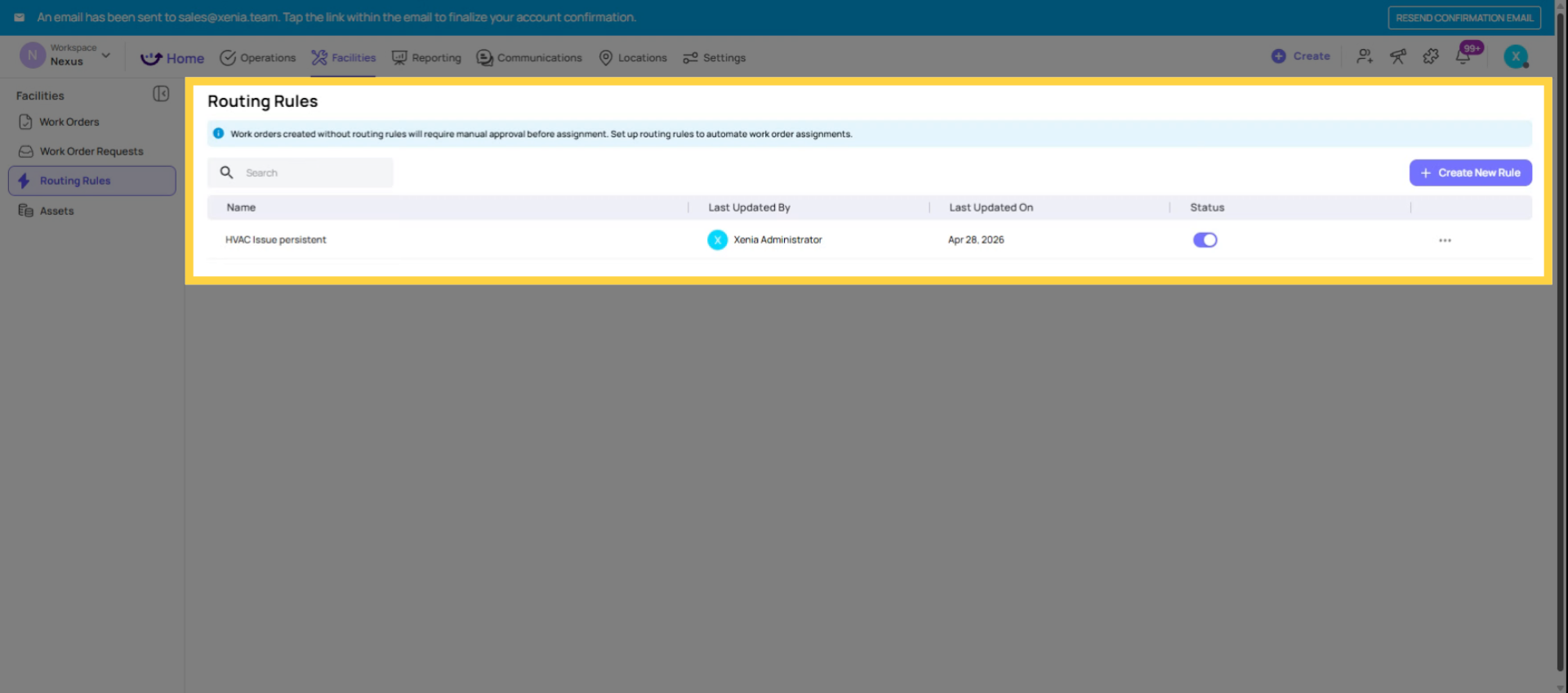
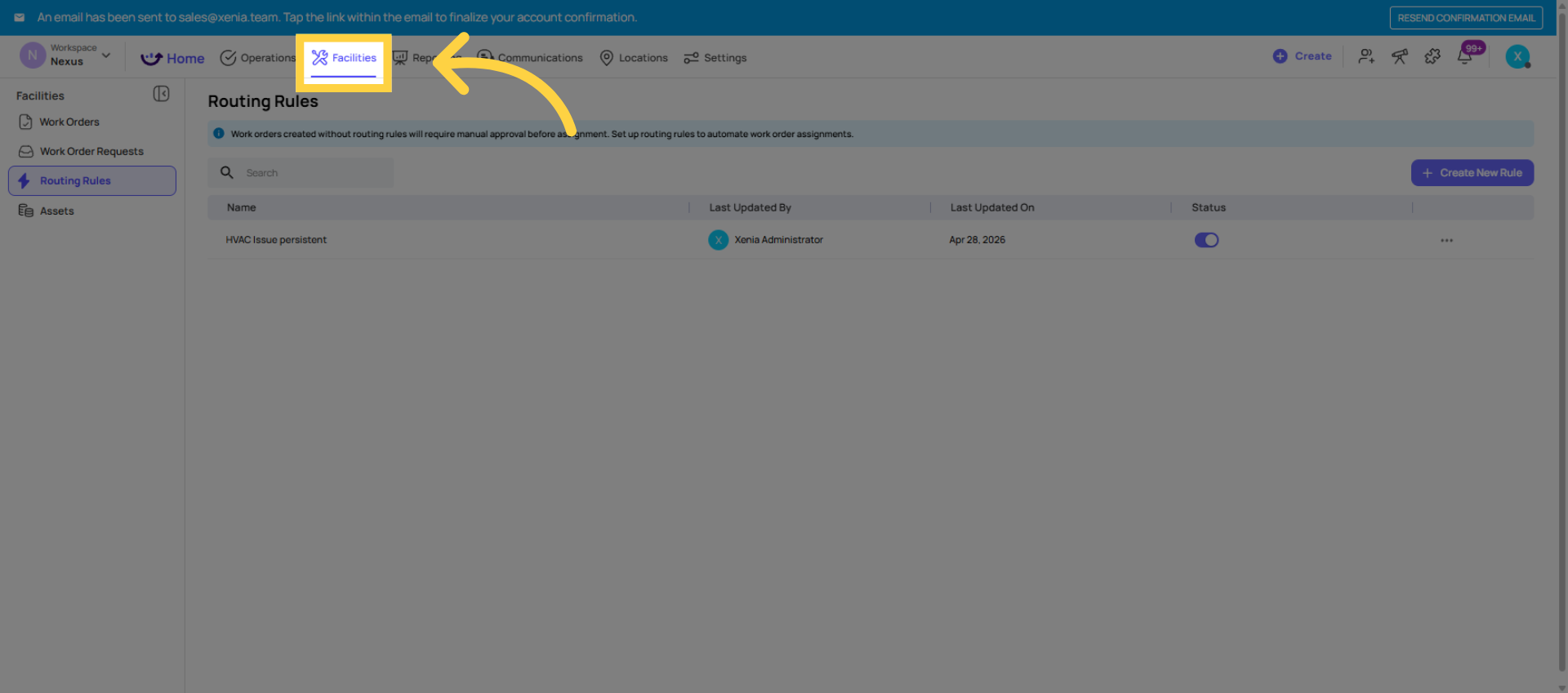
2. Where to Configure Routing Rules
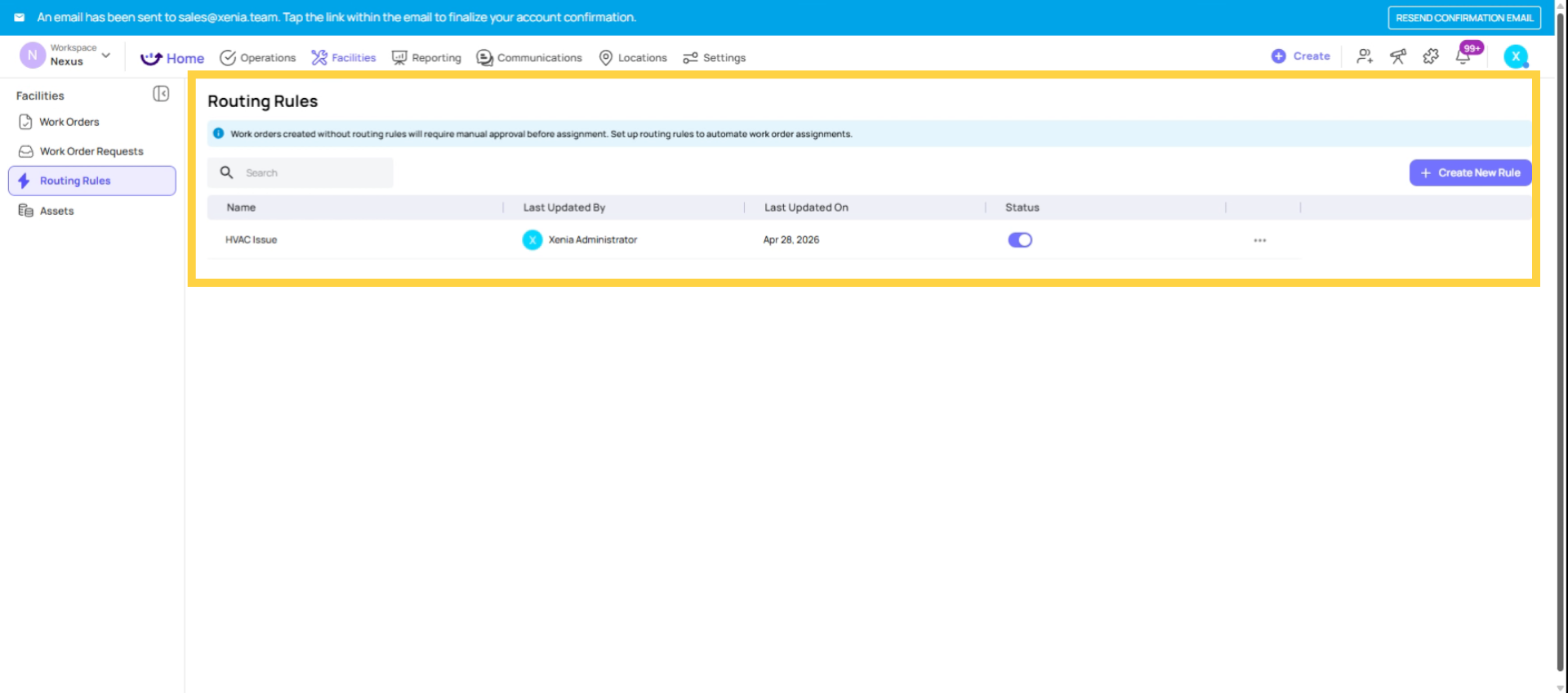
Facilities tab → Routing Rules in the top navigation. This is a dedicated module for building and managing all your routing rules. It shows a table of all active rules with their conditions and assigned team.
You need the Manage Routing Rules permission enabled on your role to access this module.
 How a Routing Rule Works
A rule is an IF/THEN statement:
IF [condition(s) are met] THEN [auto-assign to this person/team/role]
Conditions supported:
- Category — the issue category selected in the Work Request form (HVAC, Plumbing, Electrical, Equipment, Safety, etc.)
- Priority level — the priority the submitter selected (Low, Medium, High, Critical)
- Location — the specific location the request was submitted from
These conditions can be combined with AND logic for more precise routing.
When a Work Request is submitted and matches a rule, Xenia automatically:
- Converts the request to a Work Order
- Assigns it to the configured assignee (role, team, or individual)
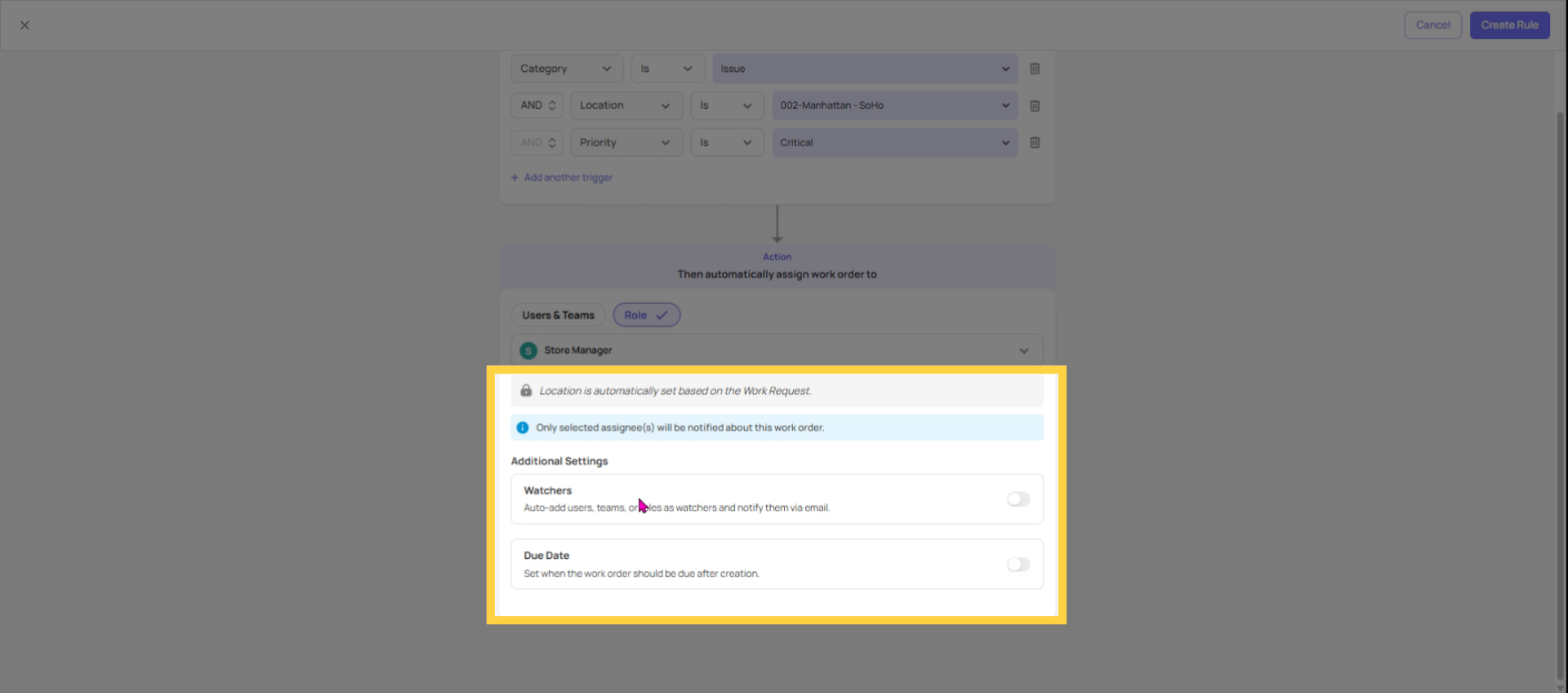
- Picks up the location from the request — it does not need to be specified in the rule when assigning to a Role
- Applies the configured relative due date (if set)
- Notifies any configured Watchers
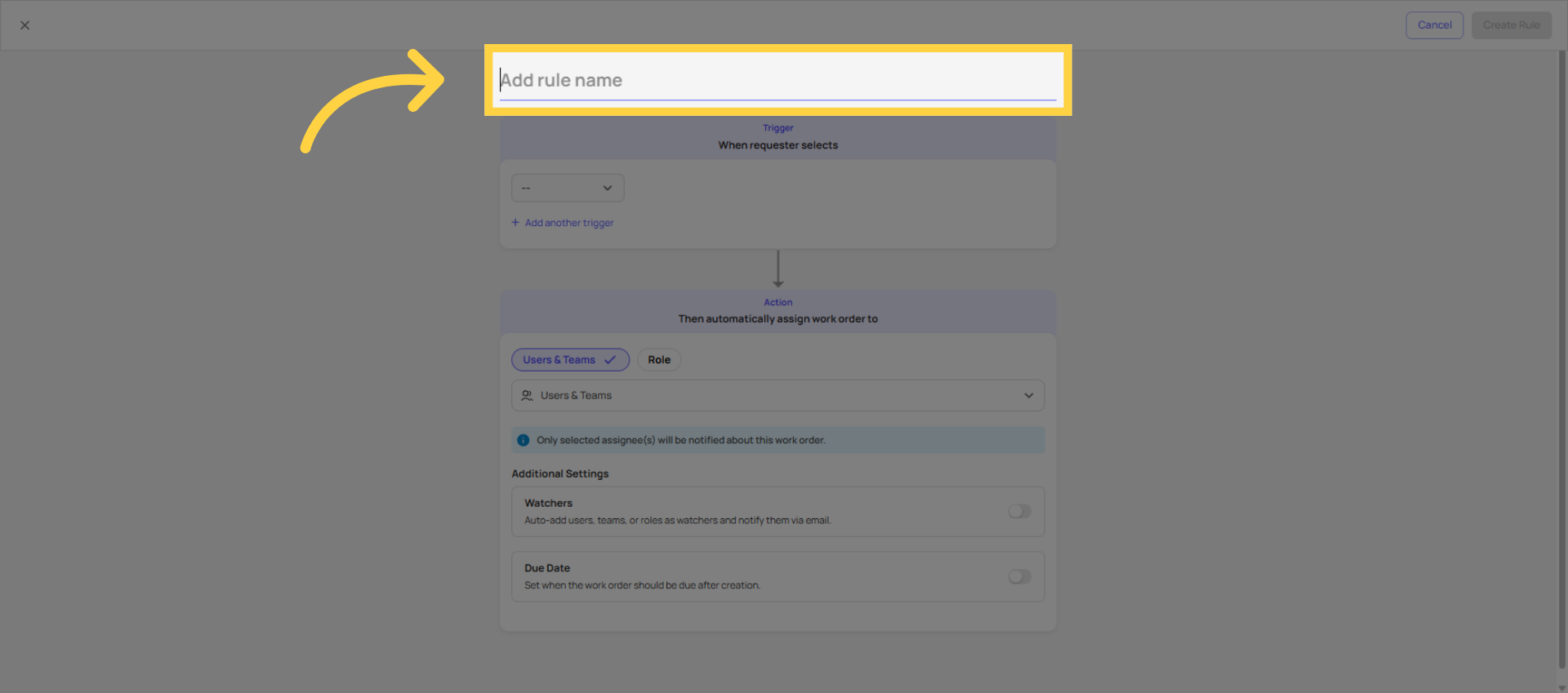
3. Building a Routing Rule — Step by Step
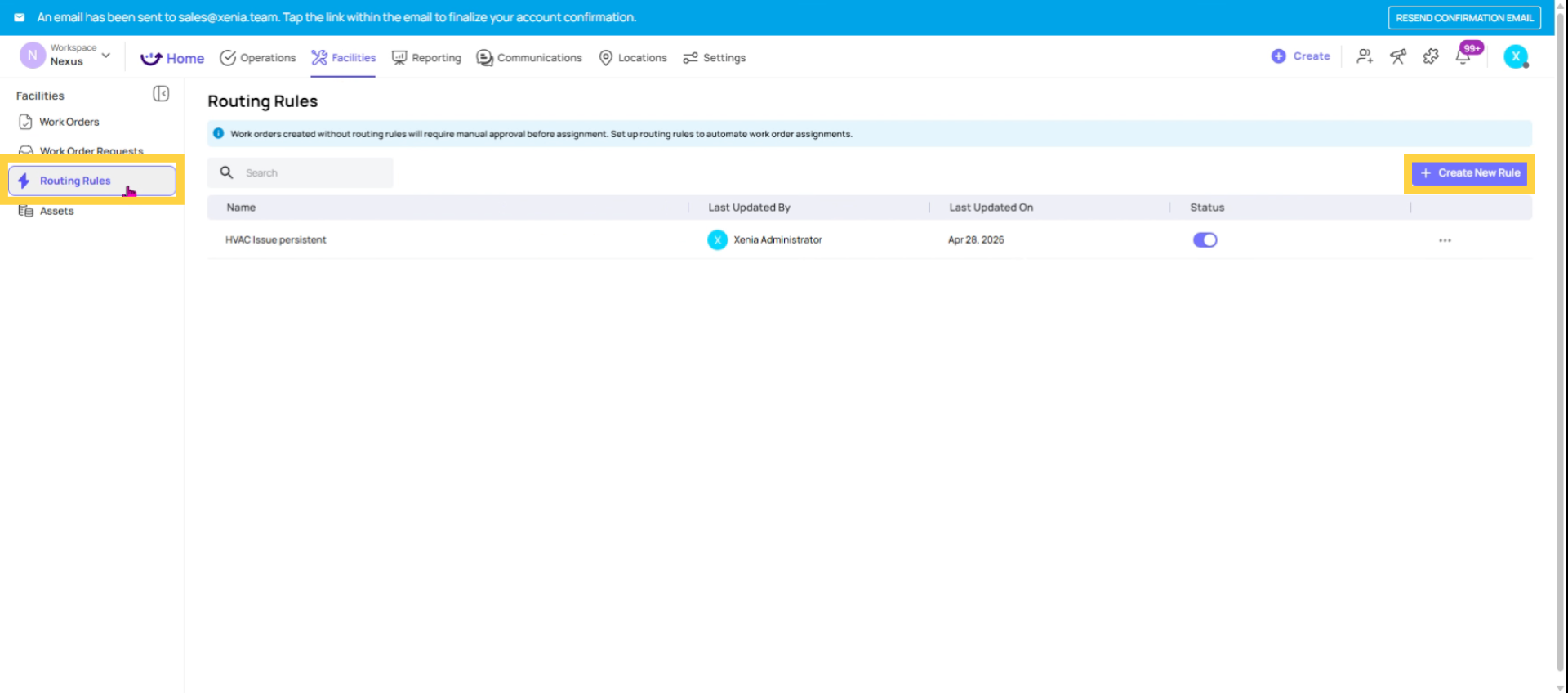
- Go to Facilities → Routing Rules
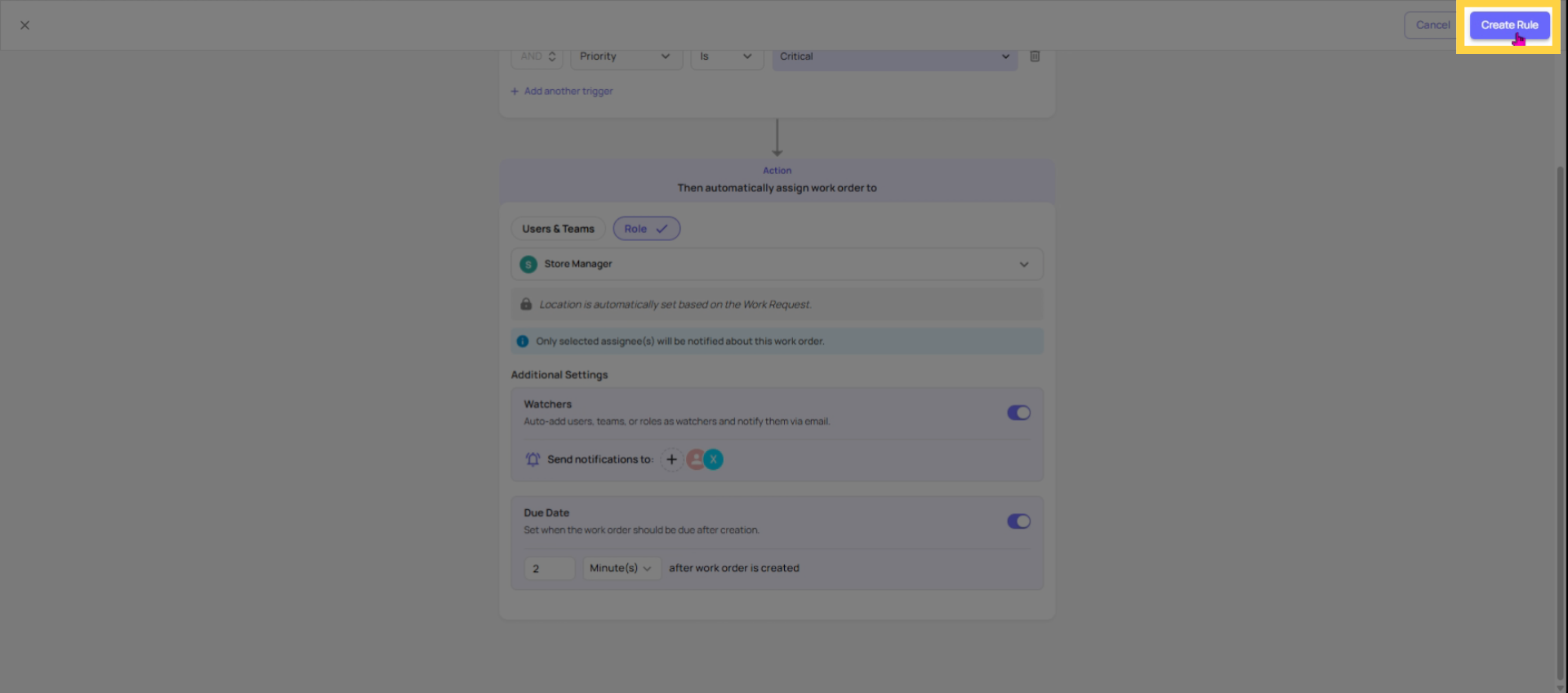
- Click + Create Rule
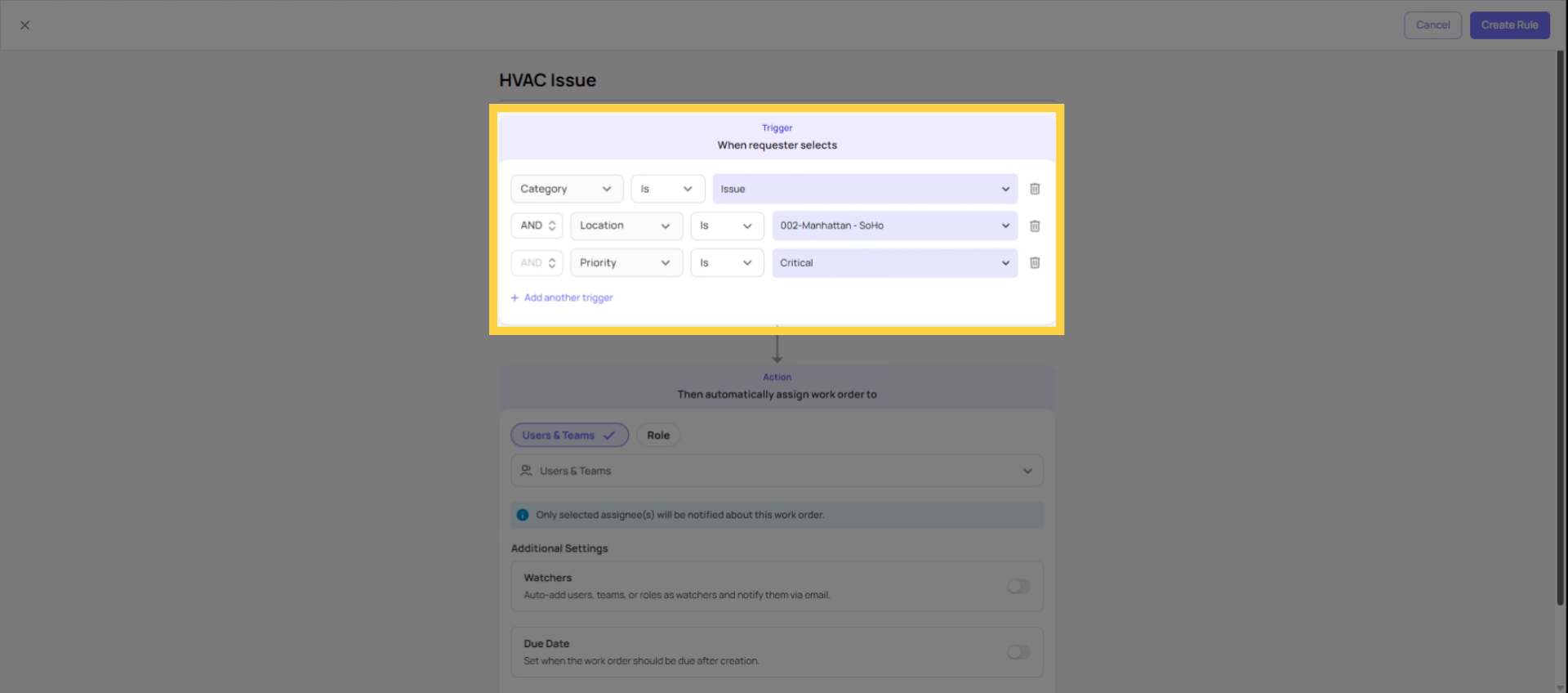
- Set the condition(s):
- Select Category (e.g., HVAC) and/or Priority (e.g., Critical)
- Optionally add a Location if the rule should only apply at specific stores
- Combine multiple conditions with AND for more precision
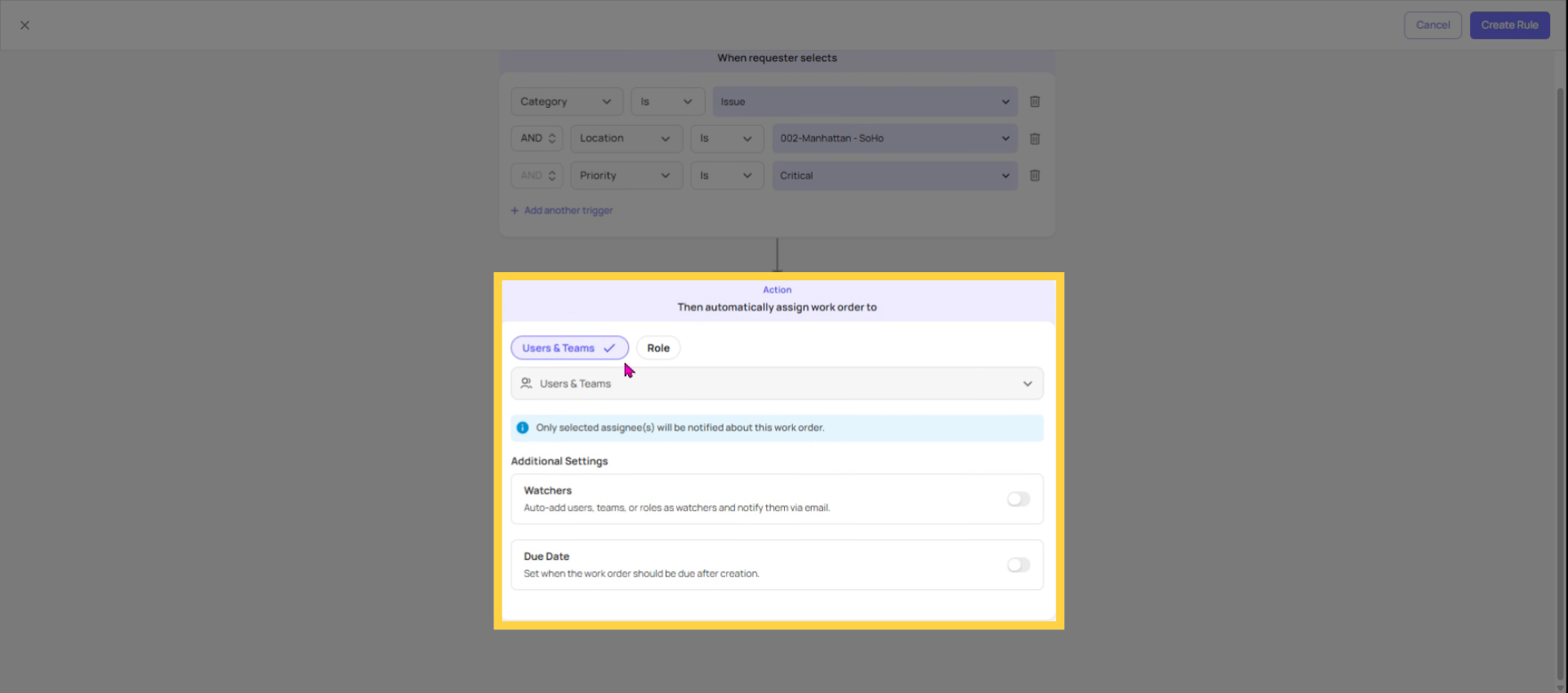
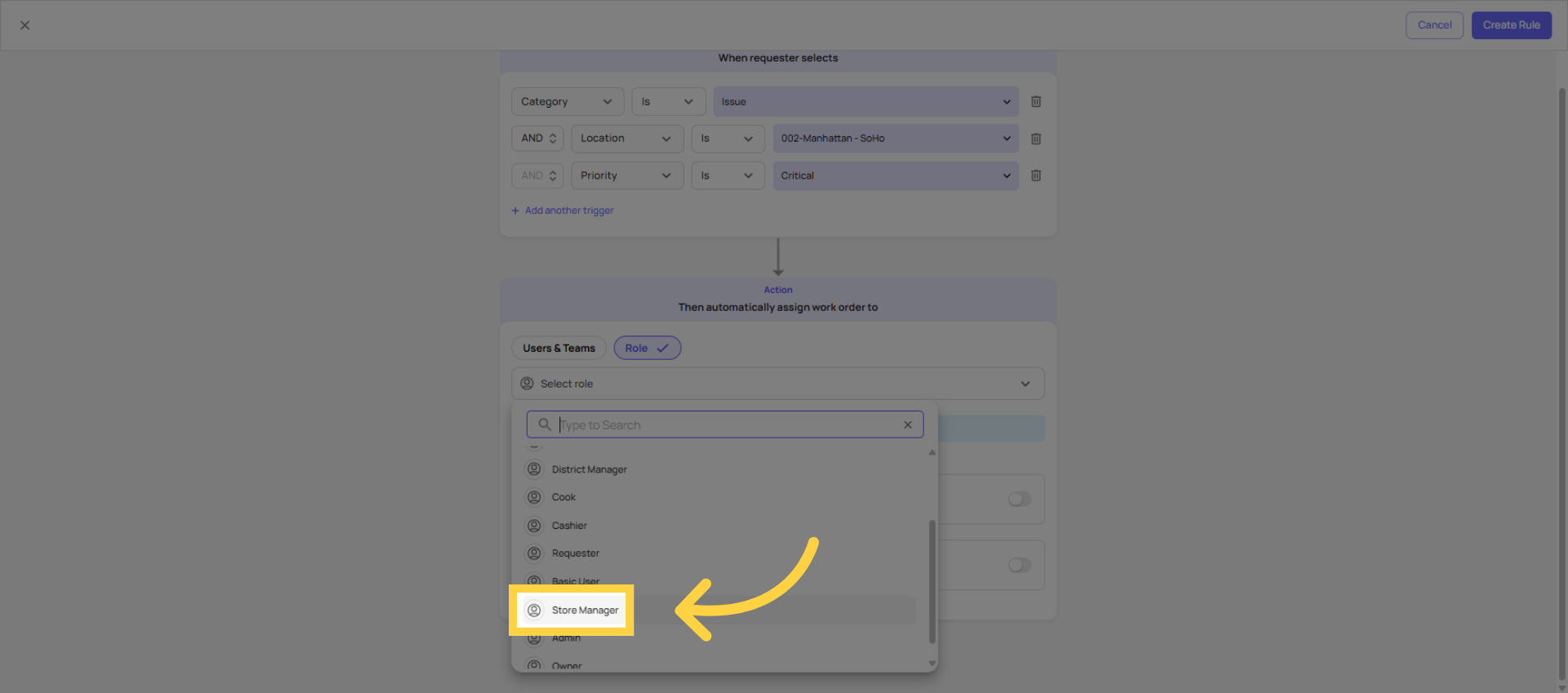
- Set the assignee:
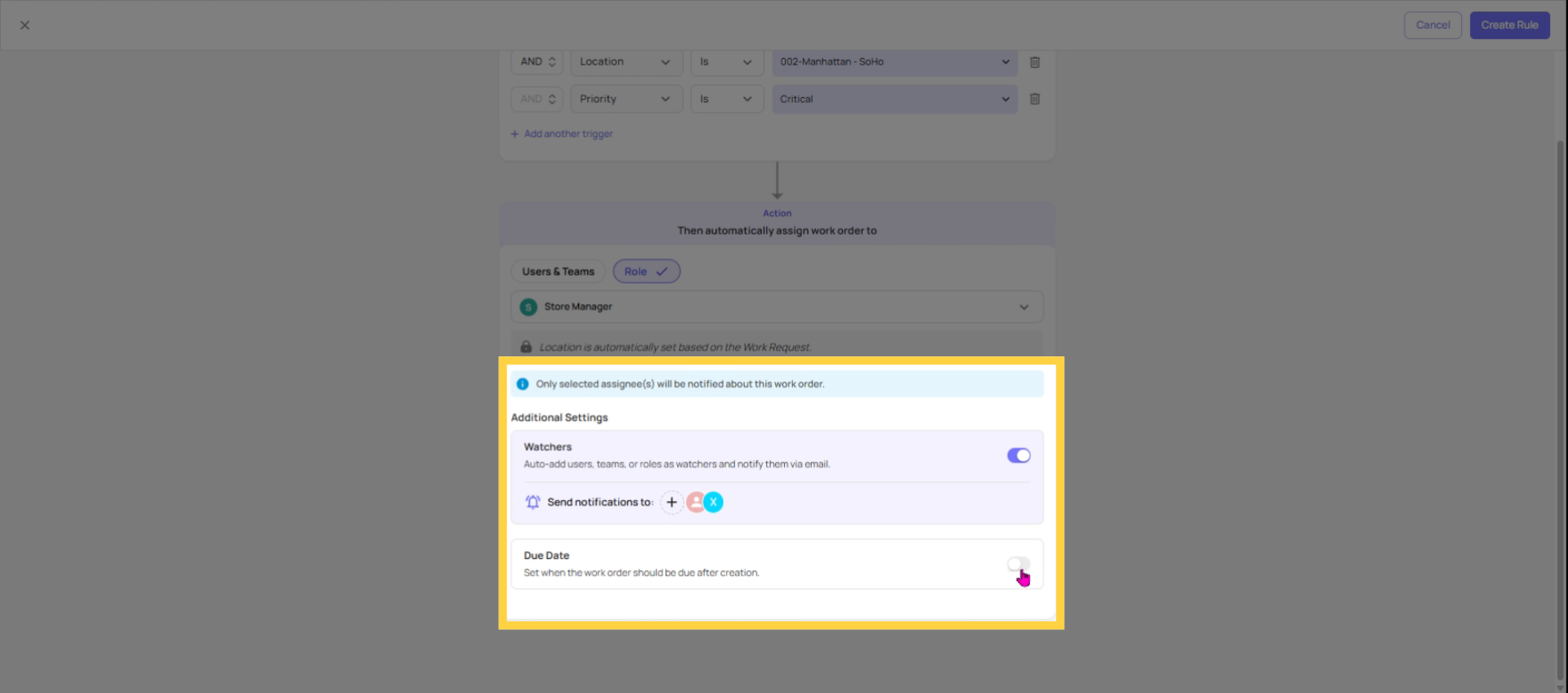
- Role (single-select) — recommended. When Role is selected, the Location selector is hidden because Xenia automatically uses the location from the request itself to route to the correct role member. The right person at the right store gets the task automatically.
- Team (multi-select) — all members of the selected team receive the Work Order
- Specific user(s) (multi-select) — one or more named individuals always receive this type of request, regardless of location
- Set a Relative Due Date (optional) — how many hours or days the assignee has to complete the Work Order after it's created. "Critical HVAC issue — due in 2 hours."
- Add Watchers (optional) — roles, teams, or users who receive notifications when this type of Work Order is created, updated, or completed without being the primary assignee
- Click Save Rule
The rule is now live and applies to all future Work Requests that match the conditions. Existing requests in the inbox are not retroactively affected.
4. Practical Rule Examples and Rule Conflict
| Rule Name | Condition | Assignee |
| Critical requests → Maintenance immediately | Priority = Critical | Maintenance Team |
| Safety issues → Facilities Manager | Category = Safety | Facilities Manager role |
| HVAC issues → HVAC Technician | Category = HVAC | HVAC Technician role |
| Any urgent request → Auto-assign + notify GM | Priority = High OR Critical | Maintenance role + GM as Watcher |
| Location-specific equipment → Regional tech | Category = Equipment AND Location = Southeast Region | Regional Tech Team |
If two rules could apply to the same incoming request (e.g., one rule fires on Category = Safety and another fires on Priority = Critical, and the request is both critical and safety-related), Xenia will flag the conflict. Conflicting rules are visually indicated in the Routing Rules table with a warning.
Resolve conflicts by: making conditions more specific so the rules don't overlap, or archiving the less-specific rule in favor of the more targeted one.
 Auto-Route vs. Manual Review — The Decision
Auto-route when:
- The category and appropriate team are always the same — HVAC always goes to your HVAC contractor, plumbing always goes to maintenance
- The priority is high or critical — urgent issues should never wait in an inbox
- Volume is high and manual review creates a bottleneck
Keep manual review when:
- The request might be a large or expensive repair that needs approval before assigning
- The category is ambiguous and the coordinator needs to evaluate before committing resources
- The request is from a small set of locations where oversight is important
A hybrid approach works well for most operations: auto-route critical and common maintenance categories, manually review everything else.
This article explained how to set up and manage routing rules in Xenia Nexus to automate work order assignments, reduce delays, and handle conflicts effectively. For more information, see related articles on work order management and team assignments.
Need Help?
Reach out to our Support Team at Support@xenia.team
Comments
0 comments
Please sign in to leave a comment.