
1. What Conditional Visibility Is
Conditional visibility lets you show or hide entire sections of a checklist based on location attributes. The form dynamically adjusts to show only the questions that apply at the location where it's being submitted.
Without conditional visibility: you'd need a separate template for every location type. A drive-through template for locations with drive-throughs. A different template for locations without one. Two templates to maintain, keep in sync, and update whenever anything changes.
With conditional visibility: one template. At a drive-through location, the drive-through section appears. At a non-drive-through location, that section is automatically hidden. Same form, different experience, correct every time.
2. The Prerequisite: Location Groups
Conditional visibility works through Location Groups — named sets of locations that share an attribute. Location Groups are configured under Settings → Locations → Groups.
Examples:
- "Has Drive-Thru" — only locations with a drive-through service window
- "Deli Locations" — only locations with a deli
- "Outdoor Seating" — only locations with patio seating
- "Full-Service Kitchen" — locations with a full commercial kitchen
Before building conditional visibility into a template, confirm the Location Group you need already exists. If not, create it in Settings first.
3. How to Set Conditional Visibility on a Section
- Open the template → Edit → Build tab
- Click on the section header (not an individual step — visibility is set at the section level)
- Look for the visibility icon (eye icon) or a Set Visibility option
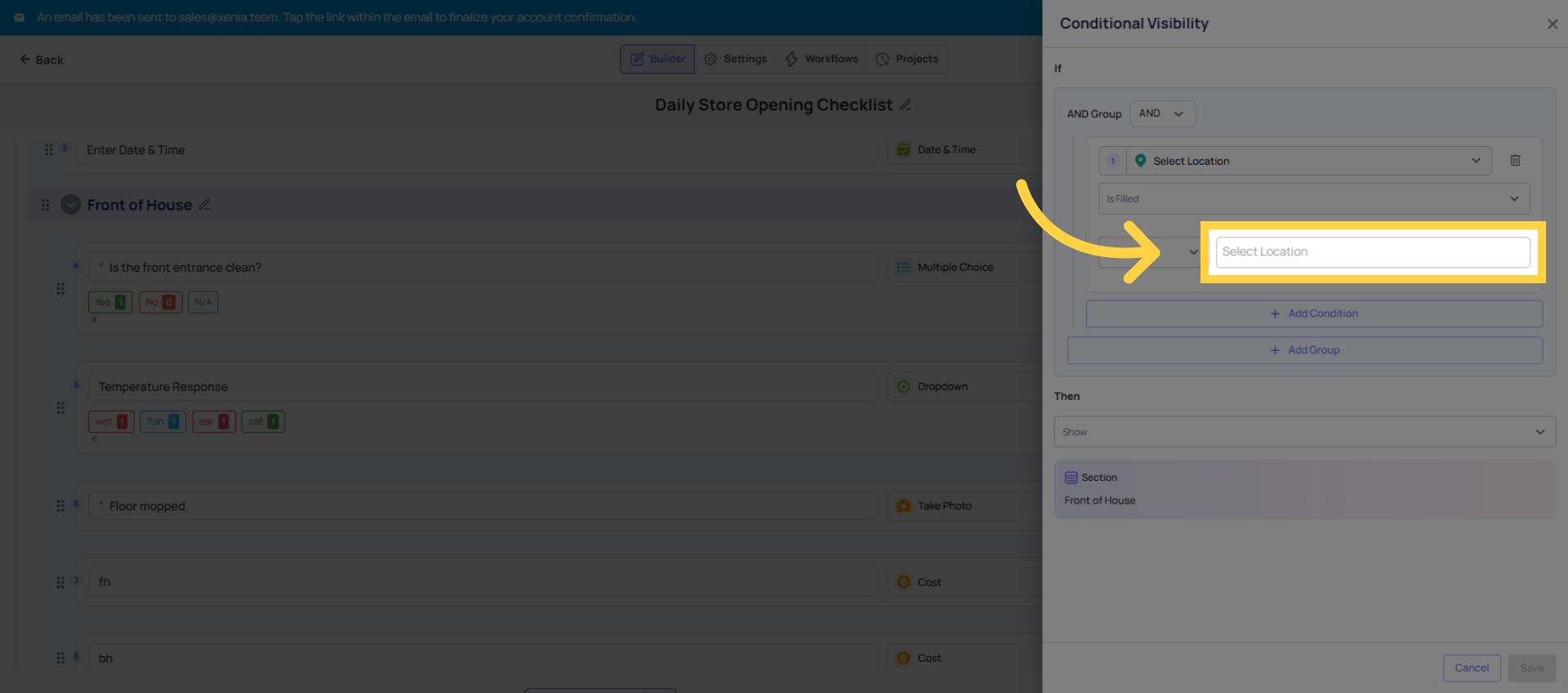
- Click it → a visibility condition panel opens
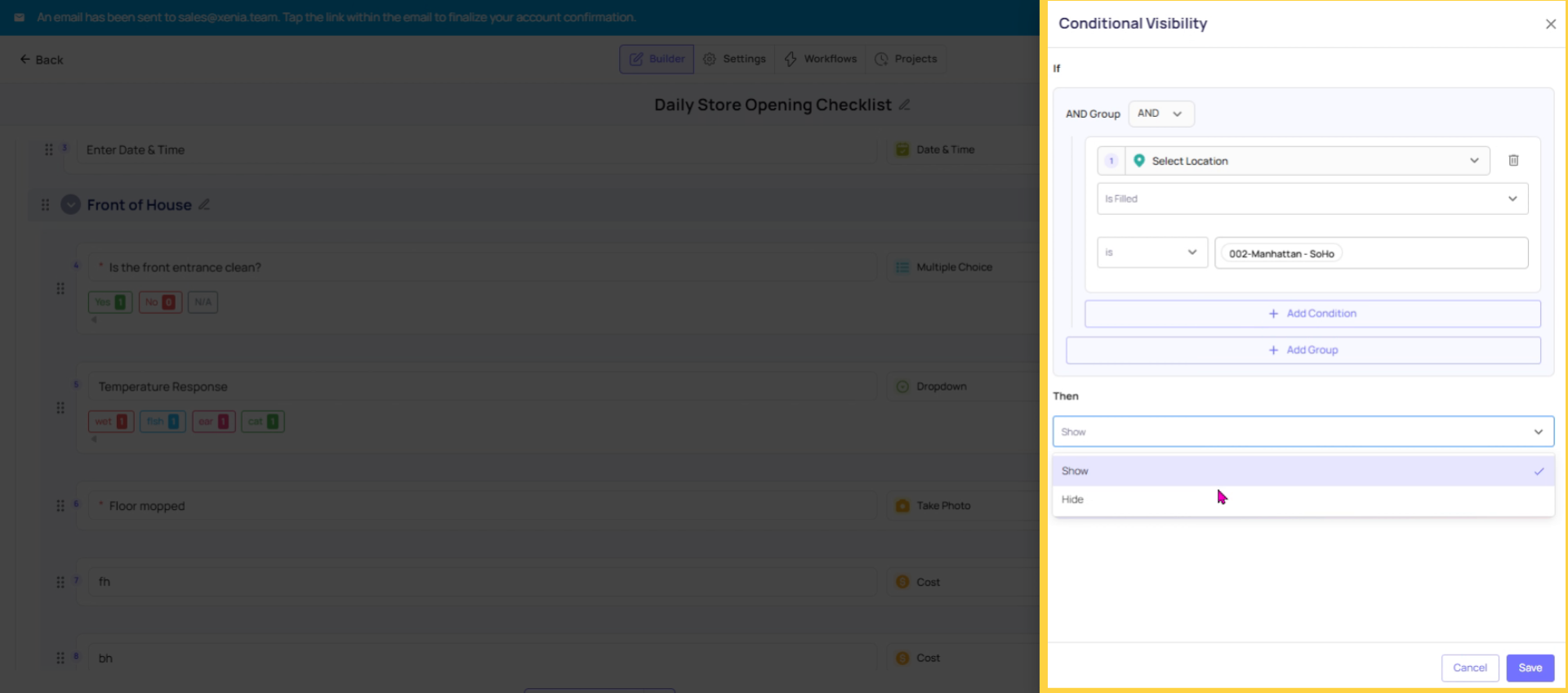
- Set the condition: "If location is in group [Group Name]" — select the relevant group
- Save
Now that section will only appear when the form is submitted from a location in that group. At all other locations, the section is hidden and its steps are excluded from submission requirements.
4. Steps Within Hidden Sections
When a section is hidden by conditional visibility, any Required steps within it are also effectively excluded. The employee won't be blocked from submitting because of a step in a section that's hidden from them. The submission engine knows which steps are applicable at that location.
This is critical for audit scoring: if a section is hidden, its steps are excluded from the score calculation — they're treated as null/not applicable automatically. The location's score is only based on the sections that are relevant to them.
5. Multiple Visibility Conditions on Different Sections
You can configure conditional visibility on each section independently. A template might have:
- "Front of House" — always visible (no condition — shows at all locations)
- "Drive-Through" — visible only at "Has Drive-Thru" group locations
- "Deli Area" — visible only at "Deli Locations" group locations
- "Kitchen" — always visible
- "Outdoor Seating" — visible only at "Outdoor Seating" group locations
One template serves all your location types. Each location sees exactly the sections that apply to them.
Individual Step Visibility
Conditional visibility can also be applied to individual steps within a section, not just section-level. The same mechanism — if location is in group X — applies. Use step-level visibility for finer control when only one or two specific questions within a section need to be hidden at certain locations.
Need Help?
Reach out to our Support Team at Support@xenia.team
Comments
0 comments
Please sign in to leave a comment.