
1. What Custom Fields Are
Custom Fields are additional data fields added to the Work Order form beyond the standard fields (title, description, location, assignee, priority, category, due date). They let you capture organization-specific information that the standard form doesn't include.
Every facilities operation has data requirements that are specific to their context:
- A property management company needs to capture the tenant name and unit number on every Work Order
- A restaurant group needs to capture which piece of equipment is affected (asset ID)
- A golf club needs to capture whether the issue requires a vendor or can be handled in-house
- A fuel network needs to capture whether the issue is warranty-covered
Custom Fields are how that organization-specific data gets captured on every Work Order, consistently, every time — rather than buried in description text where it can't be filtered or reported on.
2. Where to Configure Custom Fields
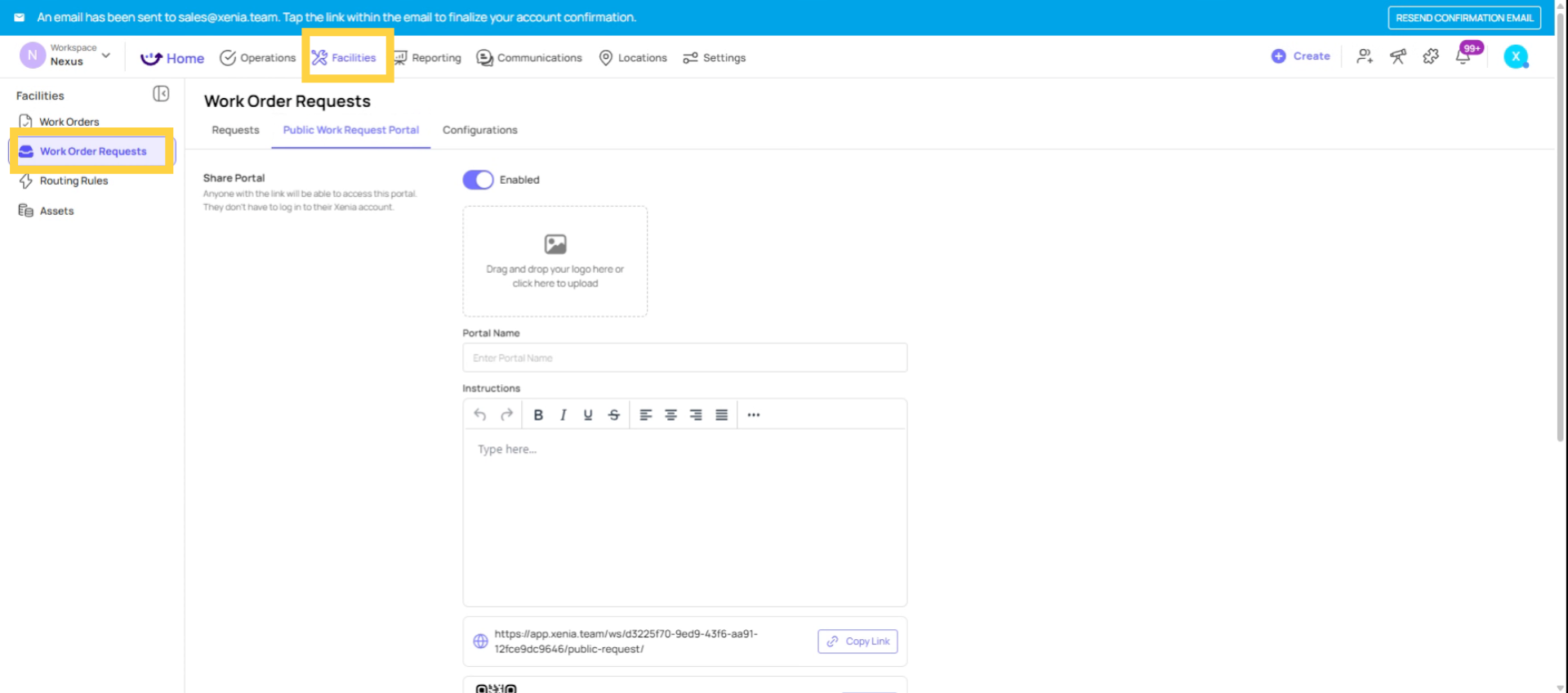
Custom Fields for Work Orders are configured at the workspace settings level, not per individual Work Order.
- Go to Settings (gear icon or Settings tab)
- Find Work Orders or Facilities settings
- Look for Custom Fields configuration
- Add, edit, or remove fields
Changes to custom fields apply to all Work Orders in the workspace going forward.
3. Custom Field Types Available
Text field: Free-form text input. Best for descriptions, notes, vendor names, or any open-ended information. Example: "Vendor Name," "PO Number," "Reported By"
Number field: Numeric input with optional unit. Best for quantities, measurements, or cost tracking. Example: "Estimated Repair Cost ($)," "Parts Quantity," "Asset ID Number"
Dropdown / Select: A list of predefined options the creator selects from. Best for categorizing, routing, or filtering. Example: "Repair Type" (Electrical, Plumbing, HVAC, Equipment), "Warranty Status" (In Warranty, Out of Warranty, Unknown), "Vendor Required?" (Yes, No, Pending)
Date field: A date picker. Best for scheduling-related information beyond the due date. Example: "Equipment Last Serviced," "Next Scheduled Maintenance Date," "Estimated Parts Arrival Date"
Checkbox: A true/false toggle. Best for simple yes/no attributes. Example: "Tenant Notified," "Permit Required," "Photo of Issue Attached"
4. Making Fields Required
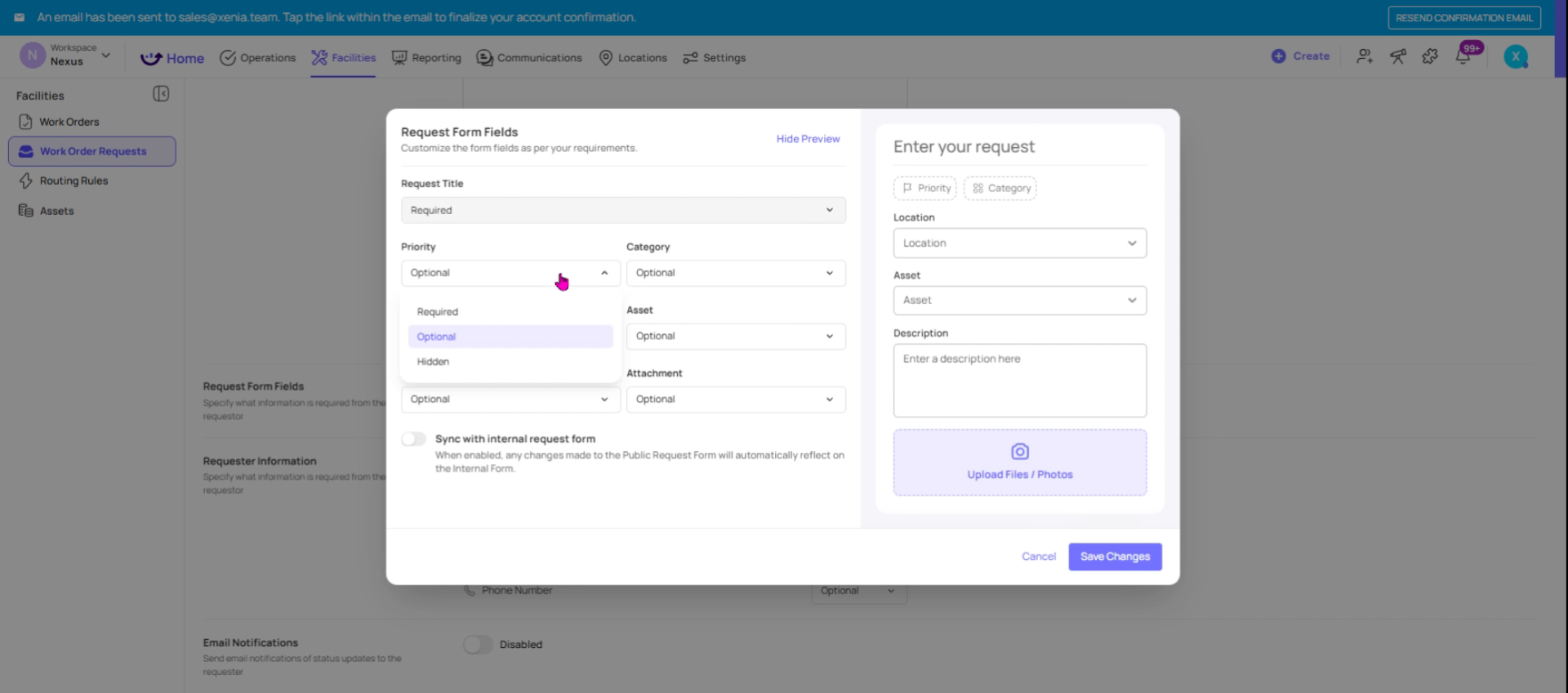
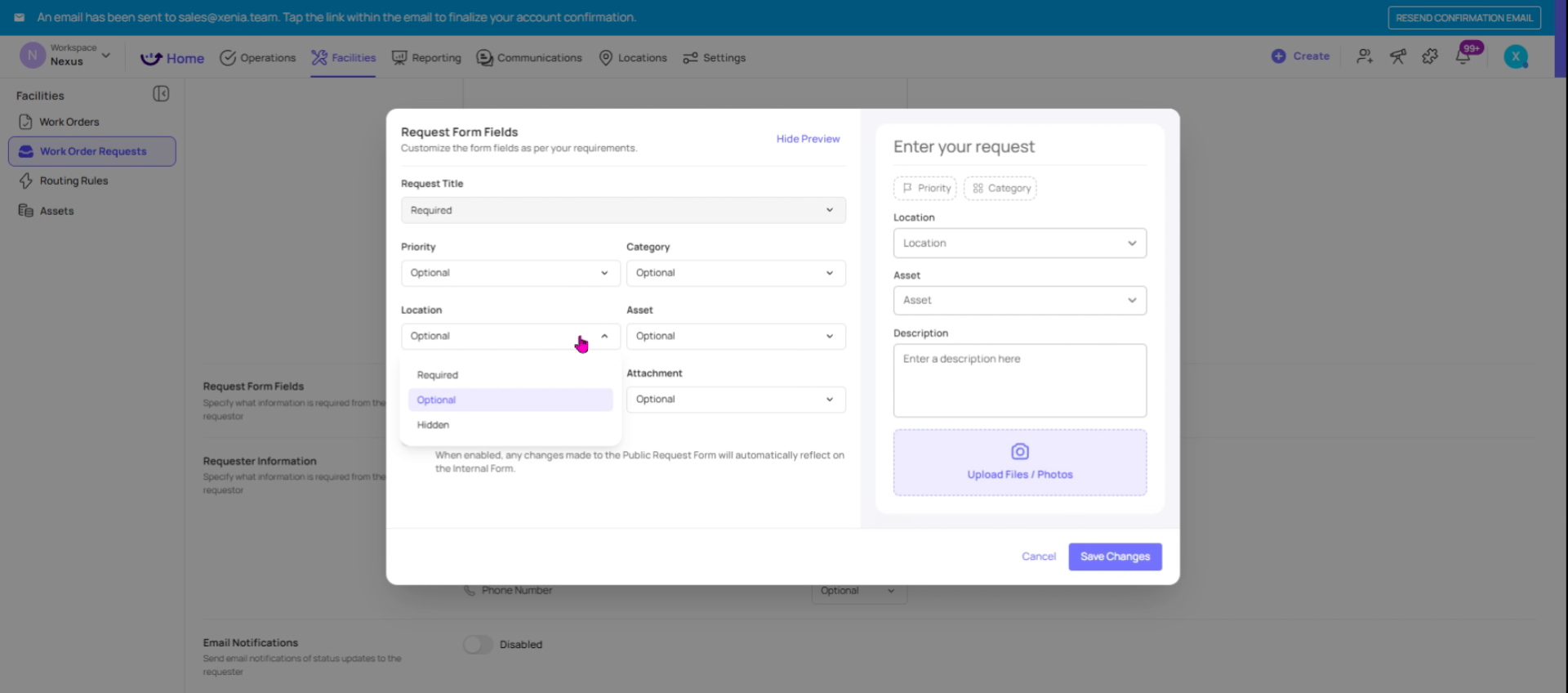
Each custom field can be set as required or optional. Required custom fields block Work Order creation until they're filled in — the same behavior as required steps in a checklist.
When to make required: Fields that are essential for routing, reporting, or compliance. If your Work Order dashboard is built to filter by "Repair Type" and that field is never filled in, the dashboard is useless. Make Repair Type required.
When to leave optional: Fields that only apply to some Work Orders. A "Tenant Name" field is relevant for property maintenance requests but not for internal maintenance work.
5. Practical Custom Field Examples by Organization Type
Restaurant / Food Service:
- Equipment Name or ID (text or dropdown)
- Station (Hot Line, Cold Prep, Dishwashing, Front of House)
- Vendor Required? (Yes/No)
- Health Code Impact? (Yes/No — flags for compliance review)
Property Management:
- Tenant Name
- Unit/Suite Number
- Lease Expiration Date
- Repair Covered by Lease? (Yes/No)
Golf Club / Country Club:
- Area of Club (Course, Pro Shop, Clubhouse, Pool, Restaurant)
- Equipment Type (Golf Cart, Irrigation, HVAC, Kitchen Equipment)
- Member-Facing Issue? (Yes/No — affects urgency)
Fuel / Convenience:
- Pump/Dispenser Number
- Island Location
- Regulatory Impact? (Yes/No)
- Warranty Status
6. Custom Fields in Reporting
Once custom fields are configured and being used consistently, they become filterable data in your Work Order reports and dashboards. A dashboard widget showing "Work Orders by Repair Type" only works if Repair Type is a custom field that's being populated. A report filtered to "Warranty Work Orders" only works if Warranty Status is a custom field.
The investment: Custom fields take a few minutes to configure. The payoff is structured, filterable data that turns your Work Order board from a to-do list into an operational analytics tool.
Need Help?
Reach out to our Support Team at Support@xenia.team
Comments
0 comments
Please sign in to leave a comment.