
1. Why Work Order Status Matters
Status is the primary mechanism for tracking a Work Order from the moment it's created to the moment it's resolved. The status board tells a facilities manager at a glance what's pending, what's being worked on, what's been resolved, and what's overdue. Without accurate status updates, the board is noise rather than signal.
The expectation: Every person assigned to a Work Order should update the status in real time as the work progresses. A Work Order sitting at Open two days after it was accepted isn't information — it's a gap.
2. The Statuses
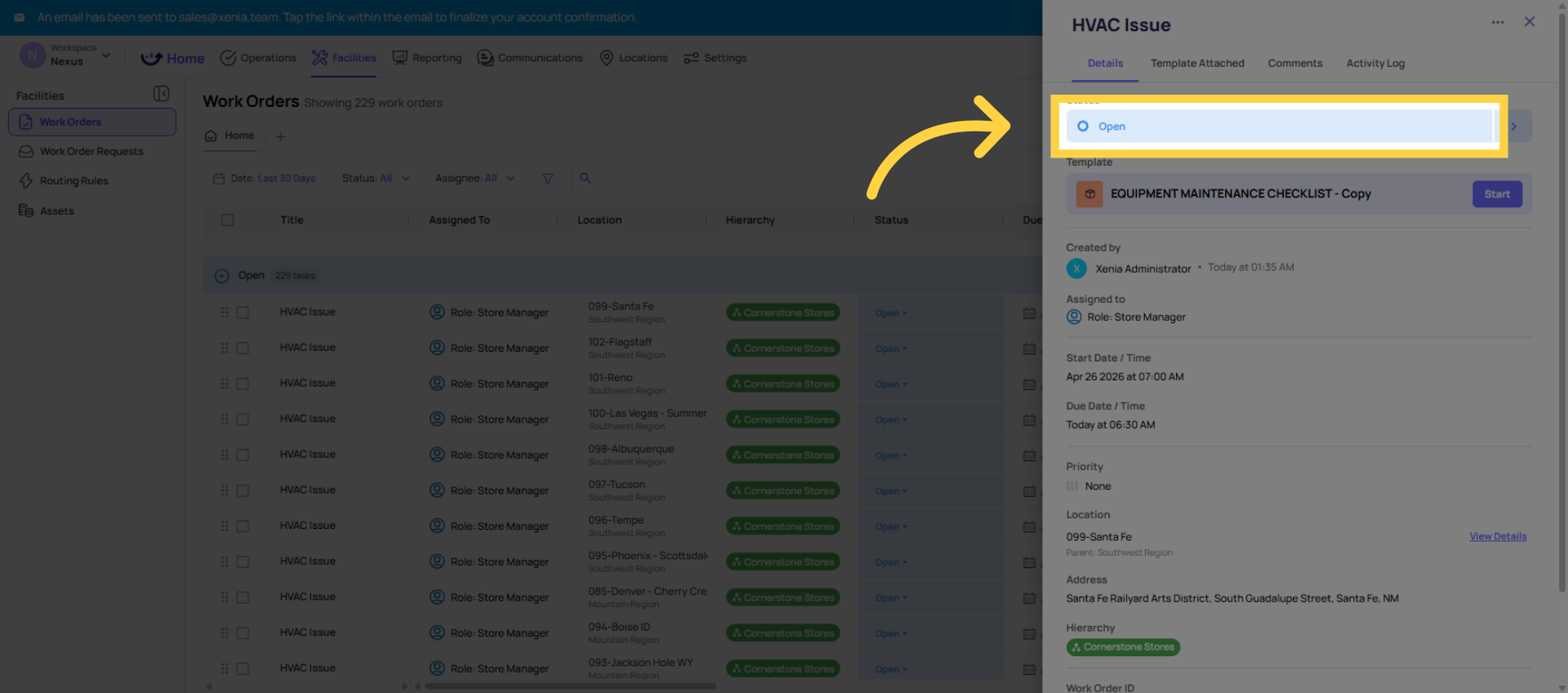 In Progress The assignee has opened the Work Order and begun the repair or maintenance work. They update the status manually by opening the Work Order and changing the status field. The status change is reflected immediately for all viewers.
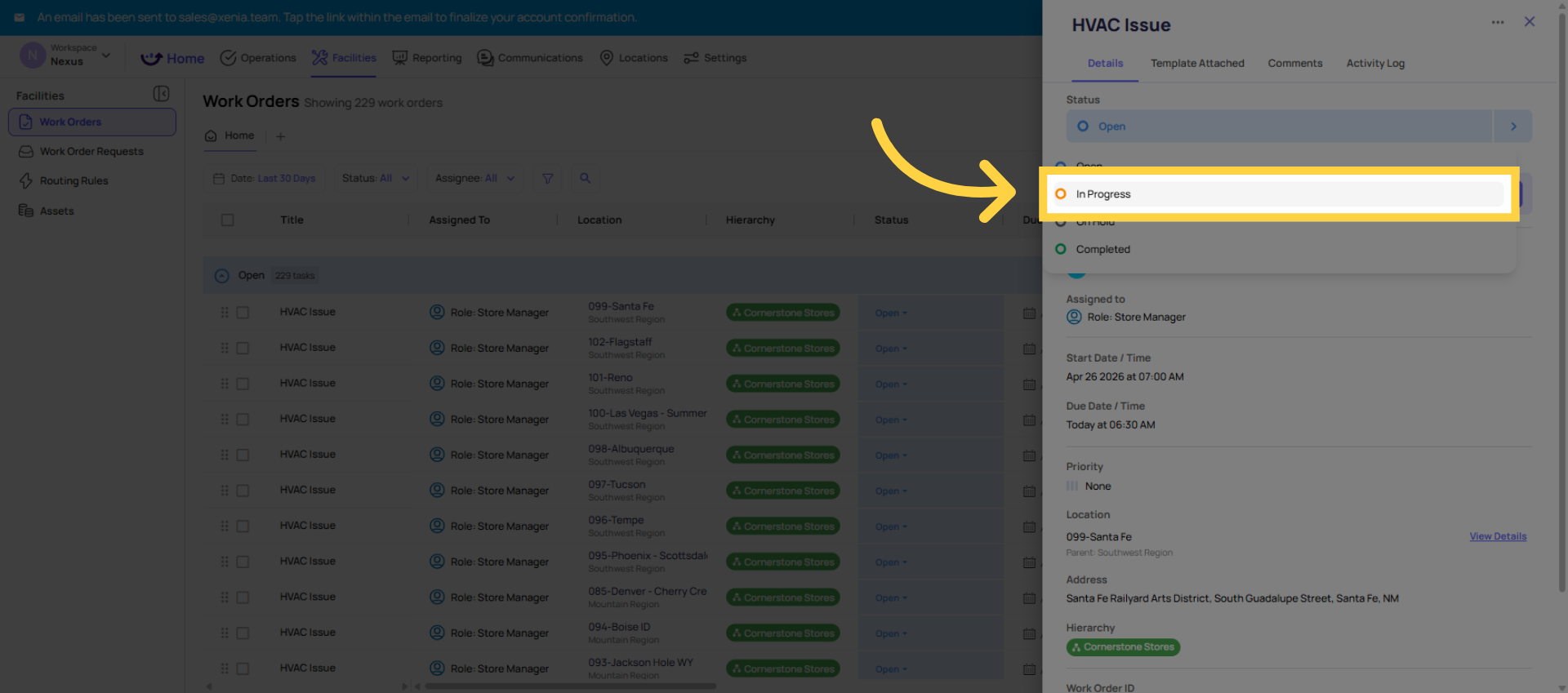 On Hold Work has been paused — waiting for a part, a vendor, additional approval, or a follow-up inspection. Use On Hold when the assignee can't complete the work right now but the Work Order isn't abandoned. Keeping it separate from Open helps the manager understand what's actively blocked vs. what's just waiting to be started.
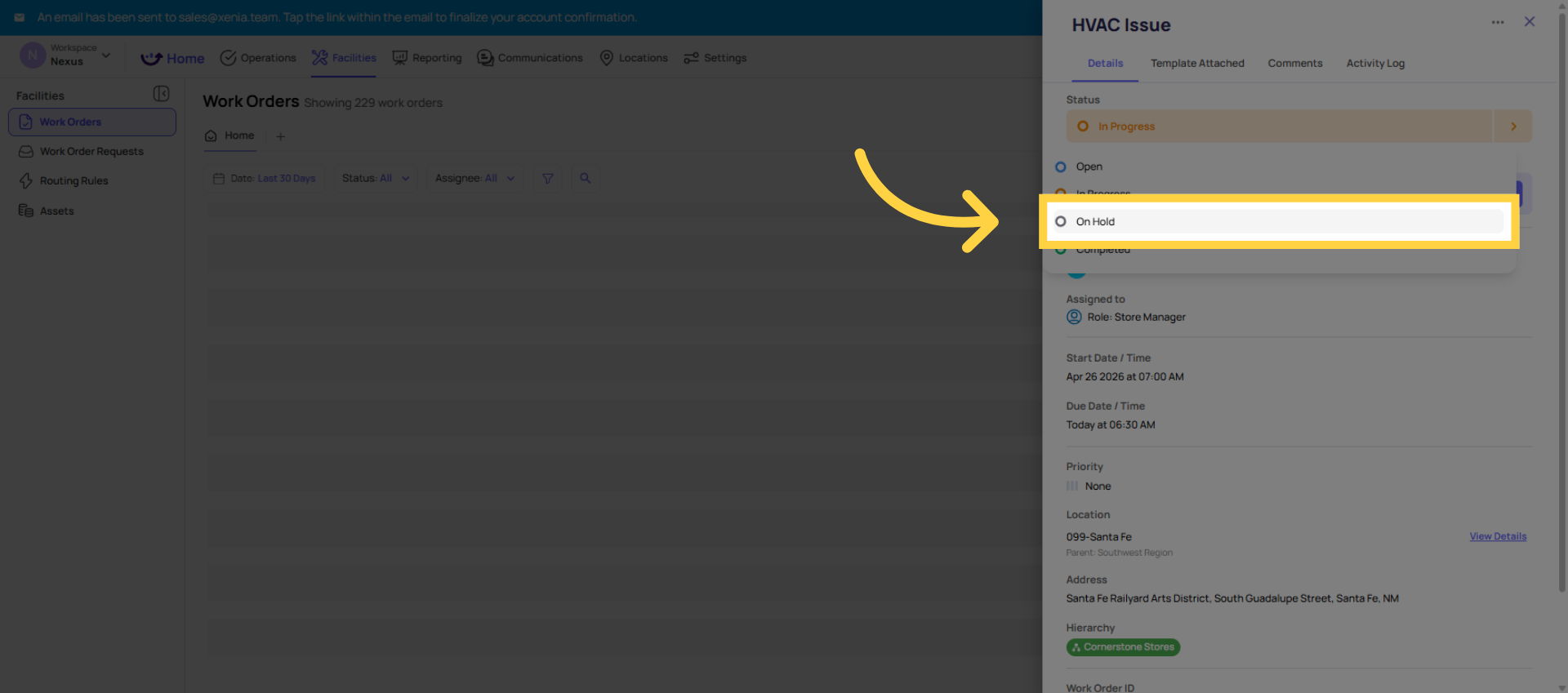 Completed The work is done. The assignee marks the Work Order as complete, typically after adding a completion comment and any post-repair photos as documentation. The Work Order is closed and archived. The completion timestamp is stored in the record.
3. Status at a Glance
| Status | Who's Responsible | Action Required |
| Open | Assignee | Begin work, update to In Progress |
| In Progress | Assignee | Complete the work, document it |
| On Hold | Assignee / Manager | Resolve the blocker, resume work |
| Overdue | Assignee + Manager | Complete immediately or escalate |
| Completed | Done | Review if needed, close the loop |
4. How to Update Status
On web: Open the Work Order → find the Status field in the detail panel → click to change it to the appropriate status.
On mobile: Work tab → Work Orders → open the Work Order → tap the status field → select the new status. The change is immediate and visible to all viewers of that Work Order.
Best practice: Update status as work progresses, in real time. A Work Order that's been In Progress for 5 days without any update or a completion isn't information — it's a gap in visibility. If work is genuinely blocked, move it to On Hold and add a comment explaining why.
Adding Comments and Photos on Status Updates
When updating a Work Order status — especially when marking it Completed — add a comment and any relevant photos. Good completion documentation includes:
- What was done to resolve the issue
- Any parts used or replaced
- A photo showing the repaired item in its corrected state
- Any follow-up actions that may be needed
This creates an activity log on the Work Order — every status change, every comment, every photo attached is timestamped and visible in the Work Order's history. This history is the facilities record and may be referenced for compliance, insurance, or future maintenance decisions.
Need Help?
Reach out to our Support Team at Support@xenia.team
Comments
0 comments
Please sign in to leave a comment.